
1. Introduction
The Zunate 5G Dual-Band Portable WiFi Router is a mobile hotspot device designed to provide high-speed internet access for multiple users on the go. It supports 5G and Wi-Fi 6 standards, offering a reliable and fast connection for up to 16 devices simultaneously. This manual provides essential information for setting up, operating, and maintaining your device.
2. Product Features
- High-Speed Network: Supports 5G and Wireless Fidelity 6 (802.11ax) for faster speeds, extended range, and improved performance.
- Compact and Portable: Designed for easy transport, fitting conveniently into a pocket for internet access anywhere.
- Dual-Band Connectivity: Operates on both 2.4 GHz and 5.8 GHz bands, supporting 802.11 a/b/g/n/ac/ax protocols for smooth data transfer.
- Shared Connection: Allows up to 16 devices (mobile phones, laptops, tablets, gaming consoles) to connect simultaneously while maintaining a private and secure network.
- Long-Lasting Battery: Equipped with a built-in 4400 mAh high-capacity battery for extended usage without frequent recharging.
- Intuitive Display: Features an LCD screen for easy monitoring of network status, battery level, and connected devices.
3. Package Contents
Please check the package for the following items:
- 1 x Zunate 5G Mobile Hotspot
- 1 x USB Charging Cable
- 1 x User Manual
- 1 x Protective Film

Image: The Zunate 5G Mobile Hotspot device shown alongside its USB charging cable and a protective film.
4. Device Layout

Image: A diagram illustrating the Zunate 5G Mobile Hotspot from multiple angles, highlighting key components such as the SIM card insertion port, Type-C port, Force power off button, Power on button, Menu Button, and Display.
- SIM Card Insertion Port: Slot for inserting your Nano SIM card.
- Type-C Port: Used for charging the device and USB network sharing.
- Force Power Off Button: For emergency shutdown.
- Power On Button: To turn the device on or off.
- Menu Button: For navigating the device's on-screen menu.
- Display: LCD screen showing device status and information.
5. Setup Guide
5.1. Inserting the SIM Card
- Locate the SIM card insertion port on the side of the device (refer to Device Layout).
- Carefully insert a Nano SIM card into the slot with the gold contacts facing down and the notched corner aligned correctly.
- Ensure the SIM card is fully seated.
5.2. Charging the Device
- Connect the provided USB charging cable to the Type-C port on the device.
- Connect the other end of the USB cable to a compatible 5V 2A USB power adapter (not included) or a computer's USB port.
- The display will indicate charging status. Fully charge the device before first use.
5.3. Powering On/Off
- To Power On: Press and hold the Power On button until the display lights up.
- To Power Off: Press and hold the Power On button until the power-off option appears on the screen, then confirm. Alternatively, a short press might bring up a menu to power off.
- Force Power Off: In case of unresponsiveness, use a pin to press the Force Power Off button.
6. Operating Instructions
6.1. Connecting Devices to WiFi
- Ensure the Zunate 5G Mobile Hotspot is powered on and has an active SIM card with a data plan.
- On your device (phone, laptop, tablet), open the Wi-Fi settings.
- Search for available Wi-Fi networks. The hotspot's network name (SSID) and password will be displayed on the device's LCD screen.
- Select the hotspot's SSID and enter the password to connect.
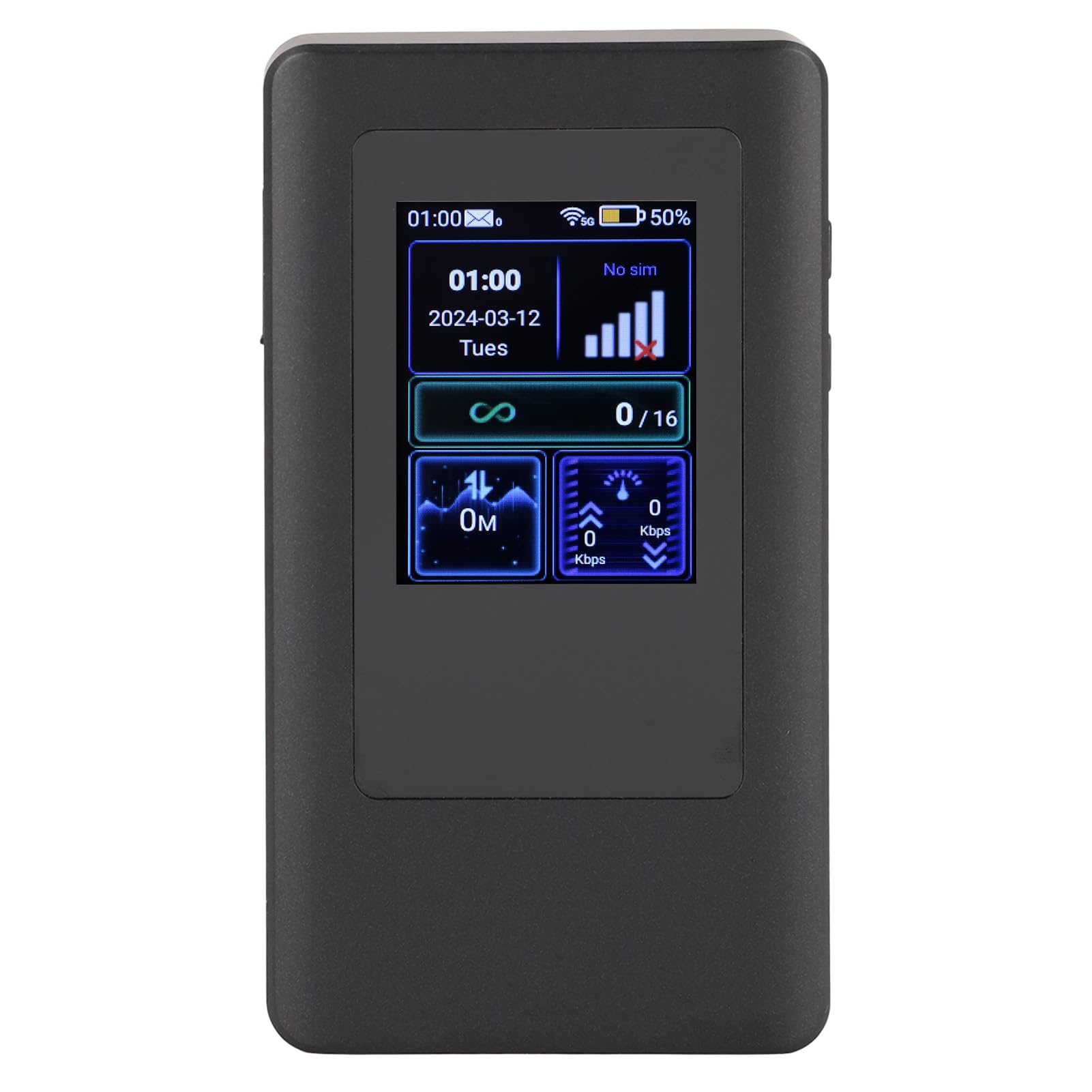
Image: The Zunate 5G Mobile Hotspot's color display showing current time, date, network signal strength, battery percentage, SIM status, and the number of connected users (e.g., 0/16).
6.2. Understanding the Display
The LCD display provides real-time information about your hotspot's status:
- Time and Date: Current time and date.
- Signal Strength: Indicates the strength of the 5G/4G cellular signal.
- Battery Level: Shows the remaining battery percentage.
- SIM Status: Indicates if a SIM card is detected and active.
- Connected Users: Displays the number of devices currently connected to the hotspot (e.g., 0/16).
- Data Usage: Shows current upload and download speeds.
6.3. USB Network Sharing
You can also share the internet connection via the Type-C USB port:
- Connect the hotspot to a computer using the USB charging cable.
- On the hotspot's display, navigate to the USB sharing option (if available) and enable it.
- Your computer should detect the hotspot as a network adapter and connect to the internet.
7. Maintenance
- Battery Care: To prolong battery life, avoid exposing the device to extreme temperatures. Charge the device regularly and avoid completely draining the battery frequently.
- Cleaning: Use a soft, dry cloth to clean the device. Do not use liquid cleaners or abrasive materials.
- Storage: When not in use for extended periods, store the device in a cool, dry place.
- Software Updates: Check the manufacturer's website or device settings for any available software updates to ensure optimal performance and security.
8. Troubleshooting
- No Signal/Poor Signal: Ensure the SIM card is correctly inserted and active. Move to an area with better cellular coverage.
- Cannot Connect to WiFi: Verify the Wi-Fi password. Ensure the hotspot is powered on and broadcasting its network. Restart both the hotspot and the connecting device.
- Slow Internet Speed: Check your data plan and ensure you haven't exceeded any limits. Move to an area with better signal. Reduce the number of connected devices.
- Device Unresponsive: If the device freezes, press the Force Power Off button using a small pin to restart it.
- Battery Not Charging: Ensure the charging cable and adapter are working correctly. Check the Type-C port for any debris.
9. Specifications
| Feature | Description |
|---|---|
| Item Type | 5G Mobile Hotspot |
| Material | ABS |
| Operating System | For Android 11 (Controller: MediaTek Dimensity900, 6nm) |
| Storage | LPDDR4X 2GB RAM, EMMC 32GB ROM |
| Wireless Fidelity Chip | MT6635 |
| Bluetooth | Bluetooth 5.1 |
| Network Type | 3GPP Rel15, 5G NR, SA NSA, Sub 6G, Category 18 |
| Supported 5G Bands (EAU) | n1 n3 n5 n7 n8 n20 n28 n40 n41 n77 n78 n79 |
| Supported 4G Bands (EAU) | B1 B3 B5 B7 B8 B20 B28 B34 B38 B39 B40 B41 |
| Supported 5GNR Bands (LAM) | n2 n5 n12 n25 n66 n41 n48 n77 n78 |
| Supported 4G Bands (LAM) | b2 b4 b5 b7 b12 b13 b14 b17 b25 b26 b30 b41 b6 |
| NR Downlink/Uplink Speed | Up to 2.77 Gbps / 1.25 Gbps |
| LTE Downlink/Uplink Speed | Up to 1.2 Gbps / 150 Mbps |
| Wireless Fidelity Protocol | 802.11 a/b/g/n/ac/ax |
| Theoretical Wireless Fidelity Speed | 802.11a: 54 Mbps, 802.11b: 11 Mbps, 802.11g: 54 Mbps, 802.11n: 300 Mbps, 802.11ac: 866 Mbps, 802.11ax: 1201 Mbps |
| SIM Card Slot | Single Nano SIM (eSIM customizable) |
| USB Port | Type-C (USB2.0) for charging and network sharing |
| Display | LCD (Red, Green, Blue compatible) |
| Physical Buttons | 1 Power On/Off, 1 Reset |
| Charging | 5V 2A |
| Battery | 4400 mAh Polymer (built-in) |
| Model Number | Zunateiaxyrsohk2 |
10. Warranty and Support
10.1. Warranty Information
Specific warranty details for this product may vary by region and retailer. Please refer to the warranty card included with your purchase or contact your point of sale for detailed information regarding warranty coverage and terms.
10.2. Customer Support
If you encounter any issues not covered in this manual or require further assistance, please contact the retailer or manufacturer's customer support. Keep your purchase receipt and product model number (Zunateiaxyrsohk2) handy when seeking support.