
Genérico KA-666
Kapbom KA-666 Wireless Keyboard and Mouse Set User Manual
Model: KA-666 | Brand: Genérico
Introduction
The Kapbom KA-666 Wireless Keyboard and Mouse Set offers an efficient and comfortable solution for daily computing tasks. Featuring a slim and modern design, the keyboard provides quiet and smooth typing, making it ideal for office or home environments. The ergonomic mouse ensures precision with its advanced optical sensor. Both devices connect wirelessly via a stable USB receiver, promoting a clutter-free workspace. This set is designed for ease of use with plug-and-play functionality and long battery life.

Image: The Kapbom KA-666 wireless keyboard and mouse set in black, displayed with its packaging.
Package Contents
Please check the box for the following items:
- 1 x Kapbom KA-666 Wireless Keyboard
- 1 x Kapbom KA-666 Wireless Mouse
- 1 x USB Nano Receiver
- User Manual (this document)
Setup
1. Battery Installation
Both the keyboard and mouse require batteries for operation. Batteries are typically not included and must be purchased separately (e.g., AAA batteries for the mouse, AA for the keyboard, or as specified on the device).
- For the Mouse: Locate the battery compartment on the underside of the mouse. Open the cover, insert the required AAA batteries, ensuring correct polarity (+/-), and close the cover.
- For the Keyboard: Locate the battery compartment on the underside of the keyboard. Open the cover, insert the required batteries (usually AA or AAA, check the compartment for markings), ensuring correct polarity, and close the cover.
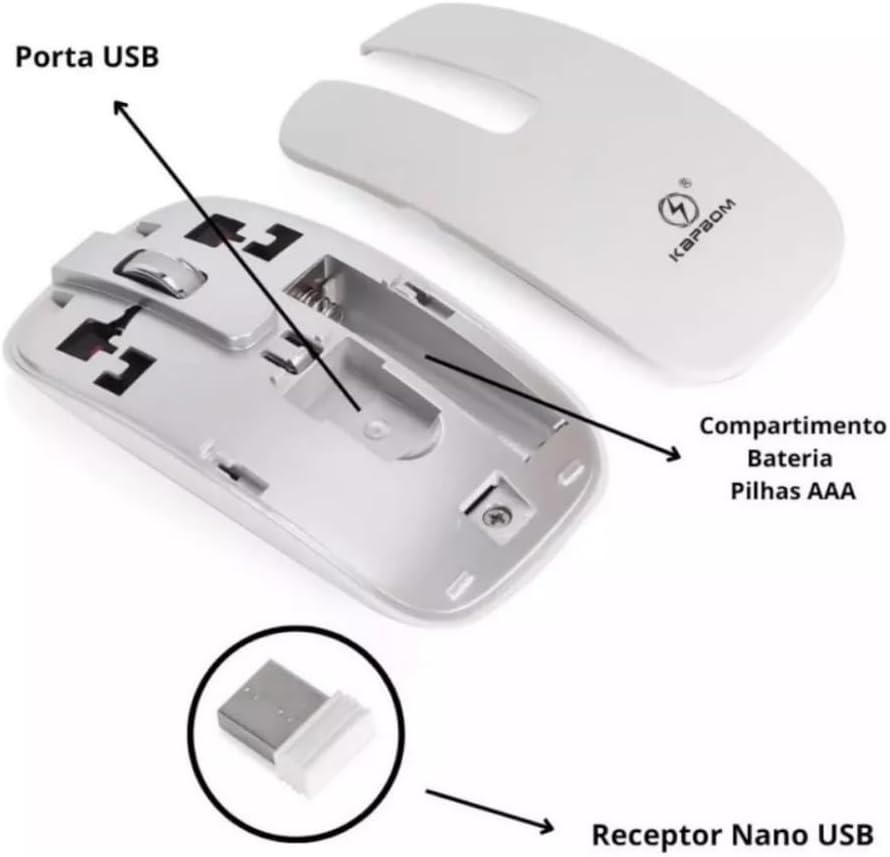
Image: Underside of the mouse showing the battery compartment and the storage slot for the Nano USB Receiver. The image points to the USB port, battery compartment for AAA batteries, and the Nano USB Receiver.
2. Connecting the USB Nano Receiver
The Kapbom KA-666 set uses a single USB Nano Receiver for both the keyboard and mouse.
- Locate the USB Nano Receiver. It is often stored inside the mouse's battery compartment for safekeeping during transport.
- Plug the USB Nano Receiver into an available USB port on your computer (PC or Notebook).
- Your operating system should automatically detect and install the necessary drivers. This is a plug-and-play device, so no manual driver installation is typically required.
- Once the receiver is recognized, the keyboard and mouse should be ready for use.
Operating Instructions
Keyboard Usage
- Typing: The keyboard features soft, silent keys for a comfortable typing experience. It typically uses a standard layout.
- Function Keys: Utilize the function keys (F1-F12) for various shortcuts, often in combination with the "Fn" key, depending on your operating system and software.
- Power Saving: The keyboard may enter a low-power sleep mode after a period of inactivity. Press any key to wake it up.
Mouse Usage
- Movement: The ergonomic design and advanced optical sensor provide precise cursor control.
- Clicking: Use the left and right buttons for standard clicking functions.
- Scroll Wheel: The scroll wheel allows for easy navigation through documents and web pages. It may also function as a middle click button.
- DPI Adjustment: The mouse offers adjustable DPI (Dots Per Inch) settings for varying cursor sensitivity. Refer to the mouse's specific buttons (if any) for DPI switching, or it may be automatically optimized.
- Power Saving: The mouse will enter a sleep mode when inactive to conserve battery. Move the mouse or click a button to reactivate it.

Image: A close-up view of the white keyboard's numeric keypad and the mouse's scroll wheel, highlighting key details and ergonomic design.
Maintenance
Battery Replacement
When the keyboard or mouse performance degrades (e.g., delayed response, erratic cursor movement), it's likely time to replace the batteries. Follow the battery installation steps outlined in the "Setup" section.
Cleaning
The Kapbom KA-666 set is designed to be resistant to splashes, offering enhanced durability. To clean your devices:
- Disconnect the USB receiver from your computer.
- Use a soft, dry, lint-free cloth to wipe down the surfaces of the keyboard and mouse.
- For stubborn dirt, slightly dampen the cloth with water or a mild, non-abrasive cleaning solution. Avoid excessive moisture.
- Do not immerse the devices in water or use harsh chemicals.
- Allow the devices to dry completely before re-connecting the USB receiver.
Troubleshooting
| Problem | Possible Cause | Solution |
|---|---|---|
| Keyboard or mouse not responding. | Low batteries; USB receiver not properly connected; device in sleep mode. | Replace batteries. Ensure USB receiver is firmly plugged into a working USB port. Move mouse or press a key to wake device. Try a different USB port. |
| Erratic cursor movement or delayed typing. | Low batteries; interference; dirty optical sensor (mouse). | Replace batteries. Move closer to the USB receiver. Ensure no large metal objects are between the devices and receiver. Clean the mouse's optical sensor with a soft cloth. |
| Device not detected by computer. | USB receiver issue; driver conflict. | Try plugging the USB receiver into a different USB port. Restart your computer. Ensure your operating system is up to date. |
Specifications
| Feature | Detail |
|---|---|
| Brand | Genérico |
| Model | KA-666 |
| Compatible Devices | Notebook, PC |
| Connection Technology | Wireless USB (2.4 GHz via Nano Receiver) |
| Keyboard Type | Membrane, Silent Keys, Slim Design |
| Mouse Type | Laser Optical, Ergonomic, Adjustable DPI |
| Power Source | Battery Powered (typically AA/AAA) |
| Product Weight | Approximately 250 g |
| Package Dimensions | 16 x 11 x 11 cm |
| Special Features | Lightweight, Splash Resistant |
Warranty and Support
This product is sold by a third-party seller. While the manufacturer's warranty is listed as "not applicable" in the specifications, standard consumer protection laws and return policies apply.
- Return Policy: The product is eligible for a 7-day return policy for refund/replacement, as per the seller's terms. Please refer to your purchase platform for specific return instructions.
- Extended Warranty: Extended warranty options may be available for purchase separately (e.g., 12 or 24 months against failures and defects). Check your purchase details for more information.
- Technical Support: For technical assistance or issues not covered in this manual, please contact the seller or the platform's customer support where you purchased the product.
Ask a question about this manual
Ask about setup, troubleshooting, compatibility, parts, safety, or missing instructions. Manuals+ will review the question and use this page’s manual context to help answer it.