
1. Product Overview
The XunFox K90 is a compact 66-key mechanical keyboard designed for efficient and responsive input. It features adjustable RGB backlighting and a durable construction. The ergonomic design aims to provide a comfortable typing experience, with keys engineered for smooth and responsive keystrokes.
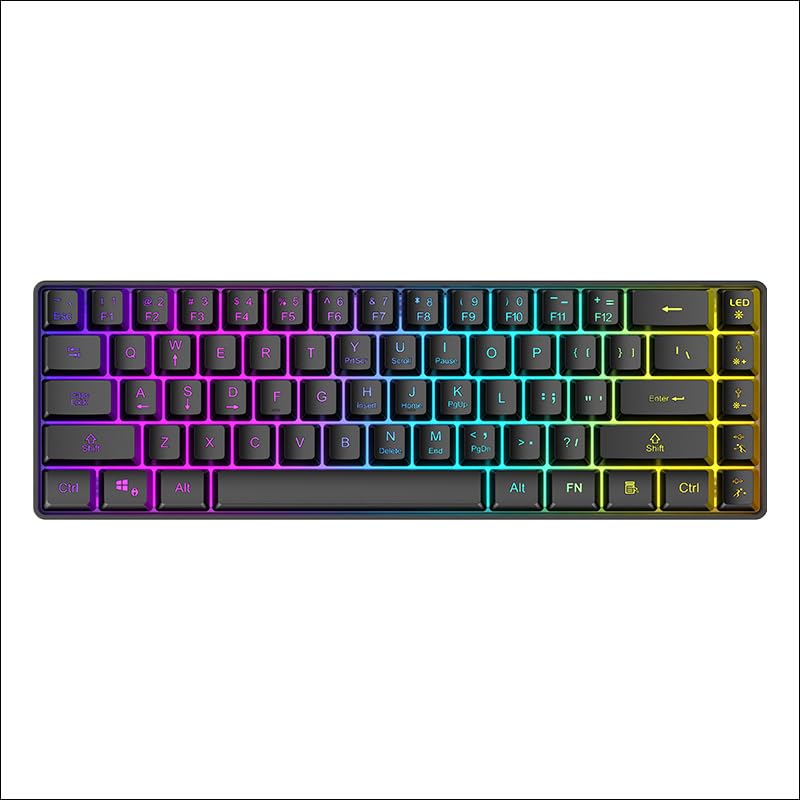
Figure 1: Top-down view of the XunFox K90 RGB Gaming Keyboard, showcasing its compact 66-key layout and vibrant RGB backlighting.
Key Features:
- Compact 66-Key Design: A minimalist layout for enhanced typing comfort and portability.
- Adjustable RGB Backlighting: Customizable lighting effects to personalize your setup.
- Durable Construction: Crafted with sturdy materials for reliable performance.
- Wired USB Connectivity: Ensures a stable and lag-free connection.
- Versatile Compatibility: Compatible with Windows and other popular operating systems.
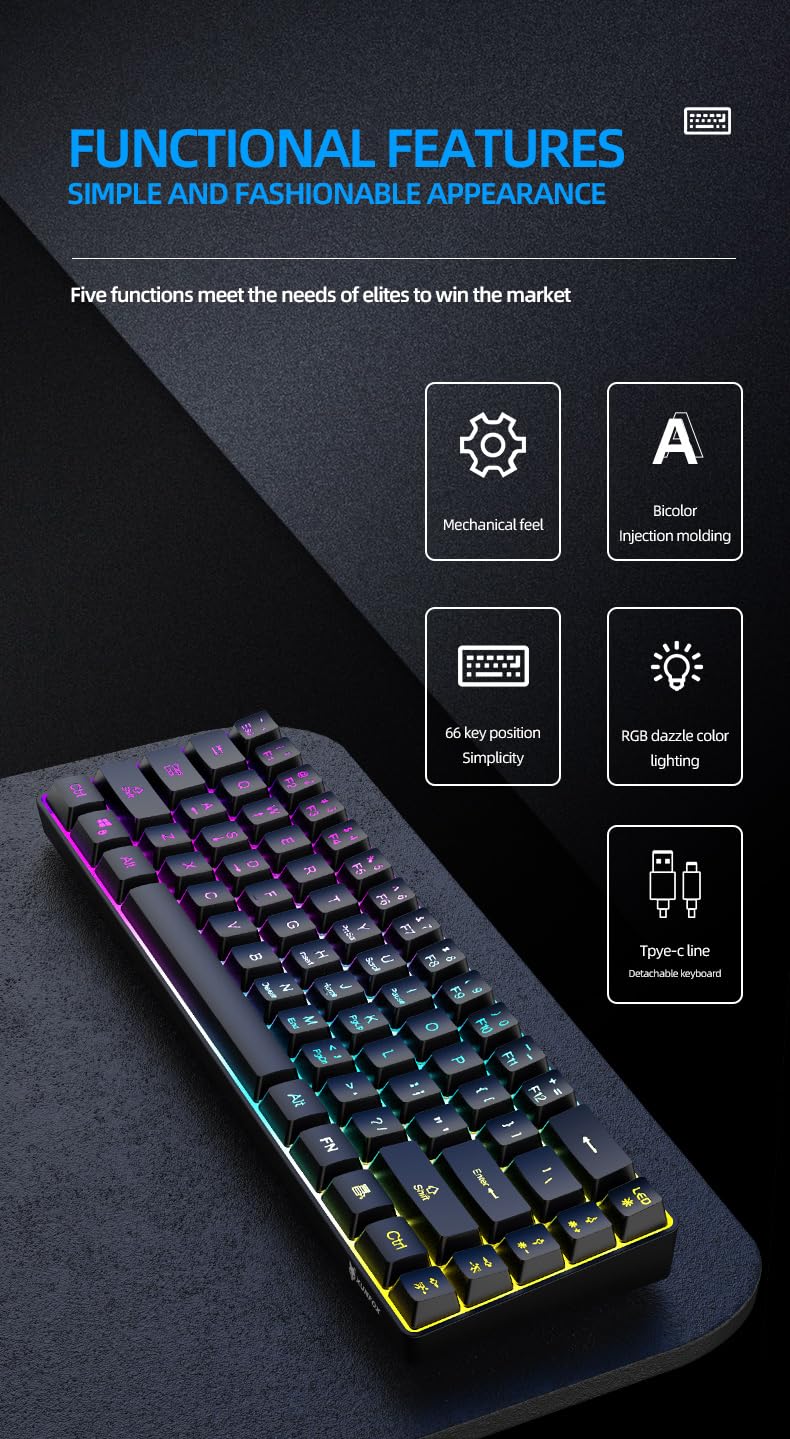
Figure 2: Overview of the XunFox K90 keyboard's functional features, including mechanical feel, bicolor injection molding, 66-key simplicity, RGB lighting, and detachable Type-C cable.
2. Setup Instructions
Package Contents:
- XunFox K90 RGB Gaming Keyboard
- USB Cable (Type-C to USB-A)
Connecting the Keyboard:
- Locate the USB Type-C port on the back or side of the XunFox K90 keyboard.
- Connect the Type-C end of the provided USB cable to the keyboard's port.
- Connect the USB-A end of the cable to an available USB port on your computer or laptop.
- The keyboard will automatically be recognized by your operating system (e.g., Windows 10). No additional drivers are typically required.

Figure 3: Image showing the detachable Type-C cable connecting to the keyboard, illustrating the wired USB connectivity.
3. Operating Instructions
Basic Operation:
The XunFox K90 keyboard functions as a standard 66-key input device. Simply plug it into your computer, and it will be ready for use.
RGB Backlight Control:
The keyboard features adjustable RGB backlighting with multiple effects. Use the FN (Function) key in combination with specific keys to control the lighting.
- FN + LED Key (usually next to F12): Cycles through various lighting modes, including endless stream, colorful horse running, circular breathing, solid comet tailing, monochrome, multicolor diffusion, and backlight color impact diffusion.
- FN + ↑ (Up Arrow): Increases backlight brightness.
- FN + ↓ (Down Arrow): Decreases backlight brightness.
- FN + → (Right Arrow): Increases the speed of the lighting effect.
- FN + ← (Left Arrow): Decreases the speed of the lighting effect.

Figure 4: Diagram illustrating the key combinations for controlling RGB lighting modes, intensity, and speed on the XunFox K90 keyboard.
4. Maintenance
Cleaning the Keyboard:
- Disconnect the keyboard from your computer before cleaning.
- Use a soft, lint-free cloth slightly dampened with water or a mild cleaning solution to wipe the keycaps and surface.
- Avoid spraying liquids directly onto the keyboard.
- For dust and debris between keys, use compressed air.
- Do not use harsh chemicals or abrasive materials, as they may damage the finish.
Storage:
- Store the keyboard in a cool, dry place away from direct sunlight and extreme temperatures.
- If storing for an extended period, consider using the original packaging or a protective cover to prevent dust accumulation.
5. Troubleshooting
Keyboard Not Responding:
- Check USB Connection: Ensure the USB cable is securely connected to both the keyboard and the computer. Try a different USB port.
- Restart Computer: Sometimes a simple system restart can resolve connectivity issues.
- Test on Another Computer: If possible, test the keyboard on a different computer to determine if the issue is with the keyboard or the original computer's setup.
RGB Lights Not Working or Incorrect:
- Check FN Key Combinations: Refer to the "RGB Backlight Control" section (Section 3) to ensure you are using the correct key combinations to adjust lighting modes, brightness, and speed.
- Reconnect Keyboard: Disconnect and reconnect the USB cable.
6. Specifications
| Feature | Detail |
|---|---|
| Brand | XunFox |
| Model Name | K90 |
| Keyboard Type | Mechanical Gaming Keyboard |
| Key Layout | 66-Key Compact |
| Connectivity | Wired USB (Type-C detachable cable) |
| Backlighting | RGB with adjustable breathing lamp effects |
| Special Features | Backlit, Ergonomic design |
| Compatible Operating Systems | Windows 10 and other popular operating systems |
| Compatible Devices | Laptop, PC |
| Product Dimensions (LxWxH) | 38 x 12 x 4 cm |
| Item Weight | 600 g |
| Color | Black |
7. Warranty Information
The XunFox K90 RGB Gaming Keyboard comes with a 2-year warranty from the date of purchase. This warranty covers manufacturing defects and issues arising from normal use. It does not cover damage caused by misuse, accidents, unauthorized modifications, or improper maintenance.
Please retain your proof of purchase for warranty claims.
8. Support
For technical assistance, warranty claims, or any other inquiries regarding your XunFox K90 RGB Gaming Keyboard, please contact customer support:
- Customer Care: +91 9906910066
- Importer/Packer: NJ Infotech, India
