
1. Introduction
This manual provides detailed instructions for the setup, operation, and maintenance of your DUPULEE HY300 Plus Mini Portable Projector. Please read this manual thoroughly before using the projector to ensure proper functionality and to prevent damage. Keep this manual for future reference.
The DUPULEE HY300 Plus is a compact and versatile projector featuring 4K resolution support, 300 ANSI lumens brightness, automatic keystone correction, electric focus, and a 210-degree rotation capability. It operates on Android 11 OS with built-in WiFi 6 and Bluetooth 5.0 for enhanced connectivity.
2. Safety Information
- Do not look directly into the projector lens when the lamp is on. The bright light can cause eye damage.
- Ensure the projector is placed on a stable, level surface to prevent it from falling.
- Do not block the ventilation openings. Proper airflow is essential to prevent overheating.
- Keep the projector away from water, moisture, and extreme temperatures.
- Use only the provided power adapter. Using an incorrect adapter may damage the projector and void the warranty.
- Do not attempt to disassemble or repair the projector yourself. Refer all servicing to qualified personnel.
- Unplug the projector from the power outlet during lightning storms or when unused for long periods.
3. Package Contents
Verify that all items listed below are included in your package:
- DUPULEE HY300 Plus Projector
- Lens Cover
- Carrying Bag
- User Manual
- Remote Control
- Power Cord (Adapter)
This image displays all items included in the HY300 Plus projector package: the projector unit, a protective lens cover, a convenient carrying bag, the user manual, a remote control for operation, the product box, and the necessary power cord.
4. Product Overview
The HY300 Plus projector is designed for ease of use and portability. It features multiple connectivity options and a flexible design.

This image illustrates the various connectivity options available on the HY300 Plus projector, including USB, Audio, and HDMI ports. It also highlights the projector's WiFi 6 and Android 11 operating system, along with its flexible 210-degree rotation feature for versatile projection angles.
4.1. Interfaces and Controls
Familiarize yourself with the projector's ports and controls:
- HDMI Interface: Connects to devices such as laptops, TV boxes, and gaming consoles for video and audio input.
- USB Interface: For connecting USB storage devices (e.g., flash drives) to play media directly.
- Audio Interface: For connecting external audio devices like headphones or soundboxes.
- Power Input: Connects the power adapter.
- Lens: The projection lens. Ensure it is clean and unobstructed.
- Rotation Stand: Allows for 210-degree rotation and 360-degree adjustment for flexible projection angles.
5. Setup
5.1. Power Connection
- Connect the provided power adapter to the projector's power input port.
- Plug the power adapter into a suitable electrical outlet.
- Press the power button on the projector or the remote control to turn on the device.
5.2. Network Connection (WiFi)
The projector supports WiFi 6 (2.4G/5G) for internet access and streaming.
- Navigate to the Settings menu on the projector's home screen.
- Select Network Settings or Wi-Fi.
- Turn on Wi-Fi and select your desired network from the list of available networks.
- Enter the Wi-Fi password if prompted and confirm the connection.
5.3. Bluetooth Connection
Connect external Bluetooth speakers or headphones for an enhanced audio experience.
- Navigate to the Settings menu.
- Select Bluetooth Settings.
- Turn on Bluetooth. The projector will search for nearby devices.
- Select your Bluetooth device from the list and pair it.
5.4. Placement and Adjustment
The projector offers flexible placement and automatic image correction.

The image shows the projector's automatic vertical keystone correction feature, which adjusts the image shape for a perfect rectangular display. It also indicates the remote focus capability, allowing for sharp image adjustment using the included remote control.
- Rotation: Use the integrated stand to rotate the projector up to 210 degrees vertically and 360 degrees horizontally to project onto walls, ceilings, or floors.
- Auto Keystone Correction: The projector automatically adjusts the image to be rectangular, even if the projector is placed at an angle. This feature is typically enabled by default. If manual adjustment is needed, navigate to Projection Settings > Keystone Correction.
- Electric Focus: Use the remote control to adjust the image sharpness. Press the dedicated focus buttons (often marked with a circle or 'F') on the remote until the image is clear.
6. Operating
6.1. Navigating the Android 11 OS
The projector runs on Android 11, providing a smart TV-like interface.
- Use the remote control's directional pad and 'OK' button to navigate through menus and select applications.
- The home screen provides access to pre-installed apps, settings, and input sources.
- Download additional applications from the integrated app store.
6.2. Connecting External Devices
The projector supports HDMI and USB inputs.
- HDMI: Connect your device (e.g., laptop, game console) to the projector's HDMI port using an HDMI cable. Select the HDMI input source from the projector's home screen or input selection menu.
- USB: Insert a USB flash drive into the USB port. The projector's media player should automatically detect the drive, allowing you to browse and play supported media files.
6.3. Screen Mirroring/Casting
Mirror content from your smartphone or tablet wirelessly.
- Ensure your mobile device and the projector are connected to the same Wi-Fi network.
- On the projector, select the screen mirroring/casting application (e.g., Miracast, AirPlay).
- On your mobile device, activate its screen mirroring feature (e.g., Smart View, Screen Mirroring, AirPlay).
- Select the projector from the list of available devices to begin mirroring.
This video demonstrates the DUPULEE HY300 Plus Mini Projector's capabilities, including its 4K and 1080P support and WiFi 6 connectivity, showcasing its portable design and smart features.
Watch this video to see how the DUPULEE HY300 Plus projector can transform your space into a cozy home theater, highlighting its ease of use and immersive viewing experience.

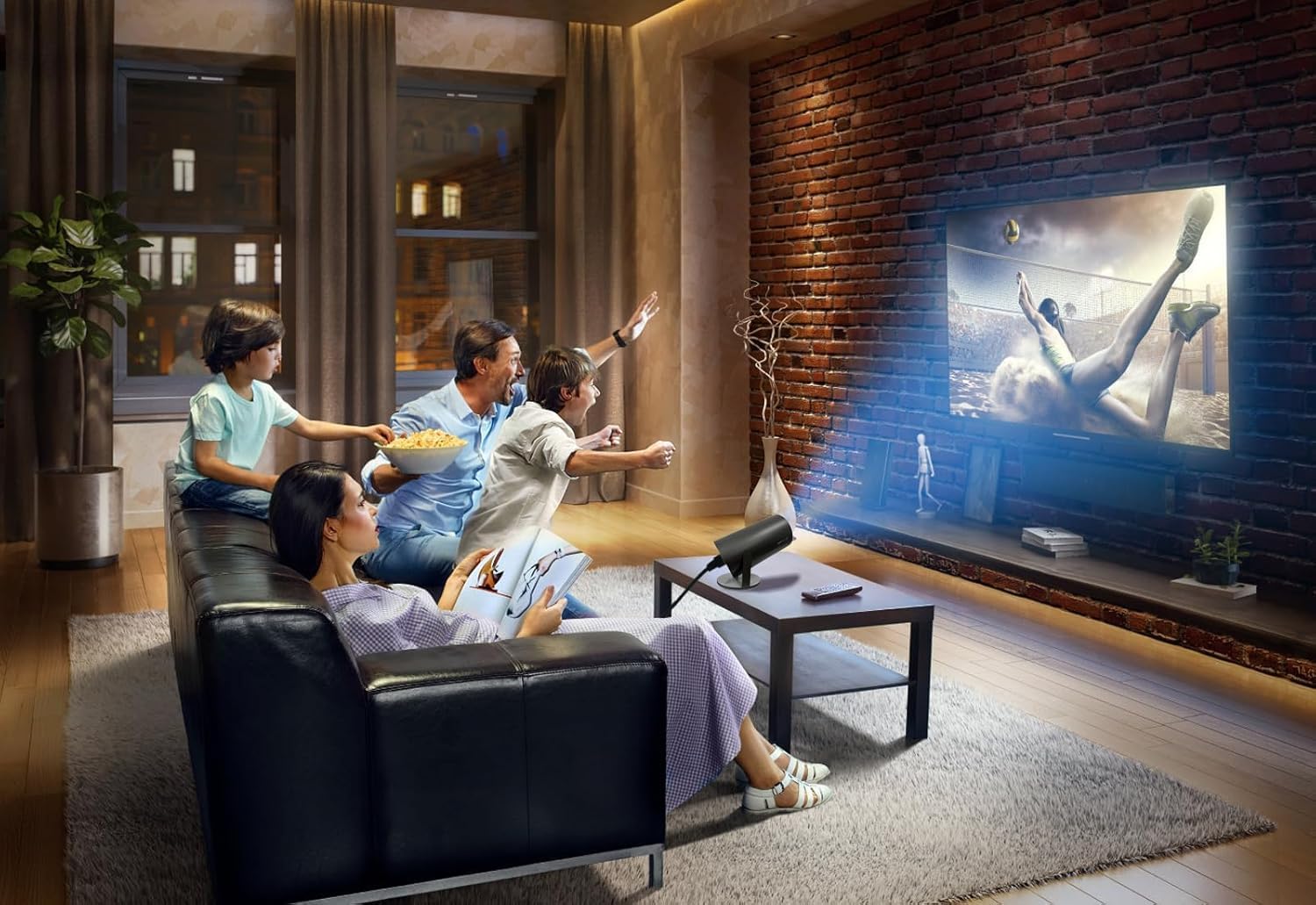
A family is shown enjoying a movie night, with the HY300 Plus projector casting a large image onto a living room wall, illustrating its use for creating a home cinema environment.
7. Maintenance
7.1. Cleaning
- Lens: Use a soft, lint-free cloth specifically designed for optical lenses to gently wipe the projector lens. Do not use abrasive cleaners or cloths.
- Exterior: Wipe the projector's exterior with a soft, dry cloth. For stubborn marks, a slightly damp cloth can be used, followed by a dry cloth.
- Ventilation: Periodically check and clean the ventilation openings to ensure they are free from dust and debris. Use a soft brush or compressed air.
7.2. Storage
When not in use for extended periods, store the projector in a cool, dry place, away from direct sunlight and extreme temperatures. Use the provided carrying bag for protection.
8. Troubleshooting
If you encounter issues with your projector, refer to the following common problems and solutions:
| Problem | Possible Cause | Solution |
|---|---|---|
| No image or blurry image | Power issue, incorrect input source, out of focus, lens cap on. | Ensure power is connected, select correct input, adjust electric focus using remote, remove lens cap. |
| Image is distorted (trapezoid shape) | Projector not perpendicular to screen. | The projector has auto keystone correction. If not working, check Projection Settings > Keystone Correction to ensure it's enabled. Adjust projector position if necessary. |
| No sound | Volume too low, incorrect audio output, external device issue. | Increase volume, check Audio Settings, ensure external audio devices are correctly connected and paired via Bluetooth. |
| Cannot connect to Wi-Fi | Incorrect password, network interference, router issue. | Verify password, ensure projector is within Wi-Fi range, restart router, try connecting to a different network. |
| Remote control not working | Low batteries, obstruction, remote not paired. | Replace batteries, ensure no obstruction between remote and projector, re-pair remote if necessary (refer to specific pairing instructions if available). |
9. Specifications
Detailed technical specifications for the DUPULEE HY300 Plus Projector:

This table provides a direct comparison between the HY300 Plus (2024) and the previous HY300 (2023) models. Key differences include the HY300 Plus having 300 ANSI lumens (vs. 200 ANSI), electric focus (vs. manual), 60W LED (vs. 30W), lower noise level (25 dB vs. 28 dB), and support for roof lifting installation.
- Brand: DUPULEE
- Model Name: HY300 Plus HD Projector
- Model Number: HY300 Plus
- Display Resolution: 3840 x 2160 (4K Supported)
- Native Resolution: 1280 x 720 pixels
- Brightness: 300 ANSI Lumens
- Contrast Ratio: 1500:1
- Connectivity Technology: Bluetooth 5.0, WiFi 6 (2.4G/5G)
- Special Features: Auto Focus, Auto Keystone Correction, Built-In Wi-Fi, Lightweight, Short Throw, 210° Rotation
- Operating System: Android 11 OS
- Maximum Image Size: 130 inches
- Light Source Operating Life: 50,000 hours
- Hardware Connectivity: HDMI, USB
- Control Method: Remote Control
- Item Weight: 600 g
- Lamp Wattage: 60 watts
10. Warranty and Support
For warranty information and technical support, please refer to the contact details provided on the product packaging or the official DUPULEE website. Keep your purchase receipt as proof of purchase for warranty claims.