
1. Introduction
Thank you for choosing the XunFox XYH50 Professional RGB Wireless 2.4Ghz Mouse. This manual provides detailed instructions for setting up, operating, maintaining, and troubleshooting your new device. Please read this manual thoroughly before use to ensure optimal performance and longevity of your mouse.

Image 1.1: Top-down view of the XunFox XYH50 wireless mouse, showcasing its sleek design and central scroll wheel with RGB lighting.
2. Package Contents
Please check the package for the following items:
- XunFox XYH50 Professional RGB Wireless 2.4Ghz Mouse
- 2.4Ghz USB Receiver
- USB Type-C Charging Cable
- User Manual (this document)
3. Product Features
- 2.4G Wireless Dual Mode: Offers stable and reliable wireless connectivity.
- Silent Click & Ergonomic Design: Reduces operational noise by 90% and provides maximum hand support for comfortable, long-term use. Its symmetric design is suitable for both left and right-handed users.
- Type-C Rechargeable with Energy Saving: Equipped with a built-in rechargeable battery and a Type-C charging port. Features an automatic sleep mode after 11 minutes of inactivity to conserve power.
- 7 RGB Colorful Lighting Modes: Customizable RGB lighting with vibrant color wave effects.
- 3 Adjustable DPI Levels: Switch between 800, 1200, and 1600 DPI for precise tracking and sensitivity control.
- Thin Body Design: Compact and portable, approximately 26mm thin, making it ideal for travel.

Image 3.1: Side view of the mouse highlighting the vibrant RGB lighting strip along its edge.

Image 3.2: The mouse's thin body design, illustrating its portability by fitting into a small bag.
4. Setup Guide
4.1 Charging the Mouse
- Locate the Type-C charging port on the front of the mouse.
- Connect the provided USB Type-C charging cable to the mouse and the other end to a USB power source (e.g., computer USB port, wall adapter).
- The mouse will indicate charging status, typically via an LED indicator.
4.2 Connecting the 2.4Ghz Wireless Receiver
- Locate the 2.4Ghz USB receiver, usually stored in a compartment on the underside of the mouse.
- Insert the USB receiver into an available USB port on your computer.
- Turn on the mouse using the power switch located on the underside.
- Your computer should automatically detect and install the necessary drivers. The mouse will be ready for use once the connection is established.
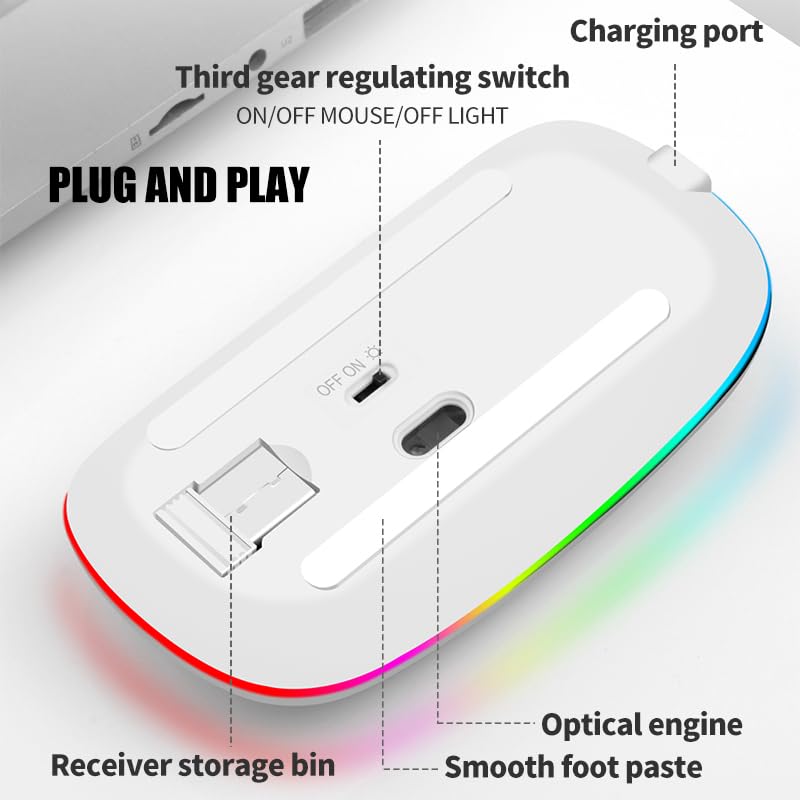
Image 4.1: Underside of the mouse, indicating the receiver storage bin, charging port, optical engine, and the three-gear regulating switch (ON/OFF Mouse/OFF Light).
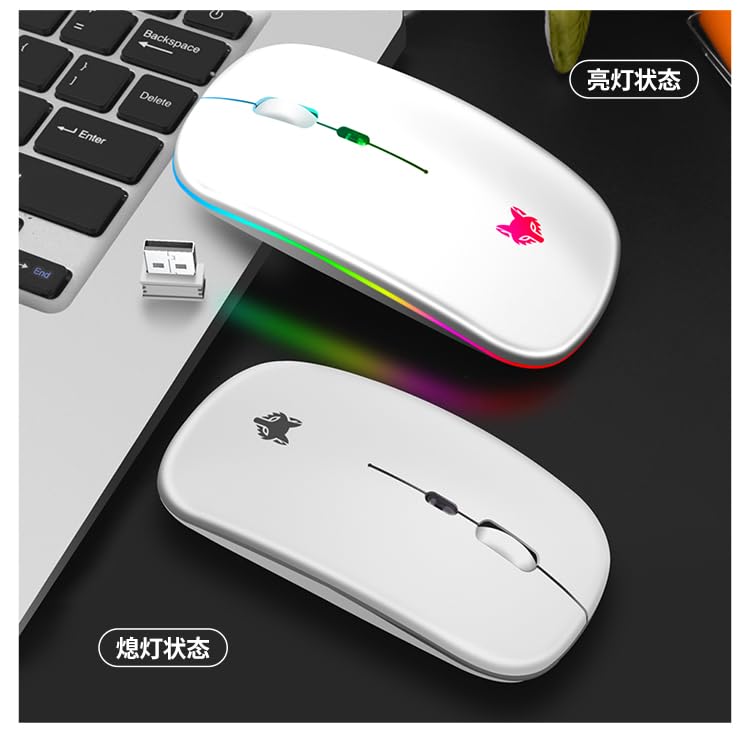
Image 4.2: The mouse in both an illuminated (connected/active) state and a non-illuminated (off/sleep) state, next to a laptop with the USB receiver plugged in.
5. Operating Instructions
5.1 Power On/Off and Light Control
The mouse features a three-gear regulating switch on its underside:
- ON: Powers on the mouse and activates the RGB lighting.
- OFF Mouse: Powers off the mouse, but keeps the RGB lighting active (if applicable, or refers to a mode where only lights are off).
- OFF Light: Powers off both the mouse and the RGB lighting.
5.2 DPI Adjustment
The mouse has a dedicated DPI button, usually located behind the scroll wheel. Press this button to cycle through the available DPI settings:
- 800 DPI (Low sensitivity)
- 1200 DPI (Medium sensitivity)
- 1600 DPI (High sensitivity)
Select the DPI level that best suits your task and preference.
5.3 Energy Saving Mode
To conserve battery life, the mouse will automatically enter a sleep mode after a period of inactivity:
- After 60 seconds of no operation, it enters a light sleep state.
- After 10 minutes of no operation, it enters a deep sleep state.
To wake up the mouse from sleep mode, simply move the mouse or click any button.
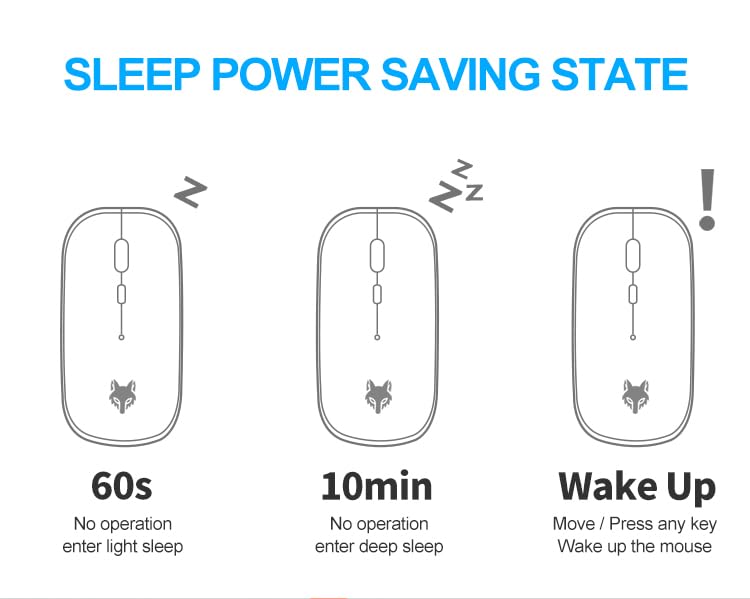
Image 5.1: Diagram showing the mouse entering light sleep after 60 seconds, deep sleep after 10 minutes, and waking up with movement or a button press.
6. Maintenance
6.1 Cleaning
- Ensure the mouse is powered off before cleaning.
- Use a soft, lint-free cloth slightly dampened with water or a mild cleaning solution.
- Avoid using harsh chemicals, abrasives, or solvents, as these can damage the mouse's surface.
- Clean the optical sensor on the underside periodically with a dry cotton swab to ensure accurate tracking.
6.2 Battery Care
- Charge the mouse regularly to maintain battery health.
- Avoid fully discharging the battery frequently.
- Do not expose the mouse to extreme temperatures, as this can affect battery performance and lifespan.
7. Troubleshooting
| Problem | Possible Cause | Solution |
|---|---|---|
| Mouse not responding | Low battery; Mouse powered off; USB receiver disconnected; Driver issue. | Charge the mouse; Turn on the mouse; Re-insert USB receiver; Try a different USB port; Restart computer. |
| Erratic cursor movement | Dirty optical sensor; Unsuitable surface; Interference. | Clean the optical sensor; Use a mouse pad or a smooth, non-reflective surface; Move mouse closer to receiver. |
| RGB lights not working | Mouse switch set to 'OFF Light' or 'OFF Mouse' (if applicable). | Ensure the power switch is set to 'ON'. |
| Mouse not charging | Faulty cable; Faulty USB port; Mouse not connected properly. | Try a different Type-C cable; Use a different USB port or power adapter; Ensure cable is securely connected. |
8. Specifications
| Feature | Detail |
|---|---|
| Model | XYH50 |
| Connectivity | 2.4Ghz Wireless |
| DPI Settings | 800 / 1200 / 1600 DPI |
| Movement Detection | Optical |
| Battery Type | Rechargeable Lithium Ion (1 included) |
| Charging Port | USB Type-C |
| RGB Lighting | 7 Colorful Lighting Modes |
| Operating Systems | Linux, Windows 7, Windows XP (and newer versions) |
| Hardware Platform | Laptop, Personal Computer |
| Dimensions (LxWxH) | 14 x 8 x 0.1 cm |
| Weight | 75 g |
| Hand Orientation | Ambidextrous |
| Recommended Use | Office |
9. Warranty and Support
9.1 Warranty Information
The XunFox XYH50 Professional RGB Wireless 2.4Ghz Mouse comes with a 2-Year Warranty from the date of purchase. This warranty covers manufacturing defects and ensures the product is free from defects in materials and workmanship under normal use.
The warranty does not cover damage caused by misuse, accident, unauthorized modification, or external causes such as drops, liquid damage, or power surges.
9.2 Customer Support
For technical assistance, warranty claims, or any other inquiries, please contact our customer support team:
- Importer/Packer: NJ Infotech
- Customer Care: +91 9906910066
Please have your product model (XYH50) and proof of purchase ready when contacting support.


