
NEWYES 991ES MAX
NEWYES 991ES MAX Scientific Calculator User Manual
Model: 991ES MAX
Introduction
This manual provides comprehensive instructions for the NEWYES 991ES MAX Rechargeable Scientific Calculator. Designed for students and professionals, this calculator features 417 functions, an integrated writing pad, and a dual power supply system. Please read this manual thoroughly to ensure proper use and maintenance of your device.
Product Overview
The NEWYES 991ES MAX combines a powerful scientific calculator with a convenient LCD writing pad, allowing for simultaneous calculation and note-taking. Its foldable design enhances portability, and the dual power system ensures reliable operation.
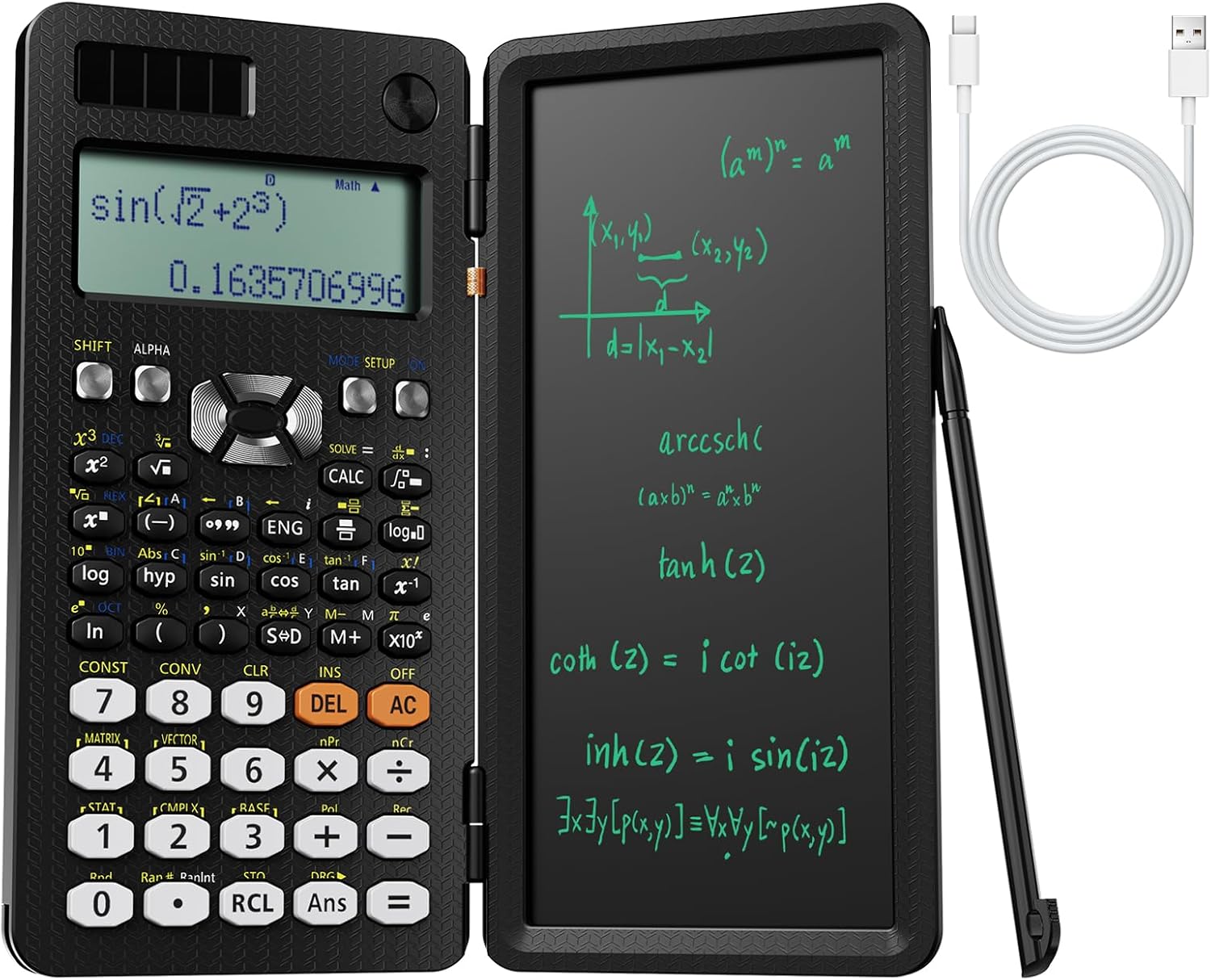
Figure 1: NEWYES 991ES MAX Scientific Calculator, showing the calculator on the left and the writing pad on the right, with a stylus and charging cable.

Figure 2: Detailed view of key features including the 4-line display, writing board, pen storage, and Type-C charging port.
Setup
Powering On and Charging
The calculator operates on a dual power supply system: Type-C rechargeable battery and solar power.
- Initial Charge: Before first use, connect the calculator to a power source using the provided Type-C charging cable. The charging port is located on the side of the device.
- Solar Power: For continuous power in well-lit environments, ensure the solar panel located above the display is exposed to light.
Video: Demonstrates the Type-C charging port and the calculator's rechargeable feature. This video highlights the convenience of not needing frequent battery replacements.
Using the Writing Pad
- Retrieve Stylus: The stylus is stored in the lower left corner of the calculator. Slide it out gently. It may be slightly tight initially.
- Write: Use the stylus to write notes, formulas, or diagrams on the LCD writing pad.
- Clear: To clear the writing pad, turn the button located near the hinge to the unlocked position, then press the clear button on the writing pad.

Figure 3: The integrated writing pad in use, demonstrating its functionality for note-taking.
Operating Instructions
Basic Operations
The calculator features a standard scientific calculator layout.
- Power On/Off: Press the ON button to turn on. Press SHIFT then AC (OFF) to turn off.
- Input: Enter numbers and operations using the keypad. The 4-line display shows the input and results.
- Clear Entry (CE) / All Clear (AC): Use DEL to delete the last entered character. Use AC to clear all current calculations.
Advanced Functions (417 Functions)
The 991ES MAX supports a wide range of mathematical and scientific functions.
- Function Access: Many functions are accessed by pressing the SHIFT or ALPHA key followed by the desired function key.
- Modes: Press MODE SETUP to select different calculation modes (e.g., COMP, CMPLX, STAT, BASE-N, EQN, MATRIX, TABLE, VECTOR).
- Fraction/Decimal Conversion: To change results between fractions and decimals, use the S↔D key. Alternatively, configure calculator settings:
- Press SHIFT.
- Press MODE.
- Choose 1 or 2 to set the mode for fraction (MthIO) or decimal (LineIO).

Figure 4: Overview of the 8 calculation modes and the extensive list of 417 functions supported by the calculator.
Key Functions Overview
| Category | Functions |
|---|---|
| Basic Calculation | Basic Calculation, Fraction Calculation, Degree/Minute/Second (Sexagesimal) Calculations, Reciprocal Calculation, Percent Calculation, Factorial Function, π, Calculation with A and π, Rounding Function |
| Advanced Calculation | Transcendental number e, Base-n calculation, Logical Operators, Complex number calculation, Matrix calculations, Vector calculations, Differential calculation, Integration calculation |
| Applied Functions | Multi-statement Command (:), Continuous Calculation, Replay Function, Multi-replay Function, CALC Function, SOLVE Function |
| Statistical Functions | List-based STAT data editor, Standard deviation, Paired-variable statistics regression analysis |
| Constants & Conversions | 40 scientific constants, 40 metric conversions (20 conversion pairs) |
| Memory | 9 variable memories |
Maintenance
- Cleaning: Use a soft, dry cloth to clean the calculator and writing pad surfaces. Do not use abrasive cleaners or solvents.
- Storage: When not in use, fold the calculator to protect the screen and keypad. Store in a cool, dry place away from direct sunlight and extreme temperatures.
- Battery Care: Recharge the calculator regularly to maintain battery health. Avoid fully discharging the battery for extended periods.
- Stylus Care: Ensure the stylus is securely stored in its designated slot when not in use to prevent loss.
Troubleshooting
| Problem | Possible Cause / Solution |
|---|---|
| Calculator does not turn on. | Battery may be depleted. Connect to Type-C charger. Ensure solar panel is exposed to light. |
| Writing pad does not clear. | Ensure the lock button for the writing pad is in the unlocked position before pressing the clear button. |
| Display is dim or unreadable. | Adjust ambient lighting for the writing pad. For the calculator display, ensure sufficient battery charge. |
| Stylus is difficult to remove. | The stylus may be tight when new. Apply gentle, firm pressure to slide it out. |
| Incorrect calculation results. | Check the selected calculation mode (MODE SETUP). Verify input values and function usage. Refer to the detailed function guide for specific operations. |
Specifications
- Model: 991ES MAX
- Functions: 417
- Display: 4-Line Written Display
- Power Source: Solar & Rechargeable Battery (Type-C)
- Dimensions: 12 x 2 x 0.1 inches (folded)
- Item Weight: 9.5 ounces
- Screen Size (Writing Pad): 6.5 Inches
- Included Batteries: 1 CR5 battery (for calculator memory, included)
Warranty and Support
For warranty information and customer support, please refer to the official NEWYES website or contact your retailer.
Ask a question about this manual
Ask about setup, troubleshooting, compatibility, parts, safety, or missing instructions. Manuals+ will review the question and use this page’s manual context to help answer it.