
TECKNET TK-GM001
TECKNET Wireless Gaming Mouse User Manual
Model: TK-GM001
1. Introduction
Thank you for choosing the TECKNET Wireless Gaming Mouse. This manual provides detailed instructions on how to set up, operate, and maintain your new gaming mouse, ensuring optimal performance and longevity. Please read this manual thoroughly before using the product.
2. Product Overview
2.1 Package Contents
- TECKNET Wireless Gaming Mouse
- USB Receiver
- USB Charging Cable
- User Manual
2.2 Mouse Components
Familiarize yourself with the various parts of your TECKNET Wireless Gaming Mouse:

Image: The TECKNET Wireless Gaming Mouse, showcasing its ergonomic design and the included USB receiver.
- Left Click Button
- Right Click Button
- Scroll Wheel / Middle Click Button
- DPI Cycle Button
- Forward Button (Side)
- Backward Button (Side)
- RGB Lighting Strip
- USB Charging Port (Front)
- Power Switch (Bottom)
- USB Receiver Storage Slot (Bottom)
3. Setup
3.1 Initial Charging
Before first use, it is recommended to fully charge the mouse. Connect the provided USB charging cable to the mouse's charging port and the other end to a USB power source (e.g., computer USB port, USB wall adapter). The RGB lighting may indicate charging status.
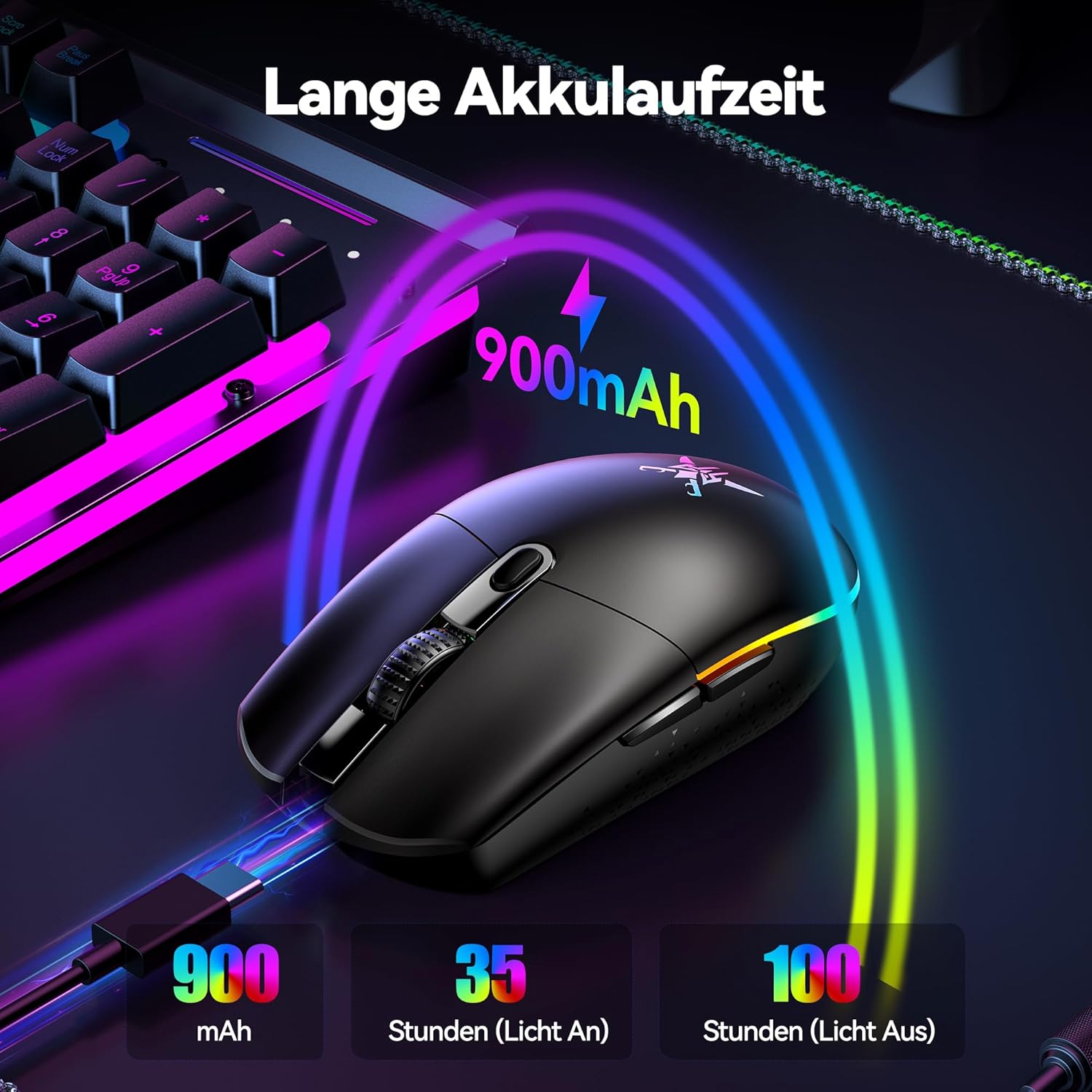
Image: The mouse connected via USB cable for charging, illustrating its 900mAh battery capacity and estimated battery life of 35 hours with lights on and 100 hours with lights off.
3.2 Connecting the Mouse
The TECKNET Wireless Gaming Mouse supports both 2.4GHz wireless and wired connections.
3.2.1 2.4GHz Wireless Connection
- Remove the USB receiver from its storage slot on the bottom of the mouse.
- Plug the USB receiver into an available USB port on your computer.
- Turn on the mouse using the power switch located on the bottom.
- The mouse will automatically connect to the receiver. Your computer should recognize the device without needing additional drivers.

Image: A visual representation of the mouse connected wirelessly to a laptop via its USB receiver, demonstrating a stable connection range of up to 10 meters (32.8 feet).
3.2.2 Wired Connection
To use the mouse in wired mode, simply connect the USB charging cable from the mouse to a USB port on your computer. The mouse will function as a wired mouse and charge simultaneously.
4. Operating Instructions
4.1 DPI Adjustment
The mouse features an adjustable DPI (Dots Per Inch) setting, allowing you to change cursor sensitivity on the fly. Press the DPI cycle button (usually located behind the scroll wheel) to cycle through different DPI levels. Each level is often indicated by a specific RGB light color.

Image: The mouse highlighting its 8000 DPI capability, with six distinct DPI levels (800, 1600, 2400, 3200, 4800, 8000) each associated with a unique LED light color for easy identification.
4.2 RGB Lighting Control
The mouse is equipped with customizable RGB lighting. You can typically cycle through different lighting modes or turn the lighting on/off using a dedicated button or through the software.

Image: The mouse displaying its vibrant RGB lighting, indicating 6 different lighting modes and a switch to toggle the lights on or off.
4.3 Programmable Buttons
The TECKNET Wireless Gaming Mouse features programmable buttons for enhanced gaming and productivity. These buttons can be customized using the dedicated driver software.

Image: A screenshot of the TECKNET driver software interface, showing how to customize the mouse's programmable buttons (Left Click, Right Click, Middle Click, Forward, Backward) and adjust settings like response time. Note: The driver is compatible only with Windows systems.
Note: The driver software for programmable buttons is compatible only with Windows operating systems.
5. Charging and Battery Life
The mouse is equipped with a 900mAh rechargeable battery. When the battery is low, the RGB lighting may flash or change color to indicate the need for charging. Connect the mouse to a USB power source using the provided cable to recharge.
- Battery Capacity: 900mAh
- Estimated Battery Life (Lights On): Up to 35 hours
- Estimated Battery Life (Lights Off): Up to 100 hours
6. Maintenance
6.1 Cleaning
To clean your mouse, use a soft, dry cloth. For stubborn dirt, slightly dampen the cloth with water or a mild cleaning solution. Avoid using harsh chemicals or abrasive materials, as these can damage the mouse's surface.
6.2 Storage
When not in use for extended periods, store the mouse in a cool, dry place. Ensure the USB receiver is securely stored in its designated slot on the mouse's bottom to prevent loss.
7. Troubleshooting
| Problem | Possible Solution |
|---|---|
| Mouse not responding (Wireless) |
|
| Mouse cursor erratic or jumpy |
|
| RGB lights not working |
|
| Programmable buttons not working |
|
8. Specifications
- Model: TK-GM001
- Connectivity: 2.4GHz Wireless, Wired (USB)
- DPI Levels: 800 / 1600 / 2400 / 3200 / 4800 / 8000 (Adjustable)
- Buttons: 6 Programmable Buttons
- Battery: 900mAh Rechargeable
- Weight: Approximately 72 Grams
- Dimensions: 11.6 x 6.4 x 0.1 cm (L x W x H)
- RGB Lighting: Yes, with multiple modes
- Compatibility: Windows (for software), Mac (basic functions)

Image: The TECKNET Gaming Mouse highlighting its lightweight design, weighing approximately 72 grams, which contributes to reduced hand pressure during use.
9. Warranty and Support
TECKNET products are designed for reliability and performance. For warranty information or technical support, please refer to the warranty card included with your product or visit the official TECKNET website. Keep your purchase receipt as proof of purchase for warranty claims.
For further assistance, you may contact TECKNET customer service through their official channels.
Related documentsTK-GM001


Ask a question about this manual
Ask about setup, troubleshooting, compatibility, parts, safety, or missing instructions. Manuals+ will review the question and use this page’s manual context to help answer it.