
1. Introduction
Welcome to the Yoidesu 5MP 1080p USB Webcam instruction manual. This guide will assist you in setting up and operating your new webcam, ensuring optimal performance for your video conferencing, live streaming, and recording needs. Please read this manual thoroughly before using the product.
2. Product Overview
Key Features
- Tiny Size, 4-Way Connection: Designed for central screen placement, facilitating direct eye-to-eye contact during virtual interactions.
- Plug and Play, Clear Image: Delivers Full HD (FHD) image quality without requiring additional software installation.
- Clear Sound: Features a built-in microphone for clear audio capture without distortion.
- Wide Software Compatibility: Supports popular meeting software such as Zoom, Skype, and Microsoft Teams.
- Broad Device Support: Compatible with Windows 2000, Windows 7, Windows 8 (32-bit), and various compatible TV systems.
Package Contents
- 1 x Yoidesu 1080P Center Webcam (with integrated USB cable and flexible gooseneck)
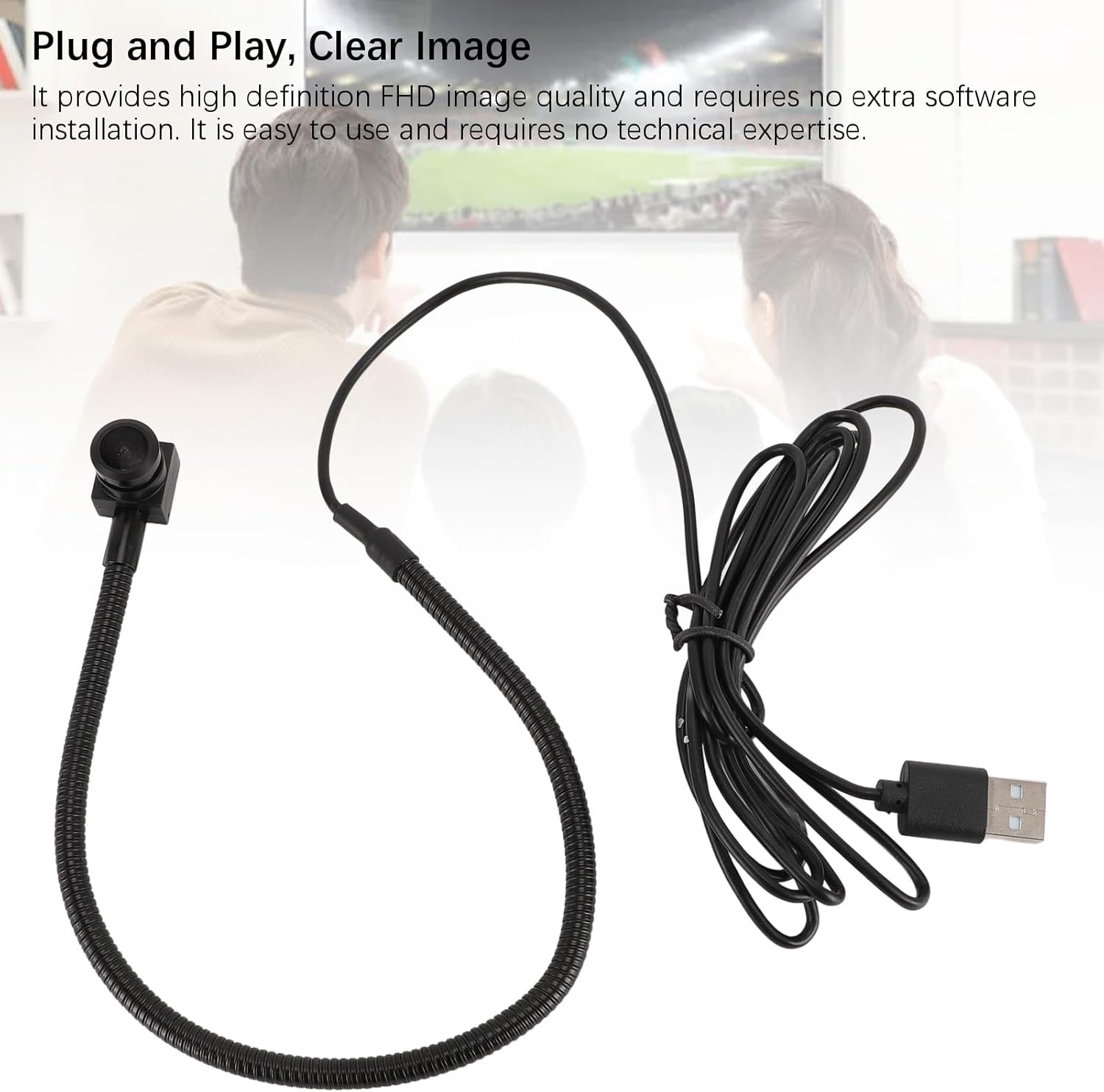
This image displays the Yoidesu webcam along with its attached USB cable and flexible gooseneck, illustrating the simple plug-and-play connection.
3. Setup Instructions
The Yoidesu 5MP 1080p USB Webcam is designed for simple plug-and-play operation, requiring no complex installation.
- Connect the Webcam: Insert the USB cable from the webcam into an available USB port on your computer (desktop or laptop) or compatible device.
- Position the Webcam: Utilize the flexible gooseneck to position the webcam. It can be placed centrally on your screen for optimal eye contact during calls, or adjusted to any desired angle.
- Automatic Recognition: The device will be automatically recognized by your operating system (Windows 2000, 7, 8, or compatible TV) without the need for additional driver installation.
- Verify Connection: Open your preferred video conferencing or streaming application. The webcam should appear as an available video and audio input device in the application's settings.

The webcam is shown mounted on top of a laptop screen, demonstrating its central placement capability for direct eye contact during virtual meetings.
4. Operating Instructions
Once connected and recognized, the Yoidesu webcam is ready for use with various applications.
- Select Video Input: In your chosen application (e.g., Zoom, Skype, Microsoft Teams), navigate to the video settings. Select 'Yoidesu Webcam' (or a similar name) as your primary video input device.
- Select Audio Input: In the same application's audio settings, select 'Yoidesu Webcam Microphone' (or a similar name) as your audio input device. The built-in microphone provides clear sound.
- Adjust Position: Adjust the webcam's position using the flexible gooseneck to achieve the desired viewing angle for your call or stream.
- Ensure Lighting: For optimal image quality, ensure there is adequate lighting in your environment.

A user is shown interacting with the webcam, emphasizing its use for clear audio and video capture in various scenarios.
5. Troubleshooting
This section addresses common issues you might encounter with your Yoidesu webcam.
Issue: Webcam not recognized by the computer.
- Solution: Ensure the USB cable is securely connected to both the webcam and a functional USB port on your computer.
- Solution: Try connecting the webcam to a different USB port on your computer.
- Solution: Restart your computer and attempt to connect the webcam again.
- Solution: Verify that your operating system is compatible (Windows 2000, 7, 8, or compatible TV).
Issue: No video or poor video quality.
- Solution: Check the settings within your video conferencing or streaming application to confirm the Yoidesu webcam is selected as the primary video input.
- Solution: Ensure there is adequate lighting in your environment.
- Solution: Gently clean the webcam lens with a soft, dry cloth if it appears smudged.
Issue: No audio or poor audio quality from the microphone.
- Solution: Verify that the Yoidesu webcam's microphone is selected as the audio input device in your application's settings.
- Solution: Check your computer's sound settings to ensure the microphone is enabled and not muted.
- Solution: Ensure there are no obstructions blocking the microphone.

This image shows a detailed view of the webcam's lens and the flexible gooseneck, highlighting its compact design.
6. Technical Specifications
| Feature | Specification |
|---|---|
| Model Name | Yoidesudgpa18mqhi |
| Horizontal Resolution | 1080P |
| Effective Pixels | 5MP |
| Chip Model | 1/3.2 |
| Type | USB Digital (UVC Protocol) |
| Video Output | MJPG, YUY2 |
| Sound Output | Yes |
| Focusing Method | Fixed Focus |
| Lens | 3.6mm / 0.1in |
| Connectivity Technology | USB |
| Special Feature | Low Light |
| Item Weight | 2.79 ounces |
| Package Dimensions | 3.94 x 2.76 x 2.36 inches |
| Supported Operating Systems | Windows 2000, Windows 7, Windows 8 (32-bit), compatible TV |
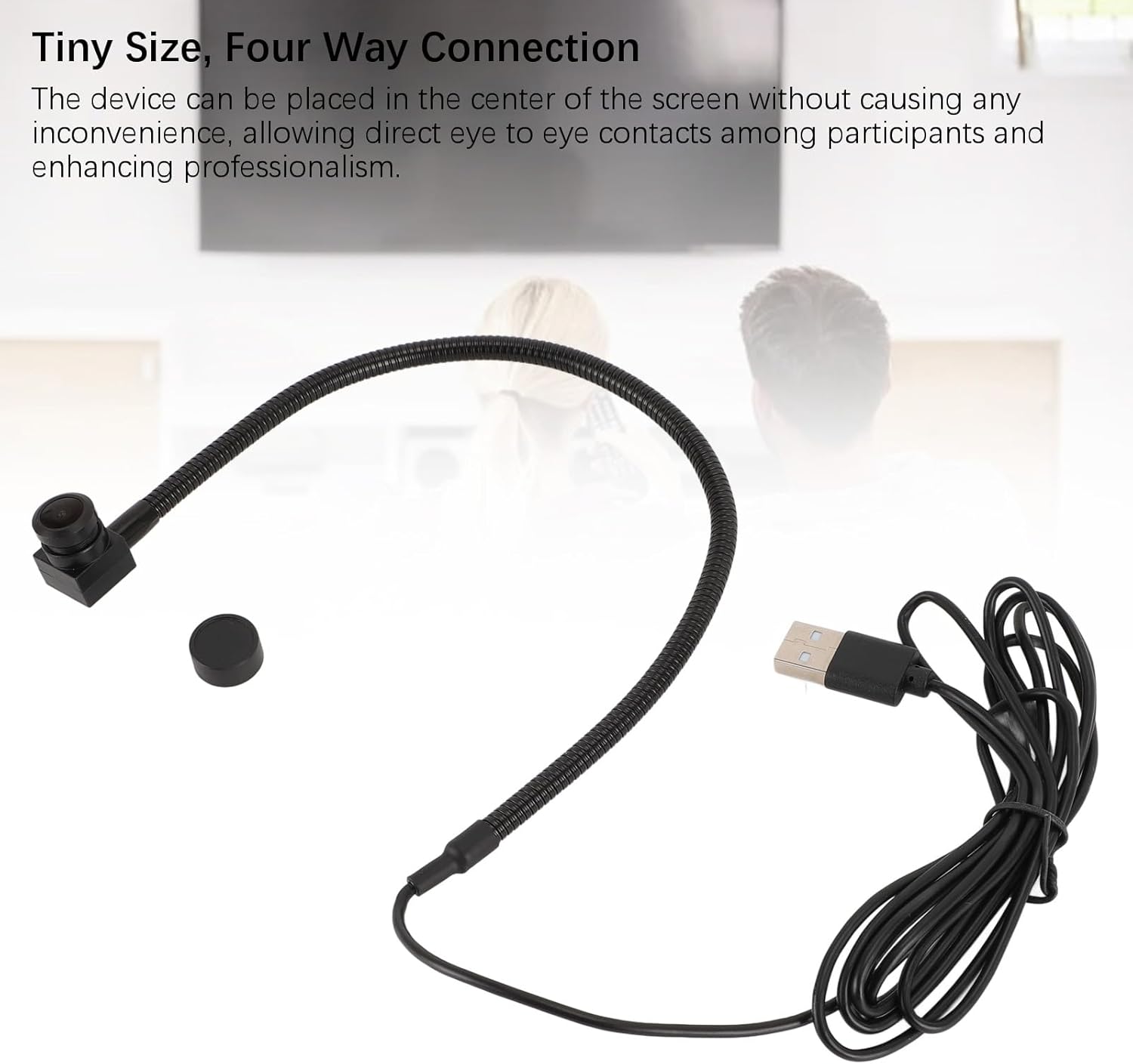
The webcam is shown with a small, round lens cap, indicating a feature for privacy and lens protection.
7. Warranty and Support
Warranty information for the Yoidesu 5MP 1080p USB Webcam is not provided within this manual. For specific warranty details, technical assistance, or customer support, please refer to the product packaging, the seller's website, or contact Yoidesu customer service directly.