
1. Introduction
This manual provides essential information for the proper use and care of your Ponek M110 Thermal Labels. These labels are designed for thermal printing and are suitable for a variety of applications, including barcode, name, logo, and home organization. Please read this manual thoroughly to ensure optimal performance and longevity of your labels.
2. Product Overview
Key Features
- Dimensions: 1.57'' x 1.18'' (40mm x 30mm)
- Quantity: 230 labels per roll
- Color: Black print on white background
- Durability: Water-resistant, oil-resistant, scratch-resistant, and strong adhesion
- Technology: Thermal printing, requiring no ink or ribbon
- Versatility: Suitable for name tags, inventory management, file classification, product identification, shelf labels, price tags, and more.
Specifications
| Specification | Detail |
|---|---|
| Color | White |
| Size | 1.57'' x 1.18'' (40 x 30 mm) |
| Material | Paper |
| Brand | Ponek |
| Finish Type | Uncoated |
| Unit Count | 1.0 Count |
| Item Shape | Rectangular, Square |
| Number of Labels | 230 |

Image: Ponek M110 Thermal Label showing dimensions 1.57 inches by 1.18 inches, with 230 labels per roll.
3. Compatibility
These thermal labels are compatible with a range of Ponek label maker machines and other specified models. Ensure your label maker is listed below for proper functionality:
- Ponek M100
- Ponek M110
- Ponek M120
- Ponek M220
- Ponek M221
- Ponek N20
- Ponek M1260
- Ponek M250
- Ponek M150
- Ponek M160
- Ponek M108
- Ponek M421
- Ponek 241BT
- Ponek 243BT

Image: Various Ponek label maker models compatible with M110 thermal labels.
4. Setup and Operating Instructions
4.1. Loading Labels
- Open the label compartment of your compatible Ponek label maker.
- Insert the M110 thermal label roll into the compartment, ensuring the labels feed correctly through the printer mechanism. The printing surface should face upwards.
- Close the label compartment securely.
Video: Instructions for correct label printing to avoid misalignment, demonstrating label loading and initial setup.
4.2. Connecting to Your Device
Most Ponek label makers connect via Bluetooth to a smartphone app or via USB to a PC. Refer to your specific label maker's manual for detailed connection instructions.
- For Bluetooth Connection: Download the 'Print Master' or 'Labelife' app from your device's app store. Enable Bluetooth on your smartphone and pair it with the label maker through the app.
- For PC Connection: Connect the label maker to your PC using a USB cable. Install any necessary drivers or software provided by Ponek.
Video: Demonstration of Ponek Bluetooth Label Maker setup and app usage.
4.3. Printing Labels
- Once connected, open the Ponek app or software on your device.
- Select the appropriate label type (e.g., 'Cut Label' for individual labels) and input the label dimensions (40mm x 30mm for M110 labels).
- Design your label using the available text, icons, borders, and other features within the app. Adjust font size, alignment, and layout as needed.
- Preview your label to ensure it appears as desired.
- Adjust printing density (Light, Standard, Heavy) if necessary for clarity.
- Initiate the print command. The label maker will feed and print the labels.
Video: Demonstration of the M100 Label Maker for multi-label printing, including app interface and printing process.
4.4. Applying Labels
After printing, carefully peel the label from its backing and apply it to a clean, dry surface. The strong adhesive ensures the label remains securely in place.

Image: Ponek M110 Thermal Labels used for organizing food containers in a kitchen pantry.

Image: Ponek M110 Thermal Label used as an address label on an envelope.

Image: Ponek M110 Thermal Labels used for organizing office files and documents.
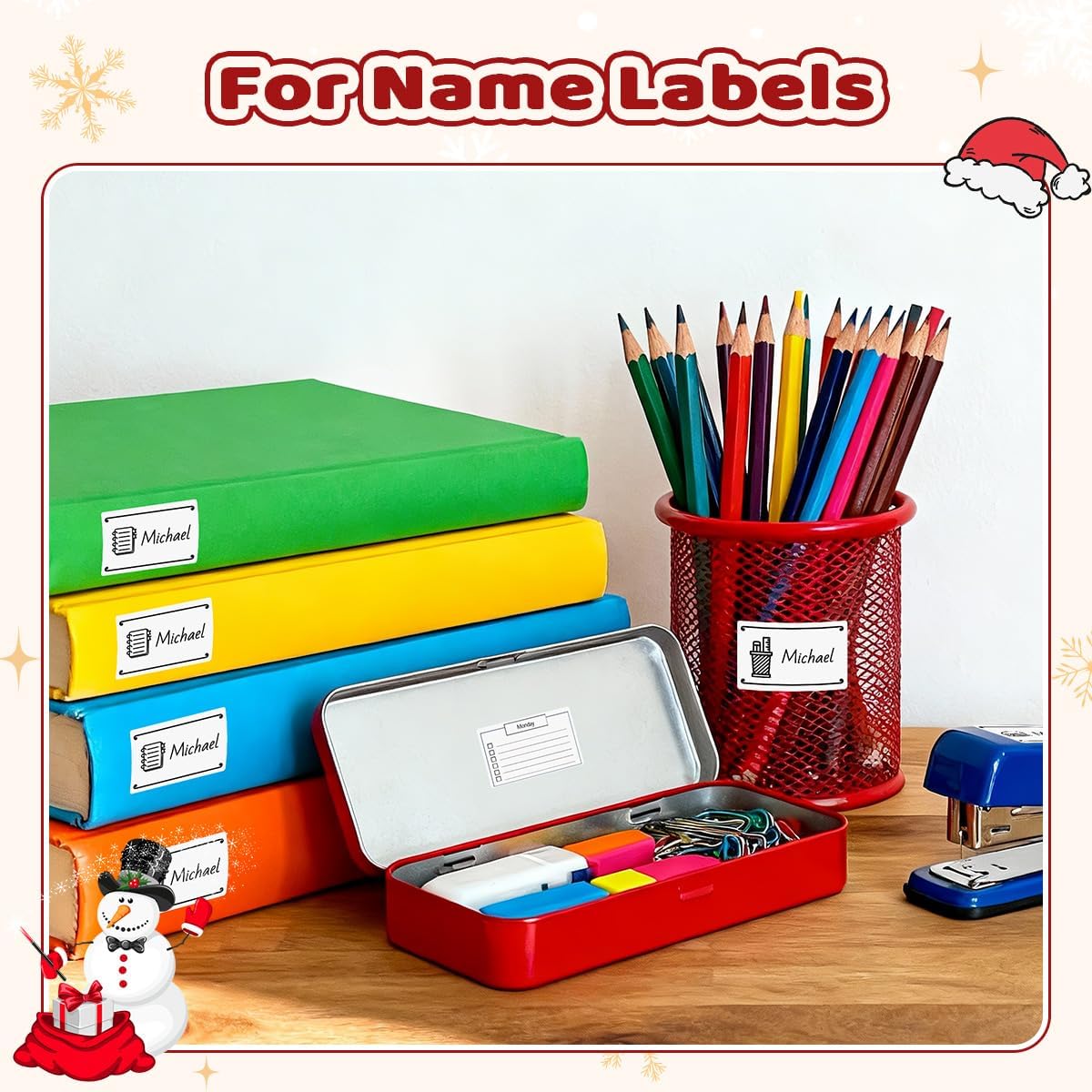
Image: Ponek M110 Thermal Labels used as name labels on books and stationery.
5. Storage and Maintenance
To maintain the quality and adhesiveness of your Ponek M110 Thermal Labels, follow these guidelines:
- Store labels in a cool, dark environment to prevent degradation of the thermal coating and adhesive.
- Avoid exposure to direct sunlight, high temperatures, and humidity.
- Keep labels away from chemicals that may react with the thermal material.
- Handle labels with clean, dry hands to prevent smudges or damage.
6. Troubleshooting
If you encounter issues with your Ponek M110 Thermal Labels, consider the following common solutions:
- Faint or Unclear Print: Check the printing density settings in your label maker app/software. Ensure the labels are loaded correctly with the printable side facing the print head.
- Labels Not Feeding: Verify that the label roll is properly seated and not jammed. Ensure the label compartment is closed correctly.
- Labels Not Sticking: Ensure the application surface is clean, dry, and smooth. Avoid applying labels to textured or oily surfaces.
- Misalignment: Calibrate your label printer according to its specific instructions. Ensure the label type and dimensions are correctly selected in the app.
For further assistance, refer to your label maker's specific user manual or contact Ponek customer support.
7. Warranty and Support
For information regarding product warranty, returns, or technical support, please refer to the documentation included with your Ponek label maker or visit the official Ponek website. Keep your purchase receipt as proof of purchase for any warranty claims.