
1. Introduction
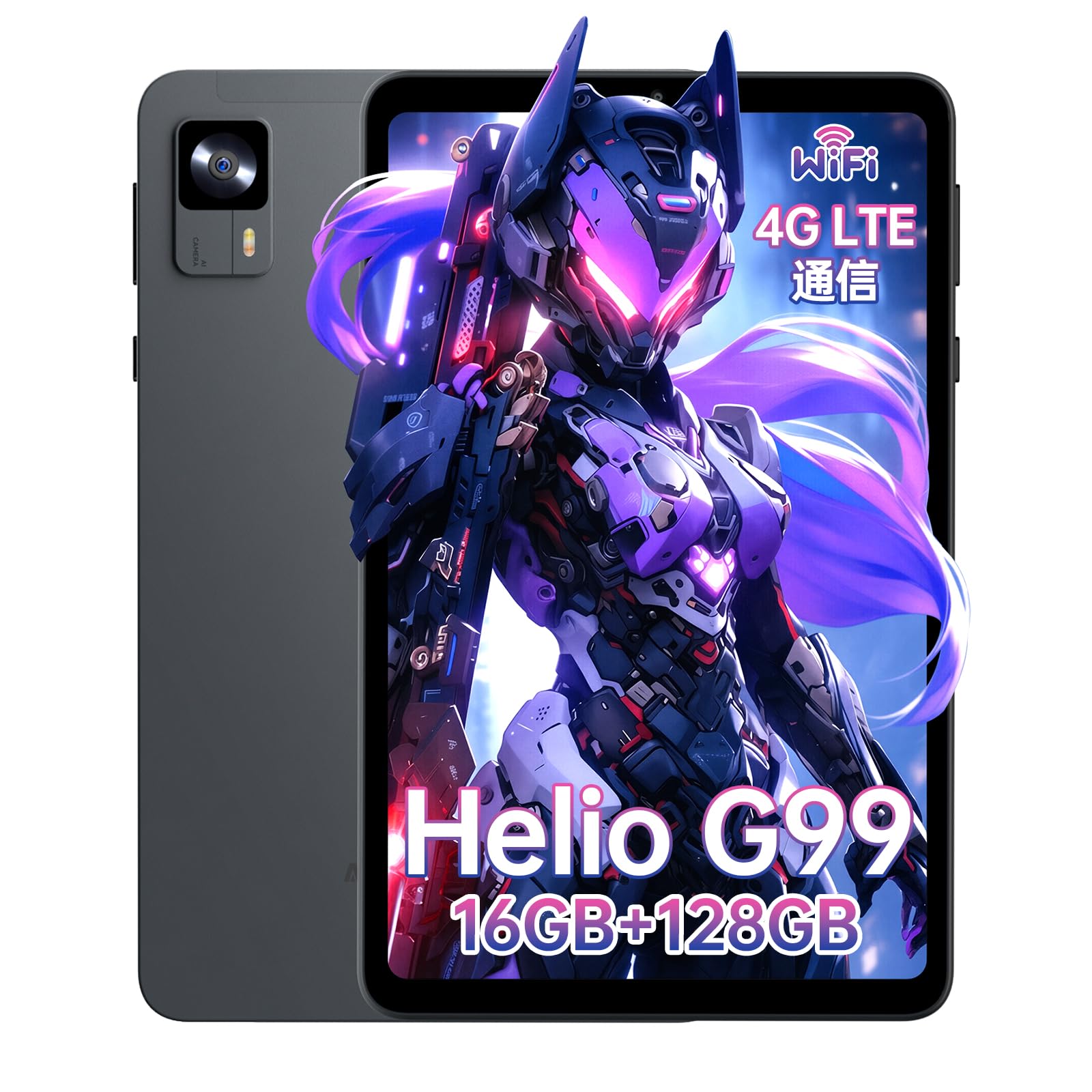
This manual provides essential information for the proper setup, operation, and maintenance of your Alphawolf 8-inch Android 14 Tablet. Please read it thoroughly before using the device to ensure optimal performance and longevity.
2. Package Contents
Verify that all items listed below are included in your product package. If any items are missing or damaged, please contact customer support.
- Alphawolf A1 Tablet Unit x 1
- USB Type-C Cable x 1
- Charging Adapter x 1
- SIM Card Pin x 1
- Japanese Instruction Manual x 1

3. Device Layout
Familiarize yourself with the physical components and ports of your Alphawolf A1 Tablet.
- Front Camera: For video calls and selfies.
- Headphone Jack (3.5mm): For connecting wired headphones.
- Type-C Charging Port: For charging the device and data transfer.
- Power Button: To turn the device on/off or put it to sleep/wake it up.
- Reset Button: A small pinhole button for force restarting the device if it becomes unresponsive.
- Volume Buttons: To adjust the device's volume.
- Back Camera: For taking photos and videos.
- Card Slot: For inserting SIM cards and microSD cards.
4. Setup
4.1 Initial Power On
- Press and hold the Power Button until the Alphawolf logo appears on the screen.
- Follow the on-screen prompts to select your language, connect to a Wi-Fi network, and set up your Google account.
4.2 Inserting SIM and MicroSD Cards
- Locate the card slot on the side of the tablet.
- Insert the SIM Card Pin into the small hole next to the card slot and gently push until the tray ejects.
- Place your Nano-SIM card(s) and/or microSD card into the tray with the gold contacts facing down.
- Carefully reinsert the tray into the tablet.
4.3 Charging the Tablet
Before first use, fully charge the tablet using the provided USB Type-C cable and charging adapter.
- Connect the USB Type-C cable to the tablet's charging port.
- Connect the other end of the cable to the charging adapter, then plug the adapter into a power outlet.
- The battery icon on the screen will indicate charging status.
5. Operating Instructions
5.1 Basic Navigation
- Touch: Tap the screen to select items, open apps, or type.
- Swipe: Drag your finger across the screen to scroll, switch screens, or access notifications.
- Pinch-to-Zoom: Use two fingers to zoom in or out on photos, maps, and web pages.
5.2 6-Axis Gyroscope for Enhanced Control
The Alphawolf A1 Tablet is equipped with a high-precision 6-axis gyroscope (3-axis accelerometer and 3-axis gyroscope). This sensor allows for precise directional control and accurate orientation, responding instantly to device movements. This feature is particularly beneficial for:
- Gaming: Experience immersive gameplay with responsive motion controls and haptic feedback.
- Navigation: When used as a car navigation system, the 6-axis gyro accurately identifies direction for a smooth driving experience.

5.3 Split Screen Functionality
The tablet supports split-screen mode, allowing you to use two applications simultaneously for enhanced multitasking.

6. Connectivity
6.1 Wi-Fi Connection
The tablet supports 2.4GHz and 5GHz Wi-Fi bands for stable and high-speed internet access.
- Go to Settings > Network & internet > Wi-Fi.
- Toggle Wi-Fi On.
- Select your desired network from the list and enter the password if prompted.
6.2 4G LTE Communication
With a compatible SIM card, the tablet supports 4G LTE for mobile data, SMS, and calls.
- Ensure a Nano-SIM card is correctly inserted (refer to Section 4.2).
- Go to Settings > Network & internet > Mobile network.
- Enable Mobile data and configure APN settings if necessary (consult your carrier for APN details).
Supported Frequency Bands:
- 4G FDD: B1/3/5/7/8/18/19/20/26/28AB
- 4G TDD: B41
- 3G WCDMA: B1/2/5/8
- 2G GSM: B2/3/5/8

6.3 Bluetooth Connection
The tablet supports Bluetooth 5.2 for connecting wireless accessories.
- Go to Settings > Connected devices > Bluetooth.
- Toggle Bluetooth On.
- Select the device you wish to pair from the list and follow the on-screen instructions.
7. Camera Features
The Alphawolf A1 Tablet is equipped with dual cameras to capture your moments.
- Rear Camera: 16 Megapixels for high-resolution photos and videos.
- Front Camera: 8 Megapixels for clear selfies and video calls.
7.1 Taking Photos and Videos
- Open the Camera application.
- Tap the camera icon to switch between front and rear cameras.
- Tap the shutter button to take a photo or the record button to start/stop video recording.

8. Display and Multimedia
8.1 FHD IPS Display
The 8.4-inch FHD IPS display offers a resolution of 1920x1200 pixels, providing vivid colors and detailed visuals. IPS technology ensures wide viewing angles and minimal color distortion.

8.2 Widevine L1 Support
With Widevine L1 certification, your tablet can stream 1080P HD content from major platforms such as Netflix, Amazon Prime Video, Disney+, and Hulu, providing a high-quality viewing experience.
8.3 Dual Speakers
The integrated dual speakers enhance the audio experience, providing immersive sound for videos, music, and games.
8.4 TUV Blue Light Certification
The display is TUV blue light certified, reducing harmful blue light emissions to protect your eyes during extended use.

9. Performance and Storage
9.1 Helio G99 CPU
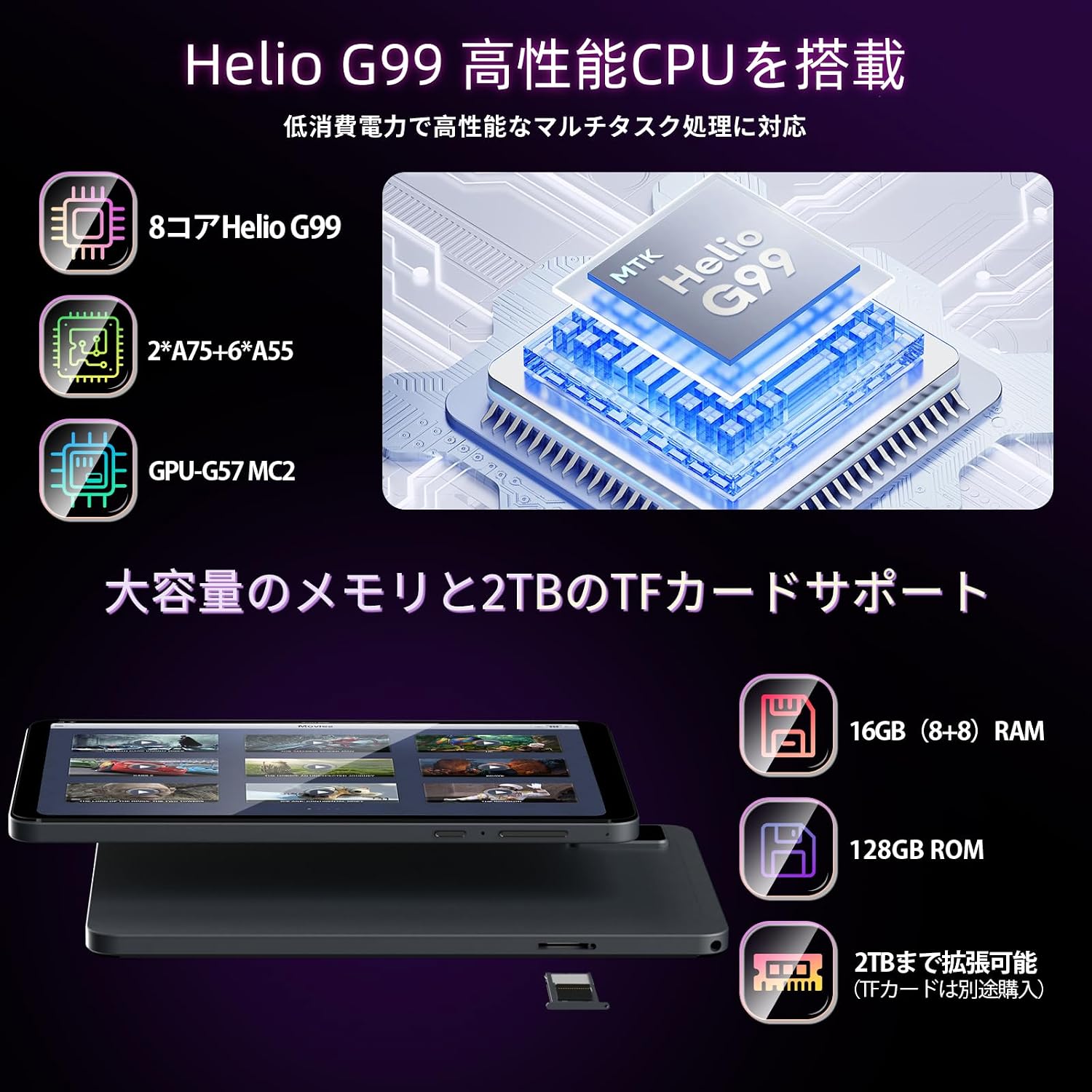
The tablet is powered by the MediaTek Helio G99 8-core processor (2x A75 + 6x A55) with a maximum speed of 2.2 GHz and a Mali G57 GPU. This configuration ensures smooth performance for multitasking, gaming, and graphics-intensive applications, achieving an Antutu benchmark score of over 400,000 points.
9.2 Memory and Storage
- RAM: 16GB (8GB physical RAM + 8GB virtual RAM) for efficient multitasking.
- Internal Storage: 128GB for your apps, photos, and files.
- Expandable Storage: Supports up to 2TB via microSD card (sold separately).
10. Battery Management
The Alphawolf A1 Tablet features a 5500mAh lithium-ion battery, providing up to 8 hours of average use.
10.1 Optimizing Battery Life
- Reduce screen brightness.
- Disable Wi-Fi, Bluetooth, and GPS when not in use.
- Close unused applications running in the background.
- Enable battery saver mode in Settings > Battery.
11. GPS and Navigation
The tablet supports a four-in-one satellite positioning system (GPS+Beidou+Galileo+Glonass) for accurate location tracking worldwide. It also includes a built-in compass for precise directional guidance.

12. Security
12.1 Face Recognition
The tablet features face recognition for convenient and secure unlocking.
- Go to Settings > Security & privacy > Face unlock.
- Follow the on-screen instructions to register your face.
- Ensure good lighting conditions when using face recognition.

13. Maintenance
13.1 Cleaning the Tablet
- Use a soft, lint-free cloth to clean the screen and body of the tablet.
- Avoid using harsh chemicals or abrasive materials.
13.2 Software Updates
Regularly check for and install software updates to ensure optimal performance and security.
- Go to Settings > About tablet > System update.
- Tap Check for updates and follow the on-screen instructions.
14. Troubleshooting
14.1 Common Issues and Solutions
- Tablet is unresponsive or frozen: Press and hold the Power Button for about 10 seconds to force a restart. If this does not work, use a small pin to press the Reset button.
- Compass direction is incorrect: Ensure your tablet's software is updated to version 'A1_V1.0_20240929' or later. Update via Settings > Device Information > System Update > Check for Updates.
- Touch screen not responding: If the screen becomes unresponsive, try turning the screen off and on again using the power button. If the issue persists, restart the tablet. Avoid using the tablet for extended periods while charging if it causes excessive heat, as this can affect touch response.
- Battery drains quickly: Refer to Section 10.1 for tips on optimizing battery life.
- Cannot connect to Wi-Fi: Ensure Wi-Fi is enabled and you are entering the correct password. Try restarting your router and the tablet.
- Cannot connect to 4G LTE: Ensure a valid SIM card is inserted and mobile data is enabled. Verify APN settings with your mobile carrier.
14.2 Important Notes
Please operate and use the product correctly according to the instructions in this manual.
Use only Alphawolf genuine adapters and cables. Do not use the tablet for extended periods while charging, as excessive heat generation may prevent startup or cause the touch screen to become unresponsive.

15. Specifications
| Brand | Alphawolf |
| Model Name | A1 |
| Operating System | Android 14 |
| Processor | MediaTek Helio G99 (8-core, up to 2.2 GHz) |
| Graphics | Mali-G57 |
| RAM | 16GB (8GB physical + 8GB virtual) |
| Internal Storage | 128GB |
| Expandable Storage | Up to 2TB via microSD card |
| Screen Size | 8.4 inches |
| Display Type | FHD IPS |
| Resolution | 1920 x 1200 pixels |
| Brightness | 400 nits |
| Aspect Ratio | 16:10 |
| Rear Camera | 16MP |
| Front Camera | 8MP |
| Battery Capacity | 5500mAh |
| Average Battery Life | 8 Hours |
| Charging Port | USB Type-C |
| Headphone Jack | 3.5mm |
| Wi-Fi | 2.4GHz / 5GHz (802.11ax, 802.11g) |
| Bluetooth | Bluetooth 5.2 |
| Cellular | 4G LTE (FDD: B1/3/5/7/8/18/19/20/26/28AB, TDD: B41), 3G (WCDMA: B1/2/5/8), 2G (GSM: B2/3/5/8) |
| GPS | GPS, Beidou, Galileo, Glonass |
| Sensors | 6-axis Gyroscope, GPS Sensor, Gravity Sensor, Compass |
| Security Features | Face Recognition |
| Dimensions | 21.5 cm (L) x 13.6 cm (W) x 3.6 cm (T) |
| Weight | 320 grams |
16. Warranty and Support
16.1 Product Warranty
Products purchased from our store come with a 1-year warranty from the date of purchase.
16.2 Customer Support
In the unlikely event of an initial defect, or if you have any questions or concerns during use, please feel free to contact us. We are committed to providing sincere support.
Contact Method:
- Go to your Amazon Account.
- Navigate to Order History.
- Select the Relevant Order for your Alphawolf tablet.
- Click on Order Details.
- Choose Contact Seller.