
1. Introduction
This manual provides instructions for the Beyution EN2D36H replacement infrared remote control. This remote is designed to function with various Hisense Smart Vidaa TV models without requiring any programming or pairing. Its ergonomic design ensures comfortable handling and ease of use.
Compatible Hisense Smart Vidaa TV Models:
- 55A6GV
- 32A35HUV
- 43A35HUV
- 40A45GV
- 40A35HUV
- 43A6GV
- 32A45GV
- 50A6GV
- 65A6GV
- 43A45GV
If your specific TV model is not listed, please refer to the support section for assistance.
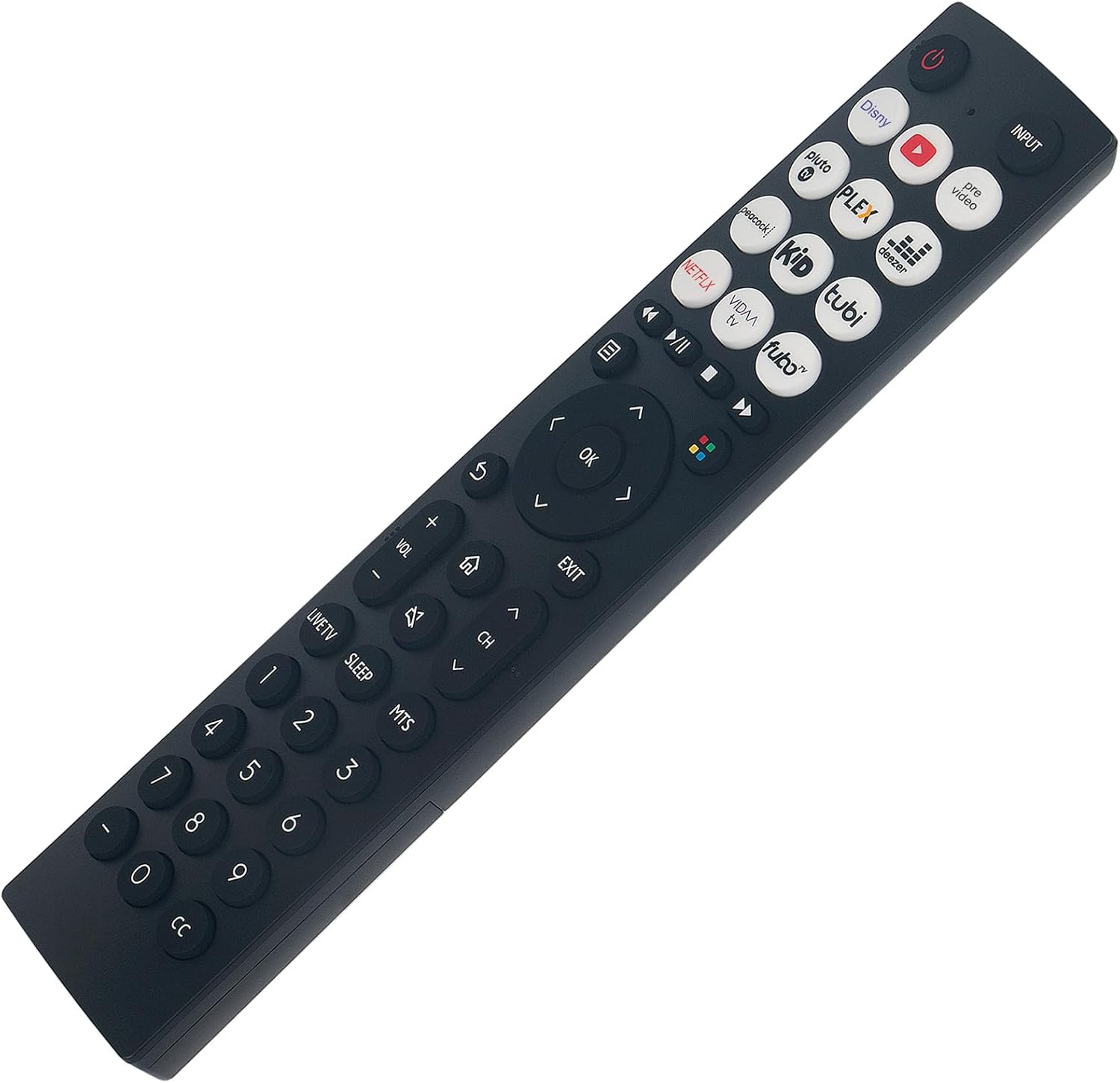
Figure 1: Beyution EN2D36H Remote Control Overview
2. Setup
2.1 Battery Installation
- Locate the battery compartment on the back of the remote control.
- Slide the battery cover downwards or press the latch and lift to open.
- Insert two AAA batteries (not included), ensuring the positive (+) and negative (-) terminals align correctly with the markings inside the compartment.
- Replace the battery cover by sliding it back into position until it clicks securely.

Figure 2: Battery Compartment
2.2 Initial Use
The Beyution EN2D36H remote control is a replacement infrared unit that requires no programming or pairing. Once batteries are correctly installed, it is ready for immediate use with compatible Hisense Smart Vidaa TVs. Point the remote directly at your television's infrared receiver.
3. Operating Instructions
This remote control provides full functionality for your Hisense Smart Vidaa TV. Ensure a clear line of sight between the remote and the TV's infrared sensor for optimal performance.

Figure 3: Remote Control Button Layout
3.1 Button Functions
- Power Button (): Turns the TV on or off.
- Input: Selects the input source (HDMI, AV, etc.).
- Navigation Pad (Up, Down, Left, Right, OK): Navigates menus and confirms selections.
- Back (): Returns to the previous screen or menu.
- Exit: Exits the current menu or application.
- Volume Up/Down (VOL +/-): Adjusts the TV volume.
- Channel Up/Down (CH +/-): Changes TV channels.
- Mute (): Mutes or unmutes the TV audio.
- Home (): Accesses the TV's main home screen or smart hub.
- LIVE TV: Switches to live television broadcast.
- SLEEP: Activates the sleep timer function.
- MTS: Multi-channel Television Sound selection.
- Number Buttons (0-9): Direct channel input.
- CC: Activates or deactivates Closed Captions.
- Quick Access Buttons: Dedicated buttons for popular streaming services such as Disney, YouTube, Pluto TV, Plex, Deezer, Peacock, Kid, Tubi, Netflix, VIDAA TV, FuboTV.
- Media Playback Controls: Play/Pause, Fast Forward, Rewind, Stop.
4. Maintenance
4.1 Cleaning
To clean the remote control, use a soft, dry cloth. For stubborn dirt, lightly dampen the cloth with water or a mild, non-abrasive cleaner. Avoid using harsh chemicals or abrasive materials, as these can damage the remote's surface and buttons.
4.2 Battery Replacement
Replace batteries when the remote's response becomes sluggish or it stops functioning. Always replace both batteries at the same time with new ones of the same type (AAA). Do not mix old and new batteries or different types of batteries.
4.3 Storage
When not in use for extended periods, remove the batteries to prevent leakage, which can damage the remote control. Store the remote in a cool, dry place away from direct sunlight and extreme temperatures.
5. Troubleshooting
- Remote not responding:
- Check if the batteries are inserted correctly with the correct polarity.
- Replace old batteries with new ones.
- Ensure there are no obstructions between the remote control and the TV's infrared sensor.
- Make sure you are within the effective operating range (up to 10 meters).
- Limited range or intermittent response:
- This usually indicates low battery power; replace the batteries.
- Ensure no strong light sources (like direct sunlight or bright fluorescent lights) are interfering with the infrared signal.
If the remote control remains unresponsive or is damaged upon receipt, please refer to the support section for further assistance.
6. Specifications
| Model Number | EN2D36H |
| Connectivity Technology | Infrared |
| Maximum Operating Distance | 10 Meters (33 feet) |
| Material | ABS Plastic |
| Color | Black |
| Product Dimensions | 7 x 1.5 x 0.5 inches (17.8 x 3.8 x 1.3 cm) |
| Item Weight | 1.9 ounces (54 grams) |
| Compatible Devices | Television |
7. Support
For any questions, concerns, or if you encounter issues with your Beyution EN2D36H remote control, including compatibility inquiries or receiving a damaged/non-functional unit, please contact the seller directly through your purchase platform. They will provide a satisfactory solution and further assistance.