
1. Product Overview
The Biegedy B22 is a 10-inch Android 14 tablet designed for versatile use. It features an Octa-Core processor, ample memory, and advanced connectivity options.

Image: Overview of the Biegedy B22 Tablet highlighting key features such as 10.1-inch display, Octa-Core processor, Widevine L1 support, Android 14, WiFi 6, Bluetooth 5.0, 6000mAh battery, and memory configuration.
2. Package Contents
Verify that all items are present in the package:
- Biegedy B22 Tablet
- Protective Case
- Bluetooth Keyboard
- Wireless Mouse
- User Manual (this document)
- Tablet Charger
- Charging Cable for Tablet (USB Type-C)
- Screen Protector
- OTG Adapter

Image: The Biegedy B22 Tablet displayed alongside its accessories, including a protective case, Bluetooth keyboard, wireless mouse, charger, OTG adapter, screen protectors, and charging cable.
3. Device Layout
Familiarize yourself with the tablet's physical features and ports.
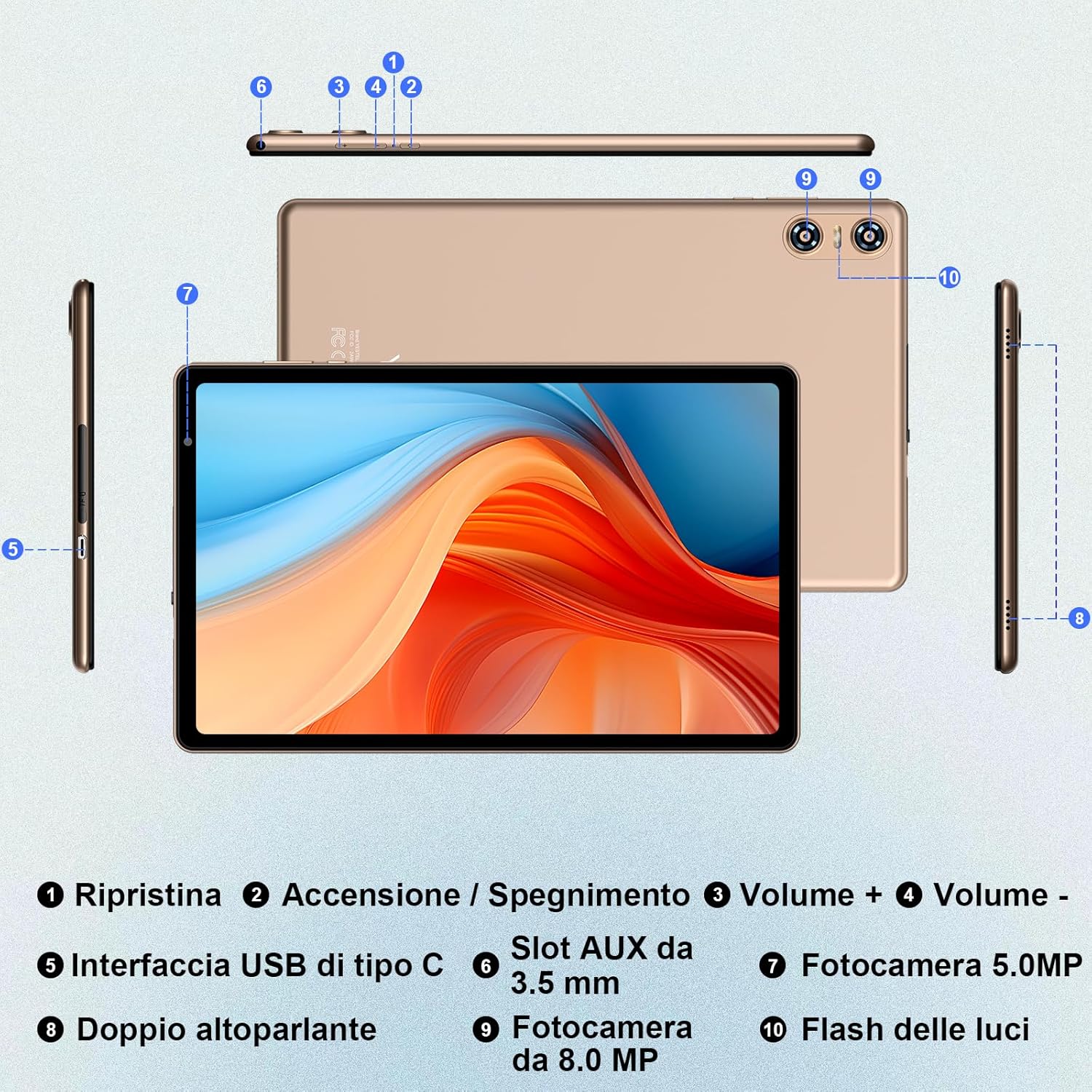
Image: A diagram illustrating the various ports and buttons on the Biegedy B22 Tablet, including the Reset button, Power On/Off button, Volume Up/Down, USB Type-C interface, 3.5mm AUX slot, 5MP front camera, dual speakers, 8MP rear camera, and flash.
- Reset Button
- Power On/Off Button
- Volume Up Button
- Volume Down Button
- USB Type-C Interface
- 3.5 mm AUX Slot
- 5MP Front Camera
- Dual Speakers
- 8MP Rear Camera
- Flash Light
4. Setup
4.1 Initial Charging
Before first use, fully charge the tablet using the provided charger and USB Type-C cable. The battery indicator on the screen will show charging progress.
4.2 Power On/Off
- To Power On: Press and hold the Power On/Off button (2) until the screen lights up.
- To Power Off: Press and hold the Power On/Off button (2) until a menu appears, then select 'Power Off'.
- To Restart: Press and hold the Power On/Off button (2) until a menu appears, then select 'Restart'.
4.3 Initial Setup Wizard
Upon first power-on, the tablet will guide you through the initial setup process. This includes selecting your language, connecting to a Wi-Fi network, setting up your Google account, and configuring basic security settings.
4.4 Connecting Accessories
The Biegedy B22 tablet comes with a Bluetooth keyboard and a wireless mouse for enhanced productivity.
- Bluetooth Keyboard: Turn on the keyboard and activate its Bluetooth pairing mode. On the tablet, go to Settings > Connected devices > Bluetooth, then search for and select the keyboard to pair.
- Wireless Mouse: Insert the USB receiver of the wireless mouse into the OTG adapter, then connect the OTG adapter to the tablet's USB Type-C port. The mouse should connect automatically.
5. Operating Instructions
5.1 Basic Navigation (Android 14)
The tablet runs on Android 14, offering an intuitive user interface. Use touch gestures for navigation:
- Tap: Select an item or open an app.
- Swipe: Scroll through pages or lists.
- Pinch-to-Zoom: Enlarge or reduce content on the screen.
- Long Press: Access contextual menus or move icons.

Image: Visual representation of Android 14's focus on privacy, customization, user experience, and system performance, alongside the tablet's 20GB RAM (6GB + 14GB expandable) and 128GB ROM with 1TB expansion capability.
5.2 Wi-Fi and Bluetooth Connectivity
The tablet supports 5G Wi-Fi 6 and Bluetooth 5.0 for fast and stable connections.
- Wi-Fi: Go to Settings > Network & internet > Internet. Select your desired Wi-Fi network and enter the password if required.
- Bluetooth: Go to Settings > Connected devices > Bluetooth. Turn on Bluetooth and pair with compatible devices like headphones or speakers.

Image: Demonstrates the tablet's 5G WiFi and Bluetooth 5.0 capabilities, along with the face recognition unlock feature for quick and secure access.
5.3 Camera Usage
The tablet is equipped with a 5MP front camera and an 8MP rear camera.
- Open the 'Camera' app from the home screen or app drawer.
- Tap the shutter button to take photos.
- Switch between front and rear cameras using the camera toggle icon.
- Select video mode to record videos.

Image: Close-up view of the tablet's rear camera module, highlighting the 8MP primary camera and the 5MP front camera, with example photos taken by each.
5.4 Storage Management
The tablet has 128GB of internal storage, expandable up to 1TB via a TF (microSD) card.
- Inserting a TF Card: Locate the TF card slot (often combined with the SIM tray, if present, or a dedicated slot on the side). Carefully insert the TF card until it clicks into place.
- Managing Storage: Go to Settings > Storage to view storage usage and manage files.
5.5 Widevine L1 Support
The tablet supports Widevine L1, enabling high-definition streaming from compatible services like Netflix, Disney+, and Amazon Prime Video.
6. Maintenance
6.1 Cleaning the Tablet
Use a soft, lint-free cloth to clean the screen and body of the tablet. Avoid using harsh chemicals or abrasive materials.
6.2 Battery Care
To prolong battery life:
- Avoid extreme temperatures.
- Do not let the battery drain completely before recharging frequently.
- Use the original charger provided.
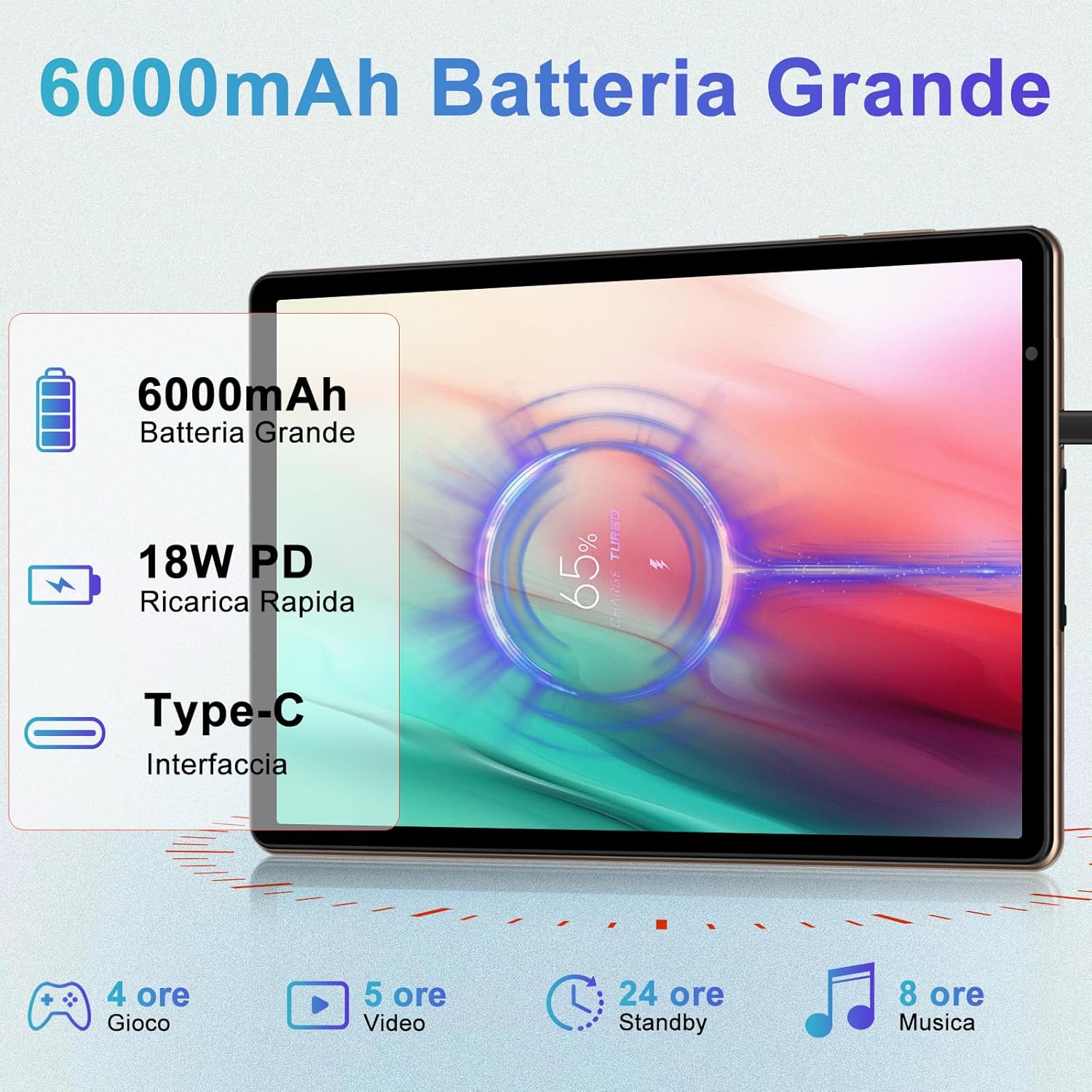
Image: Illustrates the tablet's 6000mAh battery capacity, 18W PD fast charging capability via Type-C, and estimated usage times for gaming, video playback, standby, and music.
6.3 Software Updates
Regularly check for and install system updates to ensure optimal performance and security. Go to Settings > System > System update.
6.4 Storage Optimization
Periodically clear unnecessary files, cache data, and uninstall unused applications to free up storage space and maintain tablet speed.
7. Troubleshooting
This section addresses common issues you might encounter.
- Tablet not turning on: Ensure the tablet is charged. Connect it to the charger for at least 30 minutes, then try powering it on again.
- Wi-Fi not connecting: Check if Wi-Fi is enabled in settings. Restart your router and the tablet. Ensure you are entering the correct password.
- Slow performance: Close unused apps, clear cache, and ensure sufficient storage space. Restarting the tablet can also help.
- Apps crashing: Try clearing the app's cache (Settings > Apps > [App Name] > Storage & cache > Clear cache). If the issue persists, reinstall the app.
- Screen unresponsive: If the screen is frozen, press and hold the Power On/Off button for about 10-15 seconds to force a restart.
7.1 Factory Reset
If persistent issues occur, a factory reset may be necessary. Warning: This will erase all data on your tablet. Back up important data before proceeding. Go to Settings > System > Reset options > Erase all data (factory reset).
8. Specifications
| Feature | Specification |
|---|---|
| Brand | Biegedy |
| Model | B22 |
| Operating System | Android 14 |
| Processor | Octa-Core A523, 1.8 GHz |
| RAM | 20 GB (6 GB + 14 GB expandable) |
| Internal Storage | 128 GB |
| Expandable Storage | Up to 1 TB (TF card) |
| Screen Size | 10.1 Inches |
| Display Resolution | 1280 x 800 Pixels |
| Rear Camera | 8 MP |
| Front Camera | 5 MP |
| Wi-Fi | 5G Wi-Fi 6 (802.11a/b/g/n/ax) |
| Bluetooth | Bluetooth 5.0 |
| Battery Capacity | 6000 mAh |
| Charging Port | USB Type-C |
| Headphone Jack | 3.5 mm |
| Special Features | Widevine L1, Face Recognition, Expandable Storage |
9. Warranty and Support
9.1 Warranty Information
The Biegedy B22 Tablet is covered by a manufacturer's warranty. Please refer to the warranty card included in your package or contact the retailer for specific terms and conditions. This warranty typically covers manufacturing defects but does not cover damage caused by misuse, accidents, or unauthorized modifications.
9.2 Customer Support
For technical assistance, troubleshooting, or warranty claims, please contact Biegedy customer support through the contact information provided on the product packaging or the official Biegedy website. When contacting support, please have your product model (B22) and purchase details ready.