
Rraycom BW6
Rraycom BW6B Wireless Battery-Powered Security Camera
User Instruction Manual
1. Introduction
Thank you for choosing the Rraycom BW6B Wireless Battery-Powered Security Camera. This manual provides detailed instructions for the installation, operation, and maintenance of your new security camera. Please read this manual thoroughly before use to ensure proper functionality and to maximize the benefits of your device. This camera is designed for outdoor use, offering 2K QHD resolution, color night vision, AI motion detection, and two-way audio communication, powered by a built-in battery and solar panel for continuous operation.
2. Product Overview
2.1. Package Contents
Please verify that all components are present in your package:
- Rechargeable Battery Security Camera
- Solar Panel
- Metal Mount
- Screws Set & 1*User Manual
- USB Cable
2.2. Key Features
- Solar Powered with 5200mAh Battery: Ensures 365 days of uninterrupted protection with a 3W solar panel and robust built-in battery.
- 2K QHD Resolution & 130° Wide View: Provides clear, detailed video and a broad field of view for comprehensive monitoring.
- Full-Color Night Vision: Captures vivid images even in low-light conditions up to 33ft.
- Advanced AI Motion Detection: Intelligently analyzes and recognizes human motion, sending real-time alerts to your device.
- Two-Way Talk & Siren Alarm: Allows for remote communication and includes a customizable siren and spotlight for deterrence.
- Flexible Storage Options: Supports both cloud storage and local Micro SD card storage (up to 256GB) without subscription fees.
- IP65 Waterproof: Designed to withstand various outdoor weather conditions.
2.3. Product Diagram and Components

Figure 2.3.1: Front view of the Rraycom BW6B security camera with its accompanying solar panel.

Figure 2.3.2: Illustration of the camera and solar panel providing continuous power, highlighting 365 days of non-stop operation.
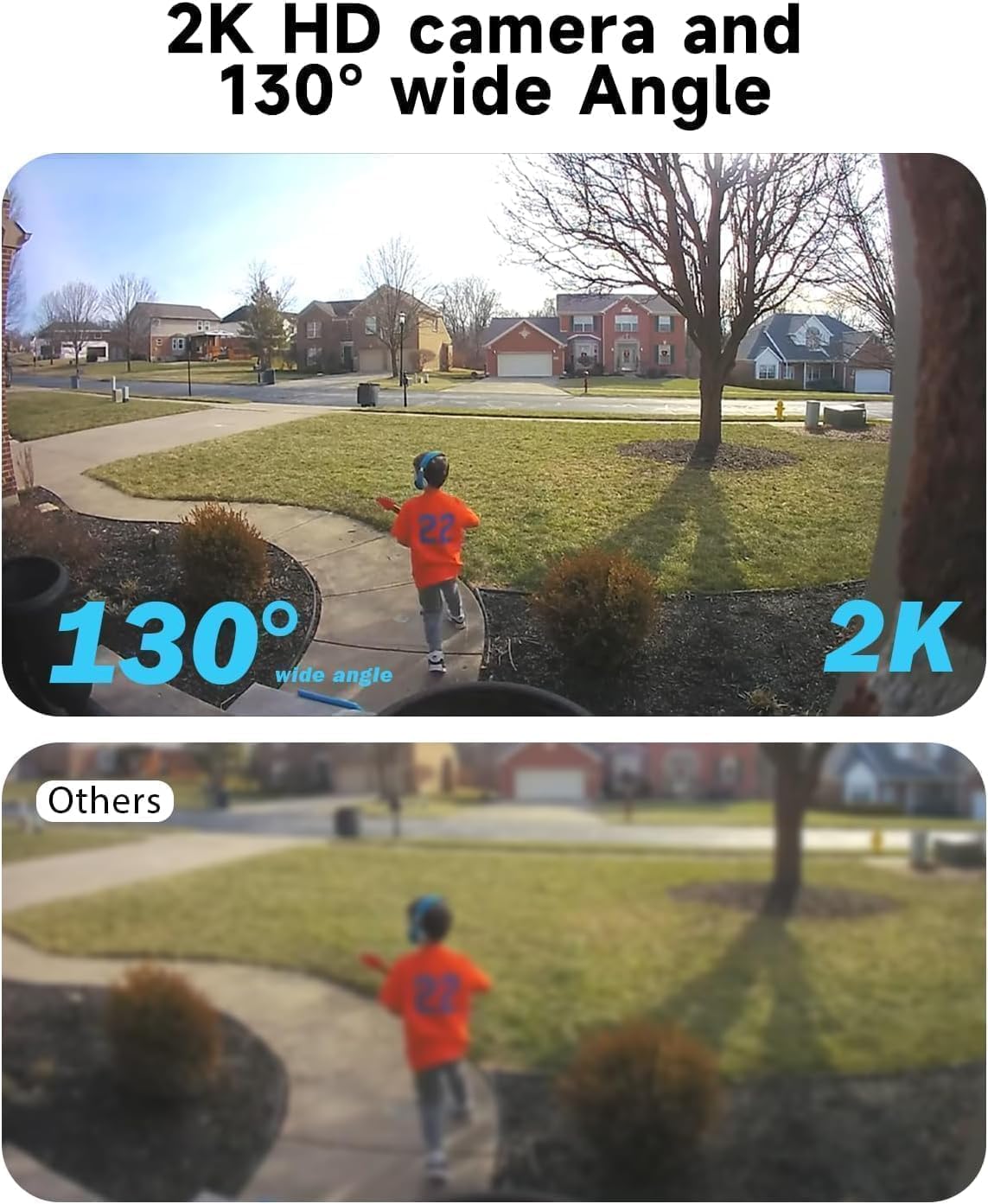
Figure 2.3.3: Comparison demonstrating the 2K HD resolution and 130-degree wide-angle view of the camera versus a standard view.

Figure 2.3.4: Depiction of the AI motion detection feature, showing a detected person and the camera's response with siren and spotlight.

Figure 2.3.5: Illustration of the two-way audio functionality, enabling communication through the camera.

Figure 2.3.6: Example of the 2K HD color night vision, showing clear imagery in low-light conditions up to 33 feet.

Figure 2.3.7: Diagram showing the camera's support for both cloud storage and local SD card storage (up to 256GB).

Figure 2.3.8: Demonstration of the camera's compatibility with Amazon Alexa for voice control and viewing.
3. Setup Guide
3.1. Initial Charging
Before initial use, fully charge the camera's built-in 5200mAh battery using the provided USB cable. Connect the USB cable to the camera's charging port and a standard 5V USB power adapter (not included). The charging indicator light will show the charging status.
3.2. App Download and Account Registration
- Scan the QR code in the included user manual or search for the "Rraycom" app in your mobile device's app store (iOS or Android).
- Download and install the app.
- Open the app and register a new account using your email address. Follow the on-screen prompts to complete registration and log in.
3.3. Camera Pairing
- Ensure your mobile device is connected to a 2.4GHz Wi-Fi network. The camera does not support 5GHz Wi-Fi.
- In the Rraycom app, tap the "+" icon to add a new device.
- Select "Wireless Camera" or the appropriate camera model.
- Power on the camera. If the camera is not in pairing mode (indicated by a flashing blue light), press and hold the reset button for 5 seconds until you hear a prompt.
- Follow the app's instructions to enter your Wi-Fi password. The app will generate a QR code.
- Hold your phone with the QR code approximately 6-8 inches (15-20 cm) in front of the camera lens until you hear a confirmation sound.
- Once connected, the camera's indicator light will turn solid blue. You can then name your camera and complete the setup.
3.4. Installation and Placement
The Rraycom BW6B camera is 100% wire-free, offering flexible installation. Choose a location with good Wi-Fi signal and where the solar panel can receive direct sunlight for several hours daily.
- Mounting Location: Identify a suitable outdoor location that provides the desired viewing angle (130° wide view) and is within Wi-Fi range. Consider areas prone to activity for optimal motion detection.
- Solar Panel Placement: Mount the solar panel in an unshaded area that receives maximum direct sunlight throughout the day. Connect the solar panel cable to the camera's charging port.
- Secure Mounting: Use the provided metal mount and screws to securely attach the camera and solar panel to a wall or other stable surface. Adjust the camera angle to cover your desired surveillance area.
4. Operating Instructions
4.1. Live View and Playback
- Open the Rraycom app and select your camera from the device list to access the live view.
- From the live view interface, you can take screenshots, record video manually, and access two-way audio.
- To view recorded footage, tap on the "Playback" or "History" option within the camera interface. You can browse recordings by date and time.
4.2. Motion Detection Settings
- Navigate to the camera settings within the app.
- Locate "Motion Detection" or "PIR Settings".
- Adjust sensitivity levels (Low, Medium, High) to optimize detection and minimize false alarms.
- Enable or disable push notifications for motion events.
- Configure detection zones if available to focus on specific areas.
4.3. Two-Way Audio and Siren
- In live view, tap the microphone icon to activate two-way audio. Speak into your phone to communicate through the camera's speaker.
- To activate the siren alarm or spotlight, look for the respective icons in the live view or camera settings. You can also customize siren messages.
4.4. Night Vision Modes
The camera supports full-color night vision. This mode automatically activates in low-light conditions to provide clear, colored images up to 33 feet.
4.5. Storage Management
- Micro SD Card: Insert a Micro SD card (up to 256GB, not included) into the designated slot on the camera. The camera will automatically begin recording motion-triggered events to the card.
- Cloud Storage: The Rraycom camera offers cloud storage options. Refer to the app for details on free trial periods and available plans.
- You can access and manage both local and cloud recordings through the app's playback section.
4.6. Amazon Alexa Integration
The Rraycom BW6B camera is compatible with Amazon Alexa. To integrate:
- Ensure your camera is properly set up in the Rraycom app.
- Open the Amazon Alexa app.
- Go to "Skills & Games" and search for the "Rraycom" skill.
- Enable the skill and link your Rraycom account.
- Discover devices. You can now use voice commands like "Alexa, show me the [camera name]" on compatible Alexa devices with screens.
5. Maintenance
5.1. Cleaning the Camera and Solar Panel
Regular cleaning ensures optimal performance:
- Wipe the camera lens and solar panel surface with a soft, damp cloth to remove dust, dirt, or debris.
- Avoid using harsh chemicals or abrasive materials that could scratch the lens or panel.
- Ensure the solar panel is free from obstructions (e.g., leaves, snow) that could block sunlight.
5.2. Battery Care
While the solar panel provides continuous charging, occasional checks are recommended:
- Monitor the battery level via the Rraycom app.
- If the camera is installed in an area with limited sunlight, you may need to manually charge the camera using the USB cable periodically.
- Avoid exposing the camera to extreme temperatures for prolonged periods, as this can affect battery life.
5.3. Firmware Updates
Rraycom may release firmware updates to improve performance or add new features. Check the app regularly for update notifications and follow the instructions to install them. Ensure the camera has sufficient battery life before starting an update.
6. Troubleshooting
| Problem | Possible Cause | Solution |
|---|---|---|
| Camera not connecting to Wi-Fi. | Incorrect Wi-Fi password, 5GHz network, weak signal, camera too far from router. | Ensure 2.4GHz Wi-Fi. Verify password. Move camera closer to router or use a Wi-Fi extender. Reset camera and try pairing again. |
| Blurry image or poor video quality. | Protective film on lens, dirty lens, poor lighting, network bandwidth issues. | Remove any protective film. Clean the camera lens with a soft cloth. Ensure adequate lighting. Check your internet speed. |
| Motion detection not working or too sensitive. | Incorrect sensitivity settings, obstructions, environmental factors (e.g., swaying branches). | Adjust motion detection sensitivity in the app. Ensure camera is positioned correctly to cover the desired area. Minimize environmental factors that could trigger false alarms. |
| Battery not charging or draining quickly. | Insufficient sunlight on solar panel, faulty solar panel connection, extreme temperatures. | Ensure solar panel is in direct sunlight and free from obstructions. Check solar panel cable connection. Manually charge the camera via USB if needed. |
| Two-way audio issues (e.g., distorted sound). | Microphone/speaker obstruction, network latency, software glitch. | Ensure nothing is blocking the camera's microphone or speaker. Check network stability. Restart the app or camera. |
7. Specifications
| Feature | Detail |
|---|---|
| Model Name | BW6 |
| Indoor/Outdoor Usage | Outdoor |
| Video Capture Resolution | 2K QHD |
| Viewing Angle | 130 Degrees |
| Night Vision Range | 33 Feet (Full-Color) |
| Power Source | Solar Powered, Battery (5200 mAh) |
| Connectivity Technology | Wireless (Wi-Fi, 2.4GHz) |
| Compatible Devices | Android & iOS Smartphones, Amazon Alexa |
| Motion Detection | Advanced AI Motion Detection (PIR Sensor) |
| Audio | 2-Way Audio |
| Storage Options | Cloud Storage, Micro SD Card (up to 256GB) |
| Water Resistance Level | IP65 Waterproof |
| Material | ABS Plastic |
| Frame Rate | 15 frames per second |
| Voltage | 5 Volts (DC) |
| Wattage | 17 Watt-hours |
8. Warranty and Customer Support
Rraycom provides a 1-year warranty for the BW6B Wireless Battery-Powered Security Camera, covering manufacturing defects and malfunctions under normal use. Please retain your proof of purchase for warranty claims.
For technical assistance, troubleshooting, or warranty inquiries, please contact Rraycom customer support:
- Email: aftersale@rraycom.com
- Online Support: Visit the official Rraycom website for FAQs and additional resources.

Figure 8.1: Rraycom Customer Service contact details.
Related documentsBW6


Ask a question about this manual
Ask about setup, troubleshooting, compatibility, parts, safety, or missing instructions. Manuals+ will review the question and use this page’s manual context to help answer it.