Introduction
This manual provides comprehensive instructions for the SENGBIRCH Magic Keyboard, designed for the iPad Air 13-inch (M2) 2024 and compatible iPad Pro 12.9-inch models. Please read this manual carefully before using the product to ensure proper operation and to maximize your user experience.
Compatibility
The SENGBIRCH Magic Keyboard is compatible with the following iPad models:
- iPad Air 13-inch (M2) 2024 (6th Generation)
- iPad Pro 12.9-inch 2022 (6th Generation)
- iPad Pro 12.9-inch 2021 (5th Generation) - Models: A2378, A2379, A2461, A2462
- iPad Pro 12.9-inch 2020 (4th Generation) - Models: A2229, A2069, A2232, A2233
- iPad Pro 12.9-inch 2018 (3rd Generation) - Models: A1876, A2014, A1895, A1983

Image: Compatibility chart illustrating the various iPad models supported by the keyboard, including their model numbers.
Package Contents
Ensure all items are present in the package:
- 1 x SENGBIRCH Magic Keyboard for iPad Air 13-inch
- 1 x USB-C Charging Cable
- 1 x User Manual
Setup
1. Charging the Keyboard
Before initial use, fully charge the keyboard using the provided USB-C cable. Connect the USB-C cable to the keyboard's charging port and a suitable USB power adapter (not included).
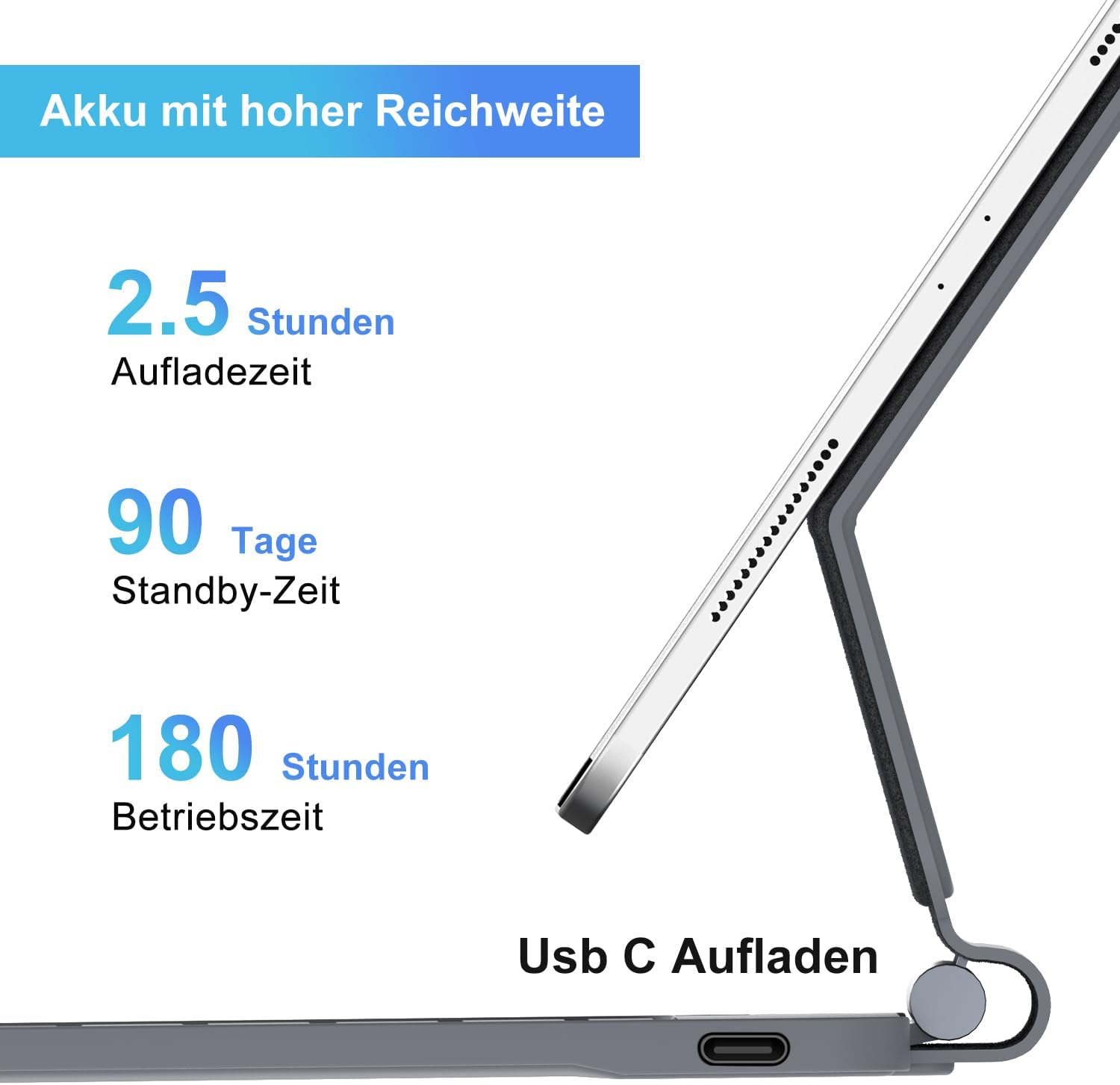
Image: The USB-C charging port is located on the side of the keyboard.
2. Powering On/Off
- To Power On: Press and hold the physical power button located in the upper right corner of the keyboard for 3 to 5 seconds.
- To Power Off: Press and hold the power button again for approximately 5 seconds. A red indicator light on the left side of the button will flash when powering off.
3. Bluetooth Pairing
- Ensure the keyboard is fully charged and powered on.
- Press and hold the power button for 3 seconds to turn on the keyboard.
- Press the Fn + C keys simultaneously to activate Bluetooth pairing mode. The Bluetooth indicator light will flash.
- On your iPad, go to Settings > Bluetooth.
- Locate and select "Bluetooth Keyboard" from the list of available devices.
- The connection will be established automatically. The Bluetooth indicator light on the keyboard will stop flashing.
Operating Instructions
1. Attaching Your iPad
The keyboard case features a magnetic back cover. Simply align your iPad with the magnetic area on the case for secure attachment. The floating design allows for adjustable viewing angles.

Image: Illustration of the magnetic adsorption and the 130-degree gentle angle adjustment for the floating stand.
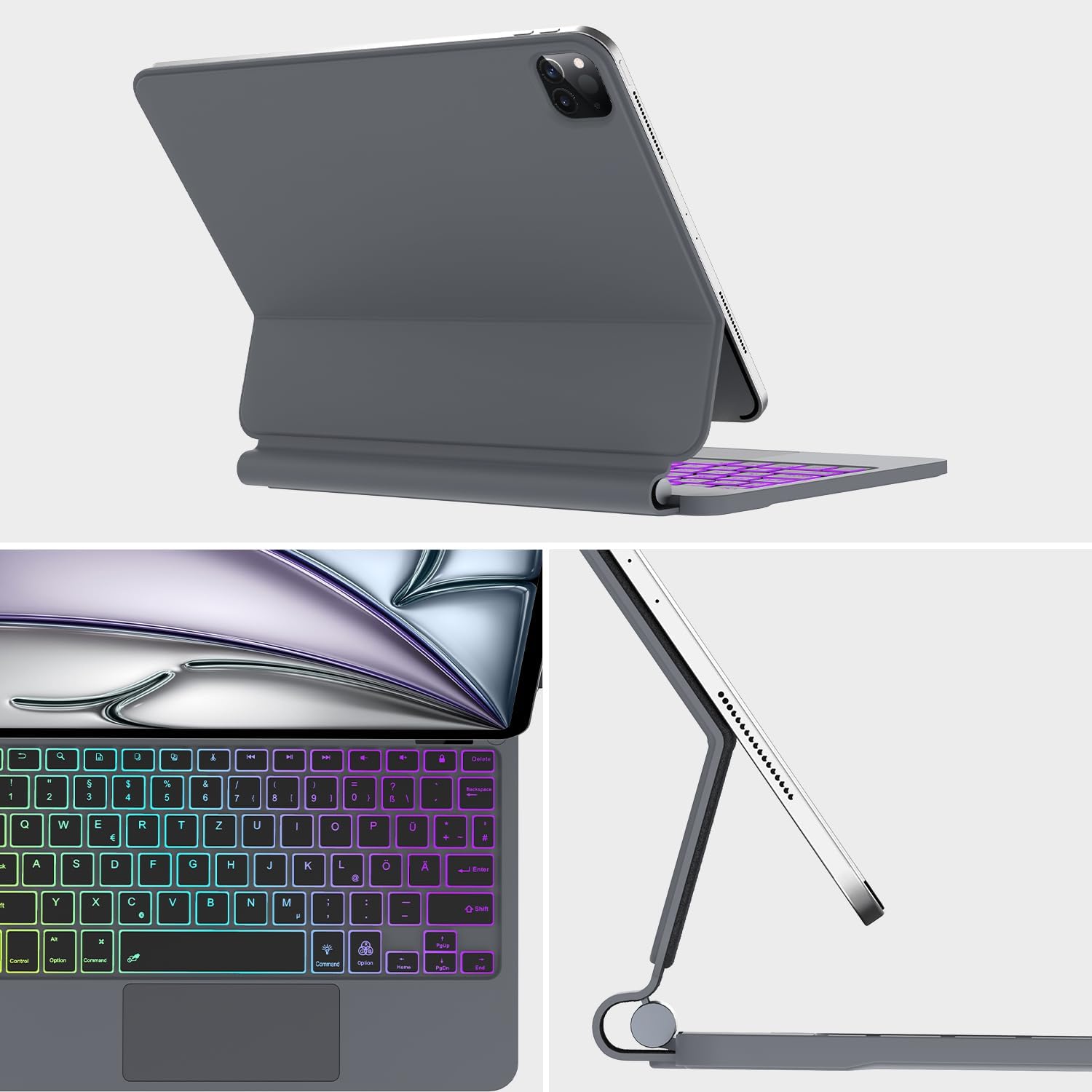
Image: The keyboard with an iPad in the floating position, highlighting the backlit keys and overall design.
2. Using the Trackpad
The integrated multi-touch trackpad allows for precise navigation, scrolling, and swiping. To ensure the trackpad functions correctly:
- Verify the trackpad is enabled on the keyboard by pressing Fn + Space.
- On your iPad, ensure AssistiveTouch is enabled: Go to Settings > Accessibility > Touch > AssistiveTouch and turn it On.
- The trackpad automatically deactivates when typing to prevent accidental input.
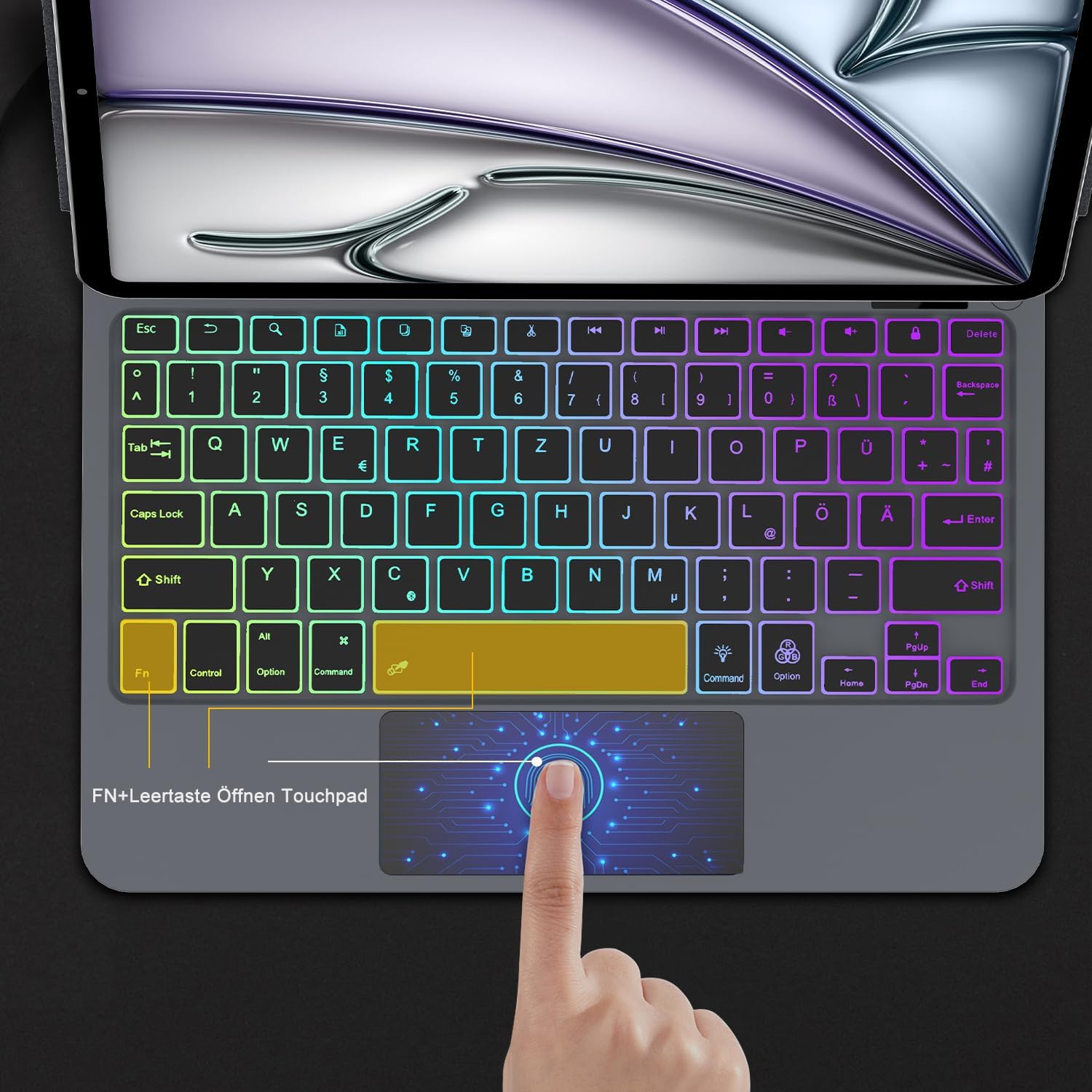
Image: Detail of the keyboard's trackpad and the Fn+Space key combination for trackpad activation.
3. Backlight Control
The keyboard features an illuminated backlight with three adjustable brightness levels for comfortable typing in various lighting conditions.
- Use the dedicated backlight control keys (often found in the function row) to adjust brightness or cycle through colors (if RGB is supported).

Image: The keyboard with its vibrant RGB backlit keys, enhancing visibility in low-light environments.
4. Keyboard Shortcuts
The keyboard includes a full range of iPadOS shortcut key combinations for increased efficiency. These allow you to quickly adjust brightness, backlight color, media playback, volume control, and more.
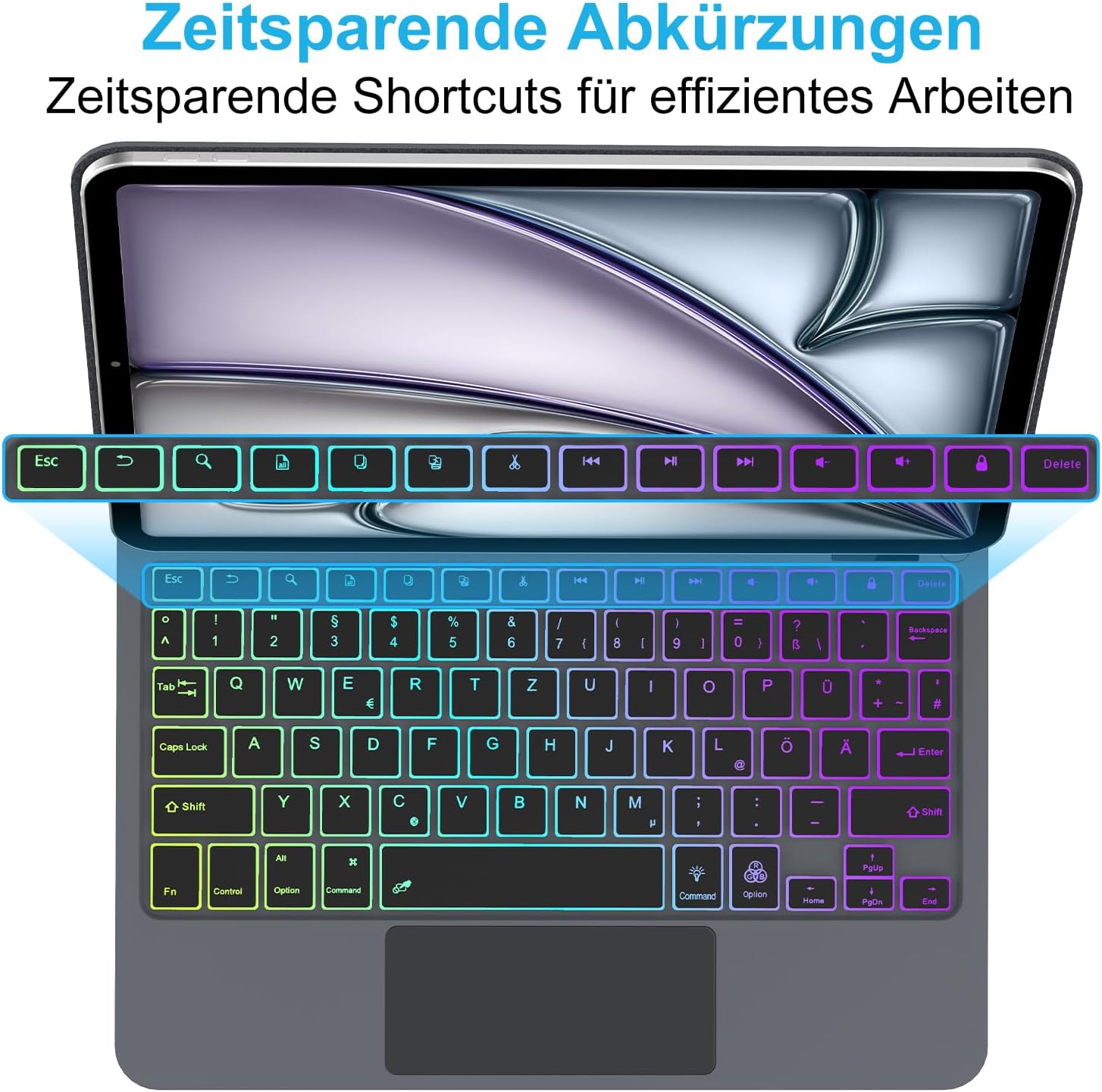
Image: The function key row displaying time-saving shortcuts for efficient work on iPadOS.
Maintenance
Cleaning
To clean the keyboard, gently wipe the surface with a soft, damp, lint-free cloth. Avoid using harsh chemicals, abrasive cleaners, or excessive moisture, as these can damage the keyboard's finish or internal components.
Storage
When not in use, store the keyboard in a cool, dry place away from direct sunlight and extreme temperatures. The synthetic leather case provides protection for your iPad when folded.
Troubleshooting
Keyboard Not Connecting via Bluetooth
- Ensure the keyboard is fully charged.
- Make sure the keyboard is powered on (press and hold the power button for 3-5 seconds).
- Confirm Bluetooth is enabled on your iPad (Settings > Bluetooth).
- Re-enter pairing mode on the keyboard by pressing Fn + C.
- If the keyboard was previously paired, try "forgetting" the device on your iPad and re-pairing.
- Restart both your iPad and the keyboard.
Trackpad Not Responding
- Ensure the trackpad is enabled on the keyboard by pressing Fn + Space.
- Verify that AssistiveTouch is enabled on your iPad: Settings > Accessibility > Touch > AssistiveTouch.
- Ensure your iPad's software is up to date.
- If the issue persists, try disconnecting and re-pairing the keyboard.
Backlight Not Working or Adjusting
- Check if the keyboard battery is low. Charge the keyboard fully.
- Use the dedicated backlight keys to adjust brightness or cycle through modes.
Specifications
| Brand | SENGBIRCH |
| Model | Magic Keyboard for iPad Air 13-inch M2 2024 |
| Connectivity Technology | Bluetooth 5.0 |
| Keyboard Layout | QWERTZ (German) |
| Special Features | Backlit, Multi-Trackpad, Floating Stand Design |
| Battery Type | Lithium-ion |
| Battery Capacity | 430 mAh |
| Charging Time | 2-3 hours |
| Operating Time | 100 hours (continuous) |
| Standby Time | 300 days |
| Operating Range | 10 meters |
| Key Lifespan | 500 million clicks |
| Dimensions (Keyboard) | 34.2 x 26.3 x 2.7 cm |
| Weight (Keyboard) | 1070 g |
| Color | Black |
Warranty and Support
Specific warranty information is not provided in the product details. Please refer to the packaging or contact the retailer/manufacturer directly for warranty terms and conditions.
For technical support or further assistance, please contact SENGBIRCH customer service through the contact information provided on their official website or product packaging.


