
1. Introduction
This manual provides essential information for the safe and efficient operation of your KEFEYA 32-Inch Portable Touch Screen TV, Model G2. This device combines a large 32-inch 1080P Full HD touch screen with the versatility of Android 13 OS, offering a portable entertainment and productivity solution with an integrated battery and mobile stand.
2. Package Contents
Verify that all items listed below are included in your package:
- Screen x1
- Stand x1
- Adapter x1
- AC Power Cable x1
- Short Screw x1
- Long Screws x4
- HDMI Cable x1
- Screwdriver x1
- Base x1
- Cable Outlet Cover x1
- Remote x1

Figure 2.1: Included Accessories
3. Setup
3.1 Assembly
- Carefully unpack all components from the packaging.
- Attach the screen to the stand using the provided screws and screwdriver.
- Secure the stand to the base.
- Connect the AC Power Cable to the adapter, then plug the adapter into the TV and a power outlet.
3.2 Initial Power-On
Press the power button located on the device to turn on the TV. Follow the on-screen prompts for initial setup, including language selection and network connection.
3.3 Remote Control Pairing
To pair your remote with the G2, follow these steps:
- Ensure the remote control has batteries installed correctly.
- Press and hold the “Confirm” and “Back” buttons on the remote for 3 seconds until the indicator light begins flashing.
- Open the G2 settings page.
- Locate “Connected Devices” in the settings options.
- Select “Pair with New Device.”
- Tap the Bluetooth option named “portable tv.” Pairing is now complete.
4. Operating Instructions
4.1 Touch Screen Navigation
The 10-point touch screen allows for intuitive interaction. Use standard touch gestures such as tapping to select, swiping to scroll, and pinching to zoom. The screen can be rotated 90 degrees for portrait or landscape viewing.
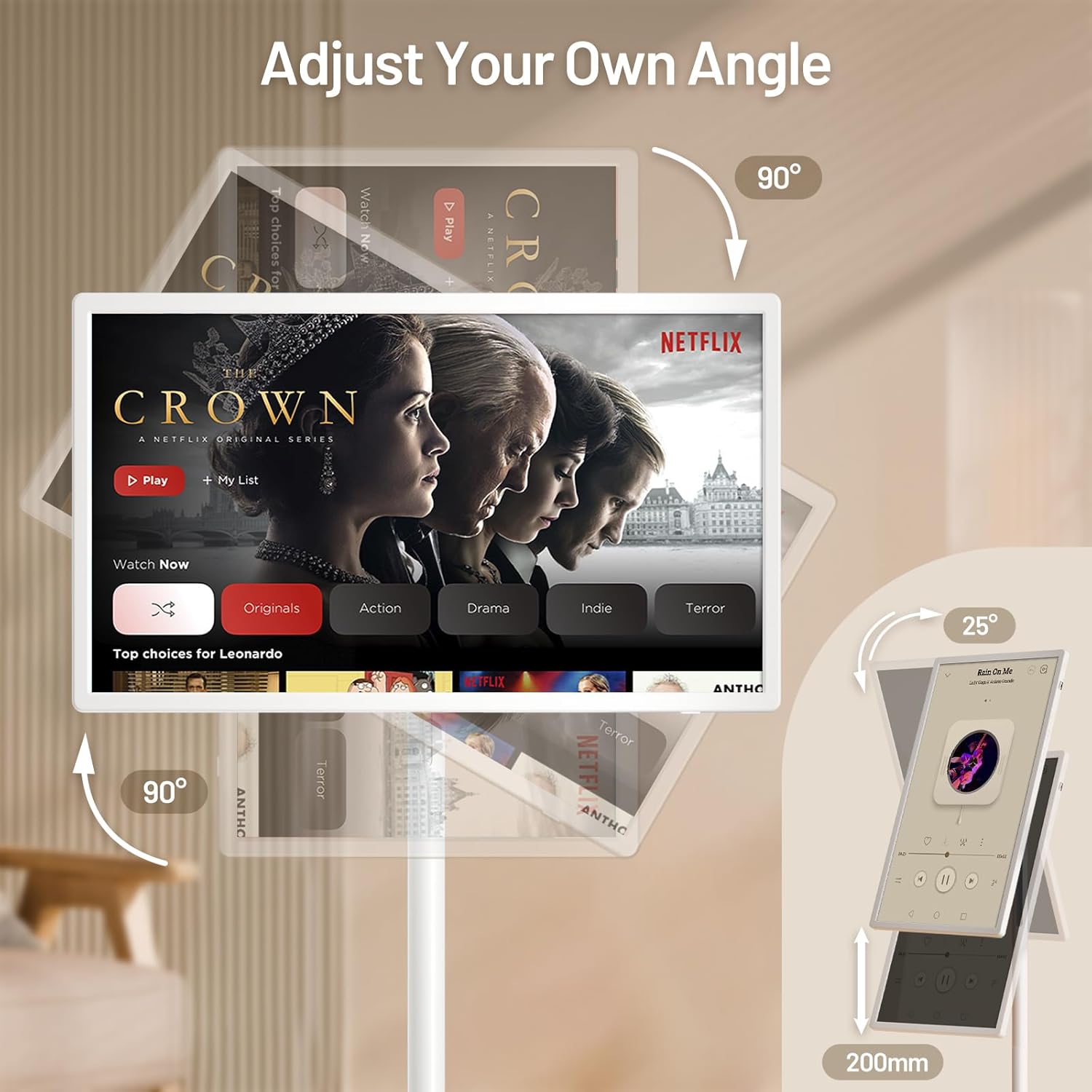
Figure 4.1: Screen Adjustment Capabilities
4.2 Android 13 OS and Applications
Your KEFEYA G2 runs on Android 13 OS and includes the Google Play Store, allowing you to download and install a wide range of applications for entertainment, productivity, and more. Navigate the home screen to access your installed apps.

Figure 4.2: Android 13 Interface with Google Play
4.3 Connectivity
The TV supports various connection methods:
- Wireless Casting: Connect wirelessly from compatible devices to mirror content.
- Physical Ports: Utilize Type-C, USB-A, and HDMI ports for wired connections to external devices such as laptops, gaming consoles, or storage drives.

Figure 4.3: Multiple Screen Sharing Options
4.4 Audio
The device features dual stereo speakers for audio output. Volume can be adjusted via the remote control or on-screen controls.
4.5 Mobility and Battery Life
The integrated base with five silent wheels allows for easy movement of the TV between rooms. The built-in high-capacity battery provides approximately 6 to 9 hours of continuous use, depending on usage and settings.

Figure 4.4: Portable Usage Scenario
Video 4.1: Overview of the KEFEYA Portable Smart Screen on Wheels, demonstrating its features and mobility.
5. Maintenance
To ensure the longevity and optimal performance of your KEFEYA G2:
- Cleaning: Use a soft, dry cloth to clean the screen and exterior. Avoid abrasive cleaners or solvents.
- Battery Care: For optimal battery health, avoid completely draining the battery frequently. When the TV is not in use, it is recommended to turn it off.
- Storage: Store the TV in a cool, dry place away from direct sunlight and extreme temperatures.
6. Troubleshooting
If you encounter issues with your KEFEYA G2, refer to the following common solutions:
- TV will not turn on: Ensure all power cords are securely connected. Check if the TV has sufficient battery charge or is connected to a power source.
- Remote control not working or connecting: Re-pair the remote control by following the steps in Section 3.3. Ensure batteries are correctly inserted and charged.
- Distorted picture or audio from external device: Verify the external device is properly connected to the correct port (HDMI, Type-C). Check the device's output settings and the TV's input selection.
- General performance issues (slow response, app crashes): Try restarting the TV. Ensure the device's software is up to date via the settings menu.
7. Specifications
| Feature | Specification |
|---|---|
| Product Dimensions | 29.05 x 17.12 x 2.28 inches |
| Item Weight | 52.9 pounds |
| Item Model Number | G2 |
| Batteries | 1 Lithium Ion batteries required (included) |
| Standing Screen Display Size | 32 Inches |
| Aspect Ratio | 16:9 |
| Brand | KEFEYA |
| Display Technology | IPS |
| Resolution | 1080p |
| Refresh Rate | 60 Hz |
| Special Feature | Height Adjustment, Swivel Adjustment, Tilt Adjustment, Touchscreen |
| Connectivity Technology | Wired, Wireless |
| Supported Internet Services | Netflix, Google Play Store (and various other streaming services) |
8. Warranty & Support
KEFEYA is committed to providing reliable customer service. Your product includes:
- 30-day replacement and return policy.
- Lifetime technical support.
- Prompt response to inquiries within 24 hours.
For any questions or assistance, please contact KEFEYA customer support directly through the seller's page on Amazon or visit the official KEFEYA store: KEFEYA Store.