
beeprt BY-480BT
BEEPRT BY-480BT Bluetooth Thermal Label Printer User Manual
Model: BY-480BT
Introduction
This manual provides comprehensive instructions for the setup, operation, and maintenance of your BEEPRT BY-480BT Bluetooth Thermal Label Printer. Designed for efficiency and compatibility, this printer is ideal for small businesses and home offices, enabling high-speed printing of various thermal labels.
The BY-480BT model supports both Bluetooth and USB connectivity, making it compatible with Android, iOS, and Windows operating systems. It delivers clear, high-resolution prints without the need for ink or ribbon.
Safety Information
Please read all safety instructions before using the printer to ensure safe and proper operation. Keep this manual for future reference.
- Use only the power adapter supplied with the printer.
- Do not expose the printer to water, moisture, or extreme temperatures.
- Avoid placing the printer in direct sunlight or near heat sources.
- Do not attempt to disassemble or repair the printer yourself. Refer to qualified service personnel.
- Ensure proper ventilation around the printer during operation.
Package Contents
Verify that all items are present in the package:
- BEEPRT BY-480BT Thermal Label Printer
- Power Adapter
- USB-A to USB-B Cable
- USB-C to USB-A Adapter (small)
- Labels (sample pack, e.g., 50 4"x6" labels)
- User Manual (this document)

Setup
1. Physical Setup
Connect Power: Plug the power adapter into the printer's power port and then into a wall outlet.
Load Labels: Open the printer cover. Insert the thermal labels into the paper slot, ensuring the print side is facing up. Adjust the paper guides to fit the label width snugly. Close the cover.

Image: A detailed view of the printer's internal structure, highlighting the paper guide and thermal printhead for proper label loading. Calibrate Labels: After loading labels, press and hold the main button on the printer until it beeps. The printer will automatically feed a few labels to detect and calibrate the label size. This step is crucial for accurate printing.
2. Software and Connectivity Setup
The BY-480BT printer offers multiple connectivity options:
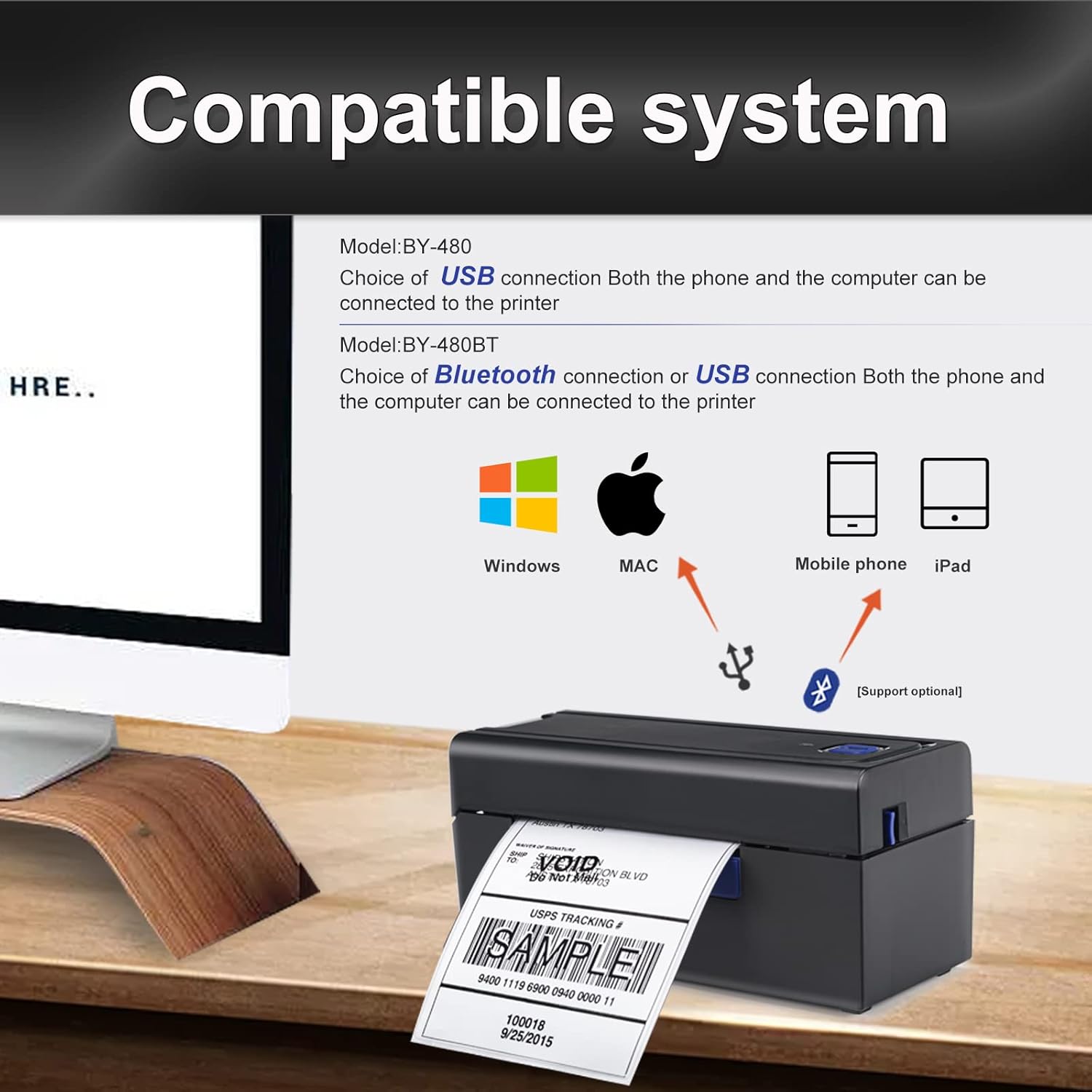
For iOS/Android Devices (Bluetooth):
- Download the "Shipping Printer" app from Google Play Store or Apple App Store.
- Open the app and pair the printer within the app's settings. Do not pair directly through your device's Bluetooth settings.
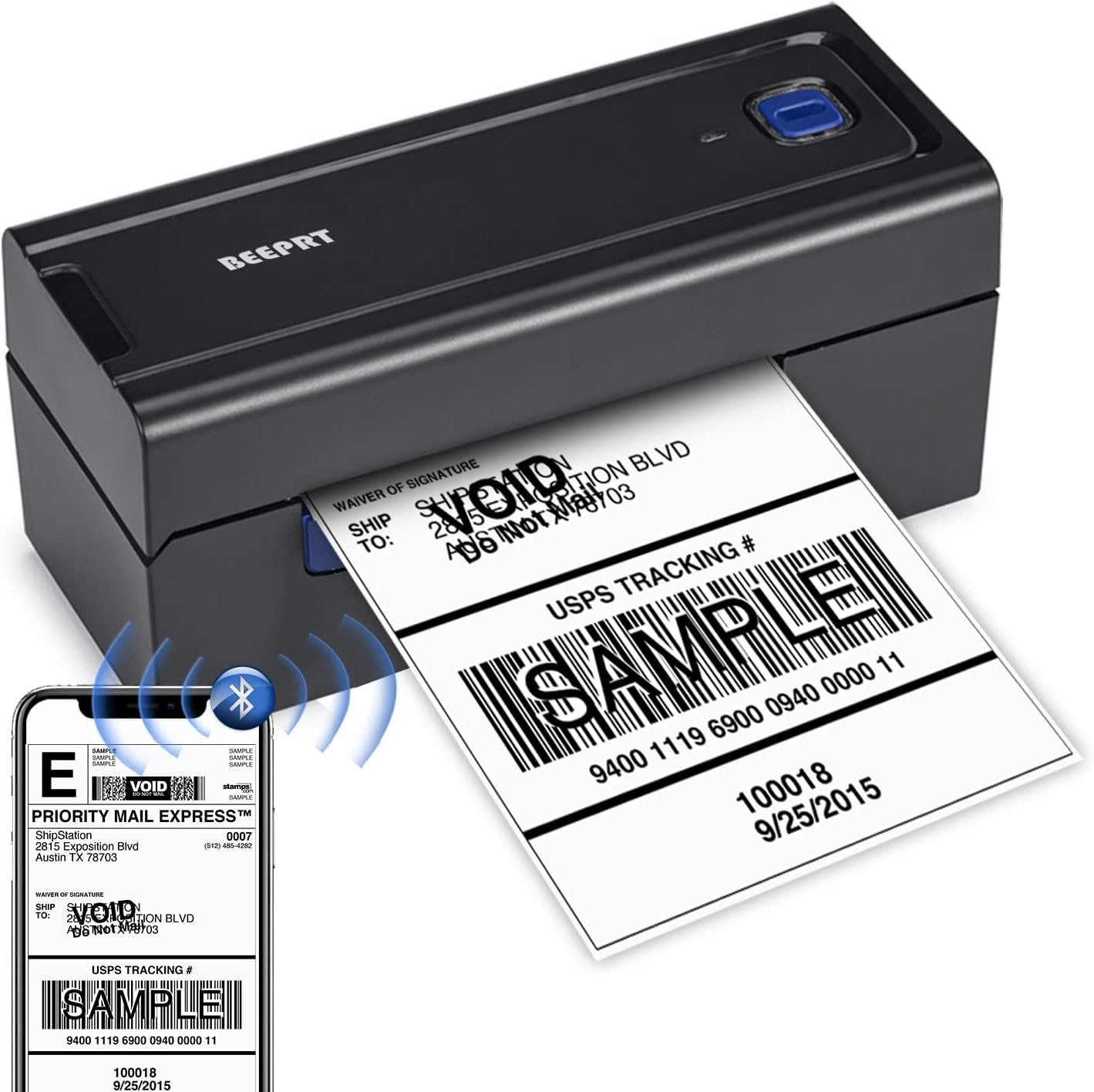
Image: The BEEPRT BY-480BT printer actively printing a label, with a smartphone showing the label design and Bluetooth connectivity icon. For Windows Devices (Bluetooth or USB):
- For Bluetooth connection, ensure your Windows 8 or later device has Bluetooth enabled. Drivers can be installed from the manufacturer's recommended website (refer to the included quick start guide for the specific URL). During driver installation, select Bluetooth as the connection method.
- For USB connection, connect the printer to your computer using the provided USB cable. Install the necessary drivers from the manufacturer's recommended website.
For Mac OS Devices (USB Only):
- Mac OS devices do not support Bluetooth printing with this model. Connect the printer via USB cable.
- Install the appropriate drivers from the manufacturer's recommended website.
Operating Instructions
Printing Labels
- Ensure the printer is powered on and connected to your device (via Bluetooth or USB).
- Open the document or application from which you wish to print your label (e.g., shipping platform, PDF viewer).
- Select the BEEPRT BY-480BT printer from your device's print dialogue.
- Adjust print settings as needed, such as paper size (e.g., 4x6 inches). The printer supports thermal labels with widths from 1.57" (40mm) to 4.3" (108mm) and no height limitation.
- Initiate the print command. The printer will begin printing at a high speed of up to 150mm/s, capable of producing approximately 72 4x6 labels per minute.

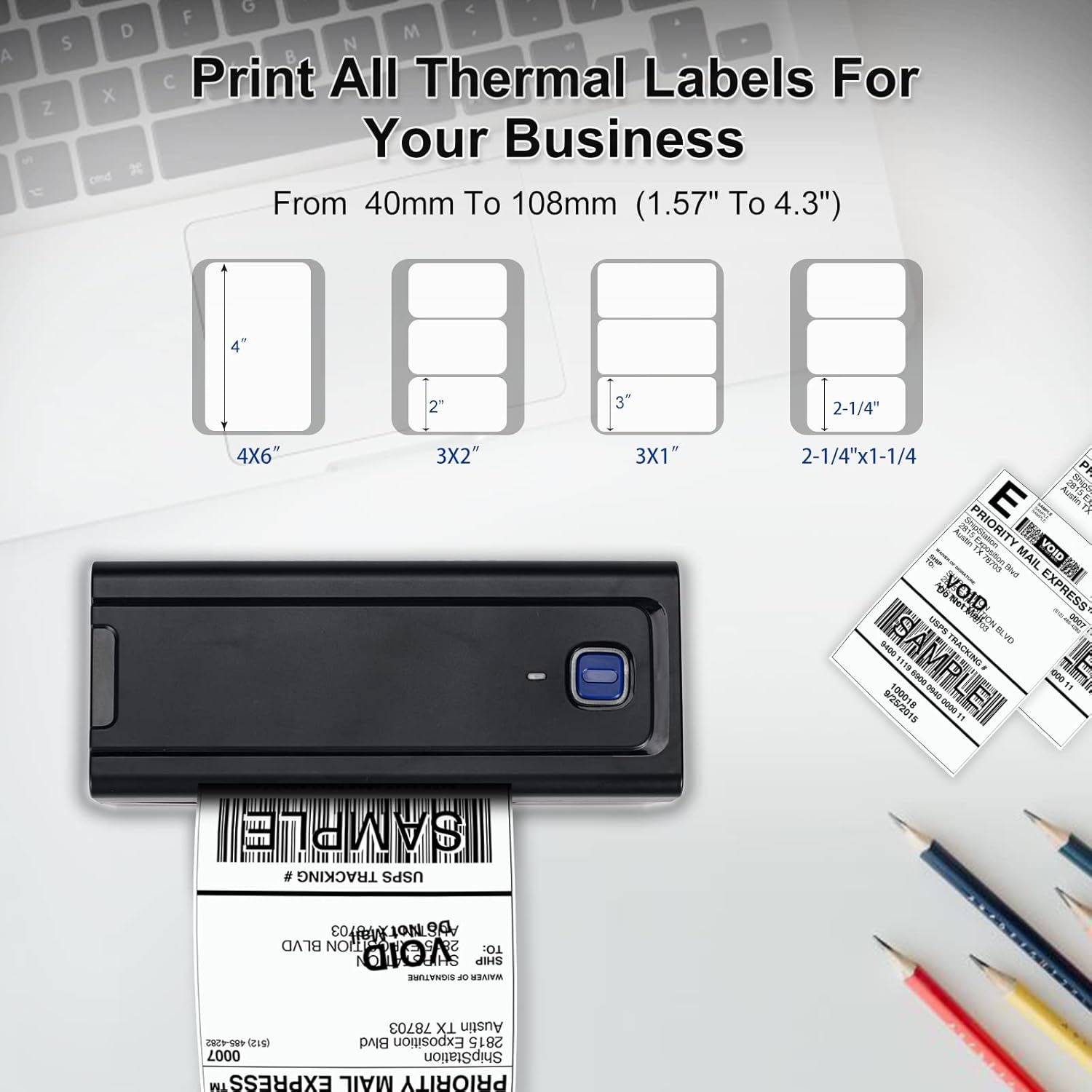
Compatible Platforms
The BEEPRT BY-480BT printer is compatible with a wide range of shipping and e-commerce platforms, including but not limited to:
- Lazada, Amazon, Etsy, Shopee, UPS
- Shopify, J&T Express, DHL, XPS Ship, eBay
- Shipwire, Shippo, Kerry, PayPal, Easyship
- Easypost, ShipWorks, Poshmark, Endicia, ORDORO

Maintenance
Cleaning the Print Head
To ensure optimal print quality and prolong the life of your printer, regularly clean the thermal print head.
- Turn off the printer and unplug the power cord.
- Open the printer cover.
- Wait a few minutes for the print head to cool down if the printer has been recently used.
- Gently wipe the print head surface with an alcohol swab or a lint-free cloth lightly dampened with isopropyl alcohol. Do not use abrasive materials.
- Allow the print head to dry completely before closing the cover and reconnecting power.
General Care
- Keep the printer free from dust and debris. Use a soft, dry cloth for external cleaning.
- Store labels in a cool, dry place away from direct sunlight to prevent degradation.
- Avoid placing heavy objects on top of the printer.
Troubleshooting
| Problem | Possible Cause | Solution |
|---|---|---|
| Printer not responding / Not printing | Power issue, loose cable, incorrect driver, Bluetooth not paired correctly. | Check power connection. Ensure USB cable is securely connected. For Bluetooth, verify pairing within the "Shipping Printer" app (for mobile) or through driver setup (for Windows). Reinstall drivers if necessary. |
| Poor print quality (grainy text, faded prints) | Dirty print head, low-quality labels, incorrect print settings, monochrome output expectation. | Clean the print head as per maintenance instructions. Ensure you are using high-quality thermal labels. Verify print resolution settings (printer supports 203 DPI). Note that this printer is designed for monochrome (black) printing only. |
| Labels not feeding correctly / Paper jams | Labels loaded incorrectly, paper guides not adjusted, label calibration needed. | Ensure labels are loaded straight and the paper guides are snug against the label edges. Perform label calibration by holding the main button until it beeps. |
| Mobile app connectivity issues | Incorrect pairing method, app glitches. | Always pair the printer within the "Shipping Printer" app, not directly through your phone's Bluetooth settings. Ensure the app is updated to the latest version. Restart the app and printer. |
| Driver installation difficulties (Windows/Mac) | Incorrect driver source, operating system compatibility. | Refer to the quick start guide for the official driver download website. Ensure you download the correct driver for your operating system (Windows 8+ or Mac OS). Mac OS requires USB connection for printing. |
Specifications
| Feature | Detail |
|---|---|
| Model Name | BY-480BT |
| Brand | beeprt |
| Printing Technology | Thermal |
| Connectivity Technology | Bluetooth, USB |
| Printer Output | Monochrome |
| Max Print Speed Monochrome | 150 mm/s (approx. 72 labels/minute for 4x6) |
| Resolution | 203 x 203 DPI |
| Maximum Media Size | 4.3 inches (108mm) width, no height limit |
| Compatible Label Width | 1.57" (40mm) to 4.3" (108mm) |
| Compatible Devices | PC (Windows), Laptops (Windows, Mac), Smartphones (Android, iOS), iPad |
| Control Method | App, USB Driver |
| Item Weight | 1.54 pounds (0.7 kg) |
| Product Dimensions | 3.14"D x 7.78"W x 3.34"H (80 x 199 x 85 mm) |
| UPC | 768795531689 |
Warranty and Support
For warranty information and technical support, please refer to the official BEEPRT website or contact their customer service directly. Details are typically provided in the quick start guide included with your product.
Keep your purchase receipt as proof of purchase for warranty claims.
Related documentsBY-480BT


Ask a question about this manual
Ask about setup, troubleshooting, compatibility, parts, safety, or missing instructions. Manuals+ will review the question and use this page’s manual context to help answer it.