
1. Introduction
This manual provides essential information for the proper setup, operation, and maintenance of your Azeyou 10.1-inch Android 14 Tablet, model AT1016U5. Please read this manual thoroughly before using your device to ensure optimal performance and safety.

Image 1.1: Front and back view of the Azeyou 10.1-inch Android 14 Tablet.
2. Safety Information
To prevent damage to your device or injury to yourself and others, observe the following precautions:
- Do not expose the tablet to extreme temperatures, direct sunlight, or high humidity.
- Avoid dropping or subjecting the tablet to strong impacts.
- Use only the charger and accessories provided or approved by Azeyou.
- Keep the tablet away from water and other liquids.
- Do not attempt to disassemble or repair the tablet yourself. Contact customer support for assistance.
- Dispose of the tablet and its battery responsibly according to local regulations.
3. Package Contents
Verify that all items are present in the package:
- 1x Azeyou Android 14 Tablet
- 1x TYPE C Cable
- 1x Tablet Adaptor
- 1x User Manual

Image 3.1: Contents included in the Azeyou Tablet package.
4. Product Overview
Familiarize yourself with the physical components and controls of your Azeyou Tablet.
4.1. Physical Layout

Image 4.1: Diagram showing the location of ports and buttons on the Azeyou Tablet.
- Power/Lock Button: Press to turn on/off the tablet or to lock/unlock the screen.
- Volume Buttons: Adjust the audio volume.
- Reset Pinhole: Use a thin pin to reset the device if it becomes unresponsive.
- USB Type-C Port: For charging and data transfer.
- Micro SD Card Slot: Insert a Micro SD card for expandable storage (up to 1TB, not included).
- Camera: Front (5MP) and Rear (8MP) cameras for photos and video calls.
- Speakers: Dual multimedia box speakers for audio output.
4.2. Key Features
- Operating System: Android 14
- Processor: 2.0 GHz Octa-Core Processor (Allwinner A523)
- Display: 10.1-inch IPS Touch Screen, 1280x800 resolution
- Memory: 8GB RAM (4GB physical + 4GB virtual)
- Storage: 128GB ROM, expandable up to 1TB via TF card
- Battery: 6000mAh Lithium Polymer
- Connectivity: Wi-Fi 6 (802.11a/b/g/n/ac), Bluetooth 5.0
- Cameras: 5MP Front, 8MP Rear
- Additional: GMS certified, Widevine L1 support

Image 4.2: Visual representation of the tablet's core features including OS, memory, cameras, and connectivity.
5. Setup
5.1. Charging the Battery
Before first use, fully charge the tablet. Connect the provided USB Type-C cable to the tablet's charging port and the other end to the tablet adaptor. Plug the adaptor into a power outlet. The charging indicator will show the charging status. A full charge typically takes approximately 1.5 hours.
5.2. Powering On/Off
- To Power On: Press and hold the Power/Lock button until the Azeyou logo appears on the screen.
- To Power Off: Press and hold the Power/Lock button until the power options menu appears. Select "Power off" and confirm.
- To Restart: From the power options menu, select "Restart."
5.3. Initial Setup
Upon first power-on, follow the on-screen prompts to configure your tablet:
- Select your language.
- Connect to a Wi-Fi network.
- Sign in with your Google account or create a new one. This is necessary to download apps from the Google Play Store.
- Review and accept the terms and conditions.
- Set up screen lock (PIN, pattern, or password) for security.
5.4. Inserting a Micro SD Card
To expand storage, insert a Micro SD card (not included) into the Micro SD card slot. Gently push the card until it clicks into place. Ensure the tablet is powered off before inserting or removing the card.
6. Operating Instructions
6.1. Navigating Android 14
Your tablet runs on Android 14, offering enhanced privacy controls and a user-friendly interface. Use touch gestures to navigate:
- Tap: Select an item.
- Swipe: Scroll through screens or lists.
- Pinch: Zoom in or out on images and web pages.
- Long Press: Access contextual menus or move icons.
6.2. Wi-Fi and Bluetooth Connectivity
Access the Quick Settings panel by swiping down from the top of the screen to enable or disable Wi-Fi and Bluetooth. For detailed settings, go to Settings > Network & internet or Settings > Connected devices.
6.3. Installing Applications
The Google Play Store is pre-installed. Tap the Play Store icon to browse and download applications. A Google account is required for this process.
6.4. Camera Usage
Open the Camera app to take photos or record videos. The tablet features a 5MP front camera and an 8MP rear camera. Tap the screen to focus and press the shutter button to capture.

Image 6.1: Examples of camera usage and dual camera setup on the Azeyou Tablet.
6.5. Display and Eye Protection
The 10.1-inch IPS display offers a 1280x800 resolution. It includes low blue light technology to reduce eye strain. Adjust display settings under Settings > Display.

Image 6.2: The 10.1-inch IPS display of the Azeyou Tablet.
6.6. Battery Management
The 6000mAh battery provides approximately 6 hours of mixed usage. To optimize battery life, reduce screen brightness, disable Wi-Fi/Bluetooth when not in use, and close unused applications.

Image 6.3: Battery capacity and estimated usage times for the Azeyou Tablet.
7. Maintenance
7.1. Cleaning the Tablet
Use a soft, lint-free cloth to clean the screen and body of the tablet. Do not use abrasive cleaners or solvents, as they may damage the surfaces.
7.2. Software Updates
Periodically check for system updates to ensure your tablet has the latest features and security patches. Go to Settings > System > System update.
7.3. Storage Management
Regularly clear unnecessary files and uninstall unused apps to maintain optimal performance. You can manage storage under Settings > Storage.
8. Troubleshooting
If you encounter issues with your tablet, refer to the following common solutions:
| Problem | Solution |
|---|---|
| Tablet does not power on | Ensure the battery is charged. Connect the charger and wait a few minutes before attempting to power on again. If unresponsive, use a thin pin to press the Reset pinhole. |
| Screen is unresponsive | Restart the tablet by holding the Power/Lock button. If unresponsive, use the Reset pinhole. |
| Cannot connect to Wi-Fi | Ensure Wi-Fi is enabled in settings. Check if the router is working correctly. Try forgetting the network and reconnecting. |
| Apps are crashing or slow | Close background applications. Clear app cache (Settings > Apps > [App Name] > Storage & cache). Ensure sufficient storage space. Restart the tablet. |
| Battery drains quickly | Reduce screen brightness. Disable Wi-Fi, Bluetooth, and GPS when not in use. Close unused apps. Check battery usage in Settings > Battery. |
If the problem persists, please contact Azeyou customer support for further assistance.
9. Specifications
Detailed technical specifications for the Azeyou 10.1-inch Android 14 Tablet (Model AT1016U5).
| Feature | Specification |
|---|---|
| Model Number | AT1016U5 |
| Operating System | Android 14 |
| Processor | Octa-Core (Allwinner A523), 2 GHz |
| RAM | 8 GB (4GB physical + 4GB virtual) |
| Internal Storage | 128 GB |
| Expandable Storage | Up to 1 TB via Micro SD card (not included) |
| Screen Size | 10.1 Inches |
| Screen Resolution | 1280x800 IPS |
| Rear Camera | 8 MP |
| Front Camera | 5 MP |
| Battery Capacity | 6000 mAh Lithium Polymer |
| Average Battery Life | 6 Hours (mixed usage) |
| Wireless Connectivity | Wi-Fi 6 (802.11a/b/g/n/ac) |
| Bluetooth | Bluetooth 5.0 |
| Dimensions (LxWxH) | 9.5 x 6.3 x 0.32 inches |
| Item Weight | 1.68 pounds |
| Color | Grey |
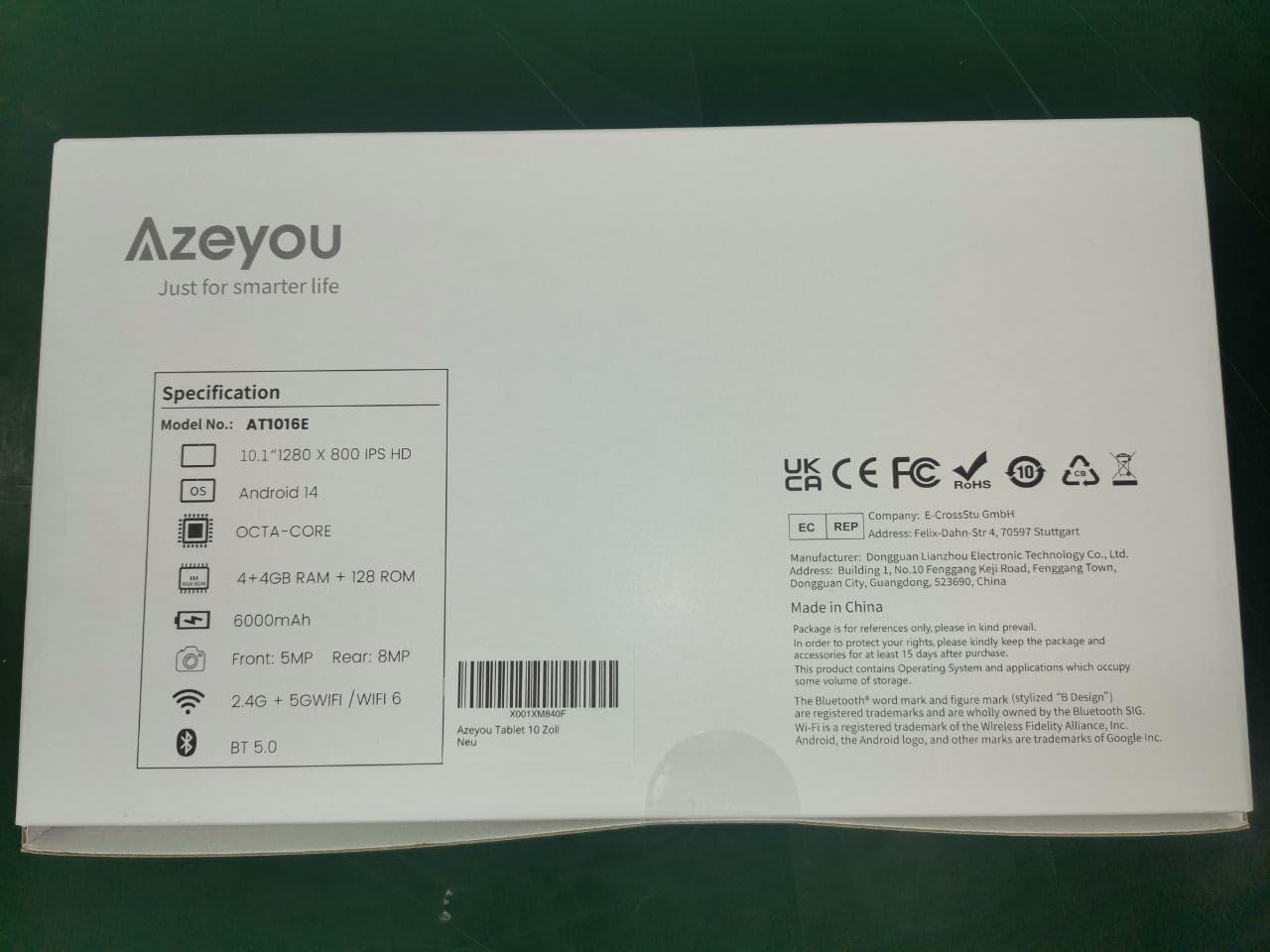
Image 9.1: Back of the product packaging displaying key specifications.
10. Warranty and Support
Your Azeyou Tablet is covered by a manufacturer's warranty. For specific warranty terms and conditions, please refer to the documentation included with your purchase or visit the official Azeyou website. For technical support, troubleshooting assistance, or warranty claims, please contact Azeyou customer service.
You can find more information and support on the Azeyou Brand Store.