
SIXTOP 2e4c50d1-3bb6-4867-a2f0-9218168c2939
SIXTOP Single Din Car Stereo User Manual
Brand: SIXTOP | Model: 2e4c50d1-3bb6-4867-a2f0-9218168c2939
1. Introduction
This manual provides comprehensive instructions for the installation, operation, and maintenance of your SIXTOP Single Din Car Stereo. This advanced car audio system features a 10.4-inch touchscreen with 180° rotation capability, offering both vertical and horizontal display modes. It integrates modern connectivity options such as Wireless CarPlay & Android Auto, Bluetooth audio, Mirror Link, FM Radio, USB input, and an EQ+ sound equalizer. An AHD camera and microphone are also included for enhanced functionality.

Figure 1: SIXTOP Single Din Car Stereo with its large, rotatable touchscreen.
2. What's in the Box
Upon opening the package, please verify that all the following components are included:
- Car Stereo Unit
- Rear View Camera
- Microphone
- Power Cable
- Video Extension Cable
- Horn Cable
- Mounting Brackets (2 sets)
- User Manual
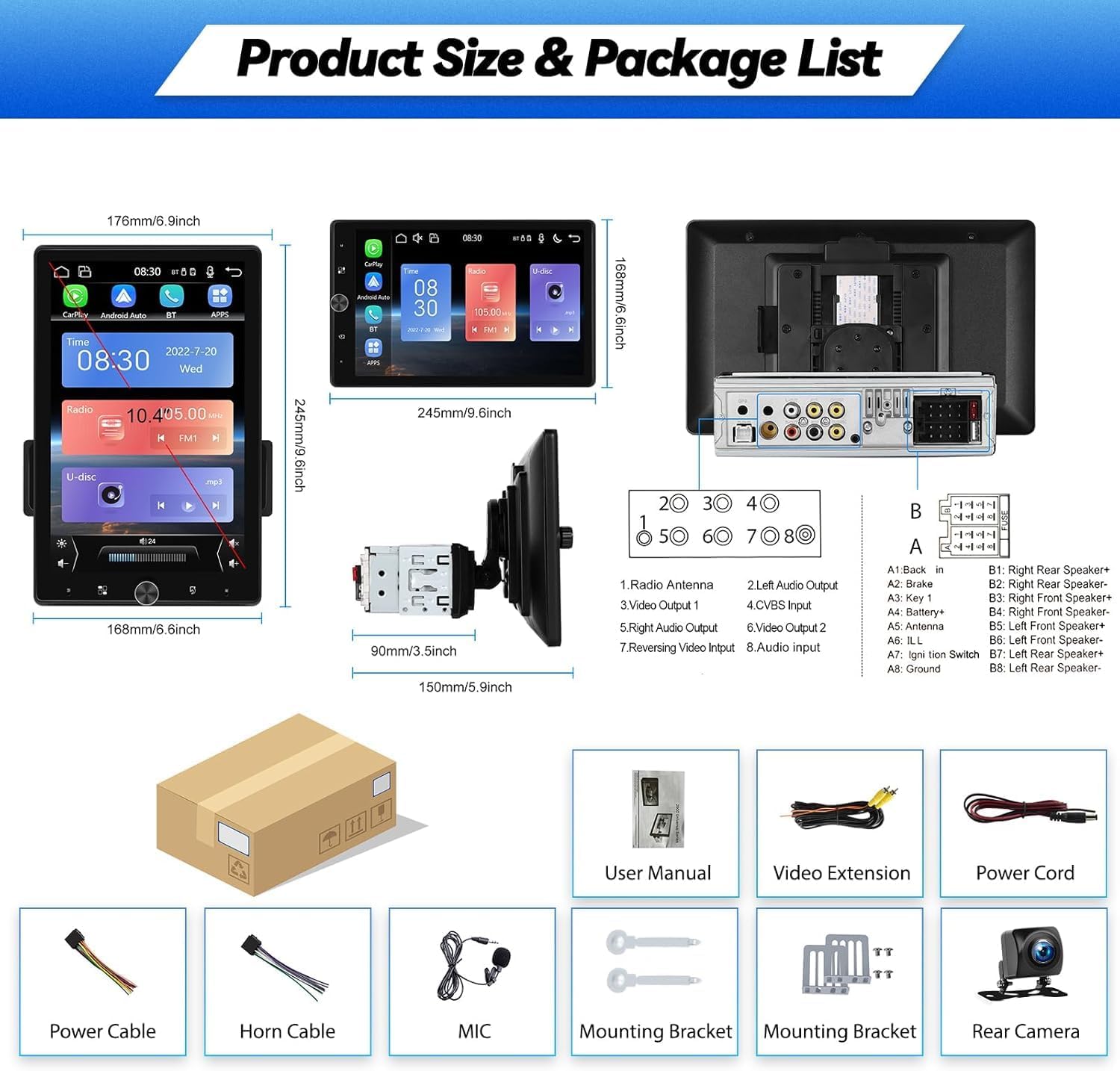
Figure 2: Contents of the product package and unit dimensions.
3. Specifications
| Feature | Detail |
|---|---|
| Screen Size | 10.4 inches |
| Screen Resolution | 800*1280 |
| Output Power | 4 * 45W |
| Working Temperature | -40℃ to 80℃ |
| Bluetooth Version | 4.0 |
| Radio Frequency Band | FM (87.5-108 MHz) |
| USB Ports | Double USB ports (Note: Rear USB for DVR, not data transmission) |
| Reversing Input | AHD & CVBS |
| CarPlay Support | Wireless & Wired |
| Android Auto Support | Wireless & Wired |
| Mirror Link | Android / iOS |
| Audio Formats | APE / FLAC / WAV / MP3 / WMA, etc. |
| Video Formats | MKV / RMVB / AVI / MP4 / MDV, etc. |
| Picture Formats | PNG / JPEG / JPG / GIF / WBMP / BNP, etc. |
| Supported Languages | English (default), Chinese, Portuguese, Spanish, Russian, German, Italian, Polish, French, Japanese, Turkish, Czech, etc. |
| Package Dimensions | 11.02 x 7.48 x 7.09 inches |
| Item Weight | 4.41 pounds |
4. Setup and Installation
This car stereo is designed for single DIN slots. Professional installation is recommended. Ensure your vehicle's power is disconnected before beginning installation.
4.1 Wiring Diagram
Refer to the following diagram for proper wiring connections. It is crucial to connect all wires correctly to avoid damage to the unit or vehicle electrical system.

Figure 3: Main wiring connections for the SIXTOP Car Stereo.
4.2 Steering Wheel Control Connection
To enable steering wheel control functionality, connect the KEY1 and KEY2 cables from the stereo to your vehicle's steering wheel control wires. After physical connection, you will need to set up the button functions within the radio's settings menu.
4.3 Rear View Camera Installation
Install the waterproof night vision camera at the rear of your vehicle. Connect the camera's video output to the AHD&CVBS input on the stereo. The stereo will automatically switch to the reverse image when the vehicle is put into reverse gear.
5. Operating Instructions
5.1 Screen Rotation (180°)
The 10.4-inch screen supports 180-degree rotation, allowing you to switch between horizontal and vertical display modes for optimal viewing. After physically rotating the screen, select the home page rectangular icon on the stereo to adjust the display orientation accordingly.

Figure 4: Screen rotation functionality.
5.2 Apple CarPlay & Android Auto
Connect your iPhone or Android phone to use CarPlay or Android Auto. Both wireless and wired connection methods are supported. Once connected, the stereo can synchronize your phonebook, emails, notifications, map navigation apps, and music apps. You can also use your phone's voice assistant for hands-free control.
- Wireless Connection: Connect via Bluetooth.
- Wired Connection: Connect via a USB data cable to the front USB port of the stereo.

Figure 5: Wireless CarPlay and Android Auto integration.
5.3 Mirror Link Function
The Mirror Link function allows you to project your iPhone or Android phone's screen onto the stereo display. Connect your phone using a USB data cable to the front USB port. For iPhone, select the "iOS Mirror" app on the stereo; for Android, select the "Autolink" app.

Figure 6: Mirror Link functionality for smartphones.
5.4 Bluetooth & FM Radio
Utilize Bluetooth for hands-free calling, synchronizing your address book, and streaming music from your mobile phone. The built-in FM radio supports frequencies from 87.5-108 MHz, allowing you to listen to news, music, weather forecasts, and traffic information.

Figure 7: Bluetooth and FM Radio interfaces.
5.5 EQ Settings
The EQ (Equalizer) function allows you to customize the audio output to your preference. Adjust various popular sound quality presets or fine-tune individual frequency bands. You can also adjust the volume sources for the four audio channels in your car.

Figure 8: Audio Equalizer (EQ) settings.
5.6 Steering Wheel Control
Once the steering wheel control cables (KEY1, KEY2) are connected, you can program the buttons on your original steering wheel to control the car audio system. This provides a more convenient and safer way to operate the stereo while driving. Access the steering wheel control settings in the radio's menu to assign functions to each button.

Figure 9: Steering wheel control setup.
6. Maintenance
To ensure the longevity and optimal performance of your SIXTOP Car Stereo, follow these maintenance guidelines:
- Cleaning: Use a soft, dry cloth to clean the screen and exterior. For stubborn smudges, lightly dampen the cloth with water or a screen-safe cleaner. Avoid abrasive materials or harsh chemicals.
- Temperature: Avoid exposing the unit to extreme temperatures, both hot and cold, for extended periods.
- Moisture: Keep the unit dry. Do not expose it to water or excessive humidity.
- Connections: Periodically check all wiring connections to ensure they are secure and free from corrosion.
7. Troubleshooting
If you encounter issues with your car stereo, try the following basic troubleshooting steps:
- No Power: Check all power connections. Ensure the vehicle's ignition is on and the fuse is not blown.
- No Sound: Verify speaker connections. Check volume levels and EQ settings. Ensure the correct audio source is selected.
- Bluetooth Connectivity Issues: Ensure Bluetooth is enabled on both the stereo and your phone. Try unpairing and re-pairing the devices.
- Screen Unresponsive: Try restarting the unit (if possible, by turning off the car ignition and restarting). If issues persist, a factory reset might be necessary (refer to settings menu).
- CarPlay/Android Auto Not Connecting: Ensure your phone's operating system is up to date. Try a different USB cable if using a wired connection. Verify the correct app (iOS Mirror/Autolink) is selected for Mirror Link.
- Rear Camera Not Displaying: Check the camera's power and video connections. Ensure the vehicle is in reverse gear.
For persistent issues, please contact customer support.
8. Warranty and Support
For product support, technical assistance, or warranty inquiries, please contact SIXTOP customer service.
Online Support: SIXTOP123@163.com
Optional protection plans are available for purchase to extend coverage beyond the standard warranty period. Please refer to your purchase documentation for details on available protection plans.

Figure 10: SIXTOP Customer Support.
Ask a question about this manual
Ask about setup, troubleshooting, compatibility, parts, safety, or missing instructions. Manuals+ will review the question and use this page’s manual context to help answer it.