
1. Introduction
This manual provides essential information for the safe and effective use of your FASTWD 10-inch Kids Tablet, model Y121-EEA. Please read this manual thoroughly before using the device and retain it for future reference. This tablet is designed with an Android 13 operating system, featuring a 1280x800 IPS display, 20GB RAM, 128GB ROM (expandable), 5G WiFi, and Bluetooth 5.0, making it suitable for educational and entertainment purposes for children.
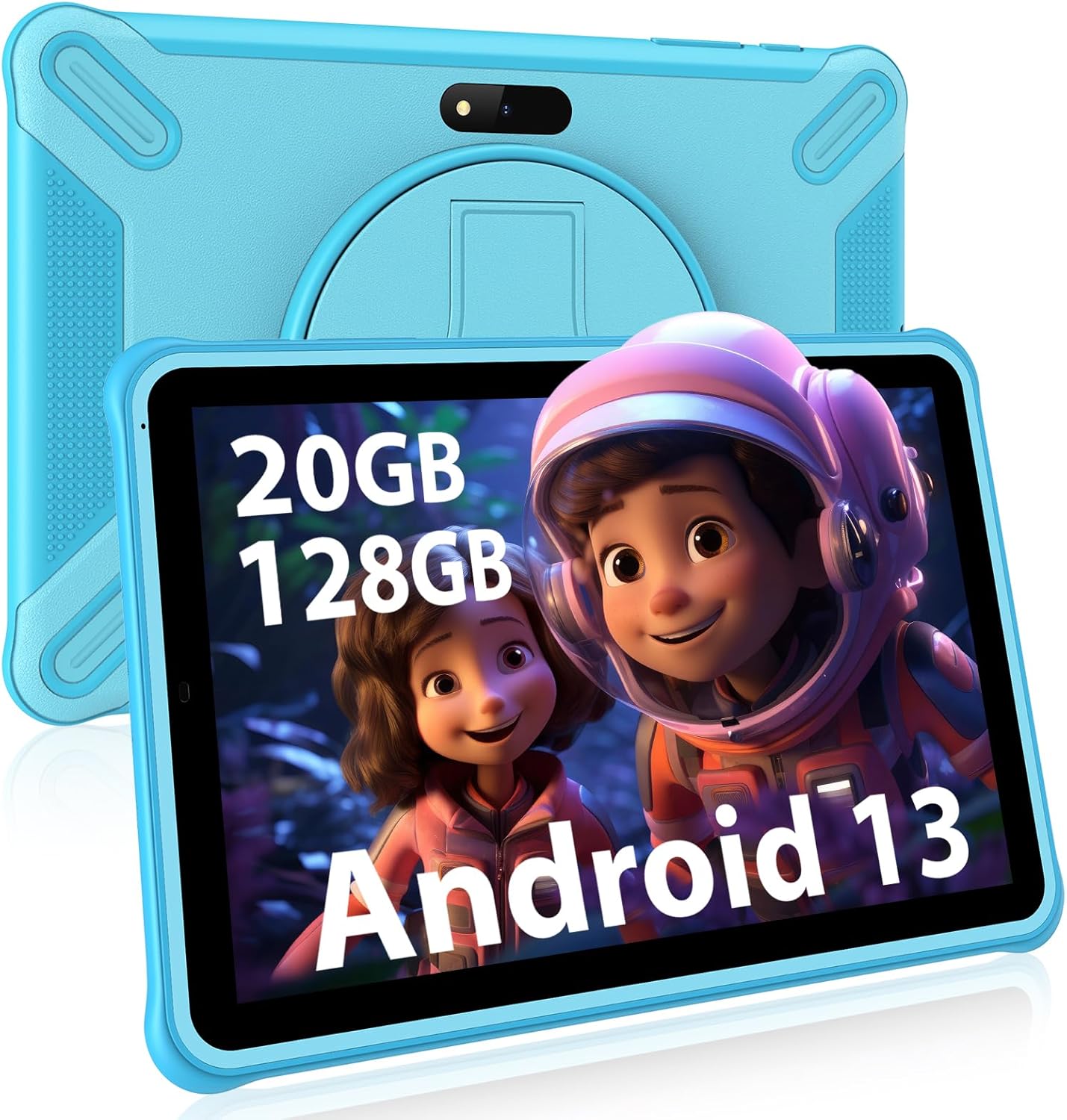
Image 1.1: Front view of the FASTWD 10-inch Kids Tablet, highlighting its memory and operating system.
2. Safety Information
To ensure safe operation and prevent damage to the device or injury to users, please observe the following safety guidelines:
- Supervision: Always supervise children while they are using the tablet, especially when accessing online content.
- Power Adapter: Use only the original or a certified compatible power adapter. Unapproved adapters may damage the tablet or pose a safety risk.
- Water and Moisture: Keep the tablet away from water, moisture, and high humidity. It is not waterproof.
- Temperature: Avoid exposing the tablet to extreme temperatures (hot or cold) or direct sunlight for extended periods.
- Cleaning: Disconnect the tablet from power before cleaning. Use a soft, dry cloth. Do not use liquid cleaners.
- Impact: Protect the tablet from drops and impacts. The included protective case helps, but extreme force can still cause damage.
- Hearing Protection: When using headphones, set the volume to a moderate level to prevent hearing damage.
- Disassembly: Do not attempt to disassemble, repair, or modify the tablet yourself. This will void the warranty and may cause damage or injury.
3. Package Contents
Verify that all items are present in the package:
- FASTWD 10-inch Kids Tablet (Y121-EEA)
- Protective Silicone Case with Kickstand
- USB Type-C Cable
- Power Adapter
- User Manual (this document)
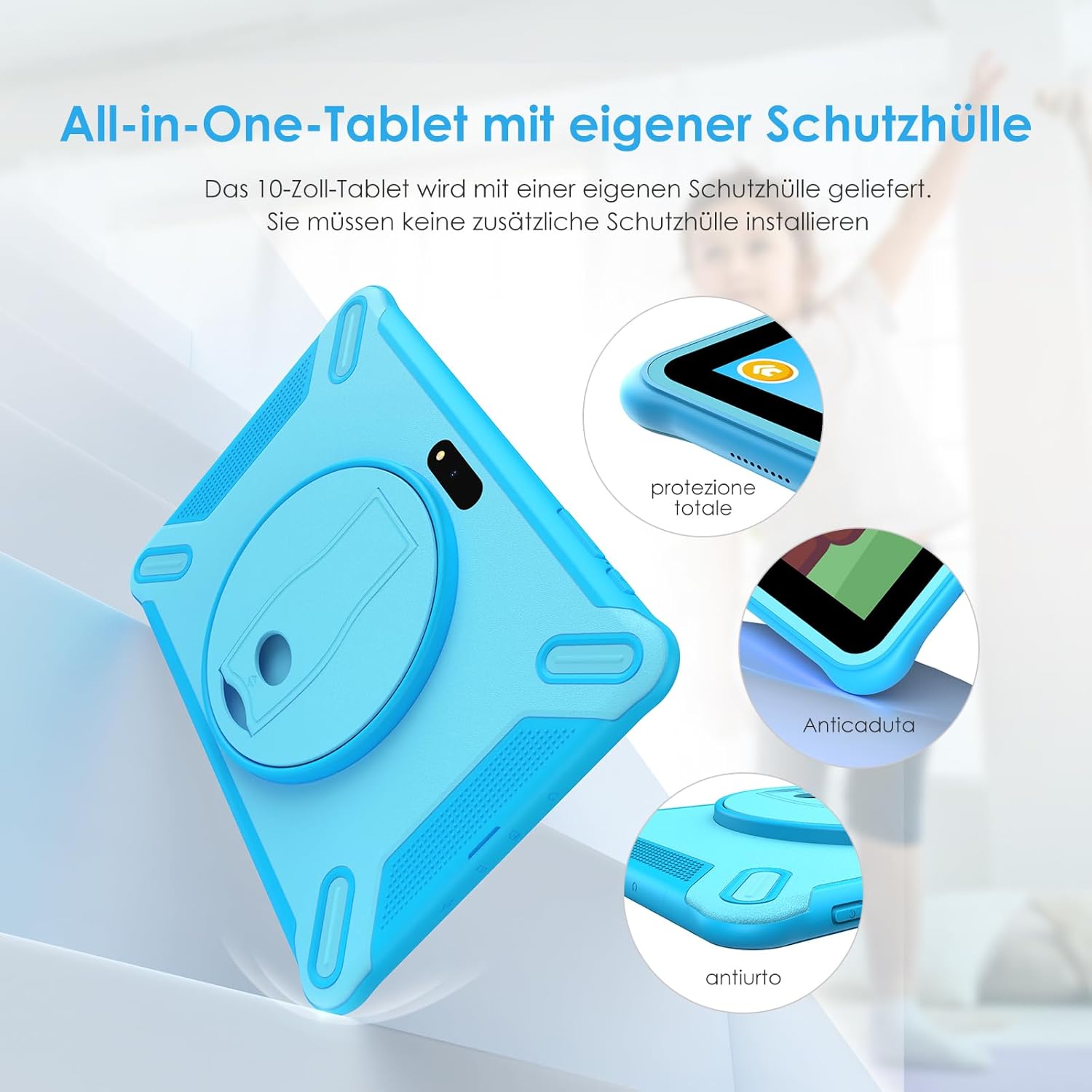
Image 3.1: The tablet with its integrated protective case, designed for durability.
4. Device Overview
Familiarize yourself with the physical components of your tablet:

Image 4.1: Rear view of the tablet, showing the integrated kickstand and rear camera.
- Front Camera: For video calls and selfies.
- Rear Camera: For taking photos and videos.
- Power Button: Press and hold to power on/off or restart. Press briefly to turn the screen on/off.
- Volume Buttons: Adjust the tablet's volume.
- USB Type-C Port: For charging and data transfer.
- 3.5mm Headphone Jack: For connecting wired headphones.
- MicroSD Card Slot: For expanding storage (supports up to 256GB).
- Speakers: Audio output.
- Microphone: For audio input.
- Integrated Kickstand: Allows for hands-free viewing.

Image 4.2: Detailed view of the tablet's ports and connectivity options.
5. Setup
5.1 Initial Charging
Before first use, fully charge the tablet. Connect the USB Type-C cable to the tablet's charging port and the power adapter to a wall outlet. The charging indicator will show the charging status. A full charge typically takes several hours.
5.2 Powering On/Off
- To Power On: Press and hold the Power button until the FASTWD logo appears on the screen.
- To Power Off: Press and hold the Power button until a power menu appears. Select "Power off" and confirm.
- To Restart: From the power menu, select "Restart."
5.3 Initial Setup Wizard
Upon first power-on, the tablet will guide you through an initial setup process. This includes selecting your language, connecting to a Wi-Fi network, setting the date and time, and signing in with a Google account (optional, but recommended for app downloads).
5.4 Wi-Fi Connection
- Go to Settings > Network & internet > Wi-Fi.
- Toggle Wi-Fi On.
- Select your desired Wi-Fi network from the list.
- Enter the network password if prompted, then tap Connect.
5.5 Inserting a MicroSD Card
To expand storage, locate the MicroSD card slot (usually under a small cover on the side). Gently insert a MicroSD card (up to 256GB) until it clicks into place. The tablet will prompt you to format the card for use.
6. Operating Instructions
6.1 Basic Navigation
- Tap: Select an item or open an app.
- Tap & Hold: Access contextual menus or move icons.
- Swipe: Scroll through screens or lists.
- Pinch: Zoom in or out on images and web pages.
6.2 Parental Control Features
The FASTWD Kids Tablet includes robust parental control features to manage your child's usage and content access. These features are typically found within a dedicated "Kids Space" or "Parental Control" app.
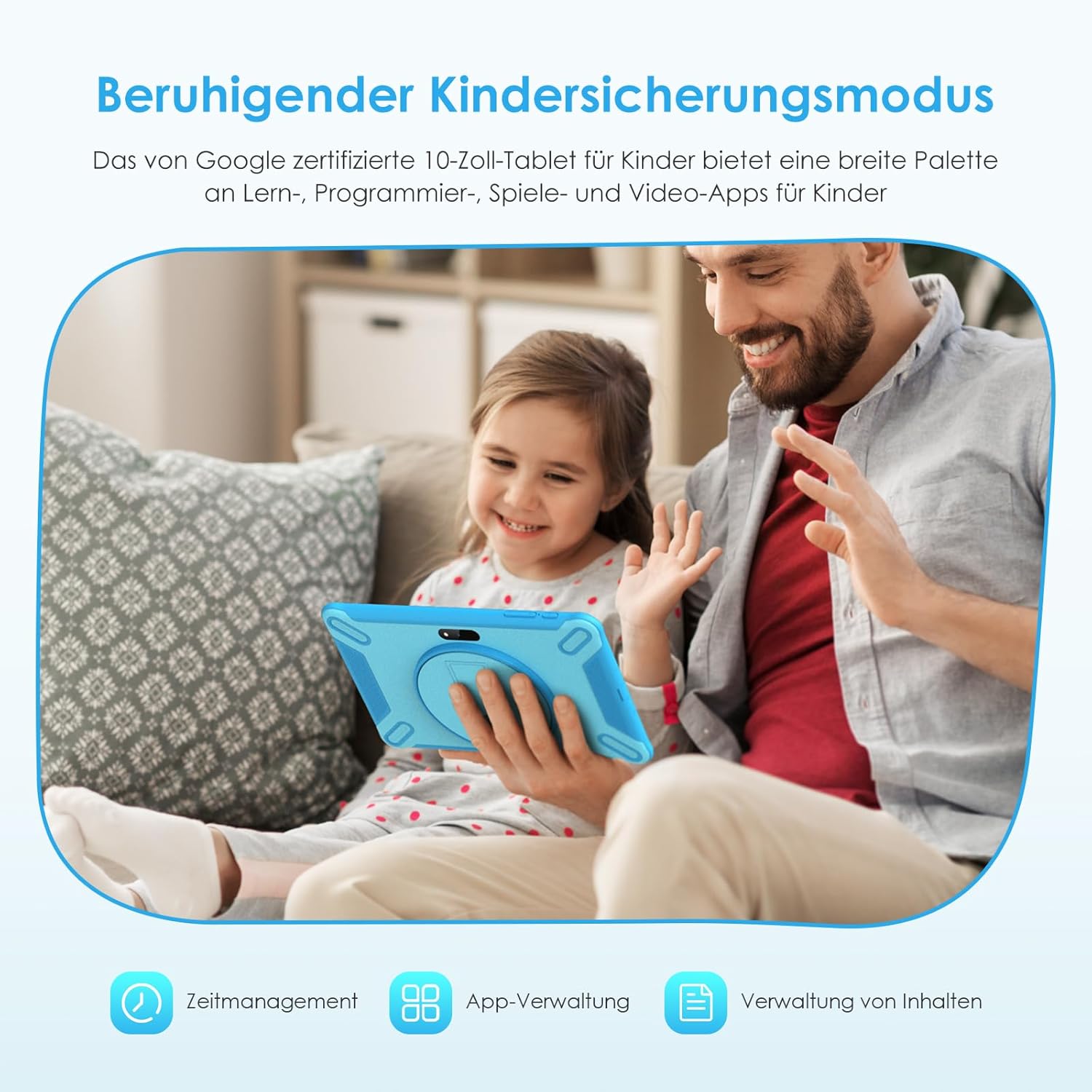
Image 6.1: The tablet's child safety mode in use, providing a secure environment for children.
- Setting Up Child Profiles: Create individual profiles for each child, allowing customized settings.
- App Management: Select which apps your child can access. New apps can be approved or blocked.
- Time Limits: Set daily usage limits or specific time windows for tablet use.
- Content Filtering: Filter inappropriate websites and content.
- Activity Reports: Monitor your child's tablet usage.
Refer to the on-screen instructions within the parental control application for detailed setup and management.

Image 6.2: Overview of key features, including parental control and expandable storage.
6.3 App Management
The tablet comes with Google Play Store pre-installed, allowing access to millions of apps.
- Installing Apps: Open the Google Play Store app, search for the desired app, and tap Install.
- Uninstalling Apps: Tap and hold the app icon on the home screen or app drawer, then drag it to "Uninstall" or select "App info" and choose "Uninstall." Alternatively, go to Settings > Apps > See all apps, select the app, and tap Uninstall.
6.4 Storage Management
Your tablet has 128GB of internal storage, expandable via a MicroSD card up to 256GB.
- To view storage usage, go to Settings > Storage.
- You can move some apps and media files to the MicroSD card to free up internal storage.
7. Maintenance
7.1 Cleaning the Tablet
Use a soft, lint-free cloth to clean the screen and body of the tablet. For stubborn smudges, slightly dampen the cloth with water. Avoid using harsh chemicals, abrasive cleaners, or aerosol sprays.
7.2 Battery Care
- Avoid fully discharging the battery frequently.
- Do not leave the tablet connected to the charger for excessively long periods after it is fully charged.
- Store the tablet in a cool, dry place if not used for an extended period, with the battery charged to about 50%.
7.3 Software Updates
Periodically check for software updates to ensure optimal performance and security.
- Go to Settings > System > System update.
- Follow the on-screen instructions to check for and install any available updates.
8. Troubleshooting
| Problem | Possible Cause | Solution |
|---|---|---|
| Tablet does not turn on. | Low battery; system crash. | Charge the tablet for at least 30 minutes. Press and hold the Power button for 10-15 seconds to force a restart. |
| Screen is unresponsive. | Temporary software glitch. | Restart the tablet. If unresponsive, force restart by holding the Power button. |
| Cannot connect to Wi-Fi. | Incorrect password; router issue; Wi-Fi off. | Ensure Wi-Fi is enabled. Re-enter password. Restart router and tablet. |
| Apps are crashing or slow. | Too many apps open; low storage; outdated app. | Close background apps. Clear app cache. Free up storage. Update apps. Restart tablet. |
| Battery drains quickly. | High screen brightness; many background apps; poor signal. | Reduce screen brightness. Close unused apps. Turn off Wi-Fi/Bluetooth when not in use. |
9. Specifications
The following are the technical specifications for the FASTWD 10-inch Kids Tablet (Model: Y121-EEA):
| Feature | Detail |
|---|---|
| Model Number | Y121-EEA |
| Operating System | Android 13 |
| Display | 10-inch IPS LCD, 1280 x 800 pixels |
| Processor | FASTWD Y121-EEA (Processor Brand: FASTWD) |
| RAM | 20 GB (8GB Physical + 12GB Virtual) |
| Internal Storage (ROM) | 128 GB |
| Expandable Storage | MicroSD card up to 256 GB |
| Wi-Fi Connectivity | 802.11ax (Wi-Fi 5G) |
| Bluetooth | Bluetooth 5.0 |
| Cameras | Front Camera, Rear Camera (5MP Front + 8MP Rear) |
| Ports | USB Type-C, 3.5mm Headphone Jack |
| Dimensions (Packaged) | 28.3 x 25.1 x 3.4 cm |
| Weight (Packaged) | 1.05 kilograms |
| Color | Blue |

Image 9.1: Visual summary of key tablet specifications.
10. Warranty and Support
Your FASTWD 10-inch Kids Tablet (Y121-EEA) is covered by a limited warranty. Please refer to the warranty card included in your package for specific terms and conditions, including the warranty period and coverage details.
For technical support, troubleshooting assistance, or warranty claims, please contact FASTWD customer service. Contact information can typically be found on the product packaging, the official FASTWD website, or the warranty card.
When contacting support, please have your product model number (Y121-EEA) and purchase information readily available.