
MekedeTech DUDU7-12.3A
MekedeTech DUDUAUTO DUDU7 Car Multimedia Head Unit User Manual
Model: DUDU7-12.3inch-8+128GB
1. Introduction
This manual provides comprehensive instructions for the installation, operation, and maintenance of your MekedeTech DUDUAUTO DUDU7 Car Multimedia Head Unit. This device is designed to enhance your in-car entertainment and navigation experience with its advanced Android 13 operating system, high-definition display, and integrated connectivity features.
Please read this manual thoroughly before using the product to ensure proper operation and to prevent damage.
2. Setup and Installation
Proper installation is crucial for the optimal performance of your DUDUAUTO DUDU7 head unit. It is recommended that installation be performed by a qualified professional.
2.1 Package Contents
Verify that all components are present before beginning installation:
- MekedeTech DUDUAUTO DUDU7 Head Unit
- Power Harness
- GPS Antenna
- USB Cables (including Type-C)
- RCA Cables
- External Microphone
- User Manual (this document)
2.2 Pre-Installation Checklist
- Ensure the vehicle's battery is disconnected before starting any electrical work.
- Confirm compatibility with your vehicle's dashboard and wiring harness.
- Gather necessary tools (screwdrivers, wire strippers, electrical tape, etc.).
2.3 Installation Steps
- Carefully remove the existing car radio or dashboard trim.
- Connect the main power harness to the vehicle's wiring. Ensure correct polarity for power, ground, and accessory wires.
- Connect the GPS antenna. Position the antenna in a location with a clear view of the sky for optimal signal reception.
- Connect USB cables for external devices and data transfer. The unit features USB 3.2 GEN1 (Type-C) and USB 2.0 ports.
- Connect RCA cables for audio output (Optical + Coaxial, 5.1 Channel Outputs) if using external amplifiers or speakers.
- Connect the external microphone for improved call quality and voice commands.
- If applicable, connect wires for steering wheel controls, reverse camera, or other auxiliary inputs.
- Carefully slide the DUDUAUTO DUDU7 head unit into the dashboard opening. Secure it using mounting brackets or screws.
- Reconnect the vehicle's battery.
- Turn on the vehicle's ignition and test the head unit's functionality.

Figure 2.1: Various screen sizes and dimensions for DUDUAUTO head units, including the 12.3-inch model in different styles (A, B, C).
3. Operation
This section details the primary functions and how to operate your MekedeTech DUDUAUTO DUDU7 head unit.
3.1 Initial Power On and System Setup
Upon first power-on, the system will boot into the DUDU OS 3.0 interface. You may be prompted to select your language, time zone, and connect to a Wi-Fi network.

Figure 3.1: The main interface of the DUDUAUTO DUDU7 head unit, displaying a navigation map alongside media and system information.

Figure 3.2: Examples of the DUDU OS 3.0 user interface, showcasing various layouts and the new custom dynamic wallpaper feature, including daytime and night modes.
3.2 Wireless CarPlay and Android Auto
The head unit supports both wireless Apple CarPlay and Android Auto for seamless smartphone integration.
- Ensure Bluetooth and Wi-Fi are enabled on your smartphone.
- On the head unit, navigate to the CarPlay/Android Auto application.
- Follow the on-screen prompts to pair your phone via Bluetooth.
- Once paired, the system will automatically establish a Wi-Fi connection for wireless CarPlay/Android Auto functionality.
3.3 Bluetooth Connectivity
The integrated Qualcomm 3031 Bluetooth 5.1 chip provides stable and high-quality audio streaming and hands-free calling.
- Go to the Bluetooth settings on the head unit.
- Enable Bluetooth on your mobile device and search for available devices.
- Select "DUDUAUTO" or a similar name from the list on your phone and confirm pairing.
- You can now make/receive calls and stream audio wirelessly.
3.4 GPS Navigation
The unit features Dual Band L1+L5 GPS for improved positioning accuracy and signal stability.
- Open the pre-installed navigation application or download your preferred navigation app from the Google Play Store.
- Ensure the GPS antenna is properly installed and has a clear view of the sky.
- Enter your destination and follow the voice-guided directions.

Figure 3.3: Explanation of Dual Band GPS (L1+L5) for enhanced positioning and the Digital Noise Cancelling Microphone for clear voice transmission.
3.5 Audio System
The DUDUAUTO DUDU7 incorporates the AKM7739 DSP with Velvet Audio Technology and TDA7808 power amplifier for superior sound quality.
- Access the Equalizer or DSP settings to customize audio output.
- Adjust bass, treble, balance, and fader settings to your preference.
- Utilize the Optical + Coaxial and RCA 5.1 Channel Outputs for advanced audio setups.

Figure 3.4: Close-up view of the internal audio components, including the AKM7739 DSP and TDA7808 amplifier, which contribute to the unit's audio performance.
4. Maintenance
Regular maintenance helps ensure the longevity and optimal performance of your head unit.
4.1 Cleaning the Screen
- Use a soft, lint-free cloth (e.g., microfiber) to gently wipe the screen.
- For stubborn smudges, slightly dampen the cloth with water or a screen-safe cleaning solution.
- Avoid using harsh chemicals, abrasive materials, or excessive liquid, as these can damage the display.
4.2 Software Updates
Periodically check for software updates to ensure your system has the latest features and bug fixes. Updates can typically be found in the system settings under "About device" or "System updates."
4.3 General Care
- Avoid exposing the unit to extreme temperatures or direct sunlight for prolonged periods.
- Do not spill liquids on the unit.
- Ensure proper ventilation around the unit to prevent overheating.
5. Troubleshooting
This section addresses common issues you might encounter and their potential solutions.
| Problem | Possible Cause | Solution |
|---|---|---|
| Unit does not power on. | Loose power connection, blown fuse, vehicle battery disconnected. | Check power harness connections. Inspect vehicle fuses. Ensure battery is connected. |
| No sound output. | Volume too low, mute enabled, incorrect audio source, speaker wiring issue. | Increase volume. Disable mute. Select correct audio source. Check speaker connections. |
| GPS signal is weak or inaccurate. | GPS antenna not properly installed or obstructed. | Ensure GPS antenna has a clear view of the sky. Check antenna connection. |
| Wireless CarPlay/Android Auto not connecting. | Bluetooth/Wi-Fi off on phone, incorrect pairing, software glitch. | Ensure phone's Bluetooth/Wi-Fi is on. Re-pair the device. Restart both phone and head unit. |
| Touchscreen unresponsive. | System frozen, temporary software issue. | Perform a soft reset (refer to system settings or contact support for specific instructions). |
If you encounter issues not listed here or if the suggested solutions do not resolve the problem, please contact MekedeTech customer support.
6. Specifications
Detailed technical specifications for the MekedeTech DUDUAUTO DUDU7 Car Multimedia Head Unit.
| Feature | Specification |
|---|---|
| Model Number | DUDU7-12.3A |
| Operating System | Android 13 |
| CPU | 8 Core UIS7870 Customized version A76 2.7Ghz 6nm processor |
| Memory (RAM/ROM) | 8G RAM 128G ROM (UFS 3.1) |
| Display Size | 12.3 Inches |
| Display Resolution | 1920x720 QLED |
| GPS | Dual Band 6 mode L1 L5 B1 B2a E1 E5a |
| Microphone | Digital Noise Cancellation Microphone |
| USB Ports | USB 3.2 GEN1*1 (TYPE-C), USB2.0*3 |
| Power Amplifier | TDA7808 Digital AB type |
| DSP | AKM7739 Velvet Audio Technology |
| Bluetooth Chip | Qualcomm 3031 (Supports aptx HD protocol, BT5.0) |
| Audio Output | Optical + Coaxial, RCA 5.1 Channel Outputs |
| WiFi Type | 802.11a/b/g/n/ac Support 5G WIFI |
| Radio IC | TDA7708 |
| Work Voltage | 9V~16V |
| CarPlay/Android Auto | Support Wired and Wireless |
| 360 Panorama Support | Yes (requires additional chip and purchase) |
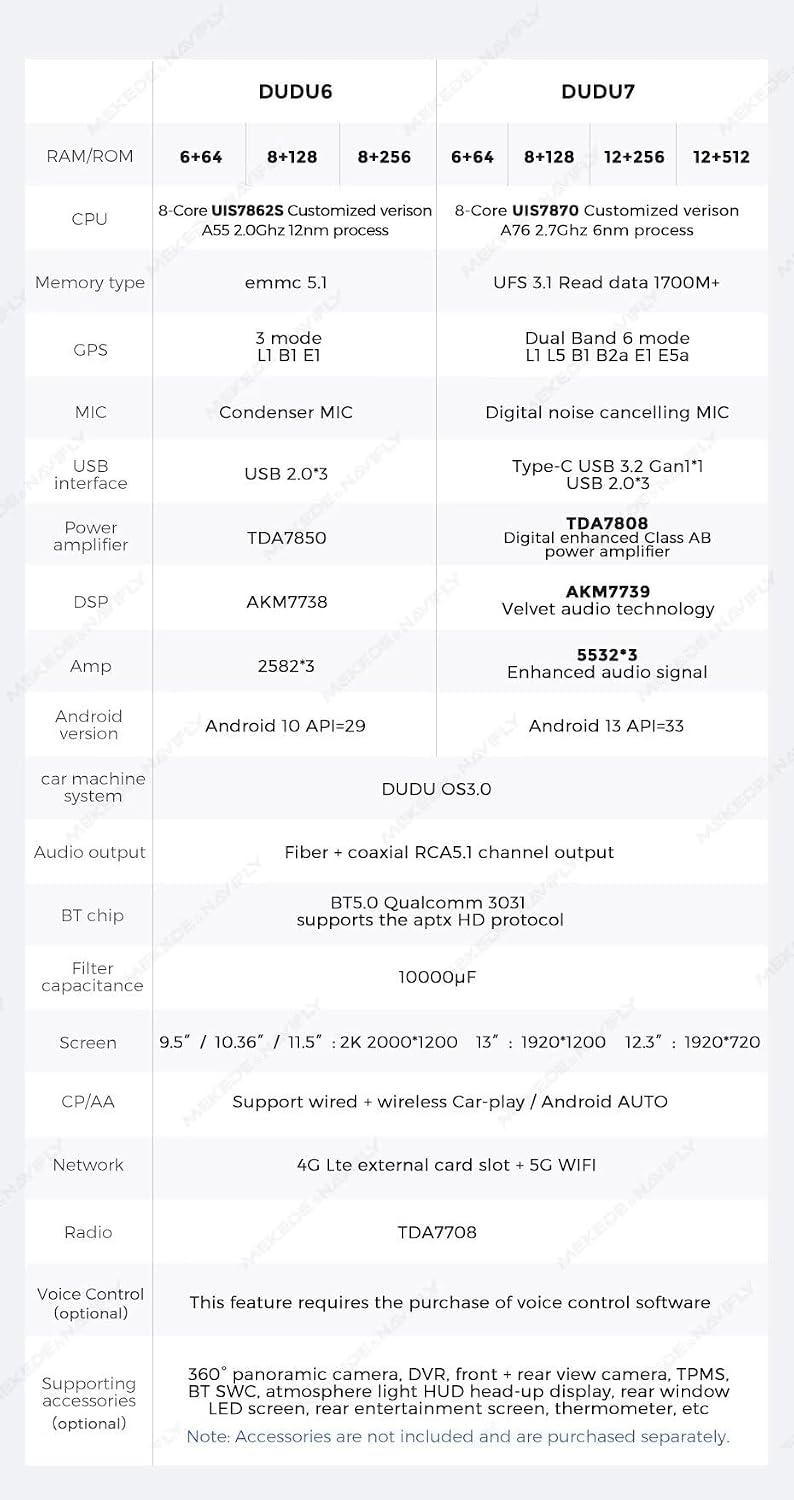
Figure 6.1: Detailed comparison of specifications between DUDU6 and DUDU7 models, highlighting the advanced features of the DUDU7.
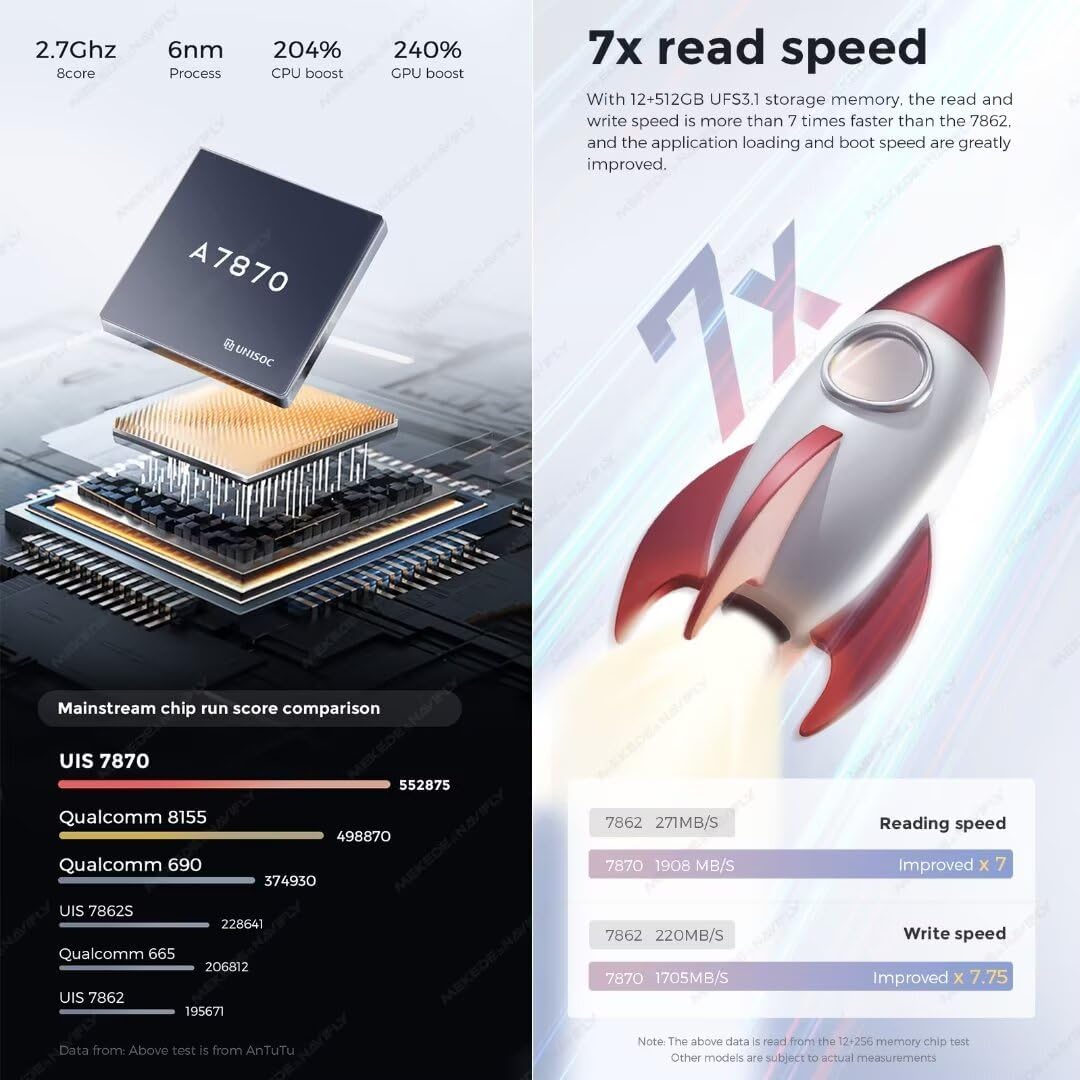
Figure 6.2: Illustration of the UIS 7870 CPU and a performance comparison demonstrating 7x faster read speed with UFS 3.1 storage.
7. Warranty Information
MekedeTech products are manufactured to high quality standards. For specific warranty terms and conditions applicable to your DUDUAUTO DUDU7 head unit, please refer to the warranty card included with your product or visit the official MekedeTech website. Keep your proof of purchase for warranty claims.
8. Customer Support
If you require technical assistance, have questions about your product, or need to report an issue, please contact MekedeTech customer support.
- Online Support: Visit the official MekedeTech website for FAQs, troubleshooting guides, and contact forms.
- Email Support: Refer to your product packaging or the official website for the customer support email address.
- Seller Contact: For purchase-related inquiries, you may also contact the seller "Mekedetech" directly through the platform where you purchased the product.
Ask a question about this manual
Ask about setup, troubleshooting, compatibility, parts, safety, or missing instructions. Manuals+ will review the question and use this page’s manual context to help answer it.