
MekedeTech DUDU6-12.3A
MekedeTech DUDUAUTO DUDU6 Car Multimedia Head Unit User Manual
Model: DUDU6-12.3A
Introduction
This manual provides comprehensive instructions for the installation, operation, and maintenance of your MekedeTech DUDUAUTO DUDU6 Double Din Universal HD Screen Android 13 Car Radio Multimedia Player. Please read this manual thoroughly before using the device to ensure proper functionality and safety.
The DUDUAUTO DUDU6 is a state-of-the-art car head unit featuring a 12.3-inch QLED display, Android 13 operating system, and advanced connectivity options including Wireless Carplay and Android Auto. It is designed to enhance your in-car entertainment and navigation experience.
Product Overview

Figure 1: Front view of the MekedeTech DUDUAUTO DUDU6 head unit, showing its 12.3-inch display with a navigation map and media controls.
The MekedeTech DUDUAUTO DUDU6 is a universal double DIN car multimedia player. Key features include:
- Display: 12.3-inch 1920x720 QLED screen for clear visuals.
- Operating System: Android 13 with DUDU OS 3.0 for a customizable user experience.
- Performance: 6GB RAM and 64GB ROM, powered by an 8-Core UIS7862S processor.
- Connectivity: Wireless Carplay and Android Auto support for seamless smartphone integration.
- Audio: Qualcomm 3031 Bluetooth 5.1 chip for high-quality audio streaming and calls, TDA7850 power amplifier, AKM7738 DSP, Optical + Coaxial, RCA 5.1 Channel Outputs.
- Networking: Supports 5G WiFi (802.11a/b/g/n/ac).
- Dual Screen Support: Ability to navigate on the front screen and watch movies on a rear screen simultaneously via a TYPE-C connection (cable sold separately).
Setup and Installation
Professional installation is recommended for this device. Ensure the vehicle's power is disconnected before beginning installation.
Package Contents
Verify that all components are present before installation. (Note: Specific package contents may vary. Refer to your product packaging for an exact list.)
- MekedeTech DUDUAUTO DUDU6 Head Unit
- Power Harness
- GPS Antenna
- USB Cables
- External Microphone
- User Manual (this document)
Wiring Diagram
Connect the power harness, speaker wires, and other accessory cables according to the provided wiring diagram (not included in this digital manual, refer to physical diagram provided with product). Ensure correct polarity for all connections to prevent damage.
Mounting the Head Unit
The DUDUAUTO DUDU6 is a double DIN unit. Securely mount the head unit into your vehicle's dashboard using the appropriate mounting brackets and screws. Ensure it is firmly seated to prevent vibration and movement during driving.

Figure 2: Illustration of different screen sizes and their corresponding dimensions, including the 12.3-inch display, to assist with fitment considerations.
Initial Power On
After installation, reconnect the vehicle's power. The unit should power on automatically. Follow the on-screen prompts for initial setup, including language selection, time zone, and Wi-Fi connection.
Operating Instructions
User Interface (DUDU OS 3.0)
The DUDU OS 3.0 offers a customizable interface with multiple layout options. Swipe left or right on the home screen to access different widgets and applications. Tap on icons to launch applications.

Figure 3: Examples of the DUDU OS 3.0 user interface, showcasing dynamic wallpapers and different application layouts for customization.
Wireless Carplay & Android Auto
To use Wireless Carplay or Android Auto:
- Ensure Bluetooth and Wi-Fi are enabled on your smartphone.
- On the head unit, open the "Carplay" or "Android Auto" application.
- Follow the on-screen instructions to pair your phone via Bluetooth. Once paired, the system will automatically establish a Wi-Fi connection for Carplay/Android Auto.
- You can now access your phone's compatible apps, navigation, calls, and messages directly from the head unit's display.
Bluetooth Connectivity (Qualcomm 3031 BT 5.1)
For general Bluetooth audio streaming and hands-free calling:
- Go to the Bluetooth settings on the head unit.
- Enable Bluetooth and make the device discoverable.
- On your smartphone, search for available Bluetooth devices and select "DUDUAUTO DUDU6".
- Confirm the pairing code on both devices.
- Once connected, you can stream music, make calls, and access phone contacts.
Navigation
The unit supports various navigation applications. Ensure the GPS antenna is properly installed for optimal signal reception. You can download and use your preferred navigation apps from the Google Play Store (requires internet connection).
Multimedia Playback
The DUDUAUTO DUDU6 supports playback from multiple sources:
- USB: Connect USB drives to the available USB 2.0 ports for audio and video playback.
- Bluetooth Audio: Stream audio from your paired smartphone.
- Radio: Utilize the built-in TDA7708 radio tuner for FM/AM stations.
- Online Streaming: Access online music and video streaming services via Wi-Fi.
Maintenance
Screen Cleaning
Use a soft, lint-free cloth slightly dampened with water or a screen cleaning solution specifically designed for electronic displays. Do not use abrasive cleaners or solvents.
Software Updates
Periodically check for software updates to ensure optimal performance and access to new features. Updates can typically be found in the system settings menu or on the MekedeTech official website. Follow the on-screen instructions carefully during the update process.
General Care
- Avoid exposing the unit to extreme temperatures or direct sunlight for prolonged periods.
- Do not spill liquids on the unit.
- Keep the USB ports free from dust and debris.
Troubleshooting
| Problem | Possible Cause | Solution |
|---|---|---|
| Unit does not power on. | Incorrect wiring; Blown fuse; Vehicle power issue. | Check power connections and vehicle fuses. Consult a professional installer if necessary. |
| No sound. | Volume too low; Mute enabled; Speaker wiring issue; Incorrect audio output setting. | Increase volume. Check mute status. Verify speaker connections. Ensure correct audio output is selected in settings. |
| Carplay/Android Auto not connecting. | Bluetooth/Wi-Fi off on phone; Incorrect pairing; App issue. | Ensure Bluetooth and Wi-Fi are on. Re-pair the device. Restart phone and head unit. Update Carplay/Android Auto apps on phone. |
| GPS signal weak or inaccurate. | GPS antenna not properly installed or obstructed. | Ensure GPS antenna has a clear view of the sky and is securely connected. |
| Touchscreen unresponsive. | Temporary software glitch; Screen damage. | Restart the head unit. If issue persists, contact customer support. |
If you encounter problems not listed here or if the suggested solutions do not resolve the issue, please contact MekedeTech customer support.
Specifications
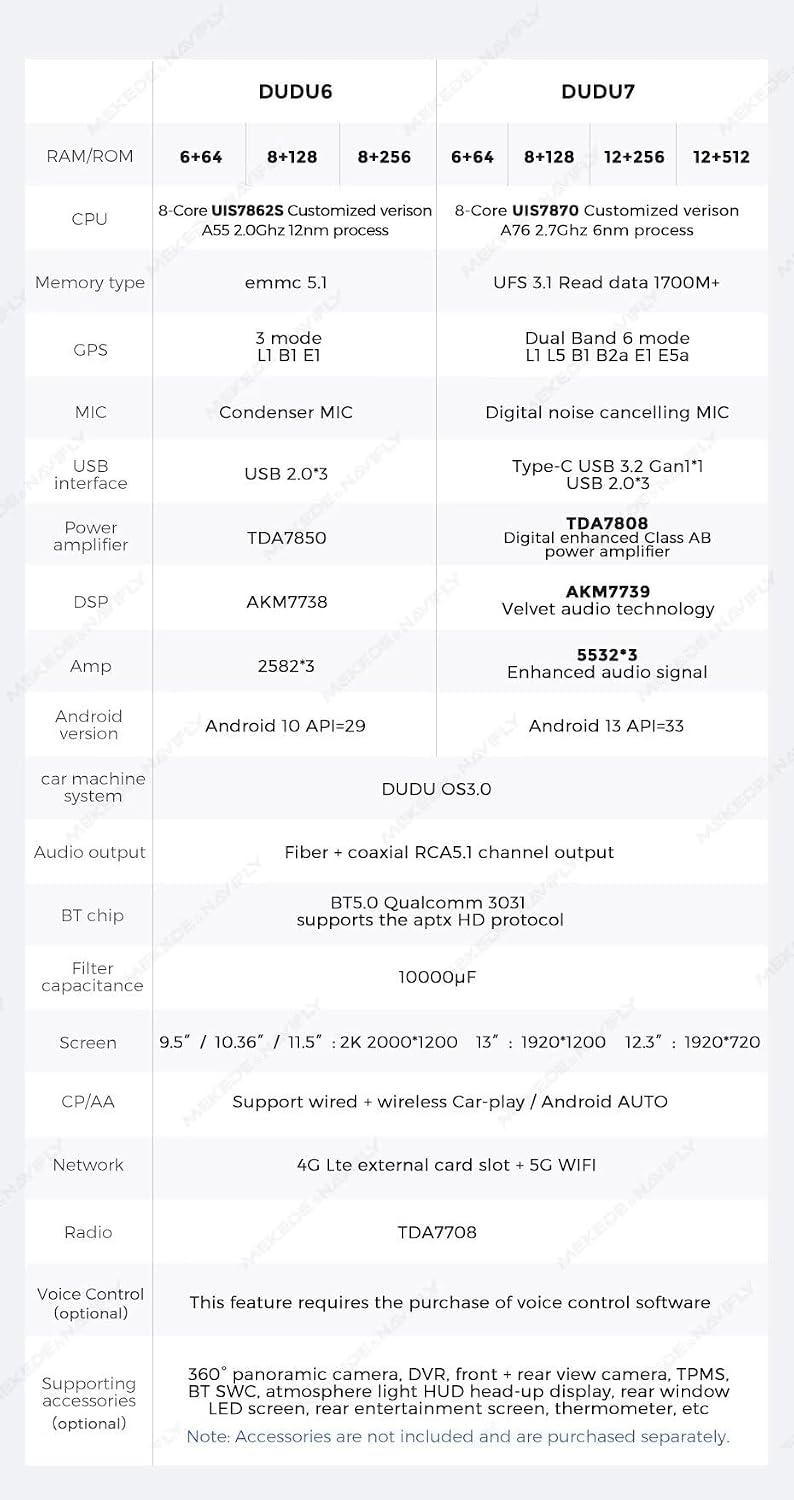
Figure 4: Detailed comparison of technical specifications for DUDU6 and DUDU7 models, highlighting key differences in CPU, memory, and audio features.
| Feature | Specification (DUDU6-12.3A) |
|---|---|
| Model Number | DUDU6-12.3A |
| Operating System | Android 13 |
| CPU | 8 Core UIS7862S Customized version A55 2.0Ghz 12nm processor |
| Memory (RAM/ROM) | 6GB RAM / 64GB ROM (eMMC 5.1) |
| Display Size | 12.3 Inches |
| Display Resolution | 1920x720 |
| Display Type | QLED |
| Bluetooth Chip | Qualcomm 3031 (BT 5.1, supports aptX HD) |
| Wi-Fi Type | 802.11a/b/g/n/ac (Supports 5G Wi-Fi) |
| GPS | Dual Band 3 modes L1 B1 E1 |
| Microphone | Digital Noise Cancellation Microphone |
| USB Ports | USB2.0*3 |
| Power Amplifier | TDA7850 Digital AB type |
| DSP | AKM7738 |
| Audio Output | Optical + Coaxial, RCA 5.1 Channel Outputs |
| Radio IC | TDA7708 |
| Work Voltage | 9V~16V |
| Carplay/Android Auto | Wired and Wireless Support |
| Voice Command | Buttons, Keyboard, Microphone, Touchscreen |
Warranty and Support
MekedeTech products are designed for reliability and performance. For warranty information, please refer to the warranty card included with your product or visit the official MekedeTech website. Keep your purchase receipt as proof of purchase.
Customer Support
If you require technical assistance, troubleshooting, or have questions regarding your DUDUAUTO DUDU6 head unit, please contact MekedeTech customer support. Contact information can typically be found on the official website or on your product packaging.
Manufacturer: Shenzhen Mekede Technology Co.,Ltd
First Available: August 5, 2024
Ask a question about this manual
Ask about setup, troubleshooting, compatibility, parts, safety, or missing instructions. Manuals+ will review the question and use this page’s manual context to help answer it.