
MekedeTech DUDU6-12.3inch-8+128GB
MekedeTech DUDUAUTO DUDU6 Car Multimedia Head Unit User Manual
Model: DUDU6-12.3inch-8+128GB
Brand: MekedeTech
Introduction
This manual provides detailed instructions for the installation, operation, and maintenance of your MekedeTech DUDUAUTO DUDU6 Car Multimedia Head Unit. Please read this manual thoroughly before using the product to ensure proper functionality and safety. The DUDU6 is a universal double DIN Android car radio featuring a 12.3-inch HD QLED screen, wireless CarPlay, and Android Auto, designed to enhance your in-car entertainment and navigation experience.

Figure 1: Front view of the MekedeTech DUDUAUTO DUDU6 Car Multimedia Head Unit with its 12.3-inch display showing a navigation map.
Specifications
The MekedeTech DUDUAUTO DUDU6 Car Multimedia Head Unit is equipped with advanced features for optimal performance. Key specifications are detailed below:
- Operation System: Android OS (DUDU OS 3.0)
- CPU: 8 Core UIS7862S Customized version A55 2.0Ghz 12nm processor
- Memory: 8GB RAM, 128GB ROM (eMMC 5.1)
- Display: 12.3-inch QLED screen, 1920x720 resolution
- GPS: Dual Band 3 modes L1 B1 E1
- Microphone: Digital Noise Cancellation Microphone
- USB: USB2.0*3 ports
- Power Amplifier: TDA7850 Digital AB type
- DSP: AKM7738
- Bluetooth: Qualcomm 3031 Chip, BT5.0, supports aptX HD protocol
- Audio Output: Optical + Coaxial, RCA 5.1 Channel Outputs
- WiFi: 802.11a/b/g/n/ac, supports 5G WiFi
- Radio IC: TDA7708
- Work Voltage: 9V~16V
- Connectivity: Wired and Wireless CarPlay, Android Auto
- Optional Support: 360 panoramic image system (requires additional chip and payment)
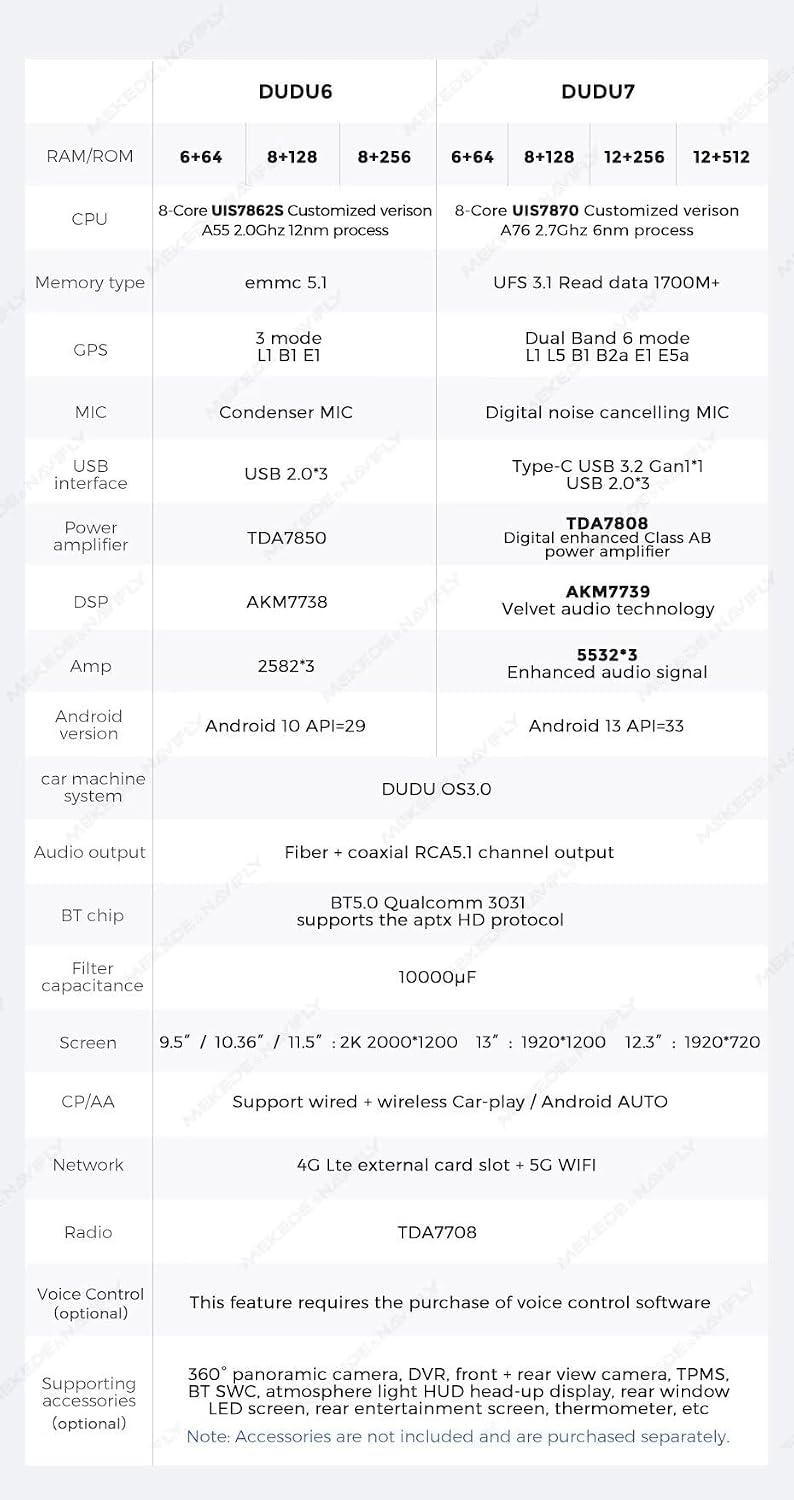
Figure 2: Detailed technical specifications for DUDU6 and DUDU7 models, highlighting differences in CPU, memory, and audio components.

Figure 3: Available screen sizes and their dimensions, including the 12.3-inch screen in three different styles (A, B, C) for universal fitment.
Setup and Installation
The DUDUAUTO DUDU6 is designed for universal double DIN installation. Professional installation is recommended to ensure correct wiring and integration with your vehicle's electrical system.
Pre-Installation Checklist:
- Ensure your vehicle supports a double DIN head unit.
- Gather necessary tools (wire strippers, crimpers, screwdrivers, multimeter).
- Disconnect the vehicle's battery before starting any electrical work.
- Identify your vehicle's wiring harness for power, ground, speakers, and accessory connections.
Basic Wiring Connections:
- Yellow Wire (Constant 12V): Connect to a constant 12V power source in your vehicle.
- Red Wire (Accessory 12V): Connect to a switched 12V power source (turns on/off with ignition).
- Black Wire (Ground): Connect to a solid chassis ground point.
- Speaker Wires: Connect to your vehicle's speaker wires, ensuring correct polarity for each speaker.
- Antenna Wire: Connect the radio antenna.
- USB Ports: Route the three USB 2.0 ports to an accessible location.
- GPS Antenna: Mount the GPS antenna in a location with a clear view of the sky (e.g., dashboard).
After making all connections, carefully mount the head unit into the double DIN slot. Reconnect the vehicle's battery and test all functions before fully reassembling the dashboard.
Operating Instructions
The DUDUAUTO DUDU6 operates on a customized Android OS (DUDU OS 3.0), offering a user-friendly interface and extensive features.
Initial Power On and Setup:
- Upon first power-on, the system will guide you through initial setup, including language selection and time zone.
- Connect to a Wi-Fi network to enable online features, app downloads, and system updates.
- Familiarize yourself with the DUDU OS 3.0 interface, which allows for 6 customizable layouts and dynamic wallpapers.

Figure 4: Overview of the DUDU OS 3.0 user interface, demonstrating its customizable layouts, application screens, and dynamic wallpaper features for both daytime and nighttime viewing.
Wireless CarPlay & Android Auto:
The unit supports both wireless CarPlay and Android Auto, providing seamless integration with your smartphone for navigation, communication, and entertainment.
- Ensure Bluetooth is enabled on your smartphone and the head unit.
- Pair your smartphone with the head unit via Bluetooth.
- Once paired, the system should automatically prompt you to launch CarPlay or Android Auto. Follow on-screen instructions to complete the connection.
- For wired connection, use a compatible USB cable to connect your phone to one of the unit's USB ports.
Bluetooth 5.0 (Qualcomm 3031 Chip):
The integrated Qualcomm 3031 Bluetooth chip ensures stable and high-quality audio streaming and hands-free calling with low power consumption.
- Pairing: Go to the Bluetooth settings on the head unit, enable Bluetooth, and search for available devices. Select your phone from the list and confirm the pairing code.
- Music Streaming: Once paired, you can stream audio from your phone to the head unit. The system supports aptX HD protocol for enhanced sound quality.
- Hands-Free Calling: Make and receive calls directly from the head unit's interface. The digital noise cancellation microphone improves call clarity.
Audio Output and DSP:
The unit features a TDA7850 Digital AB type power amplifier and an AKM7738 DSP for superior audio processing. It provides Optical + Coaxial and RCA 5.1 Channel Outputs for advanced audio system integration.
- Access the DSP settings to customize equalization, sound stage, and other audio parameters to suit your preferences.
- Utilize the RCA 5.1 channel outputs for connecting external amplifiers and subwoofers for a full surround sound experience.
TYPE-C Touch-Screen Convenience Screen Support:
The head unit supports a line through the TYPE-C touch-screen convenience screen, allowing simultaneous navigation on the front screen and movie viewing on a rear screen. Note that the TYPE-C extension cable needs to be purchased separately.
Maintenance
Proper maintenance ensures the longevity and optimal performance of your DUDUAUTO DUDU6 head unit.
- Screen Cleaning: Use a soft, lint-free cloth specifically designed for electronic screens. Do not use abrasive cleaners or solvents. Gently wipe the screen to remove dust and fingerprints.
- Software Updates: Periodically check for system software updates via the unit's settings menu when connected to Wi-Fi. Keeping the software updated ensures access to the latest features and bug fixes.
- Ventilation: Ensure the unit's ventilation openings are not blocked to prevent overheating.
- Cable Connections: Periodically check all cable connections to ensure they are secure and free from damage.
Troubleshooting
This section addresses common issues you might encounter with your DUDUAUTO DUDU6 head unit.
| Problem | Possible Cause | Solution |
|---|---|---|
| Unit does not power on. | Incorrect wiring (power/ground), blown fuse, vehicle battery low. | Check power and ground connections. Inspect vehicle fuses and the unit's fuse. Ensure battery voltage is sufficient. |
| No sound from speakers. | Incorrect speaker wiring, volume too low, mute activated, audio settings. | Verify speaker connections and polarity. Increase volume. Check if mute is active. Adjust audio output settings. |
| Bluetooth connection issues. | Bluetooth not enabled, device not paired, interference. | Ensure Bluetooth is on for both devices. Re-pair the device. Move closer to the unit. Clear previous pairings. |
| CarPlay/Android Auto not connecting. | Incorrect phone settings, app issues, cable quality (for wired). | Check phone's CarPlay/Android Auto settings. Restart phone and head unit. Try a different USB cable if wired. Ensure Wi-Fi is enabled for wireless connection. |
| GPS signal weak or inaccurate. | GPS antenna placement, obstructions. | Ensure GPS antenna has a clear view of the sky and is not obstructed by metal. Relocate antenna if necessary. |
If you encounter issues not listed here or if the suggested solutions do not resolve the problem, please contact MekedeTech customer support.
Warranty and Support
MekedeTech products are designed for reliability and performance. For specific warranty terms and conditions, please refer to the warranty card included with your product or visit the official MekedeTech website. Keep your proof of purchase for warranty claims.
Customer Support:
For technical assistance, troubleshooting, or service inquiries, please contact MekedeTech customer support through their official channels. You can often find contact information on the manufacturer's website or within the product packaging.
Manufacturer: Shenzhen Mekede Technology Co.,Ltd
Brand Store: MekedeTech Amazon Store
Ask a question about this manual
Ask about setup, troubleshooting, compatibility, parts, safety, or missing instructions. Manuals+ will review the question and use this page’s manual context to help answer it.