
1. Introduction
This user manual provides comprehensive instructions for the installation, operation, and maintenance of the DEWIN Tuya Smart 1P 63A 230VAC WiFi DIN Rail Smart Circuit Breaker. This device is designed to integrate with smart home systems via WiFi, offering remote control and monitoring capabilities. Please read this manual thoroughly before installation and use to ensure safe and optimal performance.
2. Product Overview
The DEWIN Tuya Smart Circuit Breaker is a versatile device for various applications, including current measurement systems, schools, markets, household appliances, industrial settings, and laboratories. It features robust construction and smart functionalities.
Key Features:
- Multiple Protection: Equipped with colored indicator lights, providing clear operational status. Supports intelligent protection against overvoltage, undervoltage, overcurrent, and leakage.
- WiFi Remote Control: Control and monitor the device's status via the Tuya Smart mobile application. Compatible with Amazon Alexa and Google Assistant for voice control.
- Real-time Monitoring: View various data such as total energy consumption, current, voltage, and power directly from your mobile phone.
- Smart Chip Technology: Features powerful chips and integrated circuits for precise smart meter measurement with an error margin of less than 0.3%.
- Durable Construction: The casing is made from high-quality PC flame-retardant material, offering high resistance to flame, impact, and shock for extended durability.
- DIN Rail Installation: Designed for easy installation on a standard 35mm DIN rail.
Product Components:
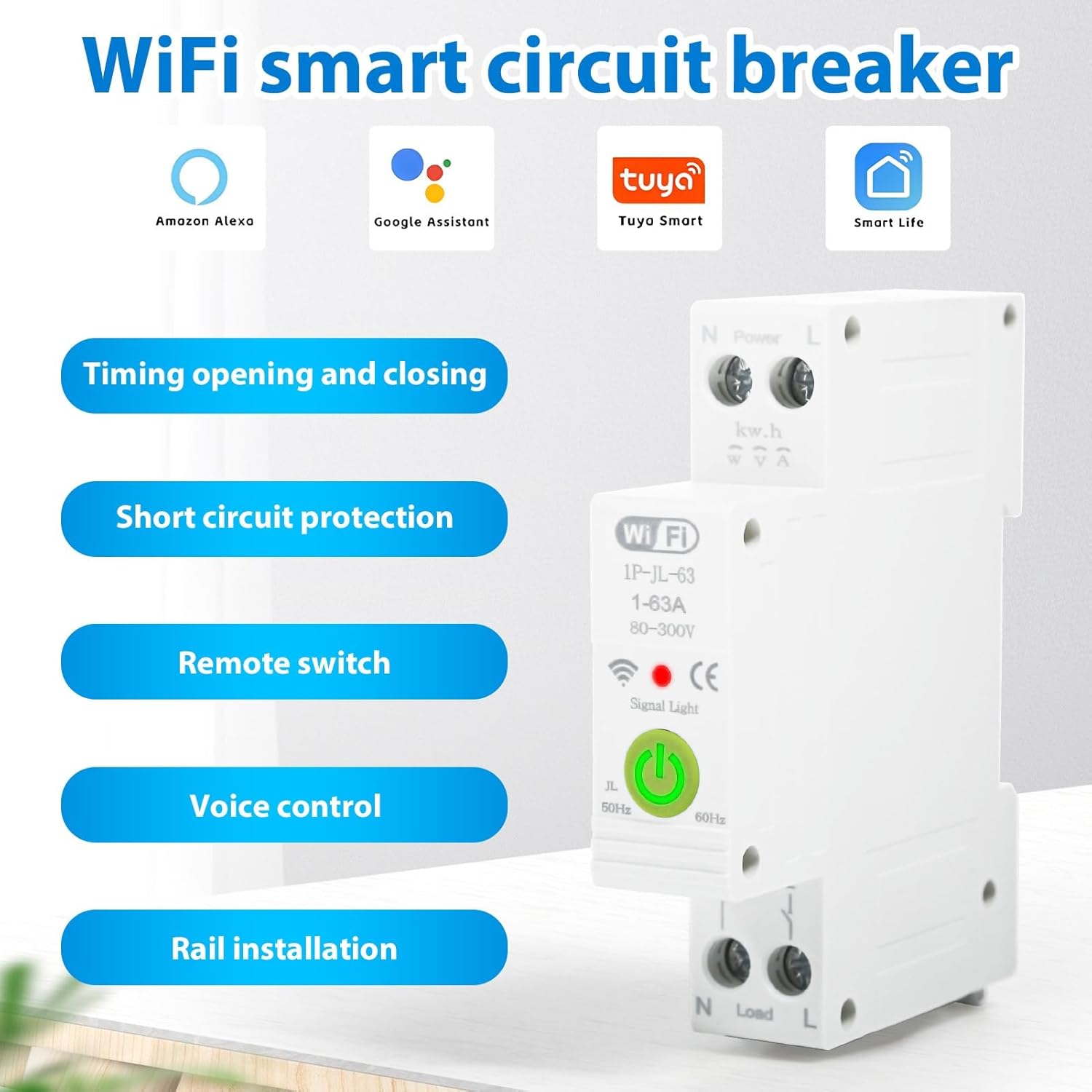
Figure 2.1: Overview of the DEWIN Smart Circuit Breaker highlighting its smart features and compatibility.
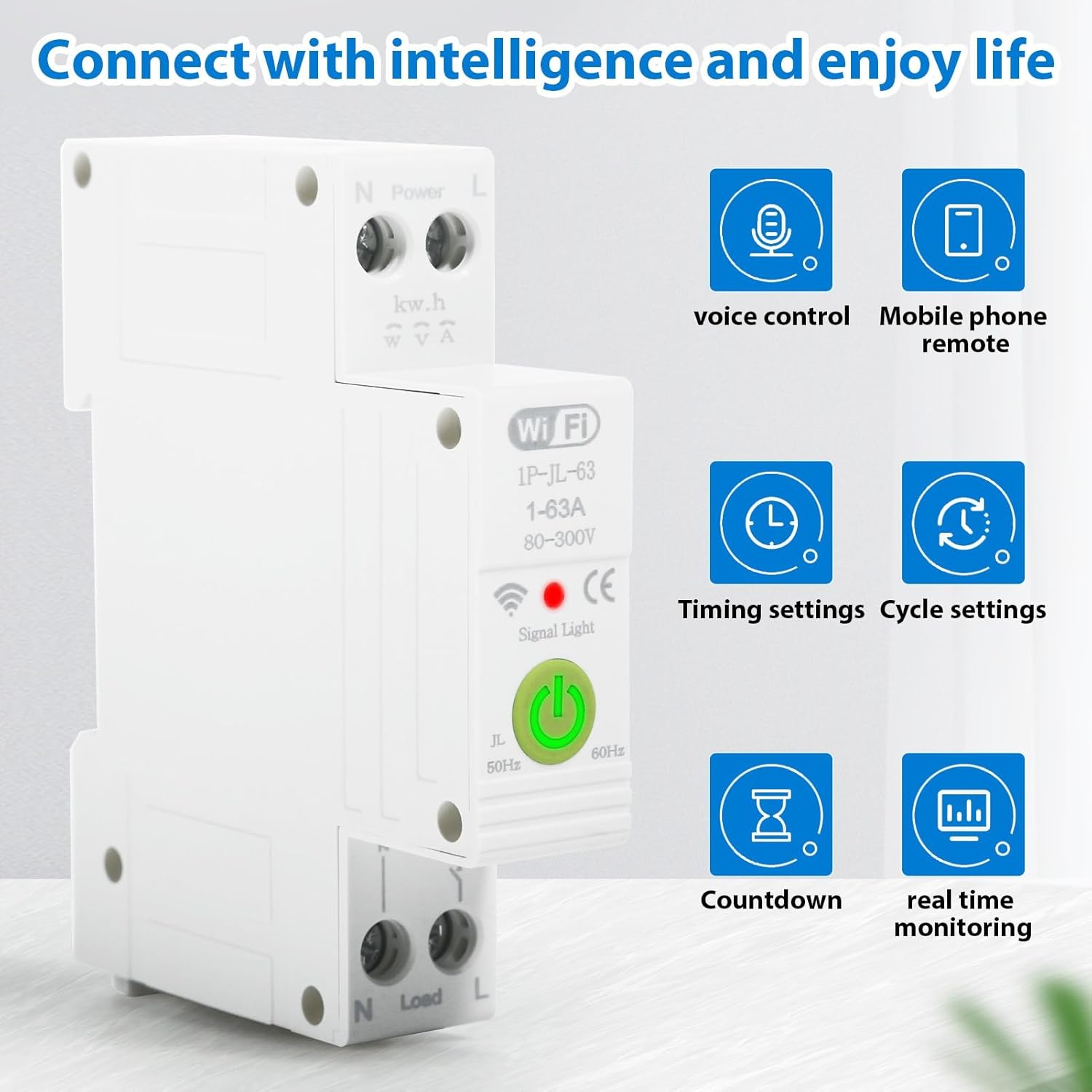
Figure 2.2: Smart functionalities including voice control, remote access, and monitoring.
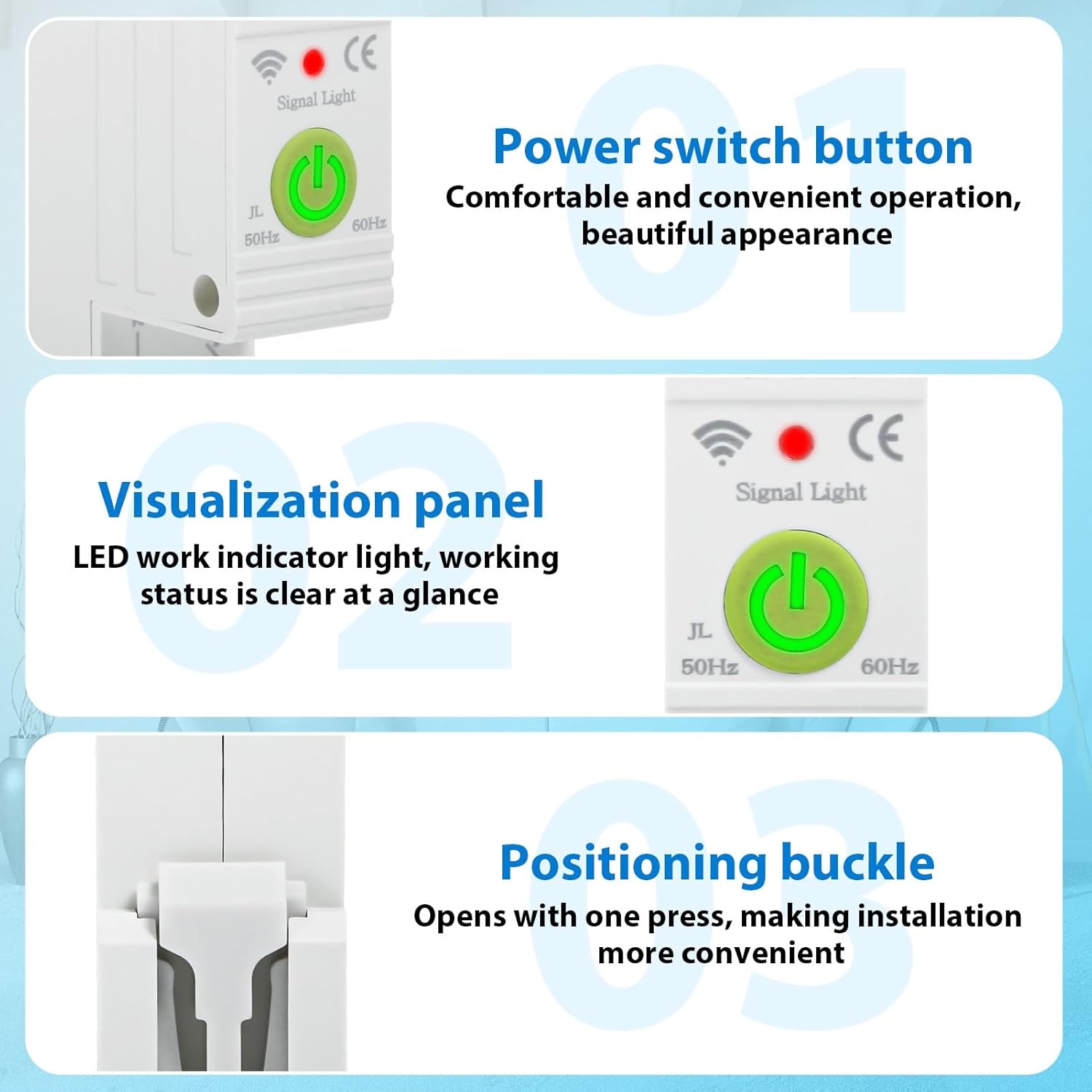
Figure 2.3: Detailed view of the power switch, LED indicator, and installation buckle.

Figure 2.4: Illustration of the product's flame-retardant material for enhanced safety.
3. Specifications
The following table details the technical specifications of the DEWIN Tuya Smart Circuit Breaker:

Figure 3.1: Product dimensions and key electrical specifications.
| Specification | Value |
|---|---|
| Connection Platform | Tuya Smart APP |
| Material | PC Flame Retardant Material |
| Rated Current | 63 A |
| Rated Voltage | 230 V AC |
| Operating Voltage Range | 80-400 V AC |
| Overvoltage Protection Range | 120-300 V (Adjustable) |
| Undervoltage Protection Range | 80-210 V (Adjustable) |
| Rated Frequency | 50/60 Hz |
| WiFi Frequency | 2.4 GHz |
| Installation Method | 35mm DIN Rail |
| Ambient Temperature Range | -30℃ to 70℃ |
| Product Dimensions (L x W x H) | 8.7 x 5 x 1.9 cm (1.9 x 8.7 x 1.9 cm) |
| Item Weight | 120 Grams |
| Operation Mode | ON-OFF |
| Contact Type | Normally Open |
| Terminal Type | Screw |
| Circuit Type | 1 Way |
| Control Method | Remote Control |
| Connectivity Protocol | Wi-Fi |
| Manufacturer Part Number | QBCXIYQEQ-GS110256-03 |
4. Safety Information
Please observe the following safety precautions to prevent injury or damage to the device:
- Installation and maintenance should only be performed by qualified electricians.
- Ensure the main power supply is disconnected before any installation or wiring work.
- Verify that the voltage and current ratings of the circuit breaker match your electrical system requirements.
- Do not operate the device in wet or damp conditions.
- Avoid exposing the device to extreme temperatures or direct sunlight.
- Do not attempt to disassemble or modify the circuit breaker.
5. Setup
5.1. Installation on DIN Rail
The DEWIN Smart Circuit Breaker is designed for quick and easy installation on a standard 35mm DIN rail. No screws are required for mounting.
- Ensure the main power supply to the circuit is turned off.
- Align the circuit breaker with the DIN rail.
- Press the positioning buckle (refer to Figure 2.3) and snap the device onto the DIN rail until it clicks securely into place.
- Release the buckle to lock the device.

Figure 5.1: DIN rail installation process.
5.2. Wiring Connection
Proper wiring is crucial for safe and correct operation. Refer to the wiring diagram below:
- Identify the Live (L) and Neutral (N) input terminals for the power source.
- Connect the incoming Live wire to the 'L' input terminal and the incoming Neutral wire to the 'N' input terminal.
- Identify the Live (L) and Neutral (N) output terminals for the load.
- Connect the outgoing Live wire to the 'L' output terminal and the outgoing Neutral wire to the 'N' output terminal.
- Ensure all screw terminals are tightened securely to prevent loose connections.

Figure 5.2: Wiring diagram for Live and Neutral connections.
5.3. App Connection (Tuya Smart)
To enable smart features, connect the device to the Tuya Smart APP:
- Download the 'Tuya Smart' app from your mobile device's app store (iOS or Android).
- Register or log in to your Tuya Smart account.
- Ensure your mobile device is connected to a 2.4 GHz WiFi network.
- Power on the circuit breaker. The signal light should blink, indicating it's in pairing mode. If not, press and hold the power switch button for 5-10 seconds until it blinks rapidly.
- In the Tuya Smart app, tap '+' to add a new device.
- Select 'Electrical' > 'Circuit Breaker (Wi-Fi)' or allow the app to auto-discover the device.
- Follow the on-screen instructions to complete the pairing process, entering your WiFi network password when prompted.
- Once connected, the signal light on the device will become solid.
6. Operating Instructions
Once installed and connected to the Tuya Smart app, you can control and monitor your circuit breaker remotely.
6.1. Manual Operation
Press the physical power switch button on the device to manually turn the circuit ON or OFF.
6.2. App Control
Open the Tuya Smart app and select your circuit breaker device. From the app interface, you can:
- Turn ON/OFF: Toggle the power switch remotely.
- Monitor Data: View real-time data such as total energy consumption, current, voltage, and power.
- Set Timers: Schedule the circuit to turn ON or OFF at specific times.
- Create Cycle Timings: Set repetitive ON/OFF schedules.
- Configure Countdown: Set a countdown timer for the circuit to switch.
- Adjust Protection Settings: Modify overvoltage and undervoltage protection ranges as needed (refer to specifications for default ranges).
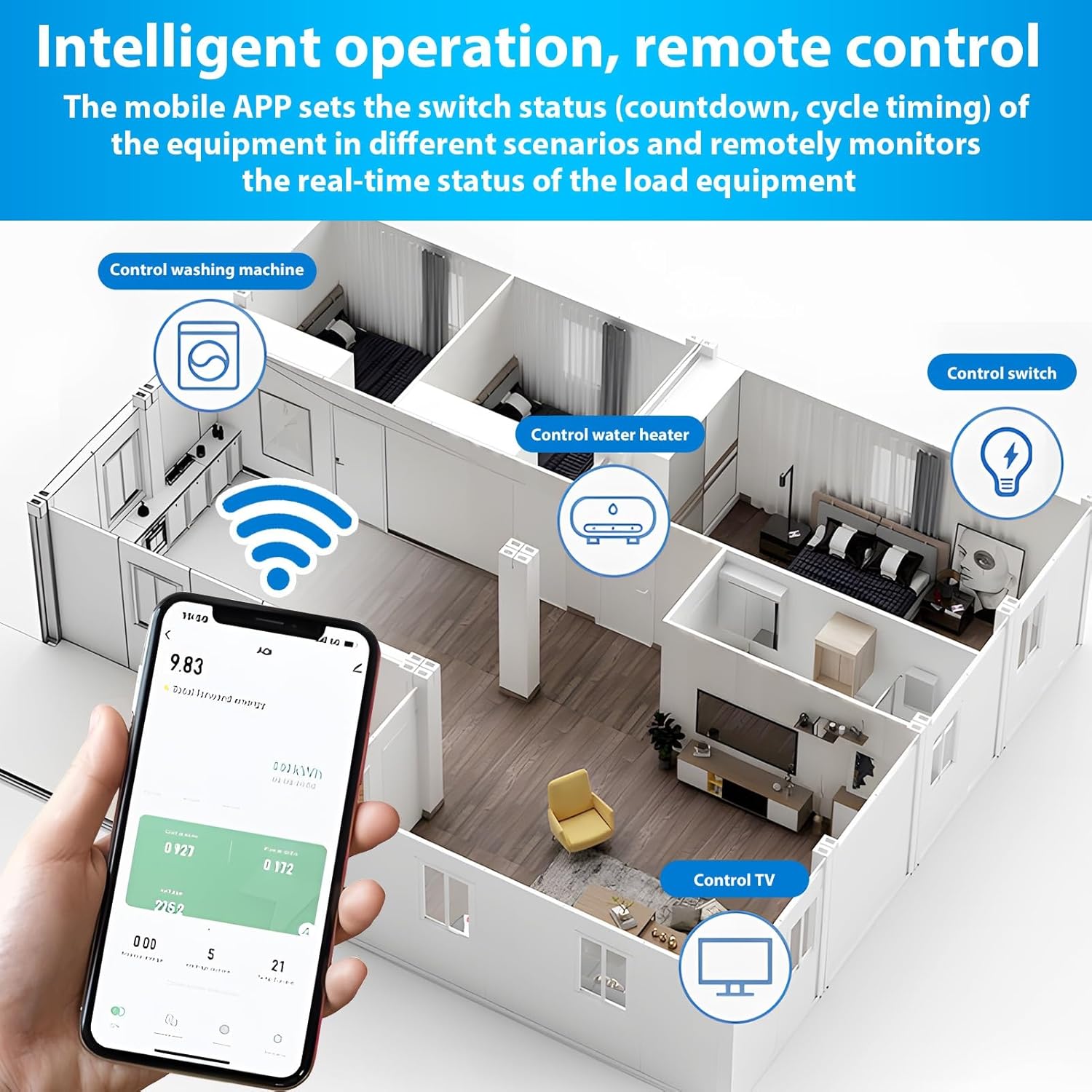
Figure 6.1: Remote control and monitoring via the Tuya Smart mobile application.
6.3. Voice Control
Integrate the Tuya Smart app with Amazon Alexa or Google Assistant for voice-activated control:
- Enable the 'Tuya Smart' skill in your Alexa or Google Home app.
- Link your Tuya Smart account.
- Discover devices.
- Use voice commands such as:
- "Alexa, turn on [Device Name]"
- "Hey Google, turn off [Device Name]"
7. Maintenance
The DEWIN Smart Circuit Breaker requires minimal maintenance. Follow these guidelines to ensure longevity:
- Regularly inspect the device for any visible damage or loose connections.
- Keep the device clean and free from dust and debris. Use a dry, soft cloth for cleaning.
- Do not use harsh chemicals or abrasive cleaners.
- Ensure proper ventilation around the device to prevent overheating.
8. Troubleshooting
If you encounter issues with your DEWIN Smart Circuit Breaker, refer to the following common problems and solutions:
| Problem | Possible Cause | Solution |
|---|---|---|
| Device does not power on. | No power supply; Loose wiring; Device fault. | Check main power supply; Verify wiring connections; Contact support if fault persists. |
| Cannot connect to WiFi. | Incorrect WiFi password; Router too far; 5GHz WiFi network; Device not in pairing mode. | Ensure correct 2.4GHz WiFi password; Move device closer to router; Switch to 2.4GHz network; Put device in pairing mode (blinking signal light). |
| Remote control not working. | No internet connection; App issue; Device offline. | Check internet connectivity; Restart Tuya Smart app; Reconnect device to WiFi if offline. |
| Protection features (over/undervoltage) tripping unexpectedly. | Voltage fluctuations; Sensitivity settings. | Check power grid stability; Adjust protection thresholds in the app if necessary (consult a professional). |
If the problem persists after attempting these solutions, please contact DEWIN customer support.
9. Warranty and Support
For warranty information, please refer to the terms and conditions provided at the time of purchase or contact your retailer. For technical support or further assistance, please reach out to DEWIN customer service through the contact information provided on the product packaging or the official DEWIN website.