
ZTE U10SPRO
ZTE U10S Pro 4G+ LTE Mobile Wi-Fi 6 User Manual
Model: U10SPRO | Brand: ZTE
1. Introduction
The ZTE U10S Pro is a portable 4G+ LTE Mobile Wi-Fi 6 device designed to provide high-speed internet connectivity on the go. It allows you to create a personal Wi-Fi hotspot, sharing a 4G/3G connection with up to 32 devices simultaneously. Its compact design and long-lasting battery make it ideal for travel and various mobile internet needs.
1.1. Package Contents
Please check the package for the following items:
- ZTE U10S Pro Device
- Rechargeable Battery (3000mAh)
- Quick Start Guide

Image: The ZTE U10S Pro device shown alongside its blue retail box, indicating the product and its packaging.
2. Initial Setup
Follow these steps to set up your ZTE U10S Pro for the first time.
2.1. Installing the SIM Card and Battery
- Carefully remove the back cover of the device.
- Insert a Nano 4G SIM card into the designated SIM card slot. Ensure the SIM card is correctly oriented as indicated on the device.
- Insert the provided 3000mAh rechargeable battery into the battery compartment.
- Replace the back cover, ensuring it clicks securely into place.

Image: The ZTE U10S Pro device with its back cover open, revealing the internal battery compartment and SIM card slot, illustrating how to install components.
2.2. Powering On the Device
Press and hold the Power button (usually located on the side or top) for a few seconds until the screen illuminates and the device starts up. The device will automatically detect the SIM card and attempt to connect to the 4G/3G network.

Image: Two different angled views of the ZTE U10S Pro, showcasing its sleek blue design and the circular display screen.
3. Operation
3.1. Connecting Devices to the Wi-Fi Hotspot
The ZTE U10S Pro can connect up to 32 Wi-Fi enabled devices. To connect your device:
- On your Wi-Fi enabled device (e.g., smartphone, tablet, laptop), open the Wi-Fi settings.
- Search for available Wi-Fi networks. The network name (SSID) and password for your ZTE U10S Pro are typically found on a label inside the battery compartment or on the device's screen.
- Select your ZTE U10S Pro's network name from the list.
- Enter the Wi-Fi password when prompted.
- Your device should now be connected to the internet.
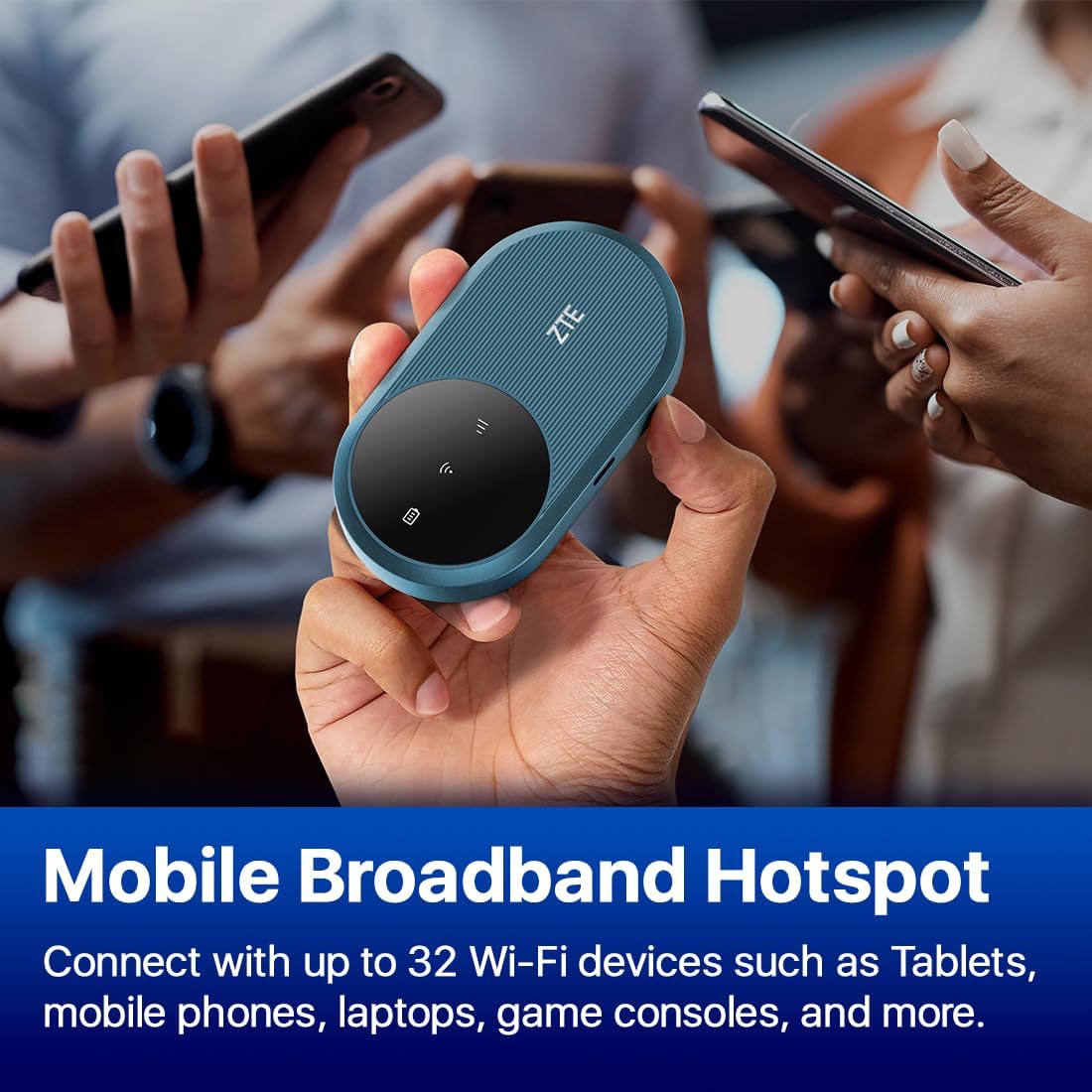
Image: The ZTE U10S Pro held in a hand, with other hands holding various mobile devices in the background, symbolizing its capability to connect multiple devices as a mobile broadband hotspot.
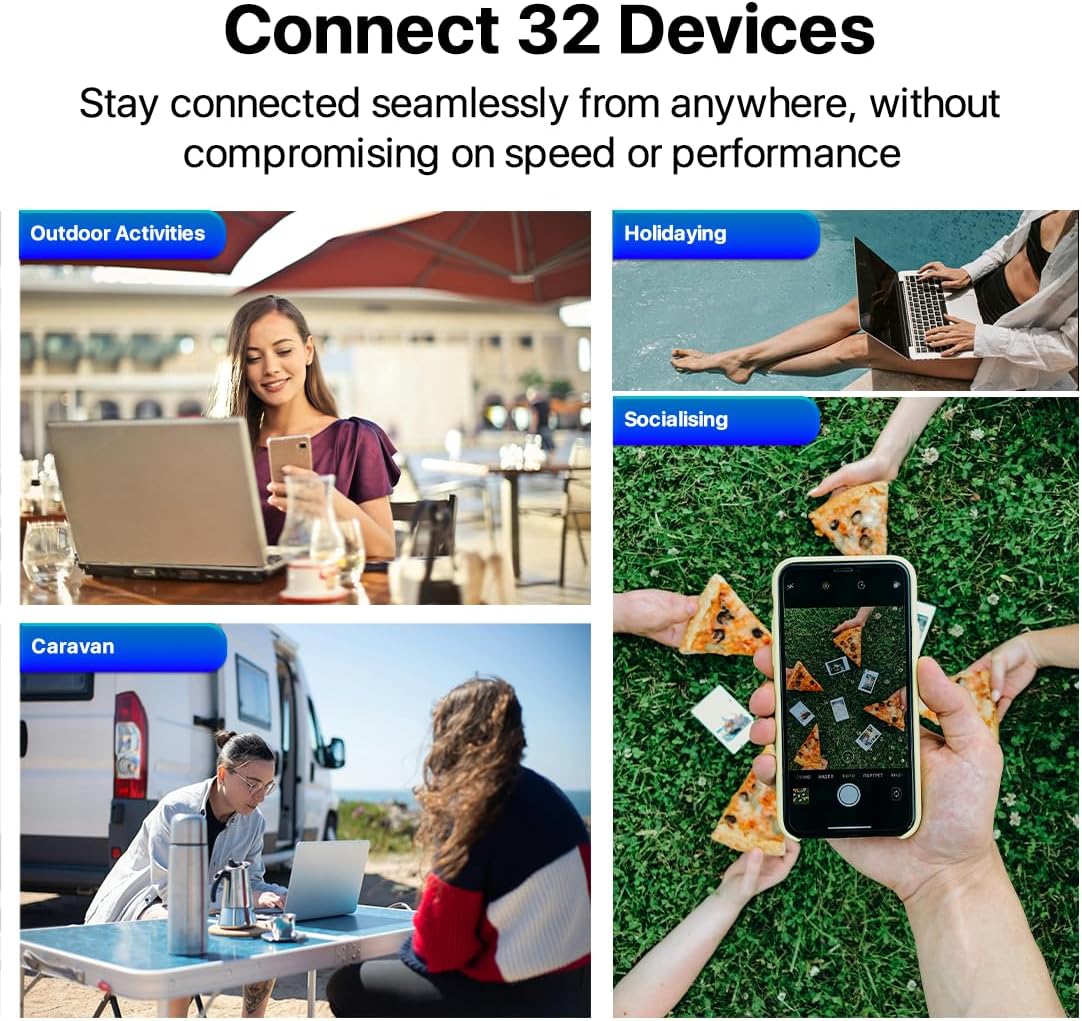
Image: A visual representation showing the ZTE U10S Pro connecting 32 devices, with scenes depicting its use during outdoor activities, holidays, social gatherings, and in a caravan, highlighting its versatility.
3.2. Understanding the Device Screen
The circular screen on your ZTE U10S Pro provides real-time information about the device's status. Key indicators include:
- Signal Strength: Indicates the strength of the 4G/3G network signal.
- Battery Life: Displays the current battery level.
- Connected Users: Shows the number of devices currently connected to the hotspot.
- Upload/Download Speeds: Provides real-time data transfer rates.
- QR Code for Wi-Fi Connection: Allows for quick connection by scanning the QR code.

Image: The ZTE U10S Pro's screen showing various icons and information, such as signal strength, battery level, and connected users, demonstrating its easy management features.
3.3. Advanced Wi-Fi Features
The ZTE U10S Pro supports Dual-Band Wi-Fi 6 technology, providing efficient and fast wireless connectivity. You can manage settings such as:
- Parental Control: A simplified system to help ensure online safety.
- Guest Network: Create a separate network for guests without sharing your main network password.
These settings can typically be accessed via the device's web management interface (refer to the Quick Start Guide for default IP address and login credentials).

Image: The ZTE U10S Pro device with a shield icon overlaid, illustrating its parental control and guest network capabilities for enhanced online safety.
4. Charging the Device
The ZTE U10S Pro is equipped with a 3000mAh rechargeable battery, providing up to 10 hours of working time. To charge the device:
- Connect the device to a power source using a compatible USB cable (not included, typically uses USB-C).
- The battery indicator on the screen will show charging progress.
- Ensure the device is fully charged before extended use for optimal battery performance.

Image: The ZTE U10S Pro device connected to a white charging cable, with a prominent battery icon on its screen indicating that it is charging, demonstrating its super-fast 4G+ speeds while charging.
5. Technical Specifications
| Model Name | U10SPRO |
| Dimensions | 10.8 x 6 x 2 cm |
| Weight | 20 g |
| Battery Capacity | 3000 mAh Lithium Ion |
| Working Time | Up to 10 hours |
| Wireless Standard | 802.11n, 802.11ax (Wi-Fi 6), 802.11b, 802.11a, 802.11g |
| Frequency Band | Dual-Band (2.4 GHz) |
| Max Connected Devices | 32 |
| SIM Card Type | Nano 4G SIM |
| Connectivity Technology | Bluetooth, Wi-Fi, USB, LTE |
| Operating System | RouterOS (Internal Firmware) |
6. Troubleshooting
If you encounter issues with your ZTE U10S Pro, try the following solutions:
- No Network Signal:
- Ensure the SIM card is correctly inserted and activated.
- Check if you are in an area with 4G/3G network coverage.
- Restart the device.
- Cannot Connect to Wi-Fi:
- Verify the Wi-Fi password.
- Ensure the device's Wi-Fi is enabled.
- Move closer to the ZTE U10S Pro.
- Check if the maximum number of connected devices (32) has been reached.
- Slow Internet Speed:
- Check your network signal strength on the device screen.
- Reduce the number of connected devices.
- Ensure your SIM card plan has sufficient data allowance and speed.
- Device Not Powering On:
- Ensure the battery is properly inserted and charged.
- Connect the device to a power source and try again.
7. Warranty and Support
The ZTE U10S Pro comes with a manufacturer's warranty. Please refer to the Quick Start Guide or the official ZTE website for detailed warranty terms and conditions.
For technical support, product inquiries, or warranty claims, please contact ZTE customer service or visit their official support channels. Information regarding support is typically provided in the Quick Start Guide included with your product.
You can also visit the ZTE Store on Amazon for more information and product updates.
Related documentsU10SPRO


Ask a question about this manual
Ask about setup, troubleshooting, compatibility, parts, safety, or missing instructions. Manuals+ will review the question and use this page’s manual context to help answer it.