
Introduction
This manual provides detailed instructions for the installation, setup, and operation of your new PHEZEN 8-inch Android 13 Car Radio. This multimedia player is designed to enhance your driving experience with features such as Carplay, Android Auto, Bluetooth connectivity, GPS navigation, and more. Please read this manual thoroughly before use to ensure proper functionality and safety.
Product Overview and Key Features
The PHEZEN 8-inch Android 13 Car Radio is a versatile car stereo system offering a range of functionalities:
- Vehicle Compatibility: Specifically designed for various Chevrolet and GMC models from 2005-2014, including Silverado, Avalanche, Express Van, Impala, Tahoe, Equinox, Suburban, Acadia, Savana, Sierra, Yukon, and Buick Enclave (2008-2012).
- Operating System: Runs on Android 13 with 2GB RAM and 32GB storage for smooth performance.
- Smartphone Integration: Built-in Wireless CarPlay and Android Auto support via Bluetooth for seamless phone content projection, including 1080P videos and high-definition pictures.
- Mirror Link: Supports Mirror Link functionality to display your phone's screen on the car stereo.
- Bluetooth Connectivity: Fast matching Bluetooth for hands-free calls, music streaming, and navigation. Features Hi-Fi sound quality.
- GPS Navigation & WiFi: Integrated GPS module supports online and offline navigation apps from Google Play. Built-in WiFi for internet access.
- Multimedia Player: Supports various media formats and radio functions for road conditions, news, sports, and entertainment.

Image: The PHEZEN 8-inch Android 13 Car Radio showing the Apple CarPlay interface on its touchscreen display.
Applicable Car Models
This PHEZEN car radio is compatible with the following vehicle models. Please verify your vehicle's compatibility before installation.

Image: A visual guide detailing compatible Chevrolet, GMC, and Buick models and their respective manufacturing years. It also shows examples of car dashboards that fit and do not fit the unit.
Chevrolet
- Silverado 1500HD, 2500HD, 3500HD (2007-2014)
- Avalanche (2007-2011)
- Express Van (2008-2011)
- Impala (2006-2012)
- Tahoe (2007-2014)
- Equinox (2005-2009)
- Suburban (2007-2014)
- HHR (SS/LT/Panel/LS) (2006-2011)
- Monte Carlo (2006-2007)
- Traverse (2009-2012)
GMC
- Acadia (2007-2012)
- Savana (2008-2013)
- Sierra (2007-2011)
- Yukon (2007-2013)
Buick
- Enclave (2008-2012)
Package Contents
The following items are included in your PHEZEN 8-inch Android 13 Car Radio package:

Image: A comprehensive view of all components included with the car radio, such as the main unit, various cables (power, RCA, USB, camera input, radio adapter), GPS antenna, instruction manual, Canbus Box, and sound amplifier.
- PHEZEN 8-inch Android 13 Car Radio Main Unit
- Power Cable
- RCA Input/Output Cables
- 2 USB Cables
- Camera Input Cable
- Radio Adapter
- GPS Antenna
- Instruction Manual (this document)
- USB Connection Cable
- Canbus Box
- Sound Amplifier
Installation Guide
Proper installation is crucial for the optimal performance of your car radio. It is recommended that installation be performed by a qualified professional. Refer to the wiring diagram and your vehicle's specific wiring instructions.

Image: A detailed wiring diagram illustrating how to connect the various cables and components to the main car radio unit and the vehicle's electrical system.
- Preparation: Disconnect the vehicle's battery before starting any electrical work.
- Remove Old Unit: Carefully remove your existing car stereo unit from the dashboard.
- Connect Wiring Harness: Connect the provided power cable and RCA input/output cables to the corresponding ports on the new unit and your vehicle's wiring harness. Ensure all connections are secure.
- Connect Accessories: Connect the GPS antenna, USB cables, camera input cable, and radio adapter as needed. If your vehicle requires a Canbus Box, connect it according to the diagram.
- Test Connections: Before fully mounting the unit, temporarily reconnect the battery and perform a basic power-on test to ensure all connections are correct.
- Mount Unit: Securely mount the PHEZEN car radio into the dashboard opening.
- Final Check: Reconnect the battery and perform a full system check.
Initial Setup: Touch Screen Calibration
To ensure accurate touch response, perform the touch screen calibration as follows:
Video: Demonstrates the process of calibrating the touch screen of the car radio. This involves pressing the screen with five fingers, then clicking on specific icons to test touch accuracy, and finally setting corresponding buttons on the left side of the screen.
- Initiate Calibration: Press the screen with five fingers simultaneously to enter calibration mode.
- Test Touch Points: Click on the corresponding icons that appear on the screen to test touch accuracy.
- Assign Side Buttons: Set the corresponding functions for the physical buttons located on the left side of the unit.
Connectivity Setup
Establish connections for Bluetooth, ZLINK (CarPlay/Android Auto), and WiFi using the following steps:
Video: Guides through connecting your smartphone via Bluetooth, initiating ZLINK for CarPlay/Android Auto, and manually connecting to a WiFi hotspot if automatic connection fails. It also shows how to clear history records for ZLINK reconnection.
1. Bluetooth Connection
- On the car radio, navigate to the Bluetooth settings.
- On your smartphone, enable Bluetooth and search for available devices.
- Select "CarBT" from the list of devices on your phone.
- Enter the PIN "0000" if prompted.
- Once connected, "phone audio" and "media audio" should be displayed under "Paired devices" on the car radio. If not, restart the Bluetooth connection process.
2. ZLINK Connection (CarPlay/Android Auto)
- Ensure Bluetooth is connected as described above.
- On the car radio, open the "Apps" menu and select "ZLINK".
- The system will attempt to connect to your smartphone for CarPlay or Android Auto. Follow any on-screen prompts on your phone.
3. Manual WiFi Connection (if ZLINK fails)
If the ZLINK connection is not successful, a manual WiFi connection may be required:
- On the car radio, go to "Settings" > "Android Settings" > "Network & Internet" > "Hotspot & tethering" > "Wi-Fi hotspot".
- Turn on the Wi-Fi hotspot on the car radio. Note the network name (e.g., "AndroidAP_B442") and password.
- On your smartphone, go to Wi-Fi settings and connect to the car radio's hotspot using the noted password.
- Once your phone is connected to the car radio's WiFi, the device name will be displayed on the car radio's hotspot screen, indicating a successful connection.
- After manually connecting to the car radio's WiFi, you may need to delete the ZLINK history record on the car radio (e.g., by clearing recent apps or restarting ZLINK) and then click ZLINK again to re-establish the connection.
Operating Instructions
This section details the operation of various features of your PHEZEN car radio.
CarPlay / Android Auto / Mirror Link

Image: Illustrates the three primary smartphone integration features: Apple CarPlay, Android Auto, and Mirror Link, showing how they project phone content onto the car radio screen via Bluetooth or USB connection.
- CarPlay / Android Auto: Once connected via Bluetooth (and WiFi if necessary for ZLINK), your phone's interface will appear on the car radio screen. Use the touchscreen to navigate apps, make calls, send messages, and play music.
- Mirror Link: For devices supporting Mirror Link, connect your phone via USB or follow the specific Mirror Link app instructions to duplicate your phone's screen on the car radio.
Bluetooth Functions
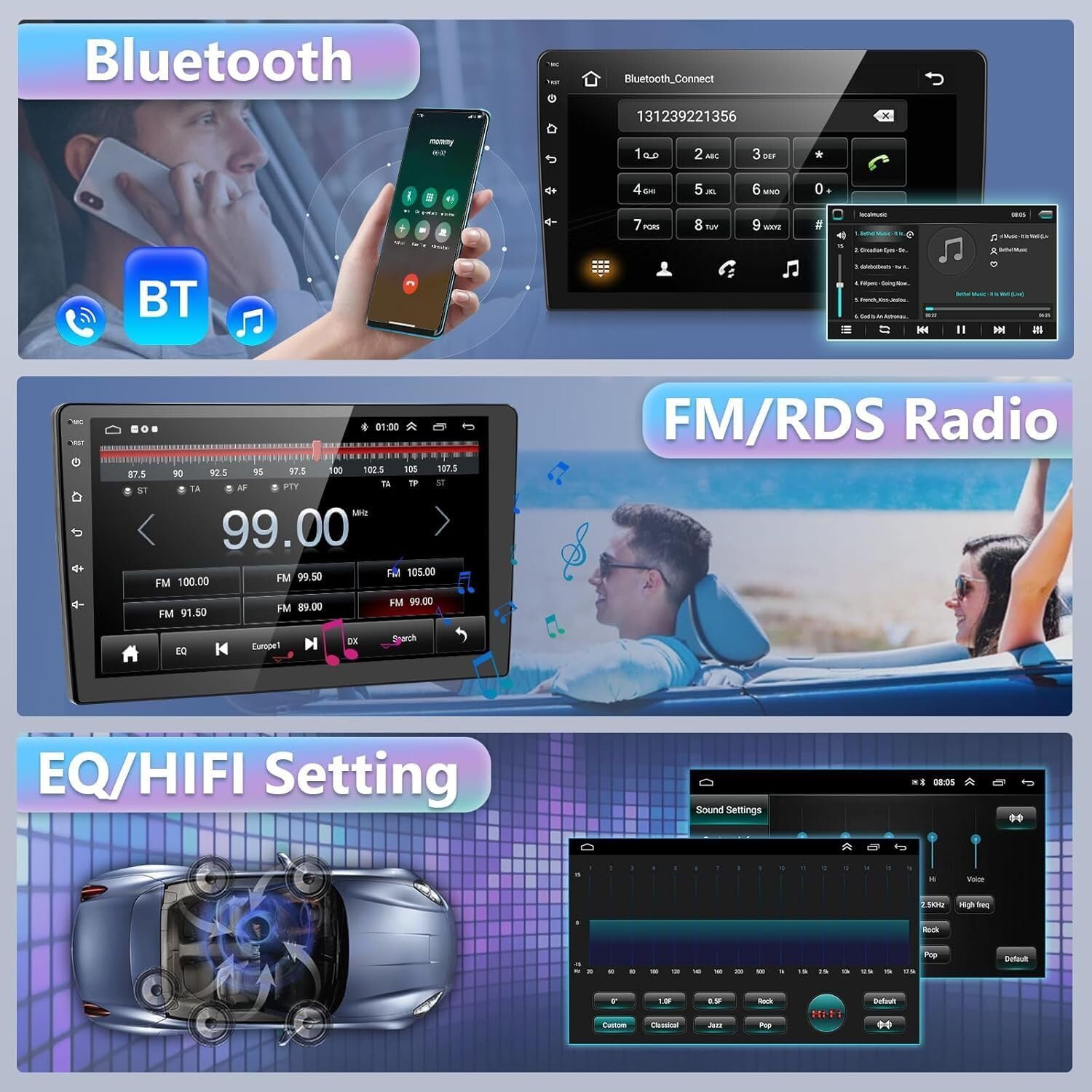
Image: Displays the Bluetooth calling screen, showing a phone call in progress, and the Bluetooth music playback interface. Also includes the FM/RDS radio screen and the Equalizer (EQ) settings for audio customization.
- Hands-Free Calling: After pairing your phone via Bluetooth, you can make and receive calls directly from the car radio's touchscreen. The built-in microphone ensures clear communication.
- Audio Streaming: Play music and other audio from your paired smartphone through the car's speakers.
FM/RDS Radio
- Access the "Radio" application from the main menu.
- Use the touchscreen to scan for stations, save presets, and view RDS (Radio Data System) information where available.
EQ/HiFi Settings
- Navigate to the "Sound Settings" or "EQ" menu to customize audio output.
- Adjust equalizer presets (e.g., Pop, Rock, Jazz) or manually fine-tune bass, treble, and other audio parameters for optimal sound quality.
GPS Navigation & WiFi

Image: Shows the GPS navigation map, a selection of popular apps (e.g., TikTok, YouTube, Facebook), the voice control interface with examples like "Hey Siri, Play music", and the steering wheel control learning screen.
- GPS: Use the pre-installed navigation app or download your preferred app from the Google Play Store. Ensure the GPS antenna is properly connected for accurate positioning.
- WiFi: Connect to a WiFi hotspot (as described in the Setup section) to access online services, download apps, and update maps.
Voice Control
- Activate voice control (e.g., "Hey Siri" or "OK Google") to manage navigation, music playback, calls, and other functions hands-free.
- Follow the on-screen prompts or refer to your smartphone's voice assistant instructions for specific commands.
Steering Wheel Control
- If your vehicle supports steering wheel controls, navigate to the "Steering Learn" section in the car radio's settings.
- Follow the on-screen instructions to program the buttons on your steering wheel to control functions like volume, track skipping, and mode selection.
Specifications
| Feature | Detail |
|---|---|
| Brand | PHEZEN |
| Connectivity Technology | Bluetooth, USB, Wi-Fi |
| Controller Type | Android |
| Special Features | Android Auto, Apple CarPlay, Built-In Bluetooth, Touchscreen |
| Connector Type | Optical |
| Audio Output Mode | Stereo |
| Color | Black |
| Item Weight | 1360 Grams |
| Wireless Communication Technology | Bluetooth |
| Manufacturer | PHEZEN |
Troubleshooting
If you encounter issues with your PHEZEN car radio, refer to the following common troubleshooting steps:
- No Power:
- Check all power cable connections.
- Verify the vehicle's fuse for the stereo system.
- Ensure the vehicle's battery is properly connected and charged.
- No Sound:
- Check speaker wire connections.
- Ensure volume is not muted or set too low.
- Verify audio output settings in the car radio menu.
- Bluetooth/CarPlay/Android Auto Connection Issues:
- Ensure Bluetooth is enabled on both the car radio and your smartphone.
- Try restarting both devices.
- Delete previous Bluetooth pairings on both devices and attempt to pair again.
- For ZLINK, ensure WiFi is connected if manual connection was required, and clear any ZLINK history before reconnecting.
- GPS Not Working:
- Ensure the GPS antenna is properly installed and has a clear view of the sky.
- Check GPS settings in the car radio menu.
- Verify that your navigation app is up to date.
- Touch Screen Unresponsive:
- Perform the touch screen calibration as described in the "Initial Setup" section.
- Restart the car radio unit.
If problems persist, please contact customer support for further assistance.
Warranty and Support
Your PHEZEN 8-inch Android 13 Car Radio comes with a standard manufacturer's warranty. Please refer to the warranty card included in your package for specific terms and conditions.
For technical support, troubleshooting assistance, or warranty claims, please contact PHEZEN customer service through the retailer where you purchased the product or visit the official PHEZEN website for contact information.
Keep your purchase receipt and product serial number handy when contacting support.