
1. Introduction
Thank you for choosing the JOMAA Ergonomic Wireless Keyboard and Mouse Combo. This manual provides detailed instructions for setting up, operating, and maintaining your new wireless peripheral set. Please read this manual thoroughly before use to ensure optimal performance and longevity of your product.
2. Package Contents
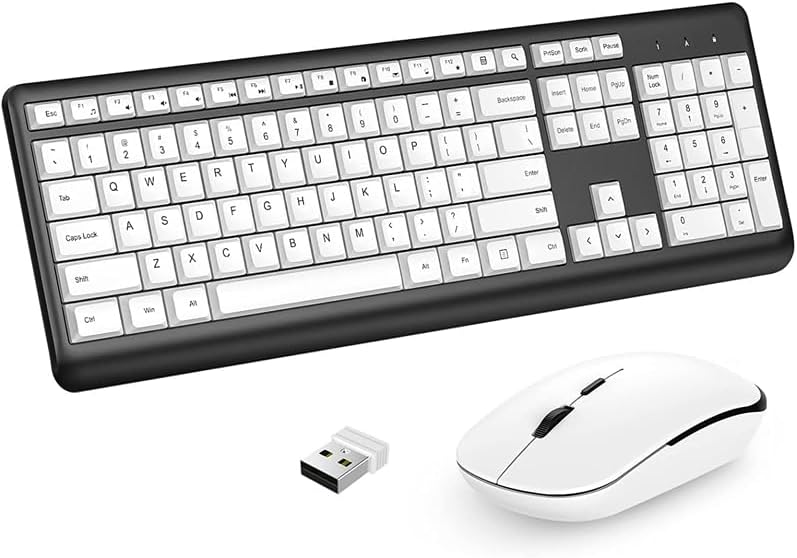
Please verify that all items are present in your package:
- 1 x Wireless Keyboard
- 1 x Wireless Mouse
- 1 x USB Receiver (stored in the mouse battery compartment)
- 1 x User Manual (this document)
- Note: Batteries are not included and must be purchased separately.
3. Setup Instructions
3.1. Installing Batteries
- For the Keyboard: Open the battery compartment cover on the back of the keyboard. Insert 2 AAA batteries (not included), ensuring correct polarity (+/-). Close the cover.
- For the Mouse: Open the battery compartment cover on the bottom of the mouse. Insert 1 AA battery (not included), ensuring correct polarity (+/-). The USB receiver is typically stored in this compartment; remove it before inserting the battery. Close the cover.
3.2. Connecting the USB Receiver
- Locate the USB receiver, usually stored in the mouse's battery compartment.
- Plug the USB receiver into an available USB port on your computer (laptop or desktop).
- Your computer will automatically detect and install the necessary drivers. This is a plug-and-play device, so no manual driver installation is required.
- The keyboard and mouse should now be ready for use.

4. Operating Instructions
4.1. Keyboard Features
- Full-Size Layout: The keyboard features a standard full-size layout, including a numeric keypad, for comprehensive input.
- Multimedia Hotkeys: Access common functions quickly using the dedicated multimedia keys. These typically include volume control, play/pause, previous/next track, and more. Refer to the key legends for specific functions.
- Ergonomic Design: The keyboard is designed with an ergonomic profile to reduce strain during extended use.
- Foldable Stands: Utilize the foldable stands on the back of the keyboard to adjust the typing angle for improved comfort.

4.2. Mouse Features
- 3-Level CPI Adjustment: The mouse offers three adjustable CPI (Counts Per Inch) settings: 800, 1200, and 1600. Press the CPI button (usually located near the scroll wheel) to cycle through these sensitivities to match your preference and task requirements.
- Silent Clicks: The mouse features silent click buttons, reducing noise during operation.
- Ergonomic Design: The mouse is shaped to fit comfortably in your hand, promoting natural wrist and arm posture.

4.3. 2.4G Wireless Connection
The keyboard and mouse utilize a stable 2.4GHz wireless connection via a single USB receiver. This provides a reliable connection up to 10 meters (33 feet) from your device, offering flexibility and freedom of movement.
5. Maintenance
- Cleaning: Use a soft, dry cloth to clean the surfaces of the keyboard and mouse. For stubborn dirt, a slightly damp cloth with mild soap can be used, ensuring no liquid enters the device.
- Battery Replacement: Replace batteries when performance degrades (e.g., delayed response, intermittent connection). Dispose of old batteries responsibly according to local regulations.
- Storage: When not in use for extended periods, remove batteries to prevent leakage. Store the USB receiver in the mouse's battery compartment to avoid loss.
- Avoid Extreme Conditions: Do not expose the devices to extreme temperatures, humidity, or direct sunlight.
6. Troubleshooting
| Problem | Solution |
|---|---|
| Keyboard/Mouse not responding |
|
| Lag or intermittent connection |
|
| Mouse cursor movement is too fast/slow | Press the CPI button on the mouse to adjust the sensitivity (800/1200/1600 CPI). |
| Multimedia keys not working | Ensure your operating system and media player support these functions. Some functions may require specific software or settings. |
7. Specifications
- Brand: JOMAA
- Connectivity: 2.4GHz Wireless USB
- Wireless Range: Up to 10 meters (33 feet)
- Keyboard Layout: Full-size with numeric keypad
- Mouse CPI: 800 / 1200 / 1600 DPI (adjustable)
- Keyboard Battery: 2 x AAA (not included)
- Mouse Battery: 1 x AA (not included)
- Compatible Devices: Laptops, Desktops (Windows, Android, iOS compatible)
- Special Features: Ergonomic design, Multimedia keys, Silent mouse clicks, Foldable keyboard stands
- Package Dimensions: 17.6 x 9.3 x 1.75 inches
- Item Weight: 1.56 pounds

8. Warranty and Support
JOMAA products are designed for reliability and performance. For specific warranty information, please refer to the warranty card included with your purchase or contact JOMAA customer support directly.
If you encounter any issues or have questions regarding your JOMAA Ergonomic Wireless Keyboard and Mouse Combo, please contact our customer support team. Contact details can typically be found on the product packaging or the official JOMAA website.
Online Support: Visit the JOMAA Store on Amazon for product information and support resources.


