
1. Introduction
The Darmoshark M3PROMAX Wireless Gaming Mouse is engineered for high-performance gaming and versatile use across multiple platforms. Featuring tri-mode connectivity, an ultra-sensitive PAW3950 optical sensor, and a lightweight ergonomic design, this mouse is designed to enhance your gaming and productivity experience.
Key Features:
- Latest Three Modes Connection: Supports 2.4G wireless, USB-C wired, and Bluetooth modes for broad compatibility with various devices and scenarios.
- PAW3950 Optical Sensor: Delivers up to 30000 DPI resolution, 750 IPS tracking speed, 8000Hz response rate, and 50G acceleration for superior accuracy and speed.
- Programmable Buttons: Features 7 programmable buttons, allowing for custom DPI settings, key functions, and macro configurations via dedicated software.
- 54g Ultralight Ergonomic Design: Pure right-handed ergonomic design weighing approximately 54g, crafted for comfort and reduced wrist fatigue during extended use.
- Reliable Wired & Wireless Options: Offers both zero-lag wired connections and convenient Bluetooth connectivity.
2. Setup
2.1. Package Contents
Upon unboxing your Darmoshark M3PROMAX Wireless Gaming Mouse, please ensure all the following items are present:
- Darmoshark M3PROMAX Wireless Gaming Mouse
- USB-C Charging/Data Cable
- 2.4G USB Receiver
- User Manual (this document)
- Grip Tape (optional for enhanced grip)

Image: The Darmoshark M3PROMAX mouse, USB-C cable, and 2.4G receiver neatly packaged.
2.2. Connectivity Modes
The M3PROMAX offers three versatile connection options:
- 2.4G Wireless Mode:
For optimal gaming performance with minimal latency, use the included 2.4G USB receiver. Plug the receiver into an available USB port on your computer. Ensure the switch on the bottom of the mouse is set to the '2.4G' position. The mouse should automatically connect. - Bluetooth Mode:
For general use and connecting to devices without a USB port, switch the mouse to 'BT' mode. On your device, navigate to Bluetooth settings and search for 'Darmoshark M3PROMAX'. Select it to pair. This mode is ideal for multi-device work, allowing connection to up to 3 devices simultaneously. - USB-C Wired Mode:
Connect the mouse directly to your computer using the provided USB-C cable. This mode provides a stable, zero-lag connection and simultaneously charges the mouse. The mouse functions immediately upon connection.

Image: Visual representation of the tri-mode connection options on the Darmoshark M3PROMAX mouse.
2.3. Initial Charging
Before first use, it is recommended to fully charge your mouse. Connect the USB-C cable to the mouse and to a powered USB port on your computer or a USB wall adapter. The mouse features a built-in 300 mAh lithium polymer battery, offering extended usage times.

Image: The Darmoshark M3PROMAX mouse connected via USB-C cable for charging.
3. Operating Instructions
3.1. DPI Adjustment
The M3PROMAX mouse features a PAW3950 optical sensor with adjustable DPI settings up to 30000 DPI. You can adjust the DPI sensitivity directly on the mouse using the dedicated DPI Adjustment Key, or through the downloadable software for more precise control.
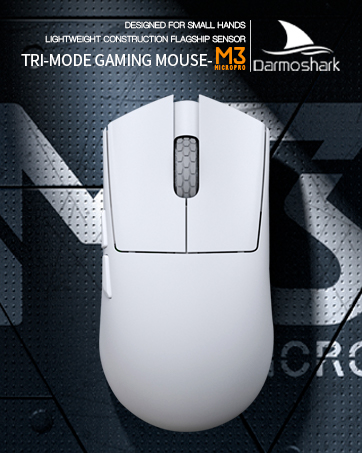
Image: The underside of the Darmoshark M3PROMAX mouse, indicating the DPI adjustment button.
3.2. Programmable Buttons
The mouse is equipped with 7 programmable buttons. To customize these buttons, download the official Darmoshark software. The software allows you to set DPI levels, assign key functions, and configure player macro settings to optimize your gaming and workflow.

Image: The Darmoshark M3PROMAX mouse showcasing its programmable buttons.
3.3. Polling Rate
The M3PROMAX supports an 8000Hz polling rate, ensuring extremely fast response times and minimal input lag. This high polling rate is crucial for competitive gaming, providing a seamless and responsive experience.

Image: The Darmoshark M3PROMAX mouse highlighting its 8K wireless support for high polling rates.
3.4. Ergonomics and Grip
Designed with a pure right-handed ergonomic shape, the M3PROMAX mouse weighs approximately 54g. Its lightweight construction and comfortable body design are intended to reduce palm sweating and wrist fatigue during long gaming sessions or work. Optional grip tape is included for users who prefer additional tactile feedback and secure handling.

Image: The ergonomic design of the Darmoshark M3PROMAX mouse, emphasizing comfort and grip.
4. Maintenance
4.1. Cleaning
To maintain optimal performance and hygiene, regularly clean your mouse. Use a soft, dry cloth to wipe the surface. For stubborn dirt, a slightly damp cloth with mild soap can be used, ensuring no moisture enters the internal components. Avoid harsh chemicals or abrasive materials.
4.2. Battery Care
The M3PROMAX features a built-in rechargeable battery. To prolong battery lifespan:
- Avoid fully discharging the battery frequently.
- Store the mouse in a cool, dry place when not in use for extended periods.
- Use the provided USB-C cable for charging to ensure compatibility and safety.
5. Troubleshooting
If you encounter any issues with your Darmoshark M3PROMAX mouse, please refer to the following common solutions:
- Connectivity Issues:
Ensure the mouse is switched to the correct mode (2.4G, BT, or Wired). For 2.4G, verify the USB receiver is securely plugged in. For Bluetooth, ensure your device's Bluetooth is enabled and the mouse is paired. Try re-pairing if necessary. For wired mode, check the USB-C cable connection. - DPI Not Changing:
Press the DPI adjustment button on the underside of the mouse. If using software, ensure the software is running and the settings are applied correctly. - Buttons Not Responding:
Check the battery level. If low, charge the mouse. Ensure the mouse is properly connected in your chosen mode. If using custom settings, verify they are correctly configured in the software. - Mouse Cursor Lag/Stutter:
Ensure the 2.4G receiver is not obstructed and is close to the mouse. Avoid interference from other wireless devices. For Bluetooth, ensure your device's Bluetooth drivers are up to date.
6. Specifications
Below are the detailed specifications for the Darmoshark M3PROMAX Wireless Gaming Mouse:
| Feature | Detail |
|---|---|
| Model | M3PROMAX |
| Connectivity Technology | Tri-Mode (2.4G Wireless, USB-C Wired, Bluetooth) |
| Sensor | PAW3950 Optical Sensor |
| DPI Resolution | Up to 30000 DPI |
| Tracking Speed | 750 IPS |
| Acceleration | 50G |
| Polling Rate | Up to 8000Hz (with separate 4K receiver required for higher rates) |
| Programmable Buttons | 7 |
| Weight | Approx. 54g (1.83 ounces) |
| Battery | 300 mAh Lithium Ion (included) |
| Dimensions | 129.5 mm (Length) x 66.2 mm (Width) x 39.6 mm (Height) |
| Color | Red |
| Manufacturer | Darmoshark |

Image: Overview of the Darmoshark M3PROMAX mouse highlighting its features and specifications.
Image: Detailed product parameters including dimensions and button layout for the Darmoshark M3PROMAX mouse.

Image: An exploded view diagram of the Darmoshark M3PROMAX mouse, showing internal components like the PAW3950 sensor, battery, and switches.
7. Warranty & Support
7.1. Warranty Information
Darmoshark products are covered by a limited warranty against defects in materials and workmanship. Please refer to the warranty card included in your package or visit the official Darmoshark website for detailed warranty terms and conditions.
7.2. Customer Support
For technical assistance, troubleshooting, or any product-related inquiries, please contact Darmoshark Customer Support through their official website or the contact information provided in your product packaging.
8. Official Product Videos
Darmoshark M3PROMAX Wireless Gaming Mouse Overview
Video: An official overview of the Darmoshark M3PROMAX Wireless Gaming Mouse, showcasing its features and design. This video is provided by Darmoshark US.


