1. Introduction
The Camiysn Moon104 is a versatile 104-key wireless RGB mechanical keyboard designed for various computing environments. It offers triple-mode connectivity, including 2.4GHz wireless, Bluetooth, and USB-C wired options, providing flexibility for different devices and usage scenarios. Featuring low-profile brown mechanical switches, the keyboard delivers a responsive and tactile typing experience with reduced noise. Its ergonomic design aims to minimize wrist fatigue during extended use, and the adjustable RGB backlighting allows for personalization of the visual experience.

Image 1.1: Camiysn Moon104 Wireless RGB Mechanical Keyboard, showcasing its full layout and design.
2. Package Contents
Please verify that all items listed below are included in your package:
- Camiysn Moon104 Wireless RGB Mechanical Keyboard
- USB-C to USB-A Cable
- 2.4GHz USB Receiver
- Keycap Puller Tool
- Additional Red Keycaps (for customization)
- User Manual (this document)

Image 2.1: Contents of the Camiysn Moon104 keyboard package, including the keyboard, cable, keycap puller, and extra keycaps.
3. Setup
3.1 Powering On/Off
Locate the power toggle switch on the keyboard. Slide it to the 'ON' position to power on the keyboard. Slide it to 'OFF' to power off the keyboard and conserve battery.
3.2 Connection Modes
The Camiysn Moon104 keyboard supports three connection modes: 2.4GHz wireless, Bluetooth, and USB-C wired.

Image 3.1: Visual representation of the three connection modes available on the Camiysn Moon104 keyboard.
3.2.1 2.4GHz Wireless Connection
- Insert the 2.4GHz USB receiver into an available USB port on your computer or device.
- Ensure the keyboard's power switch is ON.
- Long press the Fn + 4 keys for 3 seconds to enter 2.4GHz pairing mode. The indicator light will flash, then remain solid once connected.
3.2.2 Bluetooth Connection
The keyboard can connect to up to three Bluetooth devices.
- Ensure the keyboard's power switch is ON.
- Long press Fn + 1, Fn + 2, or Fn + 3 for 3 seconds to enter Bluetooth pairing mode for the corresponding slot. The indicator light will flash rapidly.
- On your device (computer, tablet, smartphone), enable Bluetooth and search for new devices.
- Select "Camiysn Moon104" (or similar name) from the list of available devices to pair. The indicator light will become solid once connected.
- To switch between paired Bluetooth devices, short press Fn + 1, Fn + 2, or Fn + 3.
3.2.3 USB-C Wired Connection
- Connect one end of the provided USB-C cable to the keyboard's USB-C port.
- Connect the other end of the USB-C cable to an available USB port on your computer or device.
- Ensure the keyboard's power switch is in the 'OFF' position for wired mode. The keyboard will automatically switch to wired mode.

Image 3.2: The Camiysn Moon104 keyboard demonstrating its ability to connect to a laptop, monitor, and tablet using its three distinct connection modes.
4. Operating Instructions
4.1 Backlight Control
The Camiysn Moon104 keyboard features adjustable RGB backlighting. Use the following Fn key combinations to control the lighting effects:

Image 4.1: A guide to Fn key combinations for adjusting the RGB backlight effects and colors.
- Fn + Ins: Switch between various backlight effects.
- Fn + Del: Select backlight color (for static color modes).
- Fn + ↑ (Up Arrow): Increase backlight luminance.
- Fn + ↓ (Down Arrow): Decrease backlight luminance.
- Fn + ← (Left Arrow): Decrease backlight circulation speed.
- Fn + → (Right Arrow): Increase backlight circulation speed.
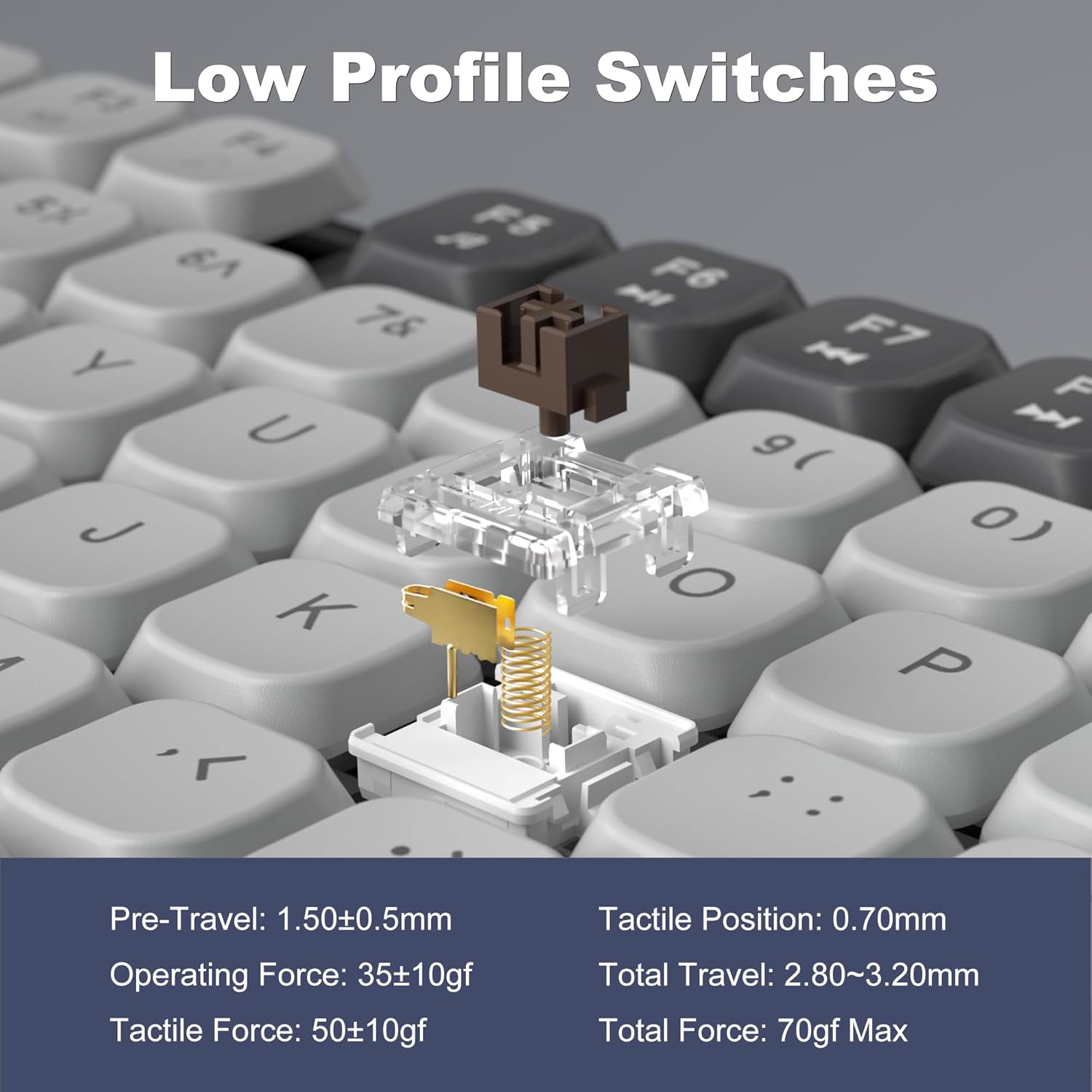
Image 4.2: The Camiysn Moon104 keyboard illuminated with its customizable RGB backlighting.
4.2 Ergonomic Design
The keyboard features adjustable tilting feet on the underside. Extend these feet to adjust the typing angle for improved comfort and to reduce wrist strain during prolonged use.

Image 4.3: Detail of the keyboard's ergonomic design, highlighting the adjustable feet for comfortable typing angles.
4.3 Low-Profile Brown Tactile Switches
The Moon104 keyboard is equipped with low-profile brown tactile mechanical switches. These switches are characterized by a noticeable bump in the middle of the keypress, providing tactile feedback without the loud click of blue switches. They offer a balance between typing and gaming performance, with a relatively quiet operation compared to other mechanical switch types.

Image 4.4: Detailed specifications and force curve for the low-profile brown tactile switches used in the Moon104 keyboard.
4.4 N-Key Rollover
The keyboard supports N-key rollover, meaning that every keypress is registered independently, regardless of how many keys are pressed simultaneously. This feature is beneficial for fast typists and gamers, ensuring accuracy and preventing ghosting or missed inputs.
4.5 Compatibility
The Camiysn Moon104 keyboard is compatible with a wide range of operating systems, including:
- Windows (Win2000, Win XP, Win ME, Vista, Win7, Win8, Win10)
- Android
- Linux
- Mac OS
The keyboard is plug-and-play, requiring no additional drivers for basic functionality.

Image 4.5: The keyboard's automatic recognition feature for both Windows and Mac operating systems.
5. Maintenance
5.1 Cleaning the Keyboard
To maintain the keyboard's appearance and functionality:
- Disconnect the keyboard from all devices before cleaning.
- Use a soft, lint-free cloth slightly dampened with water or a mild cleaning solution to wipe the keycaps and surface.
- For dust and debris between keys, use compressed air or a small brush.
- Avoid using harsh chemicals, abrasive cleaners, or excessive moisture, as these can damage the keyboard.
5.2 Battery Charging
The keyboard has a built-in rechargeable battery. When the battery is low, the indicator light may flash. Connect the keyboard to a USB power source using the provided USB-C cable to charge. The indicator light will typically show charging status and turn off or change color when fully charged.
6. Troubleshooting
If you encounter issues with your Camiysn Moon104 keyboard, please refer to the following common solutions:
- Keyboard not responding:
Ensure the keyboard is powered on. Check the connection mode (2.4GHz, Bluetooth, or wired) and ensure it matches your device's connection. For wireless modes, ensure the battery is charged. For wired mode, ensure the USB-C cable is securely connected and the power switch is OFF. - 2.4GHz wireless connection issues:
Ensure the USB receiver is properly inserted. Try plugging the receiver into a different USB port. Re-enter pairing mode by long pressing Fn + 4 for 3 seconds. - Bluetooth connection issues:
Ensure Bluetooth is enabled on your device. Delete previous pairings for the keyboard on your device and attempt to pair again. Try a different Bluetooth slot (Fn + 1/2/3). Ensure the keyboard is not too far from the device. - Backlight not working or stuck:
Check backlight luminance with Fn + ↑. Try cycling through effects with Fn + Ins. Some users have reported that pressing Fn + PrintScreen can resolve backlight issues. - Volume control keys (Fn+F10/F11/F12) not working:
Please note that while some keyboards may feature these key combinations, the Camiysn Moon104 keyboard may not support dedicated multimedia volume control functions as indicated by user feedback. Volume control may need to be managed directly through your operating system. - Keys feeling sticky or inconsistent:
Ensure no debris is lodged under the keycaps. Use the provided keycap puller to carefully remove the keycap and clean the switch area.
7. Specifications
| Model Number | Moon104 |
| Connectivity Technology | Bluetooth, 2.4GHz Wireless, USB-C Wired |
| Keyboard Description | Mechanical (Low-Profile Brown Tactile Switches) |
| Keyboard Backlighting | RGB |
| Compatible Devices | Laptop, PC, Smart TV, Tablet (Windows, Android, Linux, Mac OS) |
| Material | Plastic |
| Item Weight | 2.31 pounds (approx. 1.05 kg) |
| Package Dimensions | 18.15 x 7.2 x 1.73 inches (approx. 46.1 x 18.3 x 4.4 cm) |
8. Warranty and Support
For warranty information and technical support, please refer to the documentation provided at the time of purchase or visit the official Camiysn website. Specific warranty terms and conditions may vary by region and retailer.


