
Introduction
This manual provides detailed instructions for the MUCAR CS90 OBD2 Diagnostic Tool. It covers device setup, operational procedures for various diagnostic and service functions, maintenance guidelines, and troubleshooting tips. Please read this manual thoroughly before using the device to ensure proper operation and to maximize its capabilities.
1. Setup and Initial Use
1.1 Package Contents
Verify that all components are present:
- MUCAR CS90 Diagnostic Tool
- OBD2 Diagnostic Cable (integrated)
- USB Cable (for updates/charging, if applicable)
- User Manual (this document)
1.2 Connecting the Device
- Locate the OBD2 Port: The OBD2 port is typically located under the dashboard on the driver's side, often near the steering column. Refer to your vehicle's owner's manual if you cannot find it.
- Connect the Diagnostic Cable: Plug the integrated OBD2 diagnostic cable from the MUCAR CS90 into your vehicle's OBD2 port. Ensure a secure connection.
- Power On the Vehicle: Turn the vehicle's ignition to the "ON" position (engine off) or start the engine, depending on the diagnostic task. The MUCAR CS90 will power on automatically.
- Start Diagnostics: Once the device powers on, follow the on-screen prompts to begin your diagnostic session.
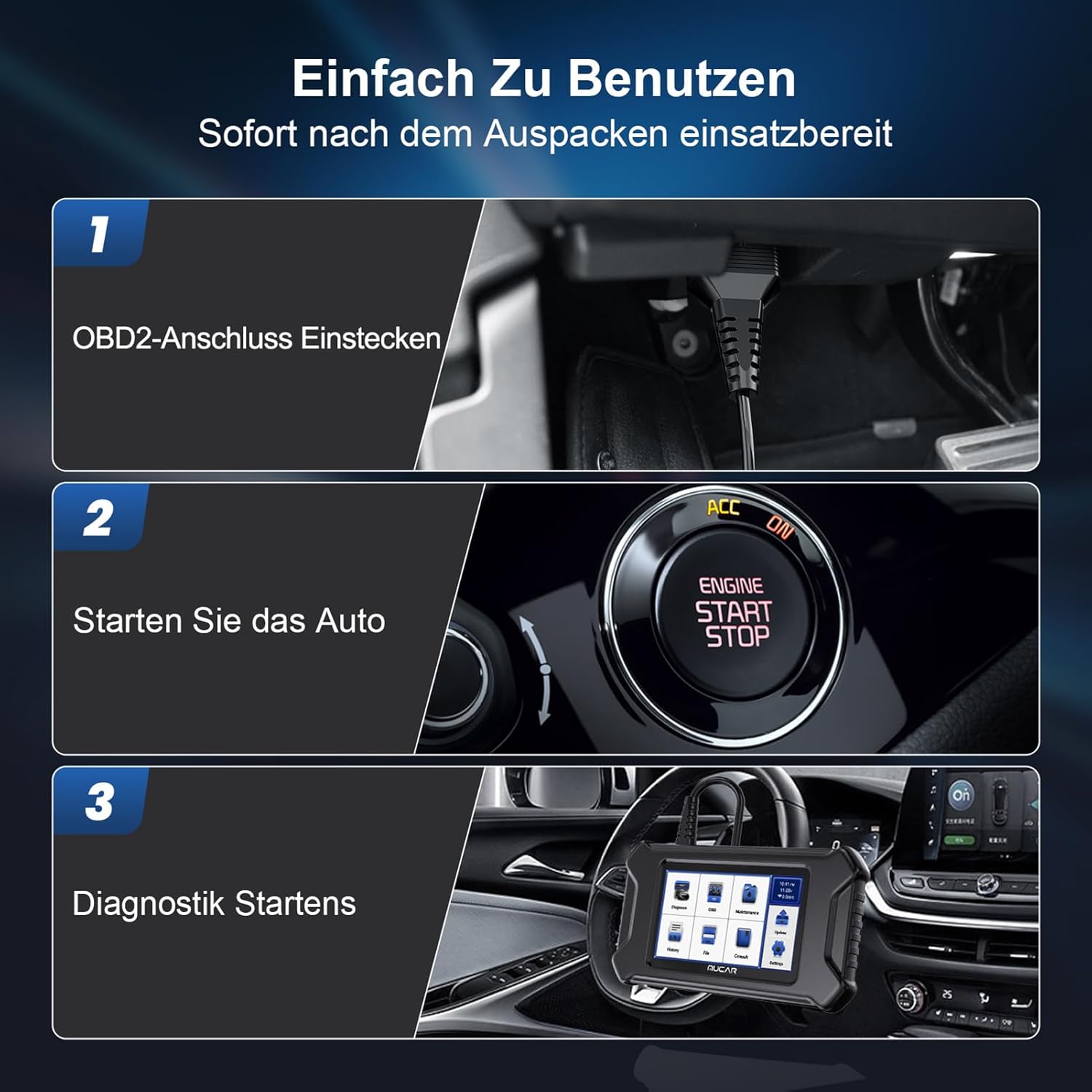
Image: Illustration of the three-step connection process for the MUCAR CS90: 1. Plug the OBD2 connector into the vehicle's port. 2. Start the car's ignition. 3. Begin the diagnostic process on the device screen.
2. Operating the MUCAR CS90
2.1 User Interface Overview
The MUCAR CS90 features a 5-inch touch screen display with an intuitive Android 7.0 interface. The main menu provides access to various functions:

Image: The main menu of the MUCAR CS90, displaying icons for key functions such as Scan, OBD, History, Update, Maintenance & Service, Files, Repair Information, and Settings.
- Scan: Initiates a full system scan for diagnostic trouble codes.
- OBD: Accesses standard OBDII functions.
- History: Reviews previously saved diagnostic reports.
- Update: Manages software and vehicle database updates.
- Maintenance & Service: Provides access to various reset and service functions.
- Files: Manages diagnostic data and reports.
- Repair Information: Accesses vehicle-specific repair data.
- Settings: Configures device preferences.
2.2 OBDII Functions
The MUCAR CS90 supports all 10 modes of OBDII testing, allowing for comprehensive engine system diagnostics:

Image: A visual representation of the MUCAR CS90's full OBDII functionality, including options to read and clear codes, view live data, check I/M readiness, perform O2 sensor tests, and display freeze frame data.
- Read Codes: Displays Diagnostic Trouble Codes (DTCs) and their descriptions.
- Clear Codes: Erases DTCs from the vehicle's computer after repairs are made.
- I/M Readiness: Checks the status of emission-related monitors.
- O2 Sensor Test: Retrieves O2 sensor monitor test results.
- DTC Lookup: Provides detailed descriptions of DTCs.
- Live Data: Displays real-time data stream from the vehicle's sensors.
- Vehicle Information: Retrieves vehicle identification number (VIN), calibration ID, and calibration verification number (CVN).
- On-Board Monitoring: Retrieves results for tests of emission-related powertrain components and systems.
- EVAP System Test: Initiates a test of the Evaporative Emission Control System.
- Freeze Frame: Records a snapshot of operating conditions when an emission-related fault occurs.
2.3 28 Reset Functions
The MUCAR CS90 offers 28 common maintenance and reset functions for various vehicle systems:

Image: A comprehensive display of the 28 useful service functions available on the MUCAR CS90, including various resets and calibrations for different vehicle systems.
- A/F Reset
- Window Calibration
- Tire Reset
- Transport Mode
- TPMS Reset
- AFS Headlamp Reset
- Air Suspension Reset
- Sunroof Reset
- Stop/Start Reset
- Seat Calibration
- Steering Angle Sensor Reset (SAS)
- Oil Lamp Reset
- Airbag Reset
- Language Change
- Injector Coding
- IMMO Key Coding
- Gearbox Learning
- Gearbox Adaptation
- Electronic ABS Bleeding
- Diesel Particulate Filter (DPF) Reset
- Throttle Adaptation
- Coolant Bleeding
- Brake Reset
- Battery Management System (BMS) Reset
- Electronic Parking Brake (EPB) Reset
- Suspension Calibration
- AdBlue Reset
2.4 AutoVIN Service
The AutoVIN feature automatically identifies the vehicle's make, model, and year, streamlining the diagnostic process.

Image: The AutoVIN Scan function of the MUCAR CS90, illustrating its ability to automatically detect vehicle information, including the VIN, for quick and accurate diagnostics.
2.5 Software Updates
The MUCAR CS90 offers free lifetime software updates to ensure compatibility with new vehicle models and to introduce new features. Connect the device to a Wi-Fi network and navigate to the "Update" section on the main menu to check for and install available updates.

Image: The MUCAR CS90 displaying its one-click update feature, highlighting the addition of new functions and expanded vehicle coverage through software updates.
3. Maintenance
3.1 Device Care
- Keep the device clean and free from dust and moisture.
- Avoid dropping the device or subjecting it to strong impacts.
- Store the device in a cool, dry place when not in use.
- Do not use abrasive cleaners or solvents on the device.
3.2 Software Updates
Regularly check for software updates to ensure optimal performance and access to the latest vehicle data and functions. Connect the device to Wi-Fi and use the "Update" function.
4. Troubleshooting
4.1 Common Issues and Solutions
| Issue | Possible Cause | Solution |
|---|---|---|
| Device does not power on. | Loose OBD2 connection, vehicle ignition off, vehicle battery low. | Ensure the OBD2 cable is securely connected. Turn vehicle ignition to "ON" or start the engine. Check vehicle battery. |
| Cannot connect to vehicle. | Incorrect protocol, faulty OBD2 port, device software outdated. | Verify vehicle compatibility. Check the vehicle's OBD2 port for damage. Update device software. |
| Error message during diagnosis. | Vehicle communication error, specific module issue. | Retry the diagnosis. Consult the vehicle's service manual for specific error codes. Ensure device software is up to date. |
| Screen is unresponsive. | Device frozen, software glitch. | Perform a soft reset (refer to device settings for reset option). If issue persists, contact support. |
5. Specifications
| Feature | Detail |
|---|---|
| Model Number | YHDE-MUCAR CS90 |
| Operating System | Android 7.0 |
| Display | 5-inch Touch Screen |
| Processor | 1.3GHz 4-Core CPU |
| RAM | 2GB |
| Storage | 32GB |
| Connectivity | Wi-Fi |
| Dimensions | 21 x 12 x 2.5 cm |
| Weight | 720 g |
| OBDII Functions | All 10 modes |
| Service Functions | 28 Reset Functions |
6. Warranty and Support
6.1 Warranty Information
MUCAR products are covered by a limited warranty against defects in materials and workmanship. The specific warranty period may vary by region and retailer. Please retain your proof of purchase for warranty claims.
6.2 Technical Support
For technical assistance, troubleshooting, or warranty inquiries, please contact MUCAR customer support. Contact information can typically be found on the official MUCAR website or on the packaging of your device.
Online Resources: Visit the official MUCAR website for FAQs, software updates, and additional support materials.


