
SINWE P99 Sound Card
SINWE P99 Sound Card User Manual
Model: P99 Sound Card | Brand: SINWE
1. Introduction
The SINWE P99 Sound Card is a versatile USB audio interface designed for smartphones and PCs, offering plug-and-play functionality for live streaming, recording music, home studio setups, podcasts, and general audio mixing. It integrates DJ mixer capabilities, voice changing effects, and customizable sound effects to enhance your audio experience.
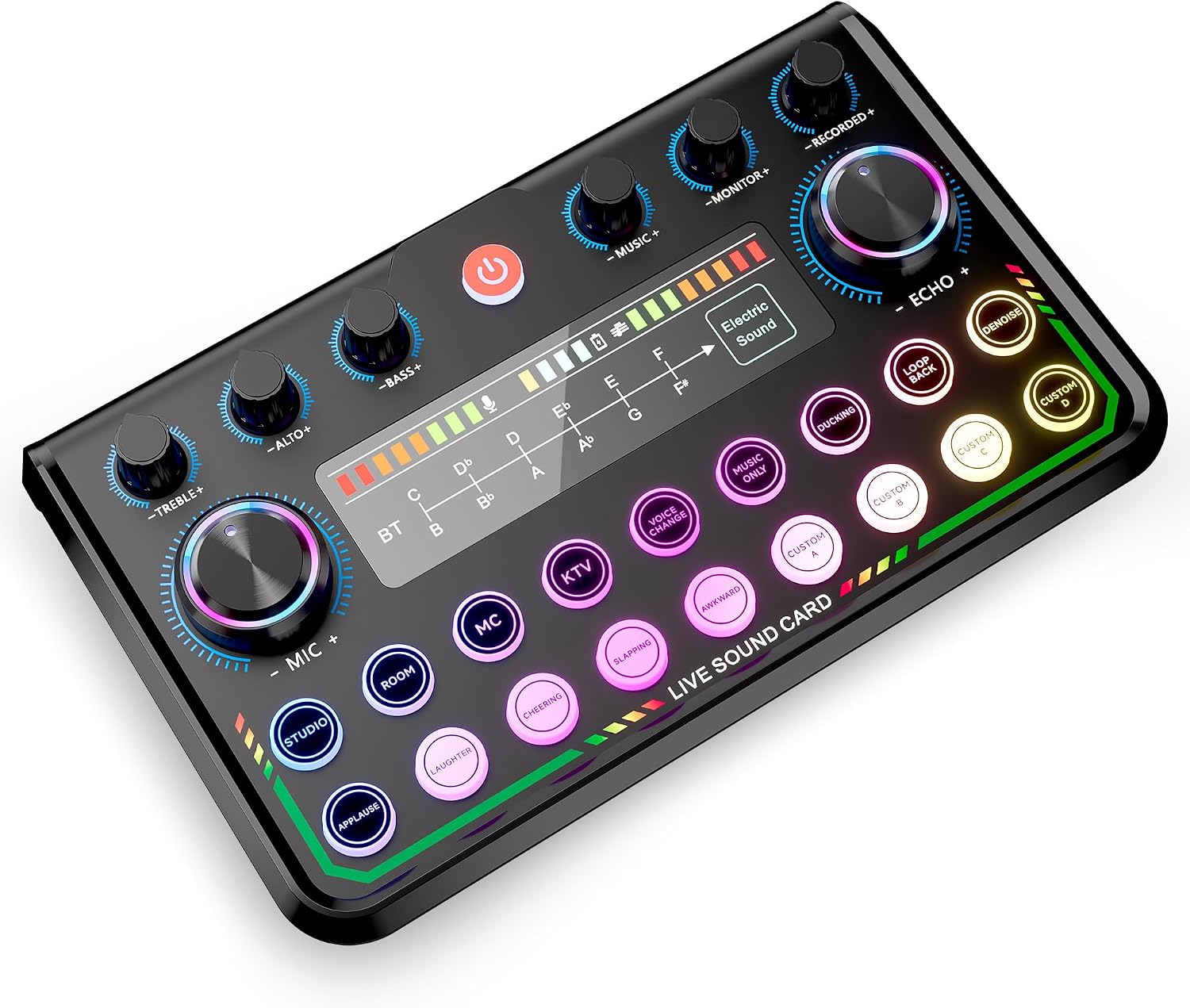
Figure 1: The SINWE P99 Sound Card, a compact audio interface with various controls and illuminated buttons.
2. Key Features
- Enhanced Streaming Capabilities: Designed to elevate streaming quality with superior sound performance and customizable effects. Features captivating RGB lighting.
- Advanced Audio Effects: Includes 4 customizable sound effects and 5 special audio effects, coupled with 12-step auto-tune and adjustable tones.
- Voice Transformation: Modify your voice with 5 unique voice transformations for creative audio production.
- Plug-and-Play Setup: Easy to set up with a USB connection, requiring no phantom power for condenser microphones.
- Broad Compatibility: Compatible with most major streaming and recording software (OBS Studio, Discord, Twitch, TikTok, YouTube, Facebook, Streamlabs, Streamyard, Zoom) and devices (laptops, PCs, Windows, macOS, smartphones, tablets).
- Simultaneous Device Support: Supports up to 2 devices and 2 platforms concurrently.
2.1 Customizable Sound Effects
The P99 Sound Card allows for customization of sound effects, providing a unique audio experience for gaming, streaming, or recording.

Figure 2: Close-up view of the P99 Sound Card highlighting the four customizable sound effect buttons (Custom A, B, C, D).
2.2 Multifunctional Capabilities
Beyond basic mixing, the P99 offers noise reduction, multiple voice change options, dual microphone inputs, Bluetooth connectivity, and custom soundpads.

Figure 3: Visual representation of the sound card's diverse functions, including noise reduction, voice modulation, and input options.
3. Setup Guide
The SINWE P99 Sound Card is designed for easy plug-and-play setup. Follow these steps to get started:
- Unpack Contents: Carefully remove the P99 Sound Card, microphones (if included in your bundle), cables, and any accessories from the packaging.
- Connect Microphones: Insert the microphone cables into the "MIC" input ports on the sound card. The P99 supports up to two microphones.
- Connect to Device:
- For PC/Laptop: Connect the sound card to your computer using the provided USB cable.
- For Smartphone/Tablet: Connect the sound card to your smartphone or tablet. An OTG adapter (not included) may be required for devices without a 3.5mm jack.
- Connect Headphones/Speakers: Plug your headphones or speakers into the "HEADSET" or "EARPHONE" output ports for monitoring audio.
- Power On: Press the power button on the sound card to turn it on. The RGB lighting will illuminate.
- Software Configuration (if needed): For streaming or recording software (e.g., OBS Studio), select the "SINWE P99 Sound Card" as your audio input and output device in the software settings.

Figure 4: Rear view of the P99 Sound Card, illustrating the various input and output connections for microphones, headphones, and live output.
4. Operating Instructions
The P99 Sound Card features intuitive controls for managing your audio. Familiarize yourself with the main functions:
4.1 Basic Controls
- MIC Gain Knob: Adjusts the input volume of your microphone. Turn clockwise to increase, counter-clockwise to decrease.
- Music Volume Knob: Controls the volume of background music or audio input.
- Monitor Volume Knob: Adjusts the volume of the audio you hear through your headphones/speakers.
- Echo Knob: Controls the amount of echo effect applied to your voice.
- Treble/Alto/Bass Knobs: Fine-tune the tonal qualities of your microphone audio.

Figure 5: Detailed view of the P99 Sound Card's control knobs for precise audio adjustments.
4.2 Sound Effects and Voice Changer
- Custom Sound Effect Buttons (A, B, C, D): Press these buttons to trigger pre-recorded or customized sound effects.
- Special Audio Effects: Buttons like "Studio," "Room," "MC," "KTV," "Applause," "Laughter," "Cheering," "Clapping" activate various ambient or reaction sounds.
- Voice Change Buttons: Select from 5 unique voice transformations (e.g., Robot, Female, Male, Baby) to alter your vocal output.
- Electric Sound: Activates an electric sound effect for musical performances.
- Auto-Tune: The 12-step auto-tune feature automatically corrects vocal pitch.
4.3 Bluetooth Connectivity
The P99 Sound Card supports wireless audio input via Bluetooth, primarily for backing tracks. To connect:
- Ensure the sound card is powered on.
- Activate Bluetooth on your smartphone, tablet, or PC.
- Search for "P99 Sound Card" or similar in your device's Bluetooth settings and pair.
- Once connected, you can play music from your device through the sound card.

Figure 6: Illustrates the wireless Bluetooth audio input feature, ideal for playing backing tracks from mobile devices.
4.4 Smart Ducking Feature
The Smart Ducking feature automatically lowers background music volume when you speak and raises it when you stop, ensuring your voice is always clear during streams or recordings.

Figure 7: Visual explanation of the Smart Ducking function, which dynamically adjusts music volume based on speech.
5. Compatibility
The SINWE P99 Sound Card offers wide compatibility with various devices and software:
- Operating Systems: Windows, macOS, iOS, Android.
- Compatible Devices: Laptops, Personal Computers, Tablets, Smartphones.
- Supported Software: OBS Studio, Discord, Twitch, TikTok, YouTube, Facebook, Streamlabs, Streamyard, Zoom.
Figure 8: Overview of compatible software platforms and device types for the P99 Sound Card.
6. Technical Specifications
| Feature | Specification |
|---|---|
| Model Number | P99 Sound Card |
| Item Weight | 15.2 ounces |
| Product Dimensions | 4.72 x 7.67 x 1.96 inches |
| Batteries | 1 Lithium Polymer battery required |
| Battery Type | Lithium Polymer |
| Connectivity Technology | Bluetooth, AUX, USB |
| Number of Channels | 2 |
| Power Source | Corded Electric |
| First Available Date | November 24, 2021 |
7. Troubleshooting
If you encounter issues with your SINWE P99 Sound Card, please refer to the following common solutions:
- No Sound Output:
- Check all cable connections (microphones, headphones, USB).
- Ensure the sound card is powered on and volume knobs are adjusted correctly.
- Verify that the P99 Sound Card is selected as the default audio input/output device in your computer's sound settings or streaming software.
- Test with different headphones or speakers to rule out faulty accessories.
- Microphone Not Working:
- Ensure the microphone is securely plugged into the correct "MIC" port.
- Adjust the "MIC Gain" knob.
- Confirm the microphone is not muted on the sound card or in your software.
- Test the microphone with another device if possible to check its functionality.
- Bluetooth Connection Issues:
- Ensure Bluetooth is enabled on both the sound card and your device.
- Make sure the sound card is in pairing mode (refer to the specific indicator on the device).
- Move your device closer to the sound card to ensure it's within range.
- Try unpairing and re-pairing the device.
- Sound Distortion/Noise:
- Reduce the "MIC Gain" or "Music Volume" to prevent clipping.
- Ensure cables are not damaged or loosely connected.
- Utilize the noise reduction feature on the sound card if ambient noise is present.
- Avoid placing the sound card near strong electromagnetic interference.
8. Care and Maintenance
To ensure the longevity and optimal performance of your SINWE P99 Sound Card, follow these maintenance guidelines:
- Cleaning: Use a soft, dry cloth to clean the surface of the sound card. Avoid using liquid cleaners or abrasive materials.
- Storage: Store the device in a cool, dry place away from direct sunlight and extreme temperatures.
- Handling: Handle the sound card with care to prevent drops or impacts that could damage internal components.
- Cable Management: Avoid bending or crimping cables excessively to prevent damage to the wires and connectors.
- Power Off: Always power off the device when not in use for extended periods.
9. Warranty and Support
SINWE is committed to customer satisfaction. If you encounter any issues or require assistance with your P99 Sound Card, our dedicated after-sales team is available to help.
- Customer Support: For support, user guides, or helpful videos, please reach out to our customer service team. Contact information can typically be found on the product packaging or the official SINWE website.
- Warranty: Refer to your purchase documentation for specific warranty terms and conditions.
Ask a question about this manual
Ask about setup, troubleshooting, compatibility, parts, safety, or missing instructions. Manuals+ will review the question and use this page’s manual context to help answer it.