
Introduction
The Logicool M575SPGR is a silent wireless trackball mouse designed for comfort and efficiency. It features an ergonomic shape, 80% reduced click noise compared to previous models, and versatile connectivity options including Bluetooth Low Energy and Logi Bolt. This manual provides detailed instructions for setting up, operating, maintaining, and troubleshooting your device.
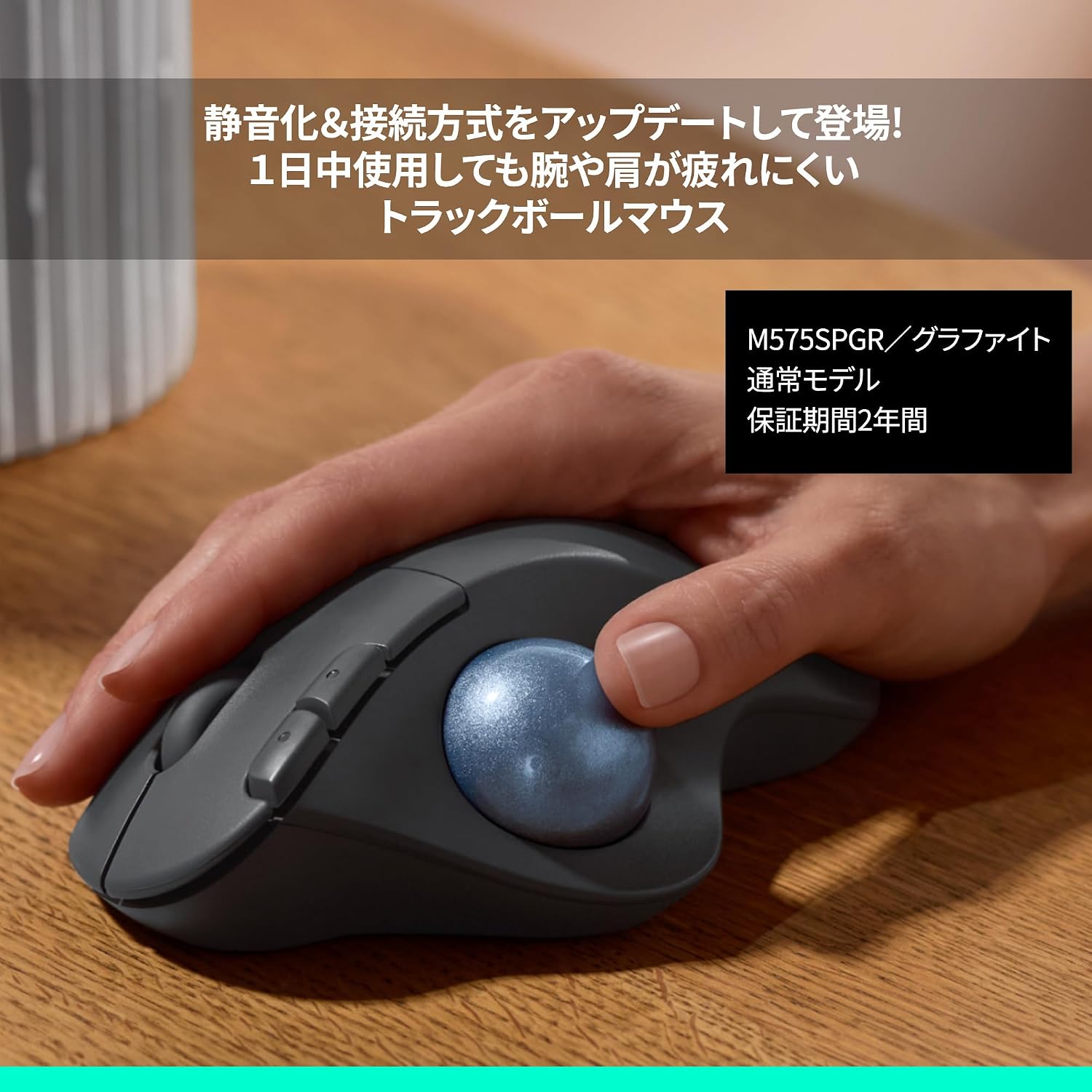
Figure 1: Logicool M575SPGR Silent Wireless Trackball Mouse.
Setup
1. Battery Installation
Your M575SPGR trackball mouse comes with one AA dry cell battery pre-installed. If you need to replace it:
- Locate the battery compartment on the underside of the mouse.
- Open the battery cover.
- Insert a new AA battery, ensuring correct polarity.
- Close the battery cover securely.

Figure 2: Battery compartment and trackball removal area.
2. Connectivity Options
The M575SPGR supports two wireless connection methods: Bluetooth Low Energy and Logi Bolt USB receiver.
A. Logi Bolt USB Receiver Connection
The Logi Bolt USB receiver provides a robust and stable connection, especially in environments with high wireless interference. It also allows connecting multiple compatible Logicool devices to a single receiver.
- Plug the Logi Bolt USB receiver into an available USB port on your computer.
- Turn on your M575SPGR trackball mouse.
- The mouse should automatically connect to the receiver. If not, press and hold the connection button on the mouse until the LED indicator blinks rapidly, then follow on-screen prompts if any.
B. Bluetooth Low Energy Connection
Bluetooth Low Energy allows for a cable-free connection without needing a USB receiver, ideal for devices with limited USB ports.
- Turn on your M575SPGR trackball mouse.
- Press and hold the Bluetooth connection button on the mouse until the LED indicator blinks rapidly.
- On your computer or device, navigate to Bluetooth settings.
- Select "M575SPGR" from the list of available devices to pair.
- Follow any on-screen instructions to complete the pairing process.

Figure 3: M575SPGR connected via wireless to a laptop.
3. Software Installation (Logi Options+)
To unlock advanced features like Smart Actions and customize button functions, install the Logi Options+ software.
- Visit the official Logicool website (www.logicool.co.jp) and search for "Logi Options+".
- Download and install the software compatible with your operating system (Windows or macOS).
- Follow the on-screen instructions to complete the installation and customize your mouse settings.
Operating Instructions
1. Basic Trackball Use
The M575SPGR is a thumb-operated trackball mouse. Instead of moving the entire mouse, you control the cursor by rolling the blue trackball with your thumb.
- Place your hand comfortably on the mouse, allowing your palm to rest on its ergonomic shape.
- Use your thumb to roll the trackball to move the cursor on the screen.
- Use your index and middle fingers for the left and right click buttons, and the scroll wheel.

Figure 4: Ergonomic design and silent click operation.
2. Button Functions
The M575SPGR features 5 programmable buttons:
- Left Click: Primary selection.
- Right Click: Context menu.
- Scroll Wheel: Scroll up/down. Can also be clicked for middle-click functionality.
- Forward/Back Buttons: Located near the scroll wheel, these are typically used for navigation in web browsers or file explorers.
All buttons can be customized using the Logi Options+ software.
3. Smart Actions (via Logi Options+)
Smart Actions allow you to assign complex shortcuts and functions to a single button, significantly boosting your workflow efficiency.
- Open the Logi Options+ software.
- Select your M575SPGR device.
- Navigate to the "Smart Actions" section.
- Create or select a Smart Action and assign it to one of the programmable buttons on your mouse.

Figure 5: Using Smart Actions with the M575SPGR and a compatible keyboard.
4. DPI Adjustment
The M575SPGR features an Advanced Optical sensor with a resolution of 2,000 DPI (initial value: 400 DPI), adjustable up to 4000 DPI. You can adjust the cursor speed and precision through your operating system's mouse settings or via the Logi Options+ software for finer control.
Maintenance
1. Cleaning the Trackball
Over time, dust and debris can accumulate around the trackball, affecting its smooth operation. Regular cleaning is recommended.
- Turn off the mouse.
- Gently push the trackball out from the opening on the underside of the mouse (refer to Figure 2).
- Use a soft, lint-free cloth to wipe the trackball clean.
- Clean the three small support points inside the trackball cavity with a cotton swab or a soft brush.
- Reinsert the trackball into its cavity.
2. Battery Replacement
Refer to the "Battery Installation" section under Setup for instructions on replacing the AA battery.
Troubleshooting
1. Connectivity Issues
- Mouse not responding: Ensure the mouse is turned on and the battery has sufficient charge. Replace the battery if necessary.
- Logi Bolt connection issues: Try plugging the Logi Bolt receiver into a different USB port. Ensure the mouse is within the 10m operating range. Re-pair the mouse with the receiver using Logi Options+.
- Bluetooth connection issues: Ensure Bluetooth is enabled on your device. Forget the device in your Bluetooth settings and re-pair it. Ensure the mouse is within the 10m operating range.
2. Trackball Responsiveness
- Jerky or unresponsive cursor: Clean the trackball and its internal support points as described in the Maintenance section.
- Cursor too slow/fast: Adjust the DPI settings through your operating system or Logi Options+ software.
3. Logi Options+ Software Problems
- Software not detecting mouse: Ensure the mouse is connected and powered on. Restart the Logi Options+ application.
- Settings not applying after sleep (Mac): Some users report that Logi Options+ settings may not apply after a Mac wakes from sleep. Restarting the application usually resolves this. Ensure your software is updated to the latest version.
Specifications
| Feature | Detail |
|---|---|
| Product Size (W×D×H) | 10.0 cm × 4.8 cm × 13.4 cm |
| Product Weight | 145 g |
| Sensor Technology | Advanced Optical Tracking |
| Resolution | 2,000 dpi (Initial: 400 dpi), up to 4000 dpi |
| Total Buttons | 5 |
| Battery Type | AA dry cell battery × 1 (installed) |
| Battery Life | Up to 18 months (varies by usage) |
| Operating Distance | 10 meters |
| Connectivity | Bluetooth Low Energy or Logi Bolt Receiver |
| Compatible OS (Bluetooth) | Windows 10 or later, macOS 11 or later, iPadOS 14 or later, ChromeOS |
| Compatible OS (Logi Bolt) | Windows 10 or later, macOS 11 or later, ChromeOS |
| Hand Orientation | Right-handed |
Warranty and Support
Warranty Information
The Logicool M575SPGR (Graphite) model comes with a 2-year manufacturer's warranty. Please retain your proof of purchase for warranty claims.
Customer Support
For further assistance, technical support, or warranty inquiries, please visit the official Logicool support website or contact their customer service. You can find detailed support information and contact options at support.logicool.co.jp.