
1. Introduction
The BoxWave AllReader SD Card Reader is a versatile and compact device designed for easy file transfer between various digital devices. It features multiple interfaces to ensure broad compatibility with smartphones, tablets, laptops, and desktop computers. This manual provides instructions for its setup, operation, and maintenance.

Image 1.1: The BoxWave AllReader SD Card Reader, showcasing its compact design and multiple connectors.
2. Product Features
- Four Interfaces: Includes USB-C, USB-A, Micro-USB, and an Apple-compatible connector for maximum device compatibility.
- Easy File Transfer: Facilitates quick and simple transfer of photos, videos, music, and other files between devices.
- Plug and Play: No drivers or software installation required.
- Compact Design: Small and portable, designed for convenience on the go.
- Wide Card Compatibility: Supports both standard SD cards and microSD cards.

Image 2.1: Overview of the AllReader's key features, including its four interfaces and plug-and-play functionality.
3. Setup Instructions
Follow these steps to set up your BoxWave AllReader SD Card Reader:
- Insert Memory Card: Locate the appropriate slot for your SD or microSD card on the AllReader. Gently insert your memory card until it clicks into place. Ensure it is fully seated.
- Connect to Device: Select the correct connector for your device (USB-A, USB-C, Micro-USB, or Apple-compatible). Plug the AllReader into the corresponding port on your smartphone, tablet, laptop, or desktop computer.
- Device Recognition: Your device should automatically detect the AllReader and the inserted memory card. You may receive a notification indicating a new storage device has been connected.
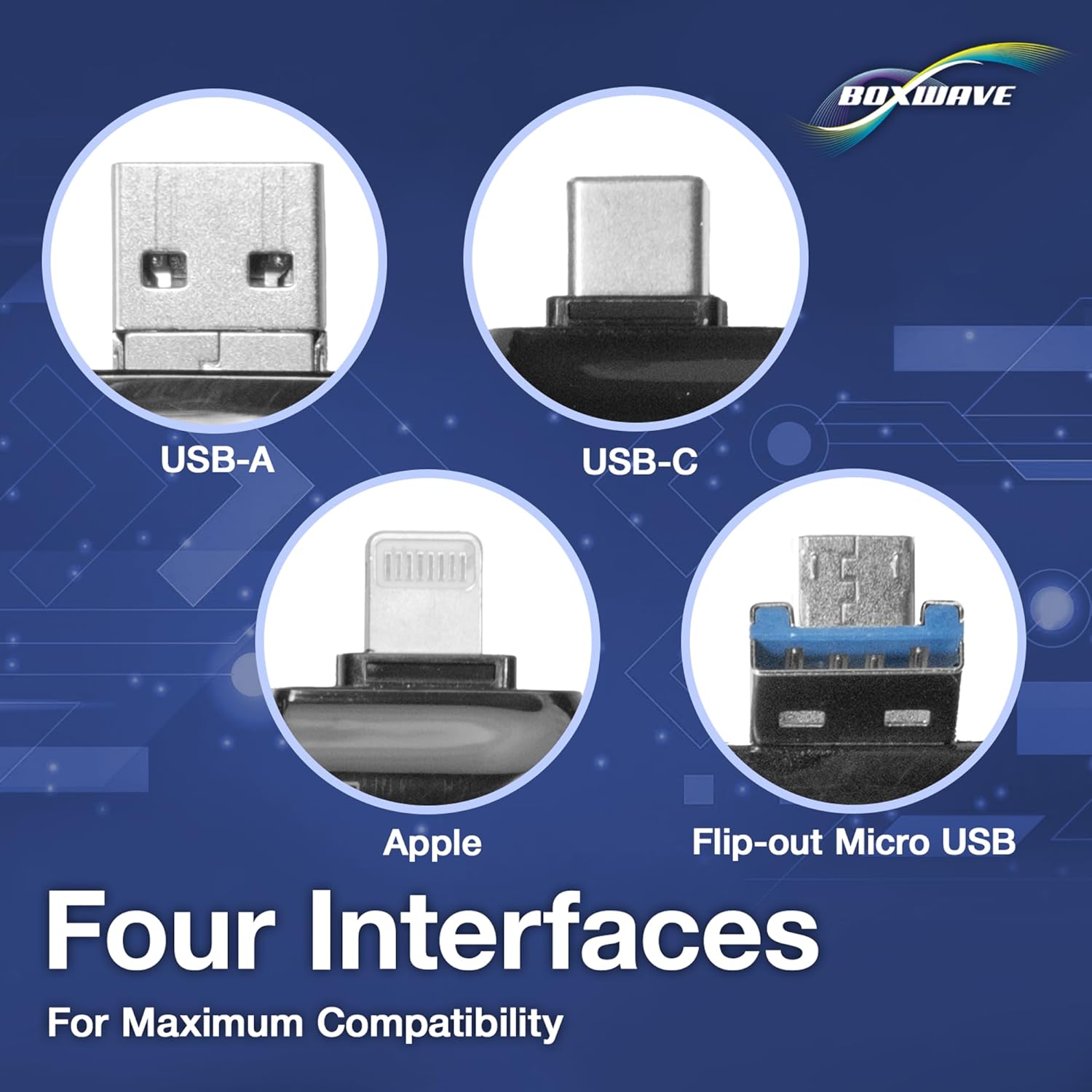
Image 3.1: Detailed view of the USB-A, USB-C, Apple-compatible, and Micro-USB interfaces.

Image 3.2: The AllReader supports both standard SD and smaller microSD cards.
4. Operating Instructions
Once connected, the AllReader functions as a standard external storage device. You can access and manage files using your device's file management system.
- Accessing Files: Open your device's file manager (e.g., 'Files' app on iOS/Android, 'File Explorer' on Windows, 'Finder' on macOS). The memory card will appear as an external drive or storage device.
- Transferring Files: You can now copy, paste, move, or delete files between your device's internal storage and the memory card. For example, to transfer photos from your camera's SD card to your smartphone, simply copy the photos from the SD card and paste them into a folder on your phone.
- Safe Removal: Before disconnecting the AllReader, it is recommended to safely eject the device from your operating system (if applicable) to prevent data corruption. For most mobile devices, simply unplugging is sufficient after file transfers are complete.

Image 4.1: The AllReader connected to a tablet, demonstrating easy file access.

Image 4.2: Visual representation of seamless data transfer across various devices.
5. Maintenance
To ensure the longevity and optimal performance of your AllReader SD Card Reader, follow these simple maintenance guidelines:
- Keep Clean: Use a soft, dry cloth to clean the exterior of the device. Avoid using liquid cleaners or solvents.
- Protect Connectors: Keep the connectors free from dust and debris. Avoid touching the metal contacts directly.
- Storage: Store the AllReader in a cool, dry place away from direct sunlight and extreme temperatures. Its compact size makes it easy to store in a bag or pocket.
- Handle with Care: Avoid dropping the device or subjecting it to strong impacts.

Image 5.1: The AllReader's compact size allows for easy portability and storage.
6. Troubleshooting
If you encounter issues with your AllReader, refer to the following common problems and solutions:
| Problem | Possible Cause | Solution |
|---|---|---|
| Device not recognized | Loose connection, incompatible port, faulty memory card. | Ensure the AllReader is firmly plugged into the correct port. Try a different port or device. Check if the memory card is properly inserted and functional. |
| Slow file transfer | Memory card speed limitations, device port speed, large file sizes. | Ensure your memory card is a high-speed class. Use a USB 3.0 (or higher) port on your computer if available. Transfer fewer large files at once. |
| Cannot access files | Memory card corruption, incorrect file system, device permissions. | Try the memory card in another reader or device. Ensure the memory card's file system is compatible with your device (e.g., FAT32, exFAT). Check device settings for external storage permissions. |
7. Specifications
- Product Name: AllReader SD Card Reader
- Brand: BoxWave
- Interfaces: USB-C, USB-A, Micro-USB, Apple-compatible connector
- Card Compatibility: SD, microSD
- Weight: Approximately 6 ounces (170 grams)
- Color: Jet Black
8. Warranty and Support
For warranty information or technical assistance, please refer to the official BoxWave website or contact their customer support directly. Keep your purchase receipt for warranty claims.
BoxWave Corporation
Website: www.boxwave.com (Please note: This is a placeholder URL as no specific support link was provided in the data.)