
1. Introduction
This manual provides comprehensive instructions for the safe and efficient use of your MEDION S66884 Shower Radio. This device is designed to provide audio entertainment in wet environments, featuring Bluetooth 5.0 for wireless music streaming, an FM radio with automatic station search, and a hands-free function. It is equipped with an integrated lithium polymer battery for portability and an LED display for essential information.
2. Safety Information
- The device has an IPX6 rating, providing protection against strong water jets. Do not immerse the device in water.
- Use only the provided USB-C charging cable to prevent damage and ensure safety.
- Keep the device out of reach of children.
- Do not attempt to disassemble, repair, or modify the device yourself. Contact qualified service personnel for assistance.
- Avoid exposing the device to extreme temperatures, direct sunlight, or open flames.

3. Package Contents
Please check that all items are present and in good condition:
- MEDION S66884 Shower Radio (MD43884)
- USB-C Charging Cable
- Instruction Manual
4. Setup
4.1 Charging the Device
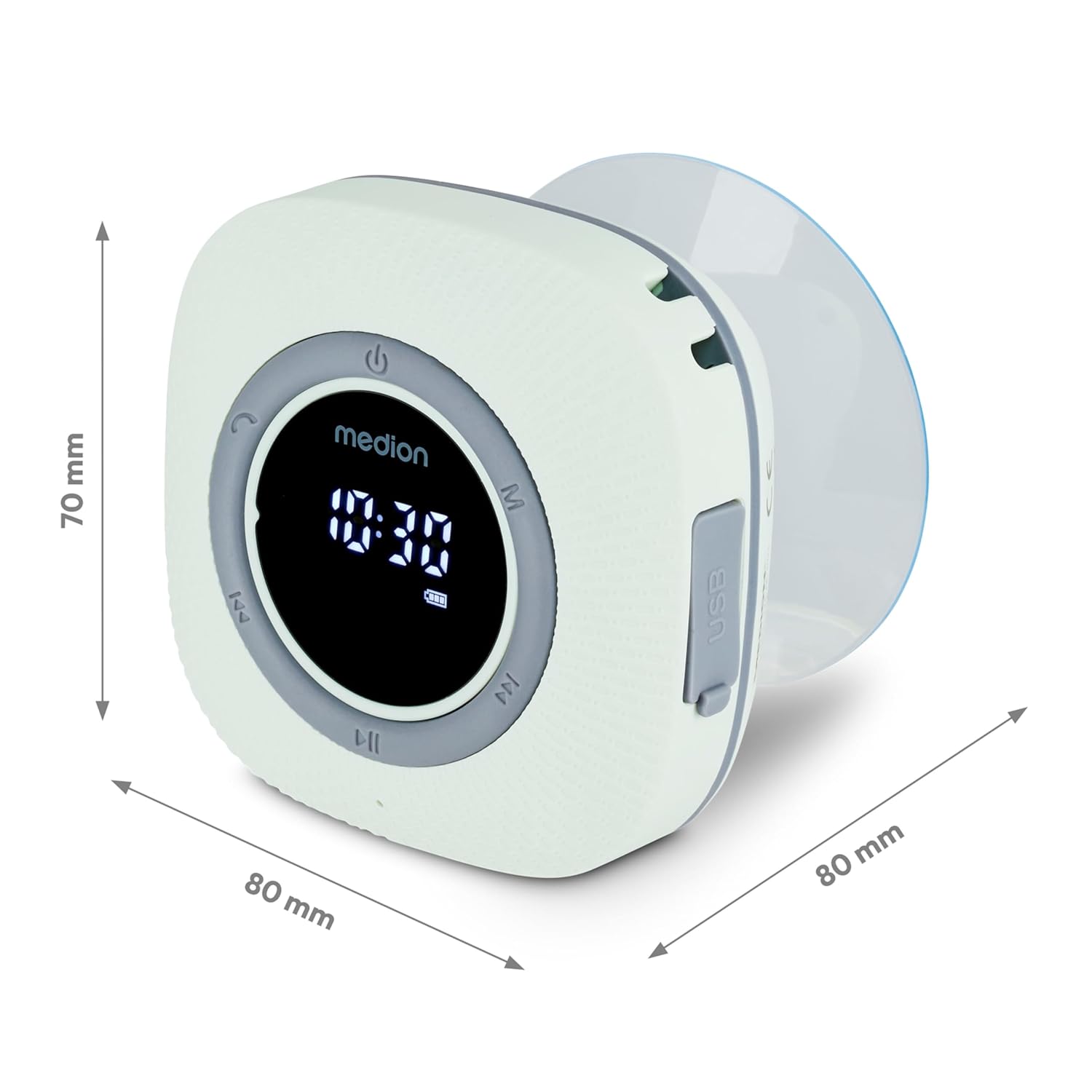
- Connect the supplied USB-C charging cable to the charging port on the side of the shower radio.
- Connect the other end of the USB-C cable to a suitable USB power adapter (not included) or a computer's USB port.
- The LED display will indicate the charging status. A full charge typically takes a few hours.
4.2 Mounting the Device
The shower radio comes with a removable suction cup for easy mounting on smooth surfaces.
- Ensure the desired mounting surface (e.g., shower wall, tile) is clean, dry, and smooth.
- Press the suction cup firmly against the surface until it adheres securely.
- Attach the shower radio to the suction cup.
5. Operating Instructions
5.1 Power On/Off
- To power on the device, press and hold the power button (U symbol) until the LED display illuminates.
- To power off the device, press and hold the power button again until the display turns off.
5.2 Bluetooth Pairing
The shower radio supports wireless music transmission from your smartphone or tablet via Bluetooth 5.0, with a range of approximately 10 meters (depending on environmental conditions).
- Ensure the shower radio is powered on and sufficiently charged.
- The device will automatically enter Bluetooth pairing mode, indicated by a flashing Bluetooth icon on the LED display.
- On your smartphone or tablet, navigate to the Bluetooth settings and enable Bluetooth.
- Search for available devices and select "MEDION S66884" (or similar) from the list to pair.
- Once paired, the Bluetooth icon on the radio's display will become solid, and you can begin streaming audio.

5.3 FM Radio Operation
The device features an FM radio with automatic station search.
- Press the 'M' button to switch to FM radio mode. The display will show the radio frequency.
- To perform an automatic station search, press and hold the Play/Pause button (►► symbol). The radio will scan and save available stations.
- Use the 'Previous' (◀◀) and 'Next' (►►) buttons to navigate through the saved stations.

5.4 Hands-free Function
When connected to your smartphone via Bluetooth, the shower radio can be used for hands-free calls.
- To answer an incoming call, press the Play/Pause button.
- To end a call, press the Play/Pause button again.
- To reject an incoming call, press and hold the Play/Pause button.
5.5 Clock and Alarm Function
The LED display shows the current time, and an alarm function is available.
- Refer to the specific button combinations in the quick start guide (if provided separately) for setting the clock and alarm. Typically, this involves pressing and holding a dedicated button (e.g., 'C' or 'M') to enter time setting mode, then using the track skip buttons to adjust values.
5.6 Volume Control
- Use the dedicated volume buttons (often integrated with track skip buttons or separate +/- buttons) to adjust the audio volume.
6. Maintenance
6.1 Cleaning
- Wipe the device with a soft, slightly damp cloth.
- Do not use abrasive cleaners, solvents, or strong chemicals, as these may damage the surface or internal components.
- Ensure the charging port cover is securely closed before cleaning or exposing to water.
6.2 Battery Care
- The integrated lithium polymer battery provides up to 12 hours of music playing time.
- An acoustic signal will indicate a low battery level. Recharge the device promptly.
- For optimal battery life, avoid fully discharging the battery frequently.
6.3 Storage
- When not in use for extended periods, store the device in a cool, dry place away from direct sunlight and extreme temperatures.
7. Troubleshooting
| Problem | Possible Cause | Solution |
|---|---|---|
| Device does not power on. | Battery is discharged. | Charge the device using the supplied USB-C cable. |
| No sound or low volume. | Volume is too low; Bluetooth not connected; FM signal weak. | Increase volume; Re-pair Bluetooth device; Adjust radio position or perform auto-scan for FM stations. |
| Bluetooth device cannot connect. | Device not in pairing mode; Out of range; Already connected to another device. | Ensure radio is in pairing mode (flashing Bluetooth icon); Move device closer; Disconnect from other devices and try again. |
| Suction cup does not hold. | Surface is dirty, uneven, or porous. | Clean the surface thoroughly; Ensure surface is smooth and non-porous; Slightly moisten the suction cup before applying. |
8. Specifications
| Brand | MEDION |
| Model | MD43884 (P66096) |
| Connectivity Technology | Bluetooth 5.0 |
| Water Protection | IPX6 (Protection against strong water jets) |
| Battery Type | Lithium Polymer |
| Battery Life | Up to 12 hours music playing time |
| Audio Output | 30 W max. (3 W RMS) |
| Tuner Technology | FM |
| Display Type | LED |
| Dimensions (LxWxH) | 8 x 8 x 7 cm |
| Item Weight | 290 g |
| Power Source | Battery Powered |
| Charging Interface | USB Type C |
9. Warranty and Support
For warranty information or technical support, please refer to the warranty card included with your product or visit the official MEDION website. You can also contact MEDION customer service directly for assistance with product inquiries, troubleshooting, or service requests.
