
Everest SM-BT08
Everest SM-BT08 USB 2-in-1 Bluetooth and 2.4GHz Wireless Mouse User Manual
Model: SM-BT08
Introduction
Thank you for choosing the Everest SM-BT08 USB 2-in-1 Bluetooth and 2.4GHz Wireless Mouse. This device offers versatile connectivity options, allowing you to switch between 2.4GHz wireless and Bluetooth modes for seamless use across various devices. Please read this manual carefully to ensure proper installation, operation, and maintenance.
Package Contents
- Everest SM-BT08 Wireless Mouse
- USB 2.4GHz Receiver (stored inside the mouse)
- User Manual
- (Battery not included, typically)
Product Overview
Familiarize yourself with the components of your Everest SM-BT08 mouse:
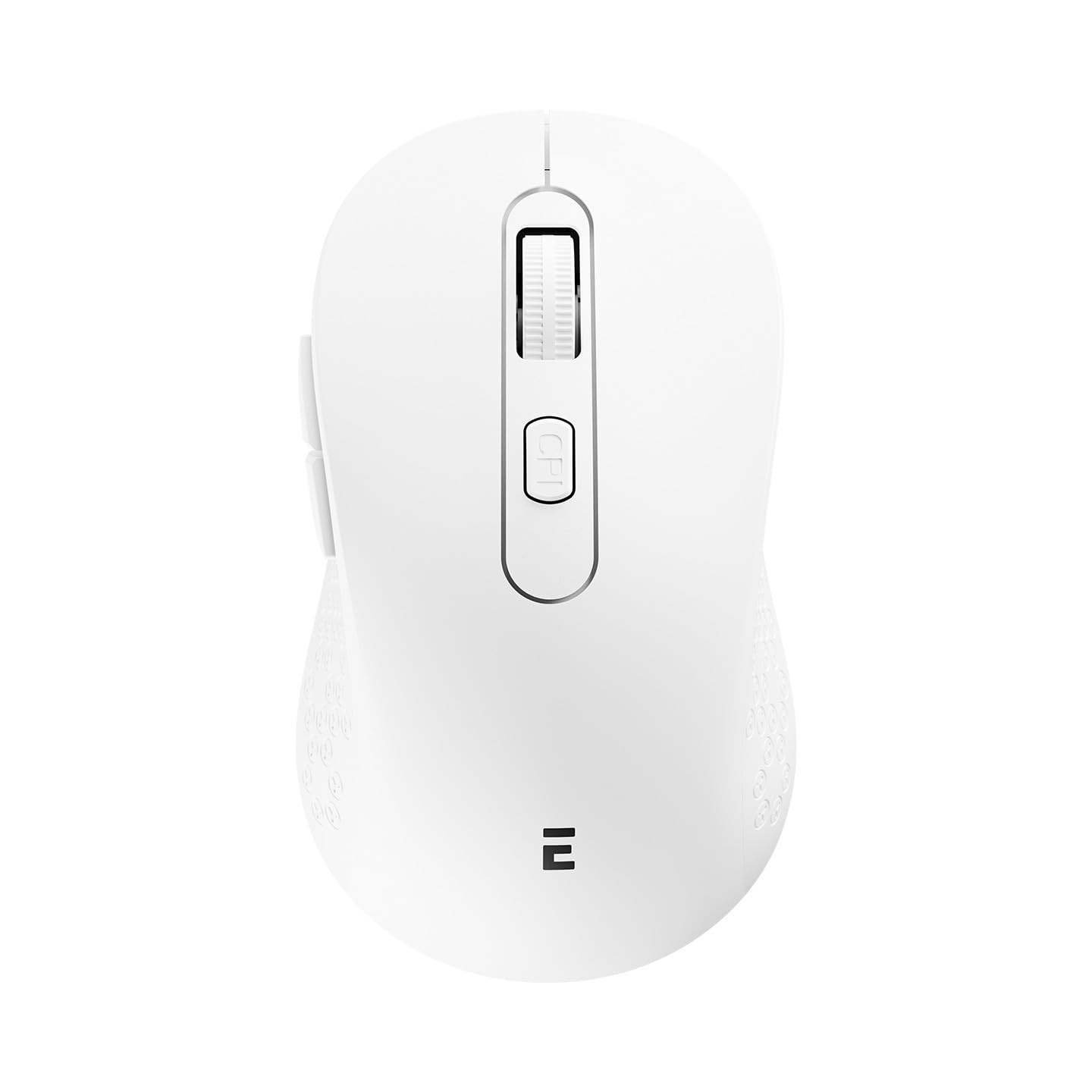
Image: Top view of the Everest SM-BT08 Wireless Mouse, showing the left and right click buttons, scroll wheel, and DPI button.
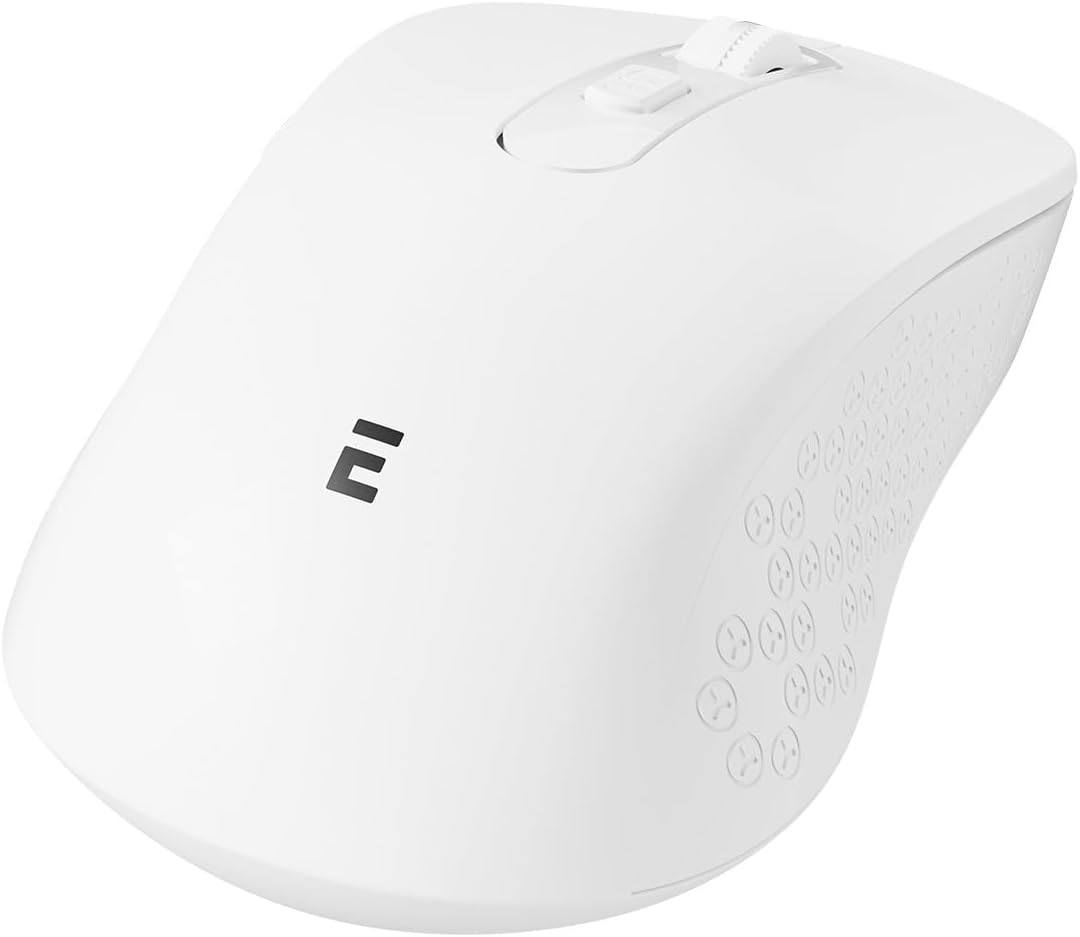
Image: Side view of the Everest SM-BT08 Wireless Mouse, highlighting the ergonomic design and additional side buttons.
- Left Click Button
- Right Click Button
- Scroll Wheel
- DPI Adjustment Button
- Forward Button (Side)
- Backward Button (Side)
- Mode Switch Button (Bottom)
- USB Receiver Storage / Battery Compartment (Bottom)
Setup
1. Battery Installation
- Locate the battery compartment on the underside of the mouse.
- Open the battery compartment cover.
- Insert one AA battery (not included) into the compartment, ensuring correct polarity (+/-).
- Close the battery compartment cover securely.
2. 2.4GHz Wireless Connection
- Remove the USB 2.4GHz receiver from its storage slot on the underside of the mouse.
- Plug the USB receiver into an available USB port on your computer.
- Turn on the mouse using the power switch (usually on the bottom).
- Press the mode switch button on the bottom of the mouse until the indicator light shows 2.4GHz mode (often green or red).
- Your computer should automatically detect and install the mouse.
3. Bluetooth Connection
- Ensure the mouse is powered on.
- Press the mode switch button on the bottom of the mouse until the indicator light shows Bluetooth mode (often blue).
- On your computer or device, navigate to Bluetooth settings.
- Enable Bluetooth and search for new devices.
- Select "Everest SM-BT08" (or similar name) from the list of available devices to pair.
- Once paired, the mouse is ready for use.
Operating Instructions
DPI Adjustment
The mouse features a DPI adjustment button, typically located behind the scroll wheel. Press this button to cycle through different DPI (Dots Per Inch) sensitivity levels. This allows you to adjust the cursor speed to your preference for various tasks.
Button Functions
- Left Click: Primary function, selection.
- Right Click: Secondary function, context menus.
- Scroll Wheel: Scroll up/down, middle click.
- DPI Button: Adjusts cursor sensitivity.
- Side Buttons (Forward/Backward): Navigate web pages or folders.
Switching Between 2.4GHz and Bluetooth Modes
Use the mode switch button on the underside of the mouse to toggle between 2.4GHz wireless mode and Bluetooth mode. An indicator light will typically change color to show the active mode.
Maintenance
- Cleaning: Use a soft, dry cloth to clean the mouse. For stubborn dirt, a slightly damp cloth can be used, but ensure no moisture enters the device.
- Storage: When not in use for extended periods, turn off the mouse to conserve battery life. Store the USB receiver inside the mouse's compartment to prevent loss.
- Battery: Replace the battery when the mouse performance degrades or the low battery indicator (if present) illuminates.
Troubleshooting
| Problem | Solution |
|---|---|
| Mouse not responding (2.4GHz) |
|
| Mouse not responding (Bluetooth) |
|
| Cursor movement is erratic or slow |
|
| Connection drops frequently |
|
Specifications
- Brand: Everest
- Model: SM-BT08
- Connectivity: 2.4GHz Wireless, Bluetooth
- Sensor Technology: Optical
- Number of Buttons: 6
- Power Source: Battery Powered (AA)
- Operating Systems: Windows, macOS, Linux
- Product Weight: 0.09 Kilograms
Warranty and Support
The Everest SM-BT08 Wireless Mouse comes with a 2-year warranty from the date of purchase. This warranty covers manufacturing defects and material faults under normal use. It does not cover damage caused by misuse, accidents, unauthorized modifications, or normal wear and tear.
For technical support, warranty claims, or further assistance, please contact your retailer or visit the official Everest website. Please retain your proof of purchase for warranty service.
Related documentsSM-BT08


Ask a question about this manual
Ask about setup, troubleshooting, compatibility, parts, safety, or missing instructions. Manuals+ will review the question and use this page’s manual context to help answer it.