1. Introduction
The NEWYES Scientific Calculator 991EX Black is an innovative tool designed for students and professionals across various scientific and engineering disciplines. It combines a powerful scientific calculator with an integrated 6.5-inch writing tablet, allowing for simultaneous calculations and note-taking. This manual provides detailed instructions for setup, operation, maintenance, and troubleshooting to ensure optimal use of your device.
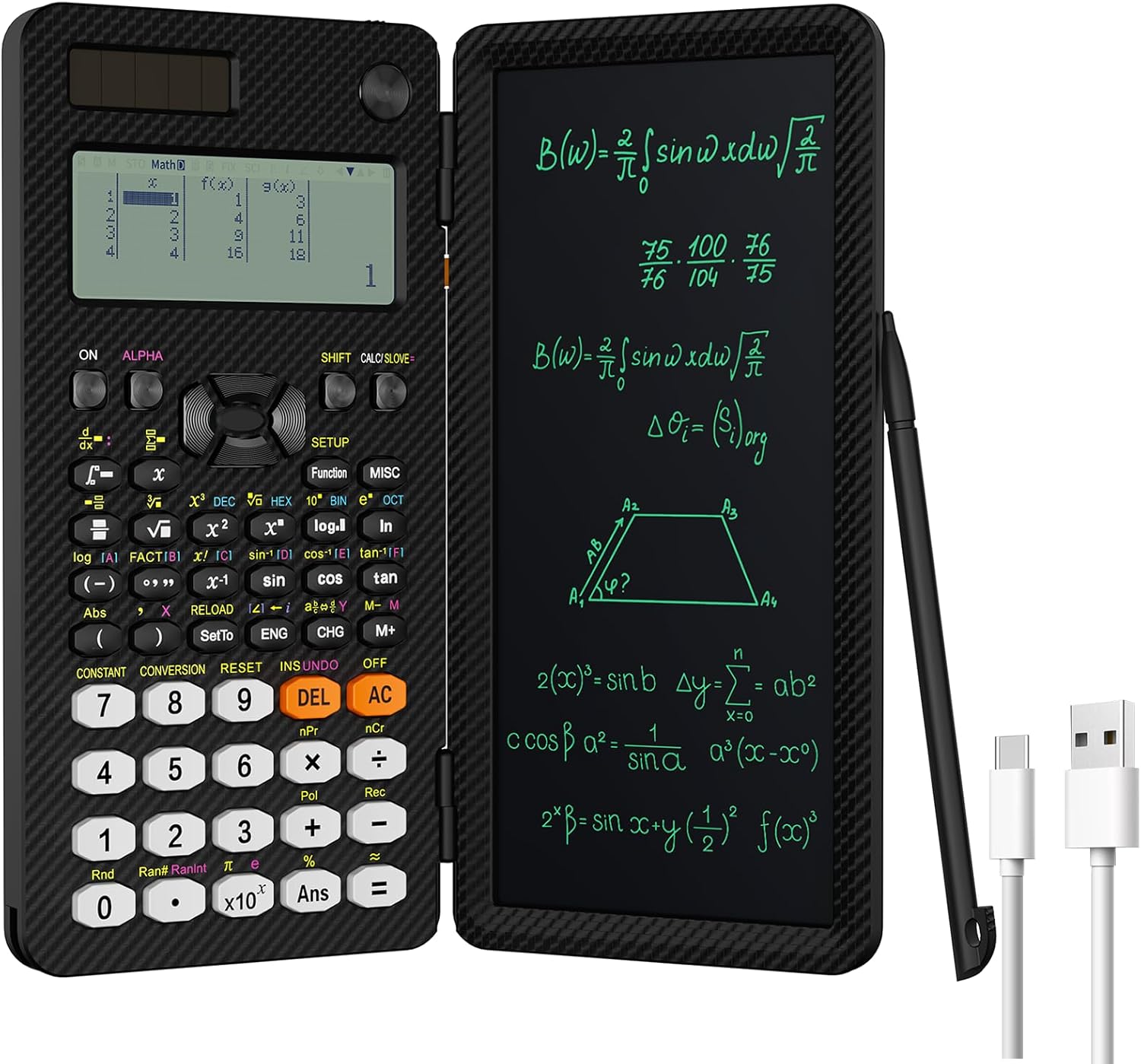
Image: The NEWYES Scientific Calculator 991EX Black, showcasing its calculator and integrated writing tablet.
2. What's in the Box
Please verify that all items are present in the package:
- NEWYES Scientific Calculator 991EX Black
- Stylus Pen
- USB Type-C Charging Cable
- User Manual (this document)
3. Product Overview
Familiarize yourself with the key components of your NEWYES Scientific Calculator:

Image: Labeled diagram of the calculator showing the solar panel, charging port, lock switch, clear button, mini design anti-misoperation area, and stylus.
Key Components:
- Calculator Display: Shows calculation results and menu options.
- Keypad: Standard scientific calculator keys for various functions.
- Writing Tablet: 6.5-inch LCD screen for digital note-taking.
- Stylus Pen: Used for writing on the tablet. Stored in the lower left corner of the calculator.
- Clear Button (Tablet): Erases content on the writing tablet.
- Lock Switch (Tablet): Prevents accidental erasure of notes on the writing tablet.
- USB Type-C Charging Port: For recharging the calculator's internal battery.
- Solar Panel: Provides supplementary power in well-lit conditions.
4. Setup
4.1 Initial Charging
Your NEWYES Scientific Calculator is rechargeable. Before first use, it is recommended to fully charge the device using the provided USB Type-C cable. Connect the cable to the calculator's charging port and a compatible USB power source (e.g., computer USB port, wall adapter).
4.2 Inserting/Removing the Stylus Pen
The stylus pen is built into the lower left corner of the calculator. To remove it, gently slide it out. When finished, push it back into its slot until it clicks into place.
4.3 Powering On/Off
To power on the calculator, press the ON button. To power off, press SHIFT followed by AC (OFF).
5. Operating Instructions
5.1 Calculator Functions
The calculator features 552 functions, covering a wide range of mathematical, physics, and engineering calculations. These include:
- Fractions
- Statistics
- Complex Numbers
- Linear Regression
- Basic Arithmetic
- Computer Science
- Standard Deviation
- Polar-Rectangular Coordinate Conversion
- Equations and Inequalities
- Proportions
Refer to the detailed function guide within the calculator's internal menu (accessed via MODE SETUP) for specific operations.
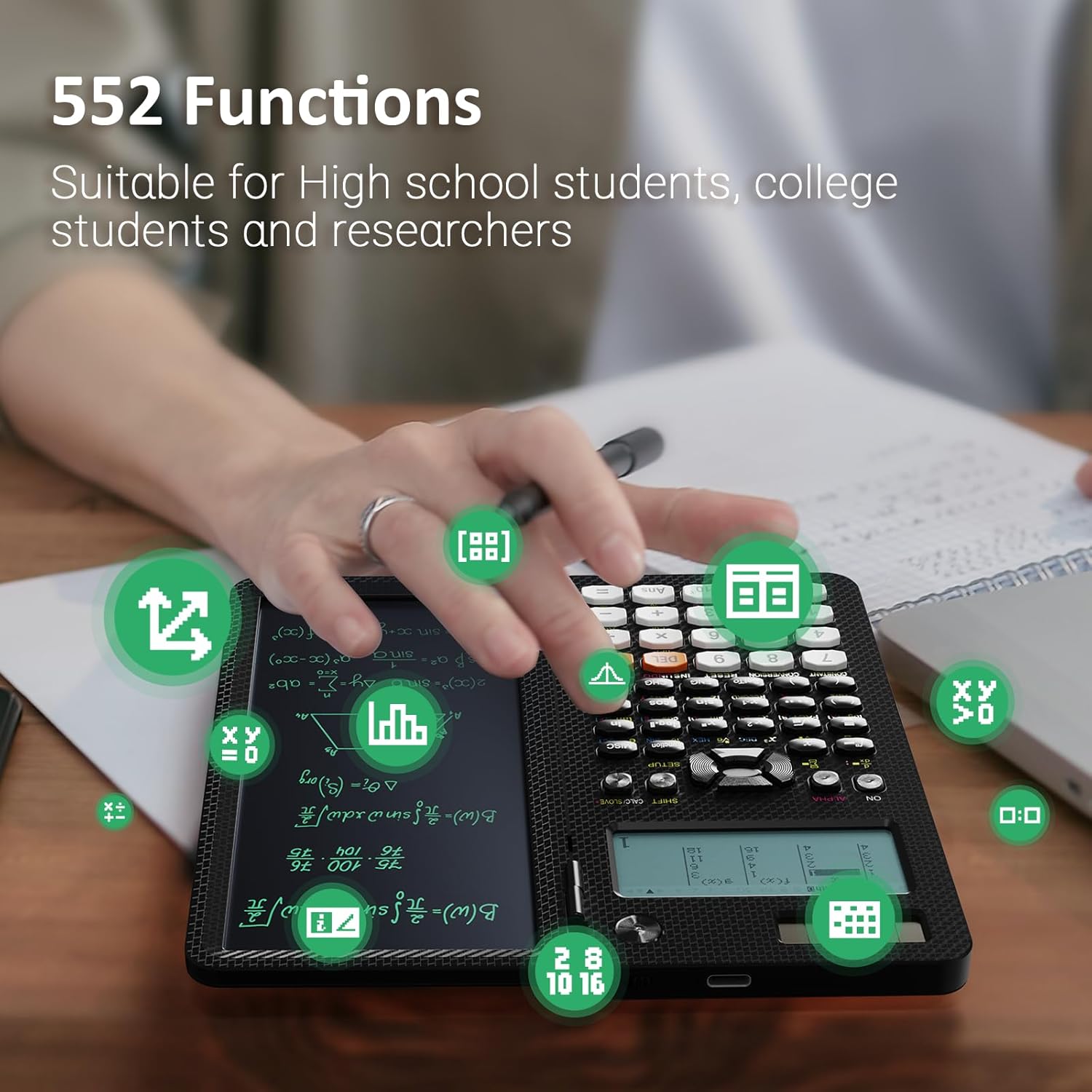
Image: A user engaging with the calculator, demonstrating its capability for various functions.
5.2 Using the Writing Tablet
The integrated writing tablet allows you to jot down notes, formulas, or diagrams. Use the stylus pen to write directly on the tablet surface.
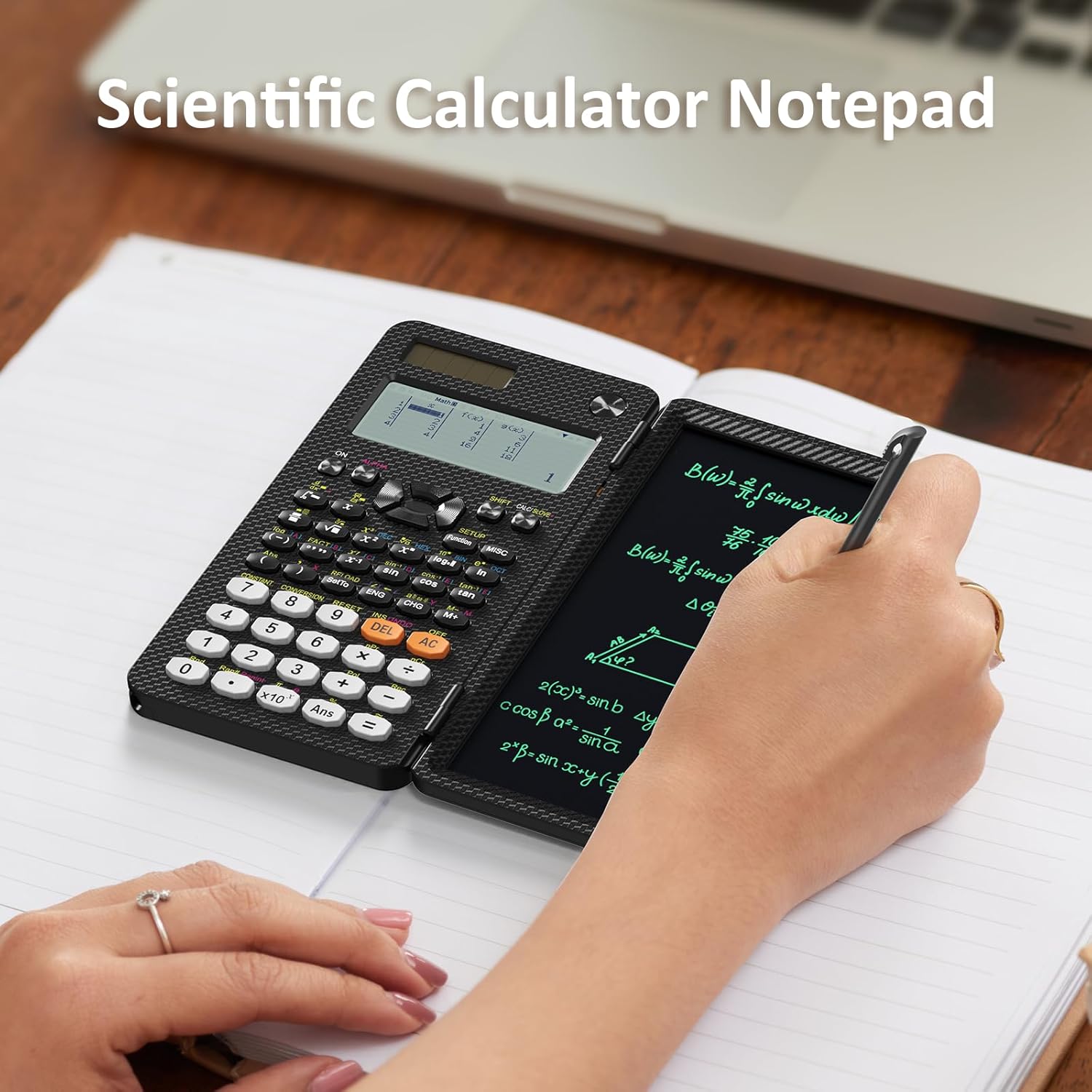
Image: A hand using the stylus to write on the calculator's integrated tablet.
Clearing the Writing Tablet:
To erase notes from the writing tablet, ensure the lock switch is in the unlocked position, then press the Clear button located above the tablet.
Locking the Writing Tablet:
To prevent accidental erasure of your notes, slide the lock switch to the locked position. This will disable the clear button.
5.3 Changing Display Format (Fraction to Decimal)
Before starting a calculation, you can specify the output format. To display results in decimal format:
- Press SHIFT.
- Press SETUP (Function).
- Select option 1 (MathI/MathO).
- Select option 2 (LineI/DecimalO).
5.4 Product Demonstration Video
Video: A brief demonstration of the NEWYES Scientific Calculator 991ES MAX, highlighting its key features and functionality, including the writing tablet and clear display.
6. Maintenance
6.1 Cleaning
To clean the calculator and writing tablet, use a soft, dry cloth. For stubborn marks, a slightly damp cloth can be used, but ensure no moisture enters the device. Do not use abrasive cleaners or solvents.
6.2 Storage
When not in use, fold the calculator to protect the screen and keypad. Store it in a cool, dry place away from direct sunlight and extreme temperatures.
7. Troubleshooting
| Problem | Possible Cause / Solution |
|---|---|
| Calculator does not turn on. | Battery may be depleted. Connect to a USB power source using the Type-C cable to charge. Ensure the solar panel is exposed to light. |
| Writing tablet does not clear. | Check if the lock switch for the writing tablet is in the unlocked position. Slide it to unlock, then press the Clear button. |
| Stylus pen is difficult to remove. | The pen may be a little tight when new. Apply gentle, firm pressure to slide it out. |
| Display shows incorrect results or freezes. | Try resetting the calculator. Refer to the calculator's internal menu or a more detailed function guide for reset procedures. Ensure correct mode settings for calculations. |
8. Specifications
| Feature | Detail |
|---|---|
| Product Dimensions | 6.3 x 3.15 x 0.1 inches |
| Item Weight | 9.5 ounces |
| Item Model Number | AB0607 |
| Batteries | 1 CR5 battery required (included) |
| Brand | NEWYES |
| Color | Black |
| Calculator Type | Scientific/Engineering |
| Power Source | Rechargeable |
| Screen Size (Writing Tablet) | 6.5 Inches |
| Number of Functions | 552 |
9. Warranty and Support
9.1 Warranty Information
Your NEWYES Scientific Calculator 991EX Black comes with a standard manufacturer's warranty. Please retain your proof of purchase for warranty claims. For specific warranty terms and conditions, refer to the warranty card included with your product or visit the official NEWYES website.
9.2 Customer Support
For technical assistance, troubleshooting, or general inquiries, please contact NEWYES customer support. You can find contact information and additional resources by visiting the NEWYES Store on Amazon or their official website.


