
1. Introduction
Thank you for choosing the PUTRIMS K12 Google TV Projector. This manual provides essential information for the safe and efficient use of your new projector. Please read it thoroughly before operation and keep it for future reference.

Figure 1.1: PUTRIMS K12 Projector
2. Safety Information
- Do not look directly into the projector lens when the lamp is on.
- Ensure proper ventilation to prevent overheating.
- Keep the projector away from water or other liquids.
- Use only the provided power adapter.
- Avoid placing the projector on unstable surfaces.
- Do not attempt to disassemble or repair the projector yourself. Contact customer support for assistance.
3. Package Contents
Verify that all items are present in your package:
- PUTRIMS K12 Projector
- Remote Control
- Power Cord
- HDMI Cable
- Projector Lens Cover
- User Manual (this document)
4. Product Overview
The PUTRIMS K12 projector is designed for a versatile home theater and business experience. It features a sleek design with essential ports for connectivity.
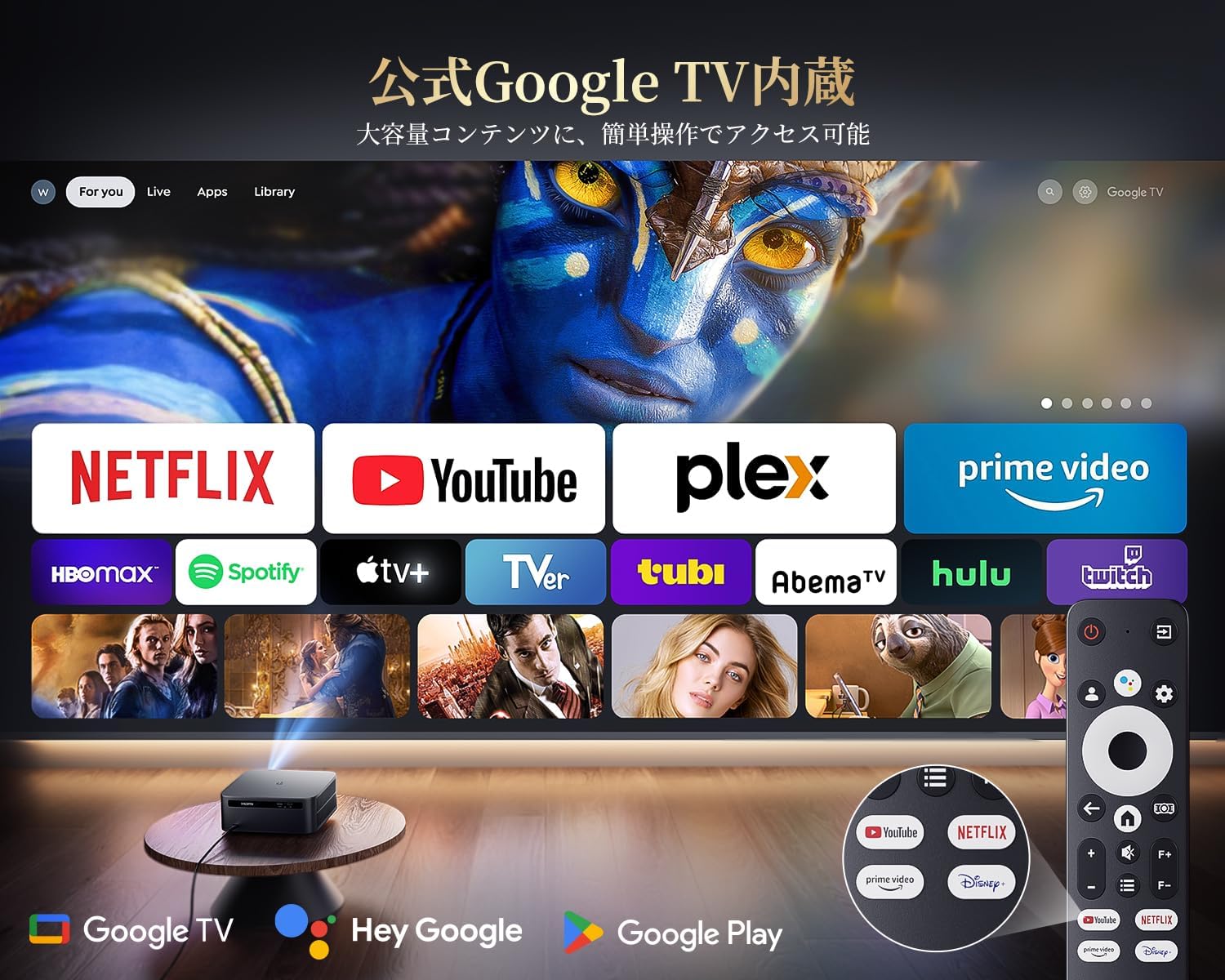
Figure 4.1: Front view of the K12 Projector, showing the lens and auto-focus sensors.

Figure 4.2: Rear view of the K12 Projector, highlighting HDMI, USB, and audio ports.
Video 4.1: General product overview and feature demonstration of the PUTRIMS K12 projector.
5. Setup
5.1 Physical Setup
The K12 projector offers flexible installation options to suit various environments:
- Tabletop Placement: Place the projector on a stable, flat surface.
- Tripod Mounting: Use the M5 screw hole on the bottom to attach a tripod.
- Ceiling Mounting: Securely mount the projector to the ceiling using a compatible mount.
- Wall Mounting: Attach the projector to a wall using a suitable bracket.

Figure 5.1: Diverse installation methods for the K12 Projector.
5.2 Initial Power On
- Connect the power cord to the projector and a power outlet.
- Press the power button on the projector or the remote control to turn it on.
- The projector will automatically perform auto-focus and keystone correction.
5.3 Network Connection (WiFi)
To access online streaming services and updates, connect your projector to a WiFi network:
- Navigate to the 'Settings' menu on the projector.
- Select 'Network' or 'WiFi Settings'.
- Turn on WiFi and select your desired network from the list.
- Enter the password if prompted and connect.
5.4 Bluetooth Connection
Connect external Bluetooth speakers or headphones for enhanced audio:
- Go to 'Settings' and select 'Bluetooth'.
- Turn on Bluetooth and put your external device into pairing mode.
- Select your device from the list to pair.
5.5 Screen Mirroring
Share content from your mobile devices or computer wirelessly:
- For iOS devices (Airplay): Ensure your iOS device and the projector are connected to the same WiFi network. Open the 'iOS Cast' interface on the projector. On your iOS device, open Control Center, tap 'Screen Mirroring', and select 'K12-xxxx' from the list.
- For Android/Windows devices (Miracast): Ensure your device and the projector are connected to the same WiFi network. Open the 'Miracast' interface on the projector. On your Android/Windows device, enable screen mirroring/cast feature and select 'K12-xxxx' to connect.
6. Operating Instructions
6.1 Google TV Features
The PUTRIMS K12 comes with official Google TV, providing access to a vast library of content and applications.
- Streaming Apps: Directly access Netflix, Disney+, YouTube, Prime Video, Hulu, and many more with a single click.
- Google Play Store: Download and install over 10,000 applications and games.
- Regular Updates: The projector receives periodic updates to enhance security and stability.

Figure 6.1: Google TV interface with popular streaming applications.
6.2 Voice Control
Utilize the Google Voice Assistant for convenient control of your projector and content.
- Press the voice control button on your remote.
- Speak commands such as "Open Netflix," "Play One Piece," "Tell me the weather," or "Increase volume."

Figure 6.2: Using the Google Voice Assistant with the remote control.
6.3 Image Adjustment
The K12 projector features advanced image adjustment capabilities for optimal viewing.
- Auto Focus: The projector automatically adjusts the focus for a clear image upon startup or movement.
- Auto Keystone Correction: It automatically corrects horizontal and vertical trapezoidal distortions, ensuring a perfectly rectangular image even from an angle.
- Zoom Function: Adjust the screen size from 50% to 100% without moving the projector.
- Aspect Ratio: Supports 4:3 and 16:9 aspect ratios.
- Brightness & Contrast: Customize brightness and contrast settings to your preference.

Figure 6.3: Automatic focus and keystone correction in action.

Figure 6.4: Projection distances and corresponding screen sizes (100", 120", 150").
6.4 Connecting External Devices
The K12 projector offers multiple connectivity options for various devices:
- HDMI ARC: Connect to soundbars, laptops, gaming consoles (Switch, PS5), or DVD players.
- USB: Play media directly from USB memory sticks.
- 3.5mm Audio Port: Connect to external audio systems.

Figure 6.5: Seamless connection with various external devices.
7. Maintenance
7.1 Lens Cleaning
To maintain optimal image quality, regularly clean the projector lens.
- Ensure the projector is turned off and unplugged.
- Gently wipe the lens with a soft, lint-free cloth or a cotton swab.
- For stubborn smudges, use a lens cleaning solution specifically designed for optical surfaces.
- Avoid using abrasive materials or harsh chemicals that could damage the lens.
8. Troubleshooting
Here are solutions to common issues you might encounter:
- No image/signal: Check all cable connections (HDMI, power). Ensure the correct input source is selected on the projector.
- Blurry image: The projector features auto-focus. If the image remains blurry, ensure the lens is clean and there are no obstructions.
- Image not rectangular: The projector has auto-keystone correction. If issues persist, ensure the projector is placed on a stable surface and try repositioning it.
- No sound: Check volume settings on both the projector and connected devices. Ensure external speakers are properly connected via Bluetooth or audio cable. If using HDMI ARC, verify the connection and settings.
- WiFi/Bluetooth connection issues: Ensure the projector and your device are within range of the router/device. Restart both the projector and the router/device.
- App crashes or malfunctions (for unofficial Android TV versions): The PUTRIMS K12 has an official Google TV license, which ensures stability. If you experience issues, ensure your system is updated.
For further assistance, please refer to the Warranty and Support section.
9. Specifications
| Feature | Description |
|---|---|
| Brand | PUTRIMS |
| Model | K12 |
| Brightness | 1500 ANSI Lumens |
| Resolution | 1080P FHD (4K Support) |
| Operating System | Official Google TV |
| Voice Control | Google Voice Assistant |
| Focus | Omnidirectional Auto Focus |
| Keystone Correction | Horizontal & Vertical Auto Keystone Correction |
| Zoom | 50%-100% |
| Max Screen Size | 300 inches |
| WiFi | WiFi 6 |
| Bluetooth | Bluetooth 5.3 |
| Audio Output | 20W HIFI Speaker, 3.5mm Audio Jack |
| Input Ports | HDMI ARC, USB |
| Dimensions | 40.5 x 30.2 x 17 cm |
| Weight | 3.31 kg |
10. Warranty and Support
PUTRIMS is committed to providing excellent customer service. Your K12 projector comes with comprehensive support:
- After-Sales Service: 24 hours a day, 365 days a year.
- Technical Support: Professional technical assistance is available.
- Warranty: Free exchange or 100% refund guarantee for initial defects or natural failures under normal use.
If you have any questions or require assistance, please contact PUTRIMS customer support via the official email address provided in your product packaging or on the official website.


