
TP-Link Archer NX200
TP-Link Archer NX200 5G Wi-Fi 6 AX1800 Router User Manual
Model: Archer NX200
Introduction
Welcome to the user manual for your TP-Link Archer NX200 5G Wi-Fi 6 AX1800 Router. This guide provides comprehensive instructions for setting up, operating, maintaining, and troubleshooting your device to ensure optimal performance and a seamless internet experience.
The Archer NX200 is designed to provide high-speed 5G connectivity and advanced Wi-Fi 6 technology, offering robust and reliable internet access for your home or office. Its dual-band capabilities and EasyMesh support ensure wide coverage and stable connections across multiple devices.
Product Overview

Figure 1: TP-Link Archer NX200 Router and Packaging
The TP-Link Archer NX200 is a versatile 5G Wi-Fi 6 router, offering a range of features for modern connectivity needs:
- 5G Connectivity Support: Connect your home using advanced 5G connectivity with download speeds up to 4.6 Gbps, sharing the network with multiple Wi-Fi devices.
- Wi-Fi 6 AX1800: Delivers speeds up to 1201Mbps on the 5GHz band and 574Mbps on the 2.4GHz band for efficient data transfer.
- Plug & Play: Simply insert a SIM card to get connected instantly.
- EasyMesh Support: Expand your Wi-Fi by adding an EasyMesh-compatible extender for seamless whole-home coverage.
- Gigabit WAN/LAN Port: The gigabit WAN/LAN port allows the NX200 to function as a traditional wireless router, compatible with cable, fiber, and DSL modems.

Figure 2: Archer NX200 highlighting 5G, Wi-Fi 6, and EasyMesh capabilities.
Setup Guide
1. Package Contents
Before you begin, ensure all items are present in the box:
- 5G AX1800 Wireless Dual-Band Gigabit Router Archer NX200
- 1.5m Power Adapter
- RJ45 Ethernet Cable
- Quick Installation Guide
2. Hardware Installation
- Insert SIM Card: Locate the SIM card slot on the bottom of the Archer NX200. Gently insert your Nano SIM card until it clicks into place. Ensure the SIM card is correctly oriented as indicated by the diagram near the slot.

Figure 3: SIM Card Insertion
- Connect Power: Connect the provided power adapter to the router's power port and plug the other end into a power outlet. The router will automatically power on.
- Optional - Ethernet Connection: If you wish to connect a device directly via Ethernet, use the RJ45 Ethernet cable to connect your device (e.g., PC, game console) to one of the LAN ports on the back of the router.
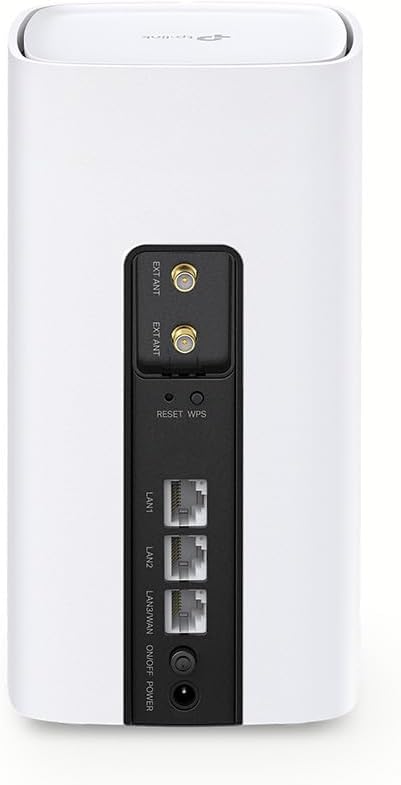
Figure 4: Rear Panel with Ports
- Optional - WAN Connection: If using the router with a traditional modem (cable, fiber, DSL), connect the modem's Ethernet cable to the WAN/LAN port on the Archer NX200.

Figure 5: WAN Connection Diagram
3. Initial Configuration (via TP-Link Tether App)
The easiest way to set up your Archer NX200 is using the TP-Link Tether app:
- Download Tether App: Search for "TP-Link Tether" in the Apple App Store or Google Play Store and install the app on your smartphone.
- Connect to Router's Wi-Fi: On your smartphone, connect to the default Wi-Fi network broadcast by the Archer NX200. The default Wi-Fi name (SSID) and password are printed on the label at the bottom of the router.
- Launch Tether App: Open the Tether app. It should automatically detect your Archer NX200. Follow the on-screen instructions to create a TP-Link ID (if you don't have one) and configure your router's settings, including Wi-Fi name, password, and internet connection type.
- Complete Setup: The app will guide you through the remaining steps, including setting up administrator password and checking for firmware updates.

Figure 6: TP-Link Tether App for Easy Setup
Operating Instructions
Wi-Fi Connectivity
The Archer NX200 broadcasts two Wi-Fi bands: 2.4GHz and 5GHz. You can connect your devices to either band based on your needs. The 5GHz band offers faster speeds over shorter distances, while the 2.4GHz band provides better coverage over longer distances and through obstacles.
- Connecting Devices: On your device (smartphone, laptop, tablet), search for available Wi-Fi networks. Select your router's Wi-Fi name (SSID) and enter the password you set during the initial configuration.
- Guest Network: For enhanced security, you can enable a separate guest network via the Tether app or web interface. This allows guests to access the internet without accessing your main network resources.
EasyMesh Functionality
The Archer NX200 supports EasyMesh, allowing you to create a unified whole-home mesh Wi-Fi system by adding compatible TP-Link EasyMesh extenders. This eliminates Wi-Fi dead zones and provides seamless roaming throughout your home.
- Adding an EasyMesh Extender: Refer to the Quick Installation Guide of your EasyMesh extender for specific pairing instructions. Generally, you will power on the extender near the router and press the WPS button on both devices to establish a connection.
- Seamless Roaming: Once connected, your devices will automatically switch to the strongest Wi-Fi signal as you move around your home, ensuring an uninterrupted connection.

Figure 7: EasyMesh Whole-Home Wi-Fi
5G/4G LTE Internet Access
The router automatically detects the inserted SIM card and connects to the 5G/4G LTE network. The LED indicators on the front panel will show the connection status.
- Signal Strength: The signal strength indicator on the router and in the Tether app will show the quality of your 5G/4G LTE connection. For best performance, place the router in an area with strong cellular signal.
- Data Usage Monitoring: Use the Tether app to monitor your data usage, which is particularly useful if your SIM plan has data limits.
Maintenance
- Firmware Updates: Regularly check for and install firmware updates via the Tether app or the router's web management interface. Updates often include performance improvements, security patches, and new features.
- Placement: Place the router in a central location, away from obstructions and sources of interference (e.g., microwaves, cordless phones). Ensure adequate ventilation to prevent overheating.
- Cleaning: Keep the router clean and free of dust. Use a soft, dry cloth for cleaning. Do not use liquid cleaners or aerosols.
- Rebooting: If you experience connectivity issues, try rebooting the router by unplugging the power adapter for 10 seconds and then plugging it back in.
Troubleshooting
| Problem | Possible Solution |
|---|---|
| No Internet connection after SIM insertion. |
|
| Slow Wi-Fi speeds. |
|
| Router frequently disconnects or freezes. |
|
| Cannot access router's web management page. |
|
Specifications
| Feature | Detail |
|---|---|
| Brand | TP-Link |
| Model Name | Archer NX200 |
| Wireless Type | 802.11ax (Wi-Fi 6) |
| Frequency Band Class | Dual Band (2.4 GHz & 5 GHz) |
| 5G Connectivity Speed | Up to 4.6 Gbps (theoretical) |
| Wi-Fi Speed (5GHz) | 1201 Mbps |
| Wi-Fi Speed (2.4GHz) | 574 Mbps |
| Ethernet Ports | 3 (including 1 WAN/LAN Gigabit port) |
| Dimensions | 9.9 x 19 x 9.9 cm |
| Weight | 610 grams |
| Operating System | TP-Link OS |
| Special Features | Internet Security, Remote Access, EasyMesh |
| Compatible Devices | PC, Smartphone |
Warranty and Support
TP-Link products come with a limited warranty. Please refer to the warranty card included in your product packaging or visit the official TP-Link website for detailed warranty terms and conditions specific to your region.
For technical support, product registration, and additional resources, please visit the TP-Link support website:
You can also utilize the TP-Link Tether app for quick access to support resources and frequently asked questions.
Related documentsArcher NX200


Ask a question about this manual
Ask about setup, troubleshooting, compatibility, parts, safety, or missing instructions. Manuals+ will review the question and use this page’s manual context to help answer it.