
AUHIFVAX S6 Max
AUHIFVAX S6 Max Drone User Manual
Model: S6 Max (Blue-Dual-8K) | Brand: AUHIFVAX
1. Introduction
Thank you for purchasing the AUHIFVAX S6 Max Drone. This manual provides essential information for the safe operation, setup, and maintenance of your drone. Please read this manual thoroughly before operating the drone and retain it for future reference.
Safety Guidelines
- Always operate the drone in open areas, away from people, animals, and obstacles.
- Do not fly near airports, restricted airspace, or sensitive areas.
- Ensure the drone battery is fully charged and the remote control has sufficient power before each flight.
- Avoid flying in strong winds, rain, or other adverse weather conditions.
- Keep fingers and loose clothing away from rotating propellers.
- Supervise children when they are operating the drone.
2. Package Contents
Verify that all the following items are included in your package:
- 1 x AUHIFVAX S6 Max Quadcopter
- 1 x Remote Control
- 1 x 3.7V Lithium Battery (for drone)
- 1 x USB Charging Cable
- 1 x Screwdriver
- 1 x User Manual (this document)
- 2 x Spare Blades

Figure 2.1: Included accessories and drone in its carrying bag.
3. Product Overview
3.1 Drone Components

Figure 3.1: Front view of the AUHIFVAX S6 Max Drone.
3.2 Remote Control Layout
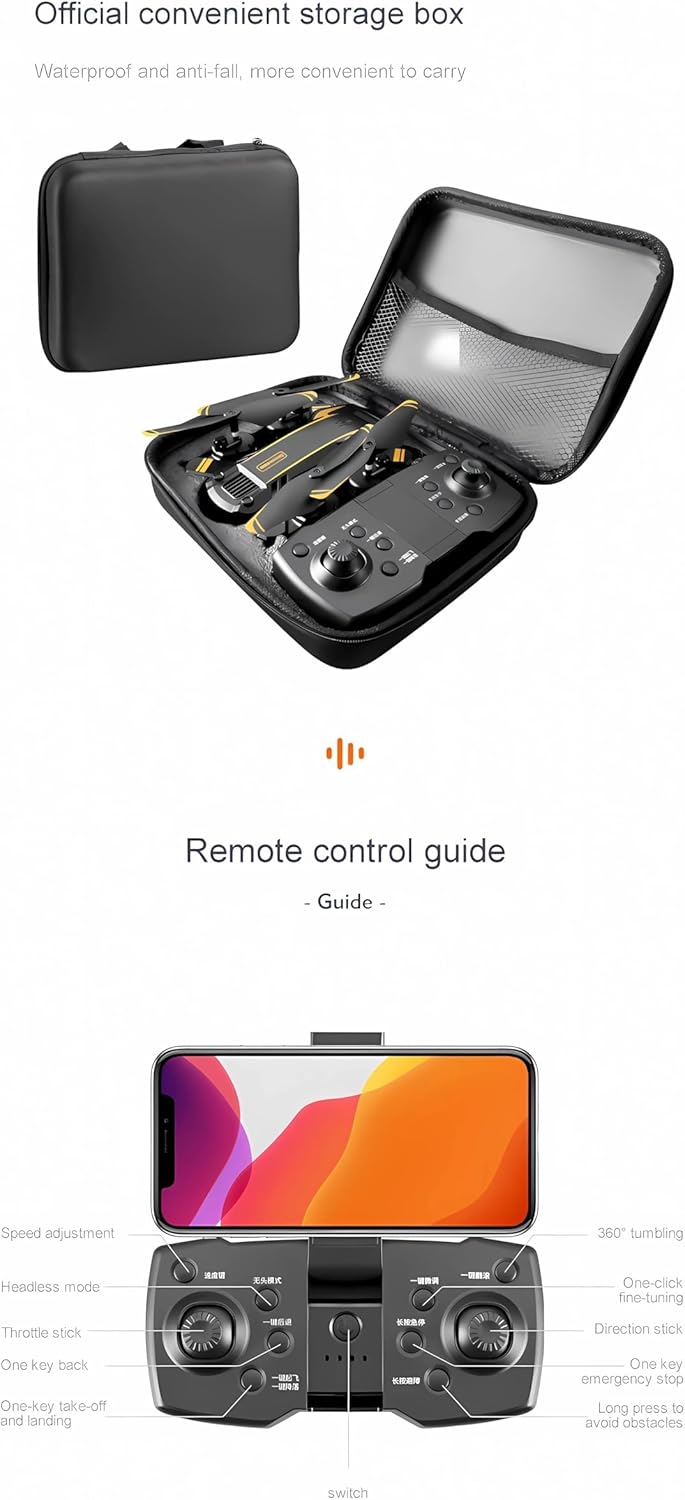
Figure 3.2: Remote control guide showing various buttons and functions.
3.3 Product Dimensions

Figure 3.3: Folded and unfolded dimensions of the drone.
The drone features a foldable design for portability:
- Folded Size: 7.5 x 4.9 x 3.0 inches
- Unfolded Size: 15.7 x 15.7 x 3.0 inches
4. Setup
4.1 Charging the Drone Battery
Connect the 3.7V lithium battery to the USB charging cable. Plug the USB cable into a 5V/1A USB power adapter (not included). The charging time is approximately 120-150 minutes. The indicator light on the USB cable will change to indicate charging status (e.g., red for charging, off for fully charged).
4.2 Installing Transmitter Batteries
The remote control requires 3 x 1.5V AAA batteries (not included). Open the battery compartment on the back of the remote control, insert the batteries according to the polarity markings, and close the compartment.
4.3 Propeller Installation
If propellers are not pre-installed, attach them to the motor shafts. Ensure you match the correct propellers (marked A and B) to the corresponding motor shafts as indicated in the drone's manual or on the drone itself. Use the provided screwdriver to secure them if necessary.
4.4 Pairing the Drone and Remote Control
- Place the drone on a flat, level surface.
- Turn on the drone's power switch. The drone's indicator lights will flash.
- Turn on the remote control.
- Push the left joystick (throttle) all the way up, then all the way down. The drone's lights will stop flashing and become solid, indicating successful pairing.
4.5 App Installation and Connection
Download the official drone application from your smartphone's app store (Google Play for Android or App Store for iOS). Search for the app name provided in the drone's packaging or quick start guide.

Figure 4.1: App download options for real-time video transmission.
To connect the app:
- Ensure the drone is powered on.
- Go to your smartphone's Wi-Fi settings and connect to the drone's Wi-Fi network (usually named something like "AUHIFVAX-Drone-XXXX").
- Open the drone application. You should see the live camera feed from the drone.
5. Operating Instructions
5.1 Pre-Flight Checklist
- Drone battery fully charged.
- Remote control batteries installed.
- Propellers correctly installed and secure.
- Drone and remote control paired.
- Fly in an open, safe area.
5.2 Takeoff and Landing
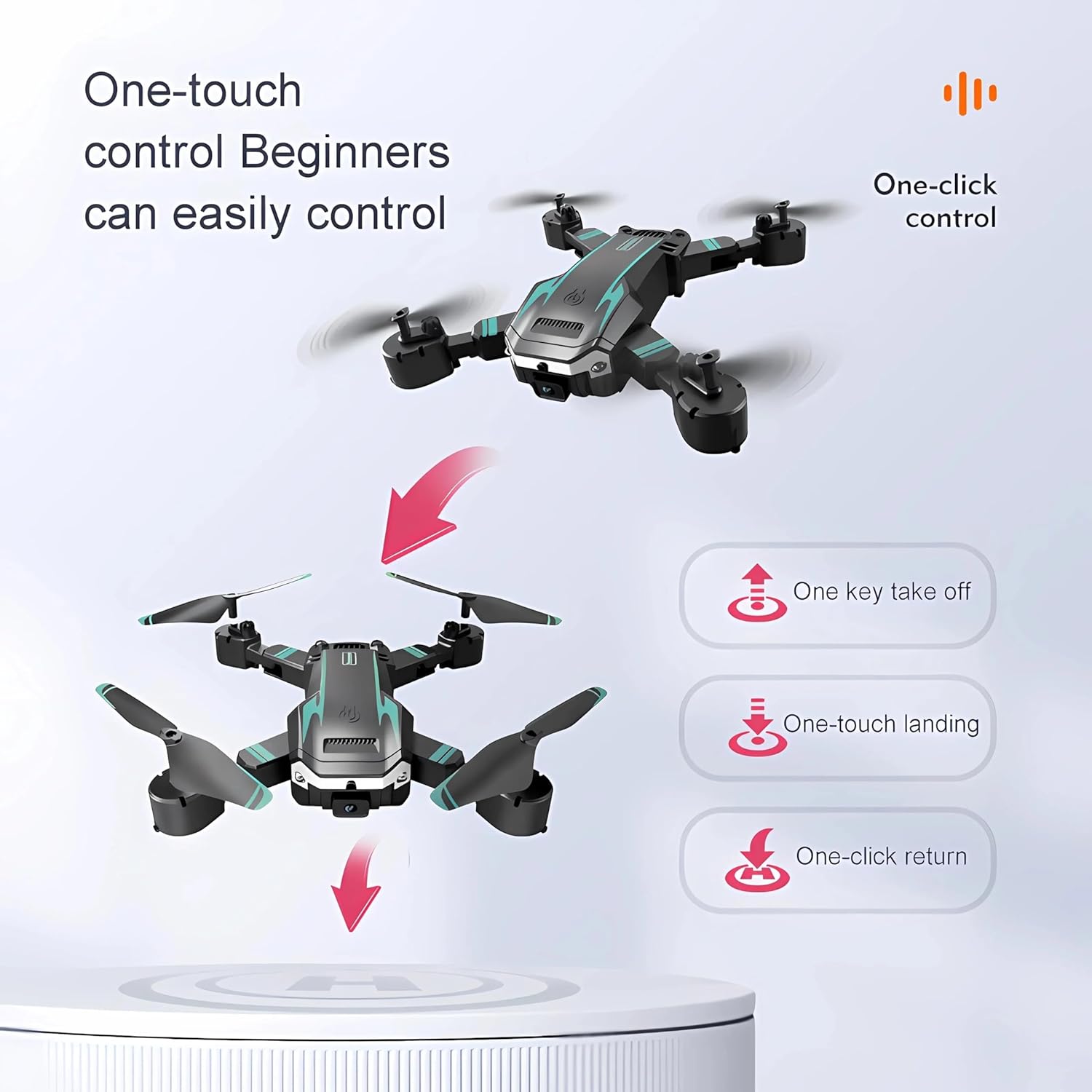
Figure 5.1: One-touch control features for beginners.
- One-Key Takeoff: After pairing, press the one-key takeoff button on the remote control. The drone will automatically ascend and hover at a certain altitude.
- Manual Takeoff: After pairing, push both joysticks down and outwards simultaneously to unlock the motors. Then, slowly push the left joystick (throttle) upwards to ascend.
- One-Key Landing: During flight, press the one-key landing button. The drone will automatically descend and land gently.
- Manual Landing: Slowly pull the left joystick (throttle) downwards until the drone lands. Once landed, push both joysticks down and inwards simultaneously to stop the motors.
5.3 Flight Modes and Features
- Altitude Hold Mode: The drone maintains a consistent altitude, making it easier to control and capture stable footage.
- Headless Mode: In headless mode, the drone's orientation is relative to the pilot, eliminating the need to adjust the drone's position before flight.
- Optical Flow Positioning: Utilizes a downward-facing camera to analyze ground patterns, providing stable hovering and precise positioning, especially indoors or at low altitudes.
- Waypoint Flight Mode: Draw a desired flight path on the app screen, and the drone will automatically follow the specified route.
- Orbital Flight: The drone can fly in circles around a designated point, providing dynamic shooting angles.
- Intelligent Follow: The drone can automatically follow a subject, keeping it in the frame for dynamic video recording.
- 3 Flight Speed Levels: Adjust the drone's speed (low, medium, high) to suit your flying environment and skill level.
- One-Click Return: Press the one-click return button, and the drone will automatically fly back towards its takeoff point.
5.4 Obstacle Avoidance
The S6 Max Drone is equipped with intelligent obstacle avoidance technology. This feature uses sensors to detect and automatically maneuver around obstacles, reducing the risk of collisions during flight.
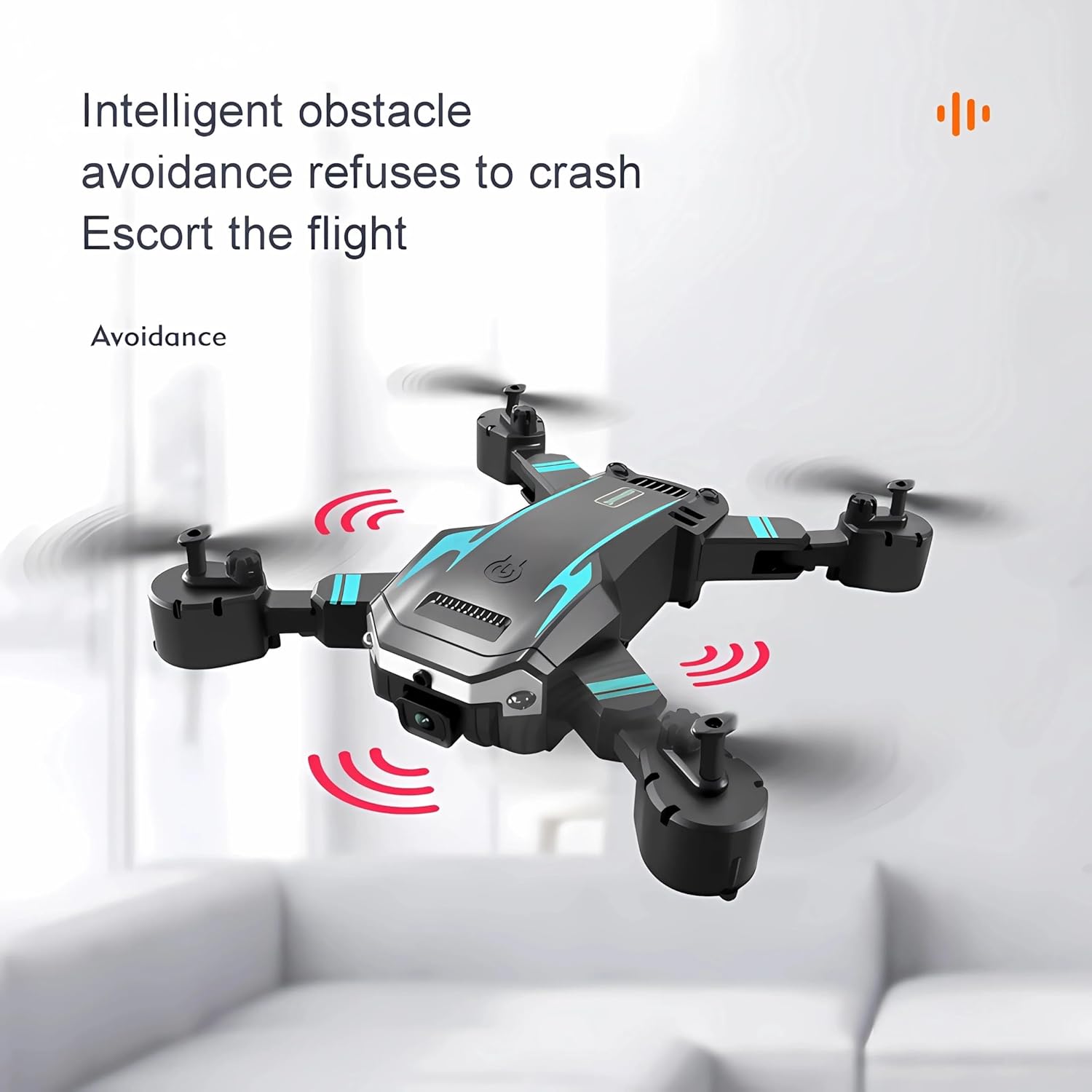
Figure 5.2: Intelligent obstacle avoidance in action.
5.5 Camera Operation
The drone features a professional HD camera (available in 4K, 6K, or 8K resolution) for aerial photography and video recording. It also includes dual high-definition cameras for versatile shooting.
- Photo Capture: Press the photo button on the remote control or tap the camera icon in the app to take a picture.
- Video Recording: Press the video button on the remote control or tap the video icon in the app to start/stop recording.
- Gesture Control: The drone supports gesture control for taking photos and videos. Refer to the app or quick start guide for specific gestures (e.g., V-gesture for photo, palm for video).
5.6 Product Features in Action
Watch the official product video to see the AUHIFVAX S6 Max Drone's features in operation, including one-key takeoff, optical flow positioning, intelligent obstacle avoidance, and camera functions.
Video 5.1: Demonstration of AUHIFVAX S6 Max Drone features, including takeoff, optical flow, obstacle avoidance, and camera gestures.
6. Maintenance
6.1 Battery Care
- Always use the original charging cable provided.
- Do not overcharge or over-discharge the battery.
- Store batteries in a cool, dry place away from direct sunlight and extreme temperatures.
- If the battery is swollen or damaged, discontinue use immediately and dispose of it properly.
6.2 Cleaning
Use a soft, dry cloth to clean the drone and remote control. Do not use liquid cleaners or solvents, as they may damage the electronic components.
6.3 Propeller Replacement
If a propeller is damaged, replace it with a spare blade. Ensure you replace it with the correct type (A or B) and secure it firmly using the screwdriver.
6.4 Storage
When not in use for extended periods, remove batteries from both the drone and the remote control. Store the drone in its original packaging or a protective carrying case in a cool, dry environment.
7. Troubleshooting
| Problem | Possible Cause | Solution |
|---|---|---|
| Drone does not respond to remote control. | Not paired; low battery; out of range. | Re-pair the drone and remote; charge drone battery; replace remote control batteries; ensure within operating range. |
| Drone cannot take off or flies unstably. | Propellers installed incorrectly; motors blocked; drone not calibrated; strong wind. | Check propeller installation (A/B); clear any obstructions; perform gyroscope calibration (refer to quick start guide); avoid flying in strong winds. |
| No live video feed in app. | Not connected to drone's Wi-Fi; app not open; drone camera issue. | Connect to drone's Wi-Fi network; restart app; restart drone and app. |
| Short flight time. | Battery not fully charged; old battery; flying aggressively. | Ensure battery is fully charged; consider replacing old battery; fly more conservatively. |
| Obstacle avoidance not working. | Sensors blocked or dirty; feature disabled. | Clean sensors; ensure feature is enabled in app/remote settings. |
8. Specifications
| Feature | Detail |
|---|---|
| Brand | AUHIFVAX |
| Model Name | S6 Max |
| Color | Blue-Dual-8K |
| Product Dimensions (Folded) | 7.5"L x 4.9"W x 3.0"H |
| Product Dimensions (Unfolded) | 15.7"L x 15.7"W x 3.0"H |
| Item Weight | 4.8 ounces |
| Video Capture Resolution | 8K, 6K, 4K (selectable) |
| Video Capture Format | MP4 |
| Supported Image Format | JPEG |
| FOV | 120° Wide Angle |
| Connectivity Technology | APP Controller, Wi-Fi |
| Remote Control Technology | WIFI, APP Controller |
| Remote Control Battery | 3 x 1.5V AAA Battery (not included) |
| Drone Battery | 1 x 3.7V Lithium Battery (included) |
| Charging Time | 120-150 minutes |
| Flight Time | 15-20 minutes |
| 5G WiFi FPV Distance | Up to 5000m |
| Special Features | 5G WiFi, Altitude Hold, Orbital Flight, Waypoint Flight, One-Click Return, Obstacle Avoidance, Headless Mode, 3 Speed Levels, Six-axis Gyroscope |
| Material | High-strength Engineering Plastics |
| Skill Level | All |
| Country of Origin | China |
| UPC | 698704554136 |
9. Warranty and Support
AUHIFVAX stands behind the quality of its products. For warranty information, technical support, or service inquiries, please refer to the contact information provided on the product packaging or the official AUHIFVAX website. Please have your model number (S6 Max) and UPC (698704554136) ready when contacting support.
Ask a question about this manual
Ask about setup, troubleshooting, compatibility, parts, safety, or missing instructions. Manuals+ will review the question and use this page’s manual context to help answer it.