
BINNUNE BW02-BT
BINNUNE Wireless Gaming Headset User Manual
Model: BW02-BT
1. Introduction
Welcome to the BINNUNE Wireless Gaming Headset user manual. This guide provides comprehensive instructions for setting up, operating, and maintaining your new headset. Designed for superior audio performance and comfort, this headset offers versatile connectivity options for an enhanced gaming and communication experience.
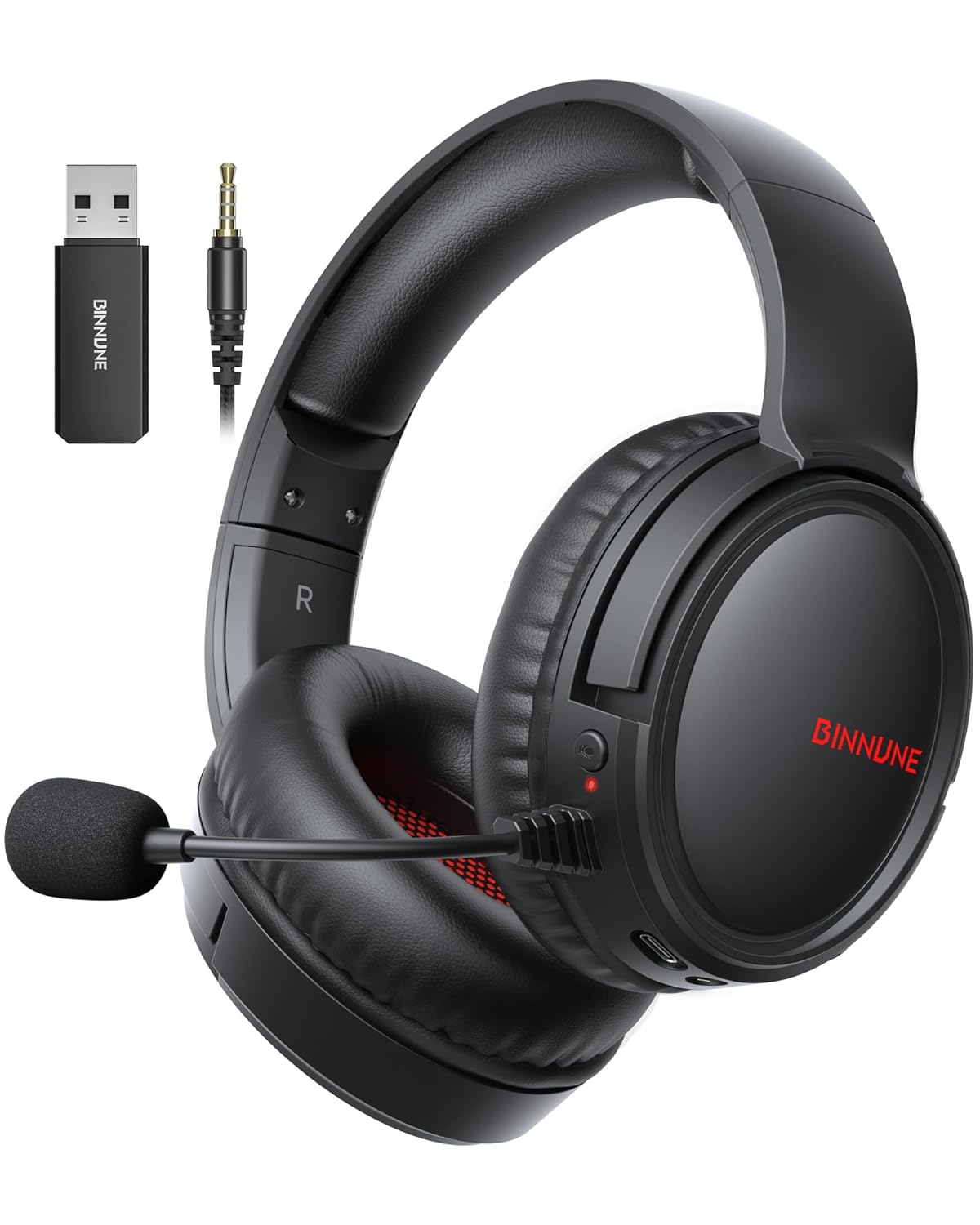
Image: The BINNUNE Wireless Gaming Headset, showcasing its sleek black design, detachable microphone, USB dongle, and 3.5mm audio cable.
2. What's in the Box
- BINNUNE Wireless Gaming Headset (Model: BW02-BT)
- 2.4GHz USB Dongle
- 3.5mm Audio Cable
- USB-C Charging Cable
- User Manual
3. Product Overview
Familiarize yourself with the headset's components and controls for optimal use.

Image: A detailed view highlighting the microphone, USB-C port, 3.5mm audio jack, LED indicator, power button, and volume wheel on the headset.
Headset Controls:
- Power Button: Press and hold to power on/off.
- Volume Wheel: Adjusts audio volume.
- Microphone Mute Button: Toggles microphone on/off.
- USB-C Port: For charging the headset.
- 3.5mm Audio Jack: For wired connection.
- LED Indicator: Displays power and connection status.
Microphone:
The headset features a flexible, rotatable microphone with ENC noise-canceling technology for clear communication. Simply flip the microphone down to use and up to store.

Image: A close-up of the headset's microphone, illustrating its noise-canceling capabilities for clear voice calls.
4. Setup
Initial Charging:
Before first use, fully charge the headset using the provided USB-C charging cable. Connect the USB-C end to the headset's charging port and the USB-A end to a power source (e.g., computer USB port, USB wall adapter). The LED indicator will show charging status and turn off when fully charged. A full charge takes approximately 6 hours.

Image: The headset connected via USB-C for charging, with an overlay indicating 40 hours of battery life and a 1500mAh battery capacity.
Connecting Your Headset:
The BINNUNE headset supports three connection modes: 2.4GHz Wireless, Bluetooth, and Wired.

Image: An illustration detailing the compatibility of 2.4G mode (via USB dongle), Bluetooth mode, and Wired mode (3.5mm) with various devices like PS5/4, PC, Mac, Switch, and mobile phones.
2.4GHz Wireless Mode (via USB Dongle):
- Plug the 2.4GHz USB dongle into an available USB port on your PS5, PS4, PC, or Mac.
- Power on the headset. It will automatically connect to the dongle. The LED indicator will show a stable blue light when connected.
- Note: Microphone is supported on PS5/4, PC, Mac. Not compatible with Xbox.
Bluetooth Mode:
- Power on the headset.
- Press and hold the Bluetooth pairing button (often the power button or a dedicated button, refer to specific product markings if different) until the LED indicator flashes rapidly, indicating pairing mode.
- On your mobile phone, tablet, or iPad, go to Bluetooth settings and select “BINNUNE BW02-BT” from the list of available devices.
- The LED indicator will show a stable blue light once paired.
- Note: Bluetooth mode is not compatible for PS5/4. Microphone is not available when connected to the Nintendo Switch via Bluetooth.
Wired Mode (3.5mm Audio Cable):
- Connect one end of the 3.5mm audio cable to the headset's 3.5mm audio jack.
- Connect the other end to the 3.5mm audio port on your PS5, PS4, PC, phone, or other compatible device.
- The headset will function in wired mode without needing to be powered on.
- Note: Microphone functionality may vary or not be supported on some devices in wired mode. Xbox supports wired mode only.
5. Operating Instructions
Audio Experience:
The 50mm titanium-coated drivers provide rich, detailed sound. For an immersive experience, activate 7.1 professional mode (if supported by your device/software) to enjoy cinematic 3D stereo surround sound.

Image: The headset highlighting its 50mm titanium-coated drivers, designed for powerful bass and crystal-clear treble, set against a stadium backdrop.
Microphone Usage:
Flip the microphone down to activate it. Use the dedicated mute button on the headset to quickly mute or unmute your voice during gameplay or calls. The dual beamforming microphones with ENC noise-canceling ensure your voice is heard clearly by teammates, minimizing background noise.
Video: A short promotional video showcasing the BINNUNE Gaming Headset #BW02, highlighting its features and design.
Video: An official video demonstrating the Binnune Gaming Headsets for PS4/PS5/PC #BW02, covering its various functionalities and compatibility.
6. Compatibility
The BINNUNE Wireless Gaming Headset offers broad compatibility across various gaming platforms and devices:
- 2.4GHz Wireless Mode: Compatible with PlayStation 5, PlayStation 4, PC, and Mac.
- Bluetooth Mode: Compatible with mobile phones, tablets, iPads, and other smart devices.
- Wired Mode (3.5mm): Compatible with PlayStation 5, PlayStation 4, PC, and mobile phones.
Important Notes:
- Not compatible with Xbox in wireless mode; Xbox supports wired mode only.
- Bluetooth mode is not compatible with PS5/4.
- The microphone is not available when connected to the Nintendo Switch (in any mode).
7. Specifications
| Feature | Specification |
|---|---|
| Model Name | BW02 |
| Connectivity Technology | Wireless (2.4GHz, Bluetooth 5.3) |
| Audio Driver Size | 50 Millimeters |
| Frequency Response | 20 Hz - 20,000 Hz |
| Sensitivity | 96 dB |
| Audio Latency | 32 Milliseconds (2.4GHz) |
| Battery Life | Up to 40 Hours |
| Charging Time | 6 Hours |
| Headphones Jack | 3.5 mm Jack |
| Noise Control | Active Noise Cancellation (Microphone) |
| Material | Plastic, Leather (ear cushions) |
| Item Weight | 13.4 ounces |
| Product Dimensions | 7.87 x 3.94 x 7.48 inches |
8. Maintenance
- Cleaning: Use a soft, dry cloth to clean the headset. Do not use abrasive cleaners or solvents.
- Storage: Store the headset in a cool, dry place away from direct sunlight and extreme temperatures.
- Battery Care: To prolong battery life, avoid fully discharging the headset frequently. Charge it regularly, even if not in use for extended periods.
- Microphone Care: Handle the microphone gently. Avoid excessive bending or twisting.
9. Troubleshooting
| Issue | Possible Solution |
|---|---|
| No sound/Low volume | Check headset volume, device volume, and ensure correct connection mode (2.4GHz, Bluetooth, or wired). Re-pair if using wireless. |
| Microphone not working | Ensure microphone is flipped down and not muted. Check device's audio input settings. Verify compatibility for the specific connection mode and device. |
| Headset not connecting | Ensure headset is charged and powered on. For 2.4GHz, ensure dongle is properly inserted. For Bluetooth, ensure headset is in pairing mode and device's Bluetooth is on. Try restarting both headset and device. |
| Short battery life | Ensure headset is fully charged (6 hours). Battery life can vary based on volume level and usage. |
| Sound distortion/static | Move closer to the 2.4GHz dongle or Bluetooth device to reduce interference. Ensure no other strong wireless signals are nearby. |
10. Warranty & Support
BINNUNE is committed to providing valuable and qualified products. For any questions, issues, or support needs regarding your headset, please contact BINNUNE customer service. Refer to the contact information provided on the product packaging or the official BINNUNE website for the most up-to-date support details.
BINNUNE was established in 2020 with a focus on high-tech products and in-depth research and development. Our team is dedicated to ensuring customer satisfaction.

Image: A representation of the BINNUNE reliable support team, ready to assist with quick answers and fast issue resolution.
Related documentsBW02-BT


Ask a question about this manual
Ask about setup, troubleshooting, compatibility, parts, safety, or missing instructions. Manuals+ will review the question and use this page’s manual context to help answer it.