1. Introduction
This manual provides instructions for the Ropwol H15 Digital Camera. Please read this manual thoroughly before using the camera to ensure proper operation and to maximize its features. Keep this manual for future reference.
2. Package Contents
Verify that all items are present in the package:
- Ropwol H15 Digital Camera (Black)
- 32GB SD Card
- Strap
- Battery
- Adapter
- USB-C Data Cable
- User Manual (this document)
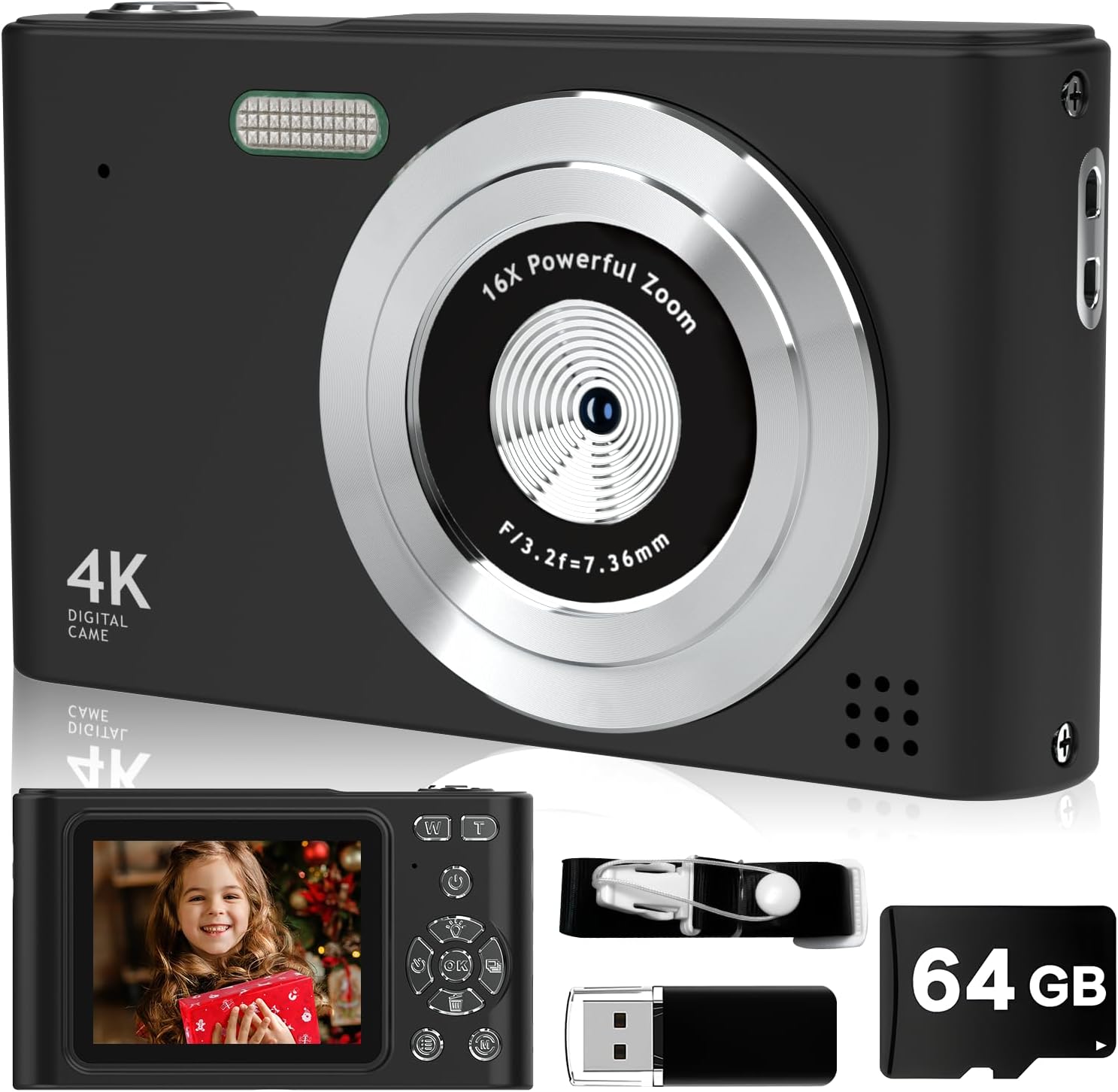
Image: The Ropwol H15 Digital Camera shown with its included accessories: a 32GB SD card, USB cable, and strap.
3. Setup
3.1. Charging the Battery
- Locate the USB-C port on the camera.
- Connect the provided USB-C data cable to the camera and the adapter.
- Plug the adapter into a power outlet.
- The camera's indicator light will show charging status. Once fully charged, the light will change or turn off.
Note: The camera features a built-in rechargeable battery. It is not necessary to remove the battery for charging.
3.2. Inserting the SD Card
- Ensure the camera is powered off.
- Locate the SD card slot, typically on the side or bottom of the camera.
- Insert the provided 32GB SD card into the slot with the metal contacts facing the correct direction (refer to the diagram on the camera or slot cover).
- Push the card gently until it clicks into place.

Image: The Ropwol H15 Digital Camera displaying its ports for the SD card and USB cable, highlighting connectivity options.
3.3. Attaching the Strap
Thread the camera strap through the designated loop on the camera body to prevent accidental drops.
4. Operation
4.1. Powering On/Off
Press and hold the power button (usually marked with ⏻ power symbol) to turn the camera on or off.
4.2. Taking Photos
- Turn on the camera.
- Frame your shot using the LCD screen.
- Press the shutter button (typically on top of the camera) halfway to focus, then press fully to capture the image.

Image: The Ropwol H15 Digital Camera's rear view, showing the LCD screen and control buttons, with a photo of a child displayed.
4.3. Recording Videos
- Switch the camera to video mode (refer to the camera's on-screen menu or a dedicated button).
- Press the record button (often marked with a red dot) to start recording.
- Press the record button again to stop recording.
4.4. Zoom Function
Use the zoom buttons (often marked 'W' for Wide and 'T' for Telephoto) to adjust the 16x digital zoom. 'T' zooms in, 'W' zooms out.

Image: A visual comparison showing the effect of 2x and 16x digital zoom on the Ropwol H15 Digital Camera, illustrating its magnification capability.
4.5. Using Filters and Special Features
Navigate through the camera's menu to access various functions such as:
- Filters: Apply different visual effects (e.g., Black/White, Warm, Cold) to your photos.
- Anti-Shake: Activates digital image stabilization to reduce blur from camera movement.
- Self-Timer: Set a delay (e.g., 2s, 5s, 10s) before a photo is taken, allowing you to be in the shot.
- Continuous Shooting: Capture multiple photos in quick succession.

Image: The Ropwol H15 Digital Camera showcasing its self-timer options (2s, 5s, 10s), continuous shooting mode, and the anti-shake function for clearer images.
4.6. Connecting to a Computer (Webcam Function)
The camera can function as a webcam. Connect the camera to your computer using the USB-C cable. Select the "Webcam" option on the camera's screen if prompted.
5. Maintenance
- Cleaning the Lens: Use a soft, lint-free cloth specifically designed for camera lenses. Do not use abrasive materials or harsh chemicals.
- Cleaning the Body: Wipe the camera body with a soft, dry cloth. For stubborn dirt, slightly dampen the cloth with water.
- Storage: Store the camera in a cool, dry place away from direct sunlight and extreme temperatures.
- Battery Care: Recharge the battery regularly, even if the camera is not in frequent use, to maintain battery health. Avoid fully discharging the battery for extended periods.
- SD Card Management: Regularly transfer photos and videos to a computer or backup storage to free up space on the SD card and prevent data loss.
6. Troubleshooting
| Problem | Possible Cause | Solution |
|---|---|---|
| Camera does not power on. | Battery is discharged. | Charge the camera battery using the provided USB-C cable and adapter. |
| Cannot take photos/videos. | SD card is full or not inserted correctly. | Check if the SD card is properly inserted. Transfer files to free up space or replace the SD card. |
| Images are blurry. | Camera shake; lens is dirty; subject is too close. | Ensure Anti-Shake is enabled. Clean the lens. Maintain appropriate distance from the subject. |
| Camera freezes or becomes unresponsive. | Temporary software glitch. | Press and hold the power button for 10 seconds to force a shutdown, then restart the camera. |
| Computer does not recognize camera as webcam. | Incorrect connection mode selected. | Ensure "Webcam" mode is selected on the camera after connecting to the computer. Try a different USB port. |
7. Specifications
| Feature | Detail |
|---|---|
| Model Name | H15 |
| Effective Still Resolution | 44 MP (Maximum Image Size) |
| Video Resolution | 1080p FHD |
| Digital Zoom | 16x |
| Image Stabilization | Digital (Anti-Shake) |
| Photo Sensor Technology | CMOS |
| Screen Size | 2.4 inches |
| Display Type | LCD |
| Connectivity | Micro USB |
| Memory Card Support | SD Card (up to 32GB included) |
| Battery Type | Lithium Ion (Built-in) |
| Special Features | Anti Shake, Self Timer, Filters, Continuous Shooting |
| Color | Black |
8. Warranty & Support
Warranty: The Ropwol H15 Digital Camera comes with a 2-year manufacturer's warranty. This warranty covers defects in materials and workmanship under normal use. Please retain your proof of purchase for warranty claims.
Support: For technical assistance, troubleshooting beyond this manual, or warranty inquiries, please contact Ropwol customer support through the retailer where the product was purchased or refer to the contact information provided in the product packaging.


