
SIXTOP [2+64G] 9.5-inch Vertical Touchscreen Car Stereo
SIXTOP Android 13 Double Din Car Stereo User Manual
Model: [2+64G] 9.5-inch Vertical Touchscreen Car Stereo
Brand: SIXTOP
Introduction
This manual provides comprehensive instructions for the installation, operation, and maintenance of your SIXTOP Android 13 Double Din Car Stereo. Please read this manual thoroughly before using the product to ensure proper functionality and safety. This device integrates advanced features such as Apple CarPlay, Android Auto, Mirror Link, GPS navigation, and a high-fidelity audio system, designed to enhance your in-car entertainment and connectivity.

Figure 1: SIXTOP Android 13 Car Stereo and included accessories.
Setup and Installation
Package Contents
Before beginning installation, verify that all components are present in the package:
- 1 x Car Radio
- 1 x Power Cable
- 1 x GPS Antenna
- 1 x Rear Camera Input Cable
- 1 x AHD Rear Camera
- 1 x 6M Camera Extension Cable
- 1 x 1.5M Camera Power Cord
- 1 x RCA Cable
- 2 x USB Cable
- 1 x MIC
- 1 x Installation Tools
- 1 x Instruction Manual

Figure 2: Detailed view of package contents and product dimensions (9.5-inch display, 230mm width, 130mm height, 54mm depth).
Wiring Diagram
Refer to the following diagram for correct wiring connections. Ensure all connections are secure before powering on the unit.

Figure 3: Comprehensive wiring diagram for the SIXTOP car stereo, illustrating connections for power (B+, ACC, GND), speakers (FL+, FL-, FR+, FR-, RL+, RL-, RR+), steering wheel controls (KEY1, KEY2), reverse input, antenna, and external microphone.
Important Wiring Notes:
- Power Connections: Connect B+ (Yellow) to constant 12V power, ACC (Red) to switched 12V ignition, and GND (Black) to chassis ground.
- Speaker Outputs: Ensure correct polarity for all speaker connections (FL+, FL-, FR+, FR-, RL+, RL-, RR+).
- Reverse Input: Connect the REVERSE CONT (Pink) wire to your vehicle's reverse light signal for automatic camera display.
- Steering Wheel Control: Connect KEY1 and KEY2 to your vehicle's steering wheel control wires. Configuration may be required in the unit's settings.
- External Microphone: Plug the included MIC into the designated input for improved call quality.
Operating Instructions
Apple CarPlay & Android Auto
The unit supports both Apple CarPlay and Android Auto, allowing seamless integration with your smartphone for navigation, music, calls, and more. To connect:
- Ensure your mobile phone's WiFi is enabled.
- Connect your phone via Bluetooth to the car stereo.
- Open the "ZLINK5" application on the car stereo. It should automatically connect.
- Alternatively, use a USB cable to connect your phone and then open the "ZLINK5" app.
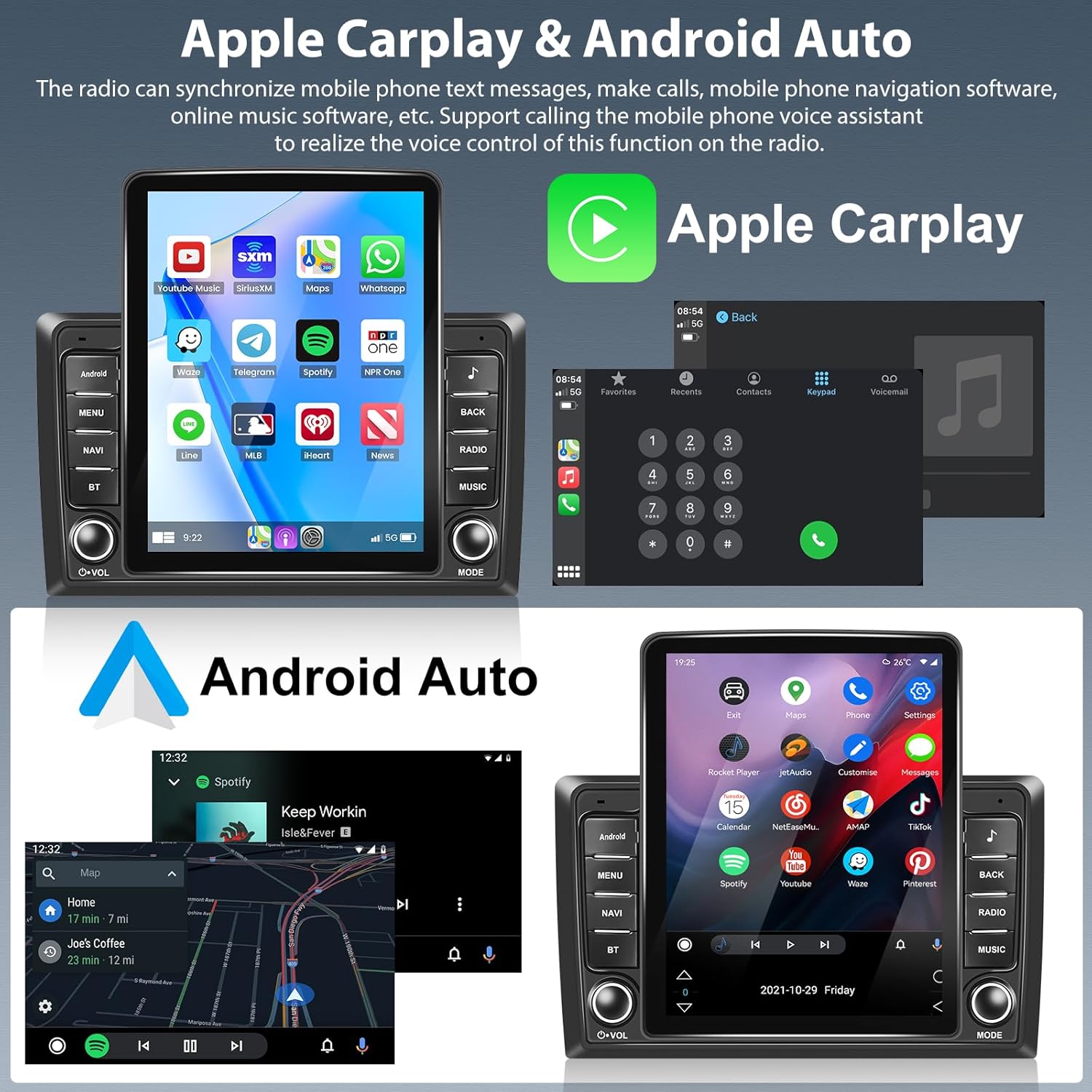
Figure 4: Apple CarPlay and Android Auto interfaces displayed on the car stereo, showing app icons and navigation views.

Animated demonstration of Apple CarPlay and Android Auto connecting and displaying phone applications on the car stereo screen.
Mirror Link Function
Mirror Link allows you to project your mobile phone's screen onto the car stereo display. This is useful for viewing videos or other content directly from your phone.
- Select the "ZLINK5" application.
- Switch to the "Mirror Link" connection option within the app.
- For Android devices, connection can be via WiFi or USB. For iOS devices, connection is via WiFi.

Figure 5: Mirror Link feature showing a phone screen mirrored onto the car stereo display, with connection options for Android (WiFi/USB) and iOS (WiFi).
HiFi Sound Effect & Split Screen
Customize your audio experience with various sound effects. The split-screen function allows you to run two applications simultaneously.
- HiFi Sound: Adjust popular sound effects to achieve optimal audio quality.
- Split Screen: Click the rectangle icon at the top of the screen, then select a browse page and drag it to the upper or lower side of the screen. Both displayed applications can be operated independently.
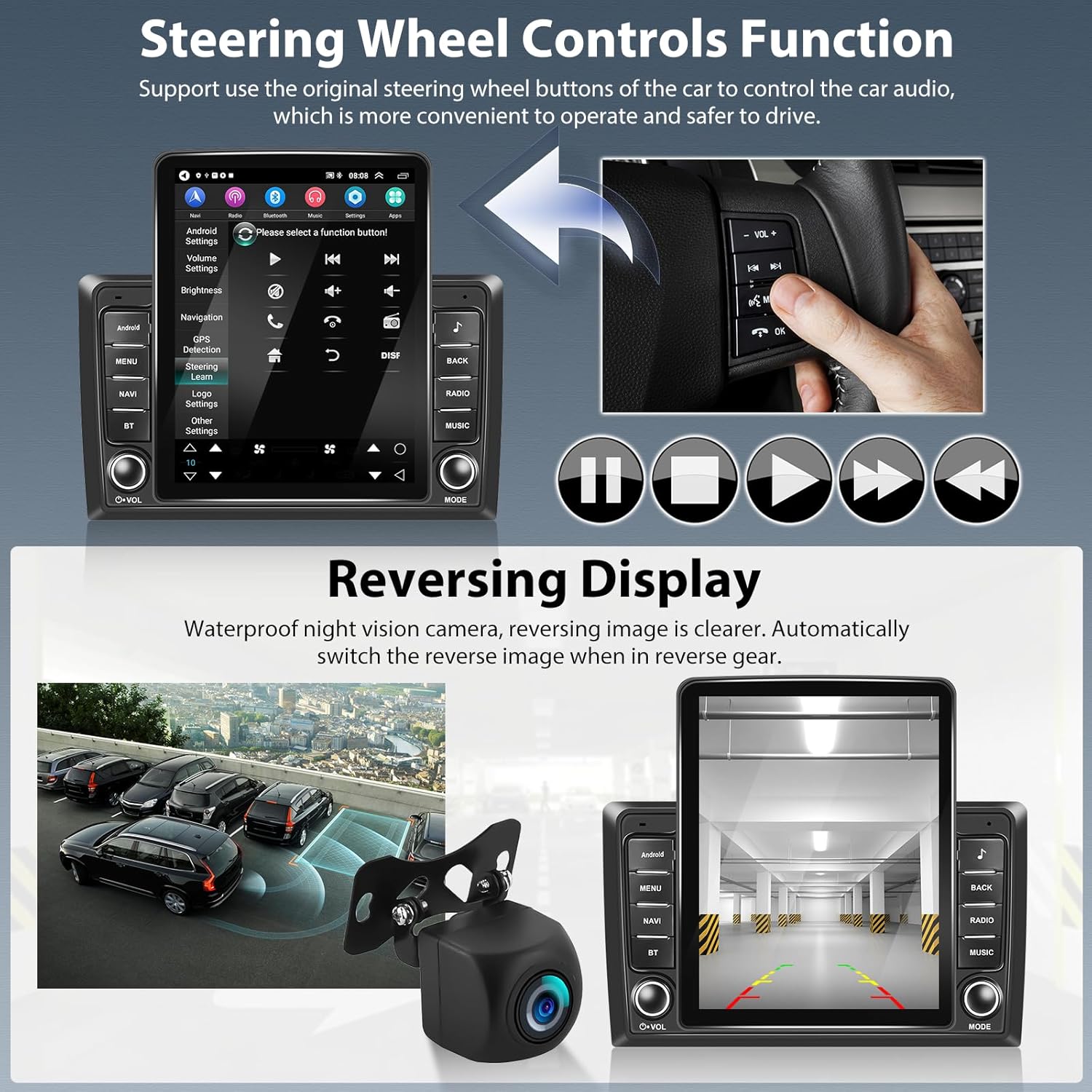
Figure 6: Top section shows the split-screen feature with navigation and music apps running concurrently. Bottom section illustrates the HiFi sound effect settings with various equalizer presets like Classical, Pop, Jazz, and Custom.

Animated demonstration of adjusting HiFi sound effects and equalizer settings on the car stereo.

Animated demonstration of using the split-screen function to display two applications simultaneously, such as navigation and a web browser.
WiFi & GPS Navigation
Connect to WiFi to access online content and download applications. The unit also features built-in GPS navigation.
- WiFi Connection: Connect to a WiFi hotspot to download apps from the Play Store, stream online music, and watch videos (e.g., YouTube).
- GPS Navigation: Built-in offline maps are available (requires internet to download data initially). Online maps function perfectly when connected to WiFi.

Figure 7: Top section shows the WiFi connection interface with various app icons. Bottom section displays the GPS navigation interface with map details and route information.

Animated demonstration of connecting to WiFi and browsing applications like YouTube and social media.

Animated demonstration of the GPS navigation system, showing map views and route planning.
Bluetooth & FM/RDS Radio
Enjoy hands-free calling and music streaming via Bluetooth, and stay updated with FM/RDS radio.
- Bluetooth: Supports incoming/outgoing calls, phonebook synchronization, and mobile phone music playback.
- FM/RDS Radio: Tune into FM stations (87.5-108 MHz) for news, music, weather, and traffic information.

Figure 8: Top section displays the FM/RDS radio interface with frequency tuning. Bottom section shows Bluetooth functionality, including call interface, phonebook, and music playback.

Animated demonstration of Bluetooth features, including making calls, syncing contacts, and playing music.
Steering Wheel Control Function
Control the car stereo using your vehicle's original steering wheel buttons for safer and more convenient operation.
- Access the steering wheel control settings in the unit's menu to map functions to your vehicle's buttons.

Figure 9: Top section illustrates the steering wheel control learning interface, allowing users to assign functions to their vehicle's steering wheel buttons. Bottom section shows the reversing display with a clear view from the backup camera.

Animated demonstration of setting up steering wheel controls on the car stereo.
Backup Camera & Reversing Display
The included AHD backup camera provides a clear reversing image, especially useful for night parking.
- The waterproof night vision camera automatically displays the rear view when the vehicle is shifted into reverse gear.
- Camera Resolution Setting: If the image is not clear, navigate to: Radio Setting -> Factory Settings (Password: 8888) -> Protocol Parameter Settings -> Reversing Video Resolution Settings -> AHD/25.

Animated demonstration of the rear view camera displaying the area behind the vehicle when reversing.
Maintenance
To ensure the longevity and optimal performance of your SIXTOP car stereo, follow these maintenance guidelines:
- Cleaning: Use a soft, dry cloth to clean the screen and exterior. For stubborn smudges, slightly dampen the cloth with water. Avoid abrasive cleaners or solvents.
- Temperature: Do not expose the unit to extreme temperatures. The operating temperature range is -20℃ to 75℃.
- Ventilation: Ensure proper ventilation around the unit to prevent overheating.
- Software Updates: Periodically check for software updates to improve performance and add new features. Updates can typically be found via the system settings when connected to WiFi.
Troubleshooting
This section addresses common issues you might encounter. For problems not listed here, please contact customer support.
| Problem | Possible Cause | Solution |
|---|---|---|
| Unit does not power on. | Incorrect power wiring; blown fuse; vehicle battery issue. | Check B+, ACC, and GND connections. Verify vehicle fuses and battery voltage. |
| No sound from speakers. | Incorrect speaker wiring; volume too low; audio settings. | Check all speaker connections for correct polarity. Increase volume. Check audio output settings (e.g., balance, fader, equalizer). |
| Backup camera image is unclear or distorted. | Incorrect camera resolution setting; loose connection; dirty lens. | Go to Radio Setting -> Factory Settings (Password: 8888) -> Protocol Parameter Settings -> Reversing Video Resolution Settings -> AHD/25. Ensure camera cable is securely connected. Clean camera lens. |
| CarPlay/Android Auto not connecting. | Bluetooth/WiFi not enabled; incorrect app selected; cable issue. | Ensure phone's Bluetooth and WiFi are on. Open "ZLINK5" app. Try a different USB cable if connecting via USB. Restart phone and stereo. |
| GPS signal weak or inaccurate. | GPS antenna placement; environmental interference. | Ensure GPS antenna is placed in a clear, unobstructed location (e.g., dashboard). Connect to WiFi for online map data. |
Specifications
| Feature | Detail |
|---|---|
| System | Android 13 |
| Screen Size | 9.5 inches |
| Memory (RAM+ROM) | 2GB (RAM) + 64GB (ROM) |
| Screen Resolution | 1024*600 |
| Power Output | 4*45W |
| Work Temperature | -20℃ to 75℃ |
| Steering Wheel Control | Support |
| Radio Band | FM/RDS (87.5-108 MHz) |
| Video Output | Support |
| Reversing Input | AHD/CVBS |
| External Microphone | Support |
| Split Screen | Support |
| Maps | Built-In Offline Maps (requires internet to download data) |
| WiFi | Support |
| USB | Double USB Interface |
| Audio Format Support | APE/FLAC/WAV/MP3/WMA etc. |
| Video Format Support | MKV/RMVB/AVI/MP4/MDV etc. |
| Picture Format Support | PNG/JPEG/JPG/GIF/WBMP/BNP etc. |
| Factory Setting Keyword | 8888 |
| Languages | Chinese/English/French/Italian/Korean/Japanese/Arabic/Spanish/Portuguese/Russian/Turkish/Vietnamese/Hebrew/Polish/German |
| Item Weight | 3.75 pounds |
| Package Dimensions | 11.02 x 11.02 x 3.94 inches |
Warranty Information
This SIXTOP car stereo comes with a 1-Year Warranty from the date of purchase. This warranty covers manufacturing defects and malfunctions under normal use. It does not cover damage caused by misuse, accidents, unauthorized modifications, or improper installation. Please retain your proof of purchase for warranty claims.
Customer Support
For any questions, technical assistance, or support regarding your SIXTOP car stereo, please contact our customer service team:
- Email Support: SIXTOP123@163.com
Our team is committed to providing satisfactory service and enriching your car life experience.
Figure 10: Our customer support team is ready to assist you.
Related documents[2+64G] 9.5-inch Vertical Touchscreen Car Stereo

Ask a question about this manual
Ask about setup, troubleshooting, compatibility, parts, safety, or missing instructions. Manuals+ will review the question and use this page’s manual context to help answer it.