
Sorandy Brown Switch
User Manual for 82 Keys RGB Mechanical Keyboard
Model: Brown Switch | Brand: Sorandy
Introduction
Thank you for choosing the Sorandy 82 Keys RGB Mechanical Keyboard. This manual provides detailed instructions for setting up, operating, and maintaining your new keyboard. Please read this manual thoroughly before use to ensure optimal performance and longevity of your device.
Safety Information
- Keep the keyboard away from liquids and excessive moisture to prevent damage.
- Avoid exposing the keyboard to extreme temperatures (hot or cold).
- Do not attempt to disassemble or modify the keyboard. This may void the warranty and cause damage.
- Use only the provided USB cable for charging and wired connection.
- Keep out of reach of small children.
Package Contents
Please check the package contents to ensure all items are present:
- 1 x Sorandy 82 Keys RGB Mechanical Keyboard
- 1 x Key Puller
- 1 x USB Type-C Data Cable
- 1 x 2.4G Wireless Adapter
- 1 x User Manual (this document)
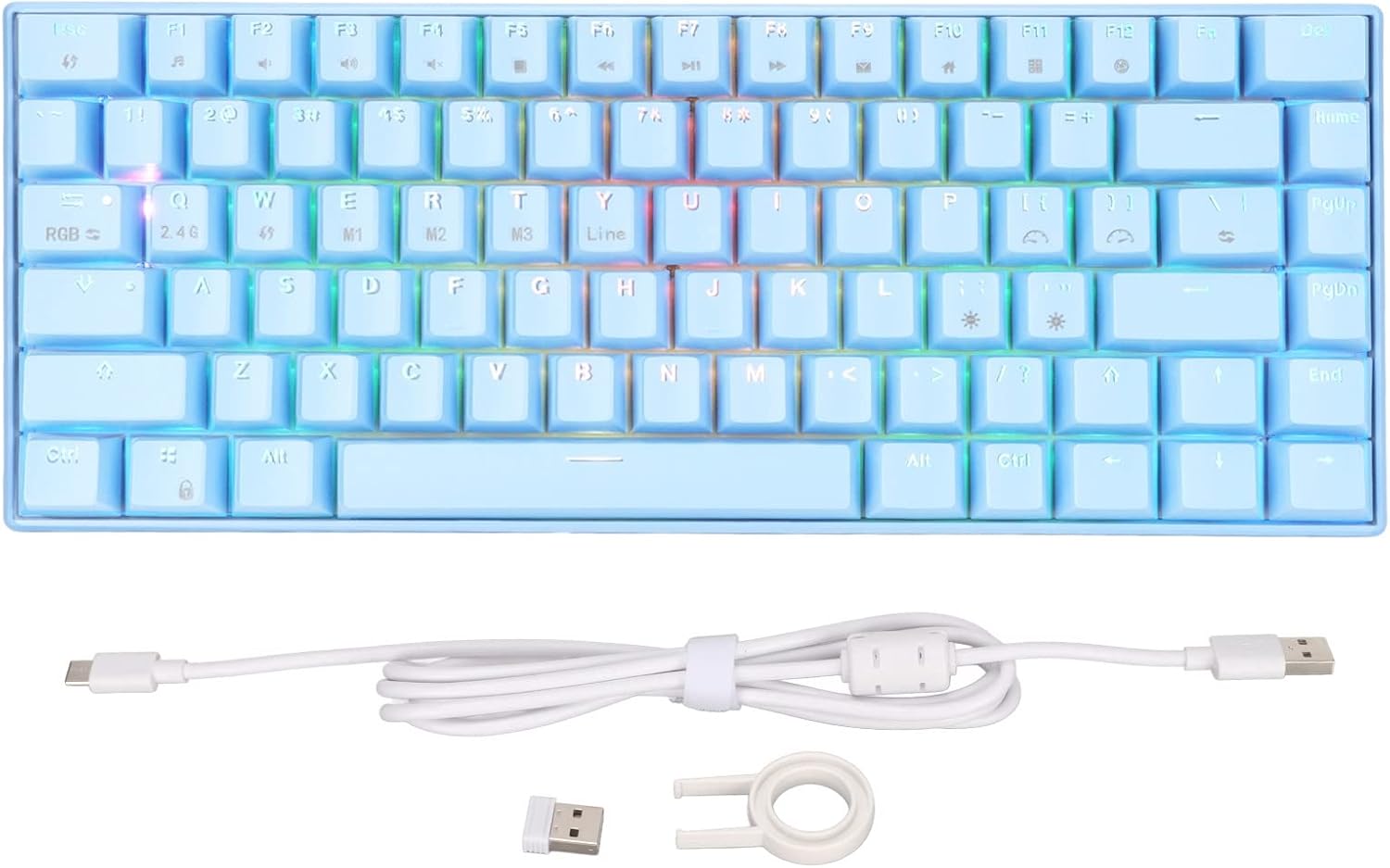
Image: Contents of the keyboard package, including the keyboard, USB cable, 2.4G adapter, and key puller.
Product Overview
Familiarize yourself with the layout and features of your mechanical keyboard.

Image: Top view of the 82-key mechanical keyboard, showing the key layout and RGB lighting.

Image: Bottom view of the keyboard, showing the product label with specifications and rubber feet.

Image: Close-up of the brown mechanical switches, illustrating the switch type used in the keyboard.
Setup
1. Wired Connection (Type-C)
- Connect the USB Type-C end of the provided cable to the Type-C port on the keyboard.
- Connect the USB-A end of the cable to an available USB port on your computer.
- The keyboard will be automatically recognized by your system.
2. 2.4G Wireless Connection
- Locate the 2.4G wireless adapter included in the package.
- Plug the 2.4G adapter into an available USB port on your computer.
- Ensure the keyboard is in 2.4G mode (refer to the keyboard's function keys for mode switching, usually indicated by an LED).
- The keyboard should automatically connect to the adapter.
3. Bluetooth Connection (BT3.0/5.0)
- Ensure your computer or device has Bluetooth enabled.
- Switch the keyboard to Bluetooth mode (usually by pressing Fn + a specific key, e.g., Fn + 1/2/3 for different Bluetooth channels). The indicator light will flash, indicating pairing mode.
- On your device, go to Bluetooth settings and search for new devices.
- Select "Sorandy Keyboard" or a similar name from the list of available devices to pair.
- Once paired, the indicator light on the keyboard will stop flashing and remain solid.
4. Charging the Keyboard
The keyboard has an inbuilt 1800mAh rechargeable lithium battery. To charge:
- Connect the keyboard to a USB power source (computer USB port, wall adapter) using the provided Type-C cable.
- The charging indicator light will illuminate during charging and turn off when fully charged.
Operating Instructions
RGB Backlight Adjustment
The keyboard features dynamic RGB backlighting with multiple modes. Use the following key combinations to adjust the lighting:
- Fn + \ |: Cycle through different backlight modes.
- Fn + [ {: Decrease backlight brightness.
- Fn + ] }: Increase backlight brightness.
- Fn + ; :: Decrease backlight speed.
- Fn + ' ": Increase backlight speed.
- Fn + Left Arrow: Change backlight color (in certain modes).
- Fn + Right Arrow: Change backlight color (in certain modes).

Image: The keyboard displaying its vibrant RGB backlighting.
Function Key Combinations (Fn)
The keyboard utilizes an 82-key layout, requiring the use of the Fn key for accessing certain functions and multimedia controls. Refer to the keycaps for specific Fn combinations.
| Combination | Function |
|---|---|
| Fn + F1 | My Computer |
| Fn + F2 | Search |
| Fn + F3 | Calculator |
| Fn + F4 | Media Player |
| Fn + F5 | Previous Track |
| Fn + F6 | Next Track |
| Fn + F7 | Play/Pause |
| Fn + F8 | Stop |
| Fn + F9 | Mute |
| Fn + F10 | Volume Down |
| Fn + F11 | Volume Up |
| Fn + F12 | Lock Keyboard |
| Fn + Q | Switch to 2.4G mode |
| Fn + W/E/R | Switch to Bluetooth mode (BT1/BT2/BT3) |
Compatibility
This mechanical keyboard is compatible with a wide range of operating systems, including:
- Win 2000, ME, Win XP, Win Vista, Win 7, Win 8, Win 10
- Harmony OS
- Android
- iOS
Maintenance
Cleaning
- Disconnect the keyboard from your computer before cleaning.
- Use a soft, lint-free cloth slightly dampened with water or a mild cleaning solution to wipe the surface.
- For dust and debris between keycaps, use compressed air or the provided key puller to remove keycaps and clean underneath.
- Do not use harsh chemicals or abrasive materials.
Storage
- Store the keyboard in a cool, dry place away from direct sunlight.
- If storing for an extended period, ensure the battery is partially charged (around 50%) to preserve battery health.
Troubleshooting
| Problem | Solution |
|---|---|
| Keyboard not responding (Wired) |
|
| Keyboard not connecting (2.4G/Bluetooth) |
|
| Backlight not working or dim |
|
| Keys not registering or double-typing |
|
Specifications
| Feature | Detail |
|---|---|
| Model | 82 Keys RGB Mechanical Keyboard (Brown Switch) |
| Connection Modes | 2.4G Wireless, Bluetooth 3.0/5.0, Type-C Wired |
| Lighting | RGB Multiple Modes |
| Key Conflict | Full Key Without Conflict (N-Key Rollover) |
| Battery Capacity | Inbuilt 1800mAh Lithium Battery |
| Ergonomics | Supported |
| Operating Current | 300mA (Maximum) |
| Standby Current | 0.5mA |
| Compatible Systems | Win 2000/ME/XP/Vista/7/8/10, Harmony OS, Android, iOS |
| Material | ABS (Acrylonitrile Butadiene Styrene) |
| Number of Keys | 82 |
Warranty and Support
Sorandy products are manufactured to high quality standards. For information regarding warranty coverage, technical support, or service inquiries, please refer to the warranty card included with your product or visit the official Sorandy website. Please retain your proof of purchase for warranty claims.
For further assistance, you may also contact the seller directly through the platform where the product was purchased.
Related documentsBrown Switch


Ask a question about this manual
Ask about setup, troubleshooting, compatibility, parts, safety, or missing instructions. Manuals+ will review the question and use this page’s manual context to help answer it.