
1. Introduction
This user manual provides comprehensive instructions for the operation, setup, and maintenance of your BOMGE Professional Audio Mixer. Designed for recording, live streaming, and podcasting, this 4-channel digital mixing console offers versatile connectivity and sound control features.
2. Product Features
- Mic Line + Stereo Line Inputs: Features 2 XLR Line input jacks for microphones or guitars, and 1 pair L/R 6.35mm plus 1 pair L/R RCA stereo inputs for connecting CD players, keyboards, or computers. Includes 1 pair L/R 6.35mm Main output for active speakers, power amplifiers, or active sound systems.
- USB-B Interface for Easy Recording: Built-in sound card recording transmission processor and USB-B jack allow direct connection to a computer, mobile phone, or tablet for mixing and recording. (Note: A USB to Phone OTG Adapter is required for phone connection for data transfer.)
- USB-A Interface for Music Playback/Recording: Connect a USB stick to play MP3 music or record audio output directly to the USB stick.
- Bluetooth Wireless Connection: Seamlessly stream music wirelessly from Bluetooth-enabled devices such as pads, phones, tablets, and computers within a 35ft range. Features built-in controls for Play/Pause/switch songs and Modes.
- 48V Phantom Power: Equipped with 3 XLR inputs with switchable 48V phantom power, enabling use with condenser microphones with ultra-low noise.
- EQ/Gain Controls/Echo and Delay Effect: Features highly accurate LED Peak Level Indicators, onboard 2-band EQ, and gain controls for each channel. Allows adding delay or echo effects to your mix.
- Headphone Monitor: A 6.35mm headphone jack is included for real-time sound and volume monitoring.
3. Setup Guide
3.1 Power Connection
Connect the mixer to a power source using the provided USB cable. The mixer can be powered via a computer, power adapter, or power bank.
Video 3.1.1: Demonstrates connecting the power cable to the BOMGE audio mixer. This video shows the USB power input on the side of the unit.

Figure 3.1.1: Overview of the mixer's ports and controls, including the power input location.
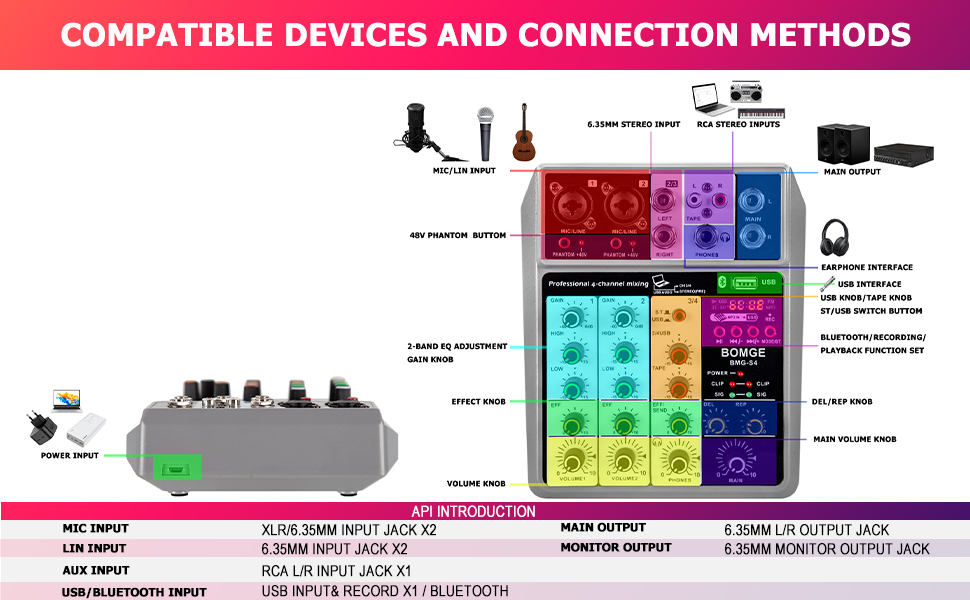
Figure 3.1.2: Illustrates the mixer's dimensions and various power supply options, including computer, power adapter, and power bank.
3.2 Connecting Audio Devices
The mixer supports a variety of input and output devices. Ensure all connections are secure before operation.
- Microphones: Connect XLR microphones to the MIC/LINE inputs (1 and 2). For condenser microphones, activate the 48V Phantom Power button.
- Line-Level Devices: Use 6.35mm (1/4 inch) stereo inputs or RCA stereo inputs for devices like CD players, keyboards, or computers.
- Outputs: Connect active speakers, power amplifiers, or active sound systems to the MAIN L/R 6.35mm outputs.
- Headphones: Plug headphones into the 6.35mm PHONES jack for monitoring.

Figure 3.2.1: Diagram showing various compatible input devices (condenser mic, wireless mic, guitar, electronic keyboard, computer) and output devices (headphone, active speaker, power amplifier).

Figure 3.2.2: Detailed diagram illustrating various connection methods and input/output types on the BOMGE audio mixer.

Figure 3.2.3: Close-up view of the 48V Phantom Power button, essential for condenser microphones.
3.3 Bluetooth Pairing
To stream audio wirelessly, pair your device with the mixer via Bluetooth.
- Ensure the mixer is powered on.
- On your mobile device, enable Bluetooth and search for available devices.
- Select "MIX-MP3 BT" or a similar name from the list to connect.
- Once paired, you can stream audio from your device to the mixer.
Video 3.3.1: Demonstrates the Bluetooth pairing process with a mobile phone, showing the device selection on the phone screen.

Figure 3.3.1: Visual representation of the mixer's USB audio and Bluetooth interface, showing a phone connected via Bluetooth and a USB stick for playback/recording.
4. Operating Instructions
4.1 Controls Overview
Familiarize yourself with the main controls of the mixer:
- GAIN Knobs: Adjust the input sensitivity for each channel.
- HIGH/LOW EQ Knobs: Control the treble and bass frequencies for each channel.
- EFF Knobs: Adjust the level of the effect send for each channel.
- VOLUME Knobs: Control the output volume for individual channels.
- MAIN Knob: Adjust the overall output volume of the mixer.
- DEL/REP Knobs: Control the delay and repeat parameters of the built-in effects.
- PHONES Knob: Adjust the volume for the headphone output.
- LED Indicators: Monitor signal (SIG) and clipping (CLIP) levels.

Figure 4.1.1: Front view of the BOMGE audio mixer, showing all knobs, buttons, and indicators.
4.2 Adjusting EQ and Effects
Use the EQ and effect controls to shape your sound.
- 2-Band EQ: Rotate the HIGH knob to boost or cut high frequencies and the LOW knob for low frequencies. This allows for precise tonal adjustments for each channel.
- Echo and Delay: The DEL and REP knobs on the master section control the characteristics of the built-in echo and delay effects. Adjust the EFF knob on individual channels to send more or less of that channel's signal to the effects processor.

Figure 4.2.1: Close-up of a hand adjusting the 2-band EQ knobs (HIGH and LOW) on the mixer, demonstrating the ease of frequency adjustment.
4.3 USB Playback and Recording
The mixer offers versatile USB functionality for both playback and recording.
- USB-A (Front Port): Insert a USB stick into the USB-A port to play MP3 audio files. You can also record the mixer's output directly to the USB stick. Use the media control buttons (Play/Pause, Next, Previous) to navigate tracks.
- USB-B (Rear Port): Connect the USB-B port to a computer, mobile phone, or tablet using a compatible USB cable. This enables the mixer to function as an audio interface for recording and playback with your digital audio workstation (DAW) or recording software.
Video 4.3.1: Illustrates the various input and output connections, including USB interfaces for recording and playback, and demonstrates basic mixer functionality.
4.4 Headphone Monitoring
Use the headphone output to monitor your mix in real-time without affecting the main output.
- Plug your headphones into the 6.35mm PHONES jack.
- Adjust the PHONES knob to control the headphone volume.

Figure 4.4.1: Shows headphones connected to the mixer, emphasizing the real-time monitoring capability for sound and volume adjustment.
5. Maintenance
To ensure the longevity and optimal performance of your BOMGE Audio Mixer, follow these maintenance guidelines:
- Cleaning: Use a soft, dry cloth to wipe down the exterior of the mixer. Avoid using abrasive cleaners, solvents, or waxes, as they may damage the finish or internal components.
- Dust Protection: When not in use, cover the mixer to prevent dust accumulation, especially over knobs and faders.
- Storage: Store the mixer in a cool, dry place away from direct sunlight, extreme temperatures, and high humidity.
- Handle with Care: Avoid dropping the mixer or subjecting it to strong impacts. Do not force knobs or connectors.
- Cable Management: Ensure cables are not tangled or under strain, which can damage ports or internal wiring.
6. Troubleshooting
If you encounter issues with your BOMGE Audio Mixer, refer to the following common troubleshooting steps:
| Problem | Possible Cause | Solution |
|---|---|---|
| No sound output from main speakers. | Main volume knob is too low; cables are incorrectly connected; output device (speakers/amp) is off or muted. | Increase MAIN volume. Check all cable connections (L/R Main Out to speakers/amp). Ensure speakers/amp are powered on and unmuted. |
| No sound from a specific input channel. | Channel volume knob is too low; GAIN knob is too low; incorrect input selected (e.g., MIC/LINE switch); 48V Phantom Power not enabled for condenser mic. | Increase channel VOLUME and GAIN. Verify correct input type is used. Activate 48V Phantom Power if using a condenser microphone. |
| Distorted or noisy audio. | GAIN or VOLUME levels are too high (clipping); faulty cables; interference from other electronic devices. | Reduce GAIN and VOLUME levels to prevent CLIP indicator from lighting up. Use shielded cables. Move mixer away from potential sources of interference. |
| Bluetooth connection issues. | Device not in pairing mode; mixer not discoverable; interference; device too far. | Ensure mixer is in Bluetooth mode. Restart both mixer and Bluetooth device. Move closer to the mixer. Disconnect other Bluetooth devices. |
| USB stick not recognized or not playing. | Incorrect file format; USB stick corrupted; USB stick not fully inserted. | Ensure audio files are in a supported format (e.g., MP3). Try a different USB stick. Re-insert the USB stick firmly. |
7. Specifications
| Feature | Detail |
|---|---|
| Model Number | 04F |
| Number of Channels | 4 |
| Connectivity Technology | Bluetooth, Auxiliary, USB |
| Power Source | Corded Electric |
| Voltage | 5 Volts |
| Product Dimensions | 1.8"D x 5.9"W x 7.4"H (4.6cm D x 15cm W x 18.9cm H) |
| Item Weight | 1.21 pounds (550 Grams) |
| Country of Origin | China |
8. Warranty and Support
BOMGE is committed to providing high-quality professional recording equipment. For warranty information, technical support, or service inquiries, please contact BOMGE customer support through the retailer where you purchased the product or visit the official BOMGE website.
For more information, you can visit the BOMGE Store on Amazon.


