
1. Introduction
Thank you for choosing the NIYAMA Smart Tracker HB12ABC. This device is designed to help you locate your valuable items quickly and efficiently. By pairing it with your smartphone, you can track its location, receive separation alerts, and make the tracker ring to find misplaced items nearby. Please read this manual thoroughly before using the product to ensure proper operation and to maximize its lifespan.
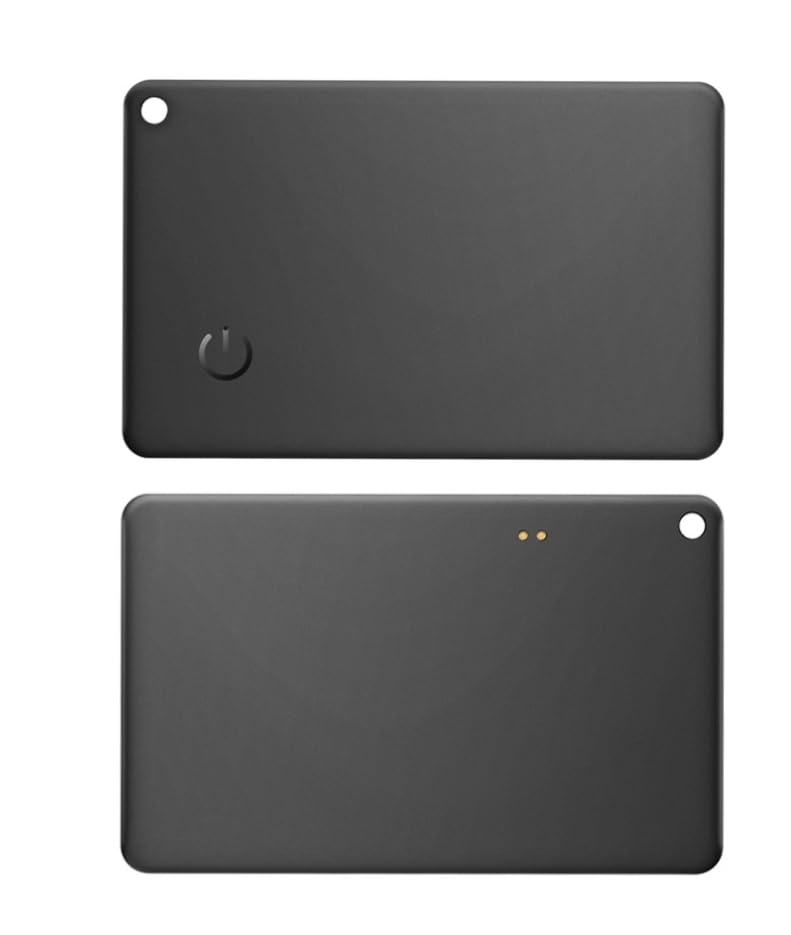
Figure 1: NIYAMA Smart Tracker HB12ABC. This image displays the compact design of the smart tracker, highlighting its portability and ease of attachment to various items.
2. Safety Information
- Keep the device away from water and excessive moisture.
- Do not expose the device to extreme temperatures (hot or cold).
- Avoid dropping or subjecting the device to strong impacts.
- Do not attempt to disassemble or modify the device. This will void the warranty.
- Keep out of reach of children and pets to prevent accidental ingestion of small parts.
- Dispose of the device and its battery according to local regulations.
3. Setup
3.1 Initial Charging
Before first use, fully charge your NIYAMA Smart Tracker. Connect the provided charging cable to the charging port on the device and a USB power source. The indicator light will show charging status and turn off when fully charged.
3.2 App Installation
Download the official NIYAMA tracking application from your smartphone's app store (iOS App Store or Google Play Store). Search for "NIYAMA Tracker" or refer to the QR code on the product packaging for direct download.
3.3 Pairing the Device
- Ensure your smartphone's Bluetooth is enabled.
- Open the NIYAMA Tracker app and follow the on-screen instructions to create an account or log in.
- Press and hold the button on the NIYAMA Smart Tracker for approximately 3-5 seconds until you hear a beep or see an indicator light flash, indicating it's in pairing mode.
- In the app, select "Add Device" or a similar option. The app will scan for available trackers.
- Select "NIYAMA HB12ABC" from the list of found devices to complete the pairing process.
- Once paired, you can name your tracker (e.g., "Keys," "Wallet") within the app.
4. Operating Instructions
4.1 Locating Items
To find an item attached to your NIYAMA Smart Tracker:
- Open the NIYAMA Tracker app on your smartphone.
- Select the desired tracker from your device list.
- Tap the "Ring" button in the app. The tracker will emit an audible sound, helping you locate it.
- The app may also display the last known location on a map if the tracker was out of Bluetooth range.
4.2 Separation Alerts
The NIYAMA Smart Tracker can alert you when you leave an item behind:
- Enable "Separation Alert" or "Anti-Loss Alarm" in the app settings for each tracker.
- When your tracker moves out of Bluetooth range from your smartphone, both your phone and the tracker will emit an alert.
- You can customize alert sounds and sensitivity within the app.
4.3 Finding Your Phone (Reverse Tracking)
If you misplace your phone but have your tracker:
- Double-press the button on your NIYAMA Smart Tracker.
- Your smartphone will ring, even if it's on silent mode, helping you locate it.
5. Maintenance
5.1 Cleaning
Wipe the device with a soft, dry cloth. Do not use harsh chemicals, cleaning solvents, or strong detergents.
5.2 Battery Care
The NIYAMA Smart Tracker features a rechargeable battery. To ensure optimal battery life:
- Charge the device regularly, especially when the app indicates low battery.
- Avoid completely draining the battery frequently.
- If storing the device for an extended period, charge it to about 50% before storage and recharge every few months.
6. Troubleshooting
| Problem | Solution |
|---|---|
| Device not pairing. |
|
| Tracker not ringing. |
|
| Inaccurate location data. |
|
| Battery drains quickly. |
|
7. Specifications
- Brand: NIYAMA
- Model: HB12ABC (Manufacturer Model: ATG-HB12-C1)
- UPC: 717328786973
- GTIN: 717328786973
- Connectivity: Bluetooth (specific version not provided, assuming standard)
- Battery: Rechargeable (type not specified, implied from reviews)
- Warranty: 1 Year
- ASIN: B0DBQXB51J
8. Warranty Information
The NIYAMA Smart Tracker HB12ABC comes with a one (1) year limited warranty from the date of purchase. This warranty covers manufacturing defects and workmanship under normal use. It does not cover damage caused by misuse, accidents, unauthorized modifications, or normal wear and tear. Please retain your proof of purchase for warranty claims.
9. Customer Support
For technical assistance, troubleshooting, or warranty inquiries, please refer to the following resources:
- Visit the official NIYAMA website for FAQs and support documentation.
- Contact NIYAMA customer service through the contact information provided on the product packaging or the official website.
- Check the NIYAMA Tracker app for in-app support options.