
Smartby XRT270
Smartby XRT270 Voice Remote Instruction Manual
Model: XRT270
1. Introduction
The Smartby XRT270 Voice Remote is designed to provide seamless and intuitive control for your Vizio 4K, FHD, Quantum, Quantum Pro, or P-Series TV. This manual will guide you through the setup, operation, and maintenance of your new remote, ensuring you can fully utilize its features, including advanced voice command capabilities.
2. Compatibility
This XRT270 Voice Remote is a replacement and is compatible with the following Vizio TV models:
- Vizio 4K TVs
- Vizio FHD TVs
- Vizio Quantum TVs
- Vizio Quantum Pro TVs
- Vizio P-Series TVs
3. Key Features
- Voice Control: Enables effortless voice commands for navigating menus, launching apps, and more.
- Intuitive Interface: Ergonomic design with dedicated buttons for quick access to frequently used functions and a comfortable grip.
- Long-Range Connectivity: Control your TV from anywhere in the room without direct line-of-sight.
- Seamless Integration: Designed for automatic pairing with compatible Vizio TVs.
4. Setup Guide
4.1. Battery Installation
The XRT270 remote requires two (2) AAA batteries (not included). Please follow these steps to install them:
- Locate the battery compartment on the back of the remote control.
- Slide the battery cover downwards to open it.
- Insert two AAA batteries, ensuring the positive (+) and negative (-) ends align correctly with the indicators inside the compartment.
- Slide the battery cover back into place until it clicks securely.

Image: Front and side view of the XRT270 remote, showing its ergonomic design. The battery compartment is located on the back.
4.2. Initial Pairing
The remote should automatically pair with your Vizio TV upon battery installation. If automatic pairing does not occur, or if you need to re-pair the remote, follow these manual pairing instructions:
- Ensure your Vizio TV is powered on.
- On the XRT270 remote, press and hold the "Mic" button and the "Mute" button simultaneously.
- Hold both buttons until an on-screen message appears on your TV indicating that the remote is pairing or has successfully paired.
- Release the buttons once pairing is complete.

Image: The XRT270 remote highlighting its voice control capabilities, which are central to its functionality and pairing process.
5. Operating Your Remote
5.1. Basic Navigation
The XRT270 remote features standard buttons for TV control:
- Power Button: Turns the TV on or off.
- Input Button: Cycles through available input sources.
- Directional Pad (D-Pad) and OK Button: Navigate menus and confirm selections.
- Back Button: Returns to the previous screen or menu.
- Home Button: Accesses the Vizio SmartCast Home screen.
- Volume Up/Down: Adjusts the TV volume.
- Mute Button: Mutes or unmutes the TV audio.
- App Shortcut Buttons: Dedicated buttons for popular streaming services like Netflix, Prime Video, Disney+, Sling, iHeartRadio, and XumoPlay for quick access.
5.2. Voice Control Functionality
The voice control feature allows you to interact with your Vizio TV using spoken commands. This makes searching for content, launching apps, and adjusting settings more convenient.
- Press and hold the "Mic" button (voice button) located on the remote.
- While holding the button, speak your command clearly into the remote.
- Release the "Mic" button once you have finished speaking.
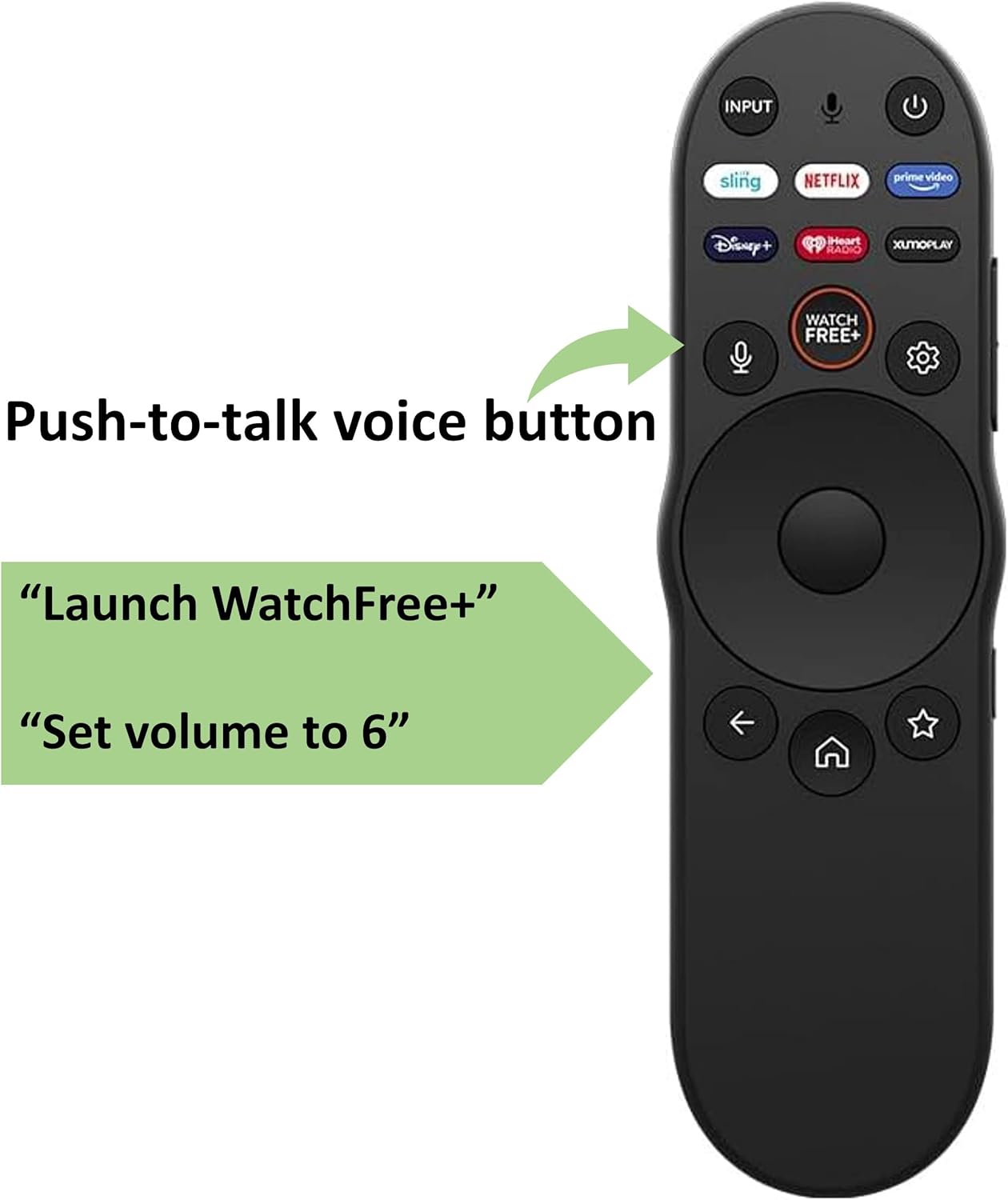
Image: The XRT270 remote with an arrow indicating the location of the 'Push-to-talk voice button' for activating voice commands.
Examples of voice commands you can use:
- "Launch WatchFree+"
- "Set volume to 6"
- "Switch to HDMI 1"
- "Show me comedy movies"
- "What's the weather like?"

Image: The XRT270 remote displayed alongside common voice command examples, illustrating its voice control capabilities.
6. Care and Maintenance
To ensure the longevity and optimal performance of your XRT270 Voice Remote, please follow these care instructions:
- Cleaning: Use a soft, dry cloth to clean the remote. Do not use liquid cleaners or abrasive materials.
- Battery Replacement: Replace batteries when the remote's response becomes sluggish or stops working. Always replace both batteries at the same time with new ones.
- Storage: Store the remote in a cool, dry place away from direct sunlight and extreme temperatures.
- Avoid Drops: Protect the remote from physical impact, as drops can damage internal components.
7. Troubleshooting
If you encounter issues with your XRT270 Voice Remote, try the following troubleshooting steps:
- Remote Not Responding:
- Check if the batteries are correctly inserted and have sufficient charge. Replace them if necessary.
- Ensure there are no obstructions between the remote and the TV.
- Voice Control Not Working:
- Ensure the remote is properly paired with your TV (refer to Section 4.2).
- Speak clearly and directly into the microphone when pressing the "Mic" button.
- Check your TV's settings to ensure voice control is enabled.
- Pairing Issues:
- Repeat the manual pairing process (Section 4.2).
- Ensure your TV's software is up to date.
- Try restarting your TV by unplugging it from the power outlet for a few minutes, then plugging it back in.
8. Product Specifications
| Feature | Detail |
|---|---|
| Product Dimensions | 6 x 1.5 x 0.7 inches |
| Item Weight | 1.94 ounces |
| Item Model Number | XRT270 |
| Batteries Required | 2 AAA batteries (not included) |
| Special Feature | Ergonomic, Voice Search |
| Max Number of Supported Devices | 1 |
| Compatible Devices | Television |
| Connectivity Technology | Bluetooth |
| Manufacturer | Smartby |
| Country of Origin | China |
9. Warranty and Support
For information regarding warranty coverage and customer support for your Smartby XRT270 Voice Remote, please refer to the documentation provided with your purchase or contact the seller directly. You may also visit the official Smartby store for additional resources and contact information:
Ask a question about this manual
Ask about setup, troubleshooting, compatibility, parts, safety, or missing instructions. Manuals+ will review the question and use this page’s manual context to help answer it.