
Genius NX-7000
Genius NX-7000 Wireless Mouse User Manual
Model: NX-7000 (P/N: 31030027402)
Introduction
The Genius NX-7000 is a 2.4 GHz wireless mouse designed for comfort and versatility. Featuring BlueEye technology, it offers precise tracking on various surfaces. Its ambidextrous design ensures comfortable use for both left and right-handed users. This manual provides essential information for setting up, operating, maintaining, and troubleshooting your NX-7000 wireless mouse.
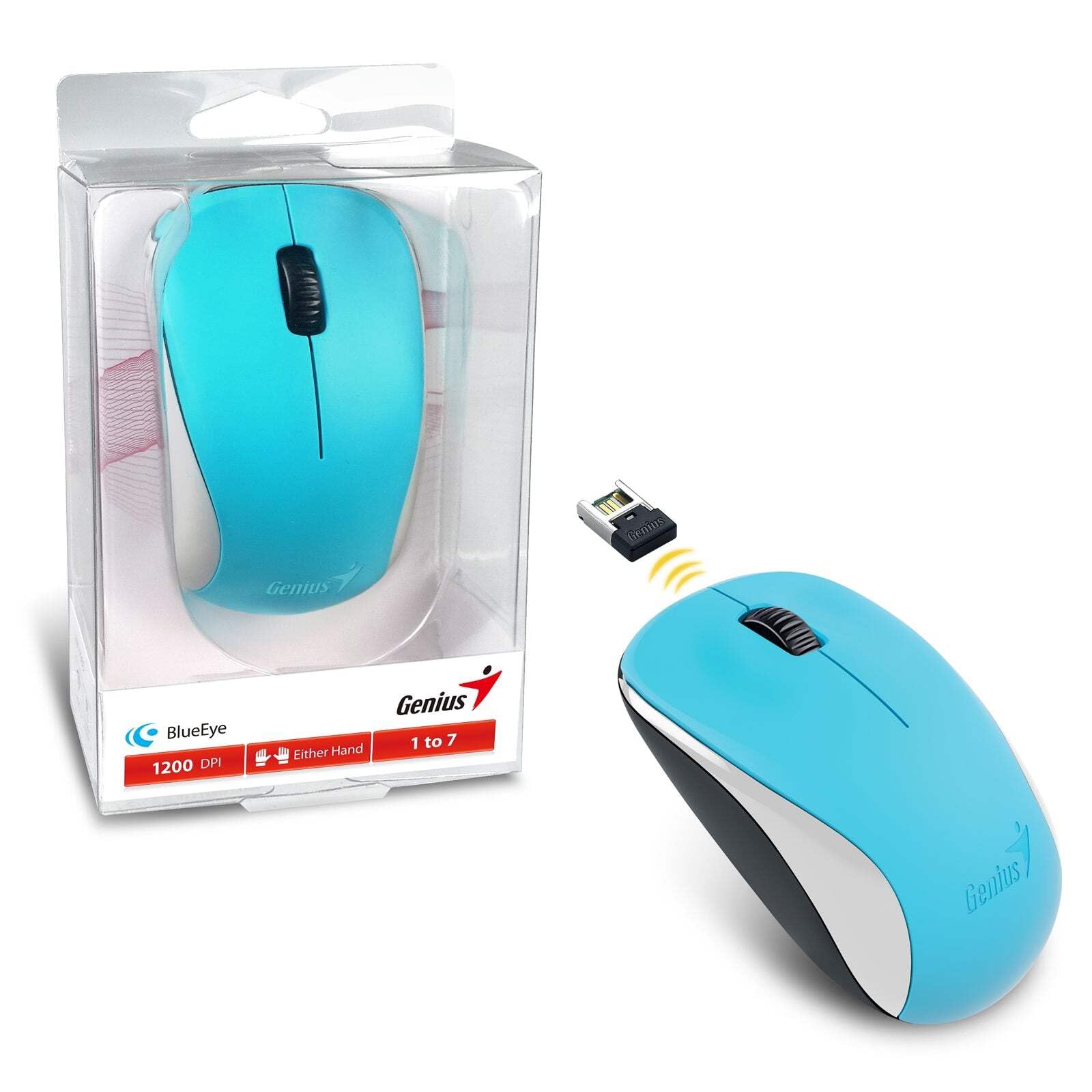
Image: The Genius NX-7000 wireless mouse in blue, shown alongside its compact USB pico receiver. The mouse features a contoured, ambidextrous design with a scroll wheel and two main buttons. The packaging is visible on the left.
Setup
1. System Requirements
- Operating System: Windows 7, 8, 8.1, 10 or Mac OS X 10.8 or later.
- Available USB Port.
- One AA battery (for mouse power).
2. Battery Installation
- Locate the battery compartment cover on the underside of the mouse.
- Slide or lift the cover to open the compartment.
- Insert one AA battery, ensuring the positive (+) and negative (-) terminals align correctly with the markings inside the compartment.
- Close the battery compartment cover securely.
3. Connecting the USB Pico Receiver
- Remove the USB pico receiver from its storage slot on the bottom of the mouse.
- Plug the USB pico receiver into an available USB port on your computer.
- Your computer should automatically detect and install the necessary drivers for the mouse. This may take a few moments.
- Once the drivers are installed, the mouse is ready for use.
Operating Instructions
Basic Operation
- Left Button: Primary click function, typically used for selecting items, opening files, or activating links.
- Right Button: Secondary click function, typically used to open context menus.
- Scroll Wheel (Middle Button): Used for scrolling through documents or web pages. Pressing the scroll wheel can also act as a middle click button, often used for opening links in new tabs.
BlueEye Technology
The NX-7000 utilizes 1000dpi BlueEye technology, which provides enhanced tracking accuracy. This technology allows the mouse to function reliably on a wide variety of surfaces, including those that are typically challenging for optical mice, such as dusted glass, marble, sofas, or carpets.
SmartGenius Software (Optional)
For advanced customization, you can download and install the SmartGenius software from the official Genius website. This software allows you to adjust DPI levels and other performance settings to suit your personal preferences, enhancing your user experience.
Pico Receiver Storage
When traveling or not using the mouse, the USB pico receiver can be conveniently stored inside a dedicated slot on the bottom of the mouse. This prevents loss and protects the receiver.
Unifying Genius Mice
The NX-7000 receiver is designed to work with other compatible Genius wireless mice. This feature allows you to use a single receiver for multiple Genius wireless devices, reducing the number of USB ports required and offering greater mobility if you own several Genius wireless products.
Maintenance
- Cleaning: Use a soft, dry cloth to clean the mouse. For stubborn dirt, slightly dampen the cloth with water. Avoid using harsh chemicals or abrasive cleaners.
- Battery Replacement: Replace the AA battery when the mouse performance degrades or it stops responding. Always dispose of used batteries responsibly according to local regulations.
- Storage: When not in use for extended periods, remove the battery to prevent leakage. Store the mouse and receiver in a cool, dry place.
- Avoid Extreme Conditions: Do not expose the mouse to extreme temperatures, direct sunlight, or excessive moisture.
Troubleshooting
| Problem | Possible Cause / Solution |
|---|---|
| Mouse not responding. |
|
| Cursor movement is erratic or jumpy. |
|
| Mouse buttons or scroll wheel not working. |
|
Specifications
| Feature | Detail |
|---|---|
| Model Number | 31030027402 |
| Connection Type | Wireless (2.4 GHz) |
| Sensor Engine | BlueEye |
| Resolution (DPI) | 1200 DPI (Adjustable via SmartGenius software) |
| Number of Buttons | 3 (Left, Right, Middle button with scroll wheel) |
| Design | Ambidextrous, Contoured |
| Power Source | 1 x AA Battery |
| Dimensions (W x H x D) | 60 x 105 x 37 mm (2.36 x 4.13 x 1.46 inches) |
| Weight | 85 g (0.19 lbs) |
| Available Colors | Ocean Blue, Spring Green, Elegant White, Passion Red, Calm Black |
Warranty and Support
For information regarding warranty coverage, technical support, or service, please refer to the warranty card included with your product or visit the official Genius website. You can typically find support resources, FAQs, and contact information for customer service there.
Official Genius Website: www.geniusnet.com
Related documentsNX-7000


Ask a question about this manual
Ask about setup, troubleshooting, compatibility, parts, safety, or missing instructions. Manuals+ will review the question and use this page’s manual context to help answer it.