1. Introduction
This manual provides comprehensive instructions for the Qubo NEONW GSM Flip Phone, designed specifically for seniors. It covers setup, operation, maintenance, and troubleshooting to ensure a user-friendly experience. Please read this manual carefully before using your new phone.
2. What's in the Box
- Qubo NEONW Flip Phone
- USB-C Charger
- Product Manual (this document)
- Lithium-ion Battery (pre-installed or separate)

Image: The Qubo NEONW Flip Phone with its included USB-C charger and manual.
3. Product Overview
The Qubo NEONW is a user-friendly flip phone featuring a 2.4-inch display, large buttons, and a loud ringer, making it ideal for seniors. Key features include an SOS emergency call function, picture contacts, and a built-in FM radio and camera.

Image: The Qubo NEONW flip phone in an open position, displaying its large, easy-to-read buttons and a simple multimedia menu on the screen.
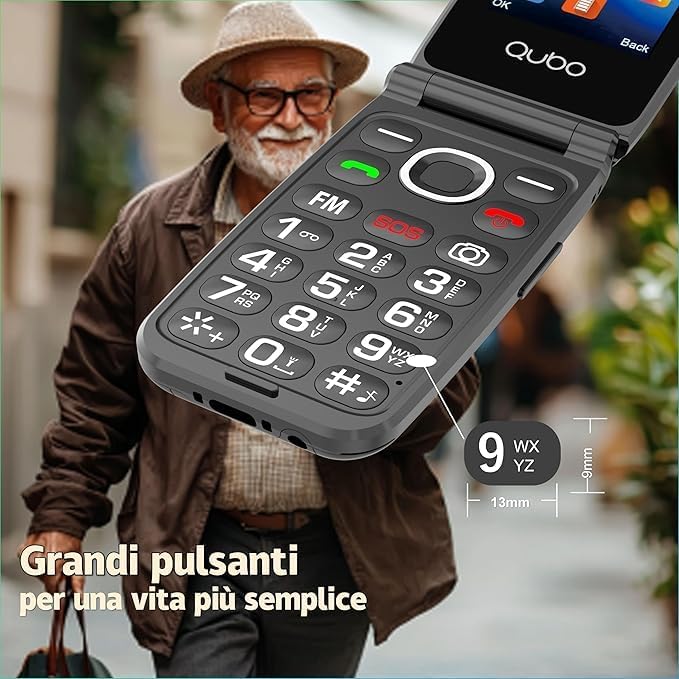
Image: A close-up of the Qubo NEONW phone's large, well-spaced physical buttons, designed for easy dialing and navigation.
4. Setup
4.1. Inserting SIM Card and Battery
- Open the Phone: Gently open the back cover of the phone.
- Insert SIM Card(s): Locate the SIM card slot(s). Insert your GSM SIM card(s) into the designated slot(s) with the gold contacts facing down. Ensure it clicks into place.
- Insert Battery: Place the battery into the battery compartment, aligning the contacts.
- Close the Phone: Replace the back cover until it securely snaps into place.
4.2. Initial Power On and Charging
- Power On: Press and hold the red power button (usually the end call button) until the screen lights up.
- Charge Battery: Connect the USB-C charger to the phone's charging port and plug it into a power outlet. Charge the phone fully before first use. The battery indicator on the screen will show charging status.
5. Operating Instructions
5.1. Making and Receiving Calls
- To Make a Call: Dial the number using the keypad and press the green call button.
- To Receive a Call: Open the flip to answer, or press the green call button if the phone is already open.
- To End a Call: Close the flip or press the red end call button.
5.2. SOS Emergency Call Function
The phone features a dedicated SOS button for emergencies. You can program up to 5 emergency contacts.
- Setting SOS Numbers: Navigate to the SOS settings in the phone's menu. Add up to 5 emergency contact numbers.
- Using SOS: In an emergency, press and hold the red SOS button on the back of the phone. The phone will automatically call the pre-set numbers in sequence until one is answered.

Image: The Qubo NEONW flip phone showing the prominent SOS button and a visual representation of how it connects to five pre-programmed emergency contacts.
Video: A product overview demonstrating features like camera, lighting, loud ringtone, large buttons, SOS emergency calls, and font switching on the Qubo NEONW flip phone.
5.3. Speed Dial (Picture Contacts)
Assign frequently called numbers to speed dial keys or picture contacts for quick access.
- Setting Speed Dial: In the contacts menu, select a number key (2-9) and assign a contact. Long-press the assigned key to dial.
- Picture Contacts: The phone supports assigning images to contacts, making it easier to identify callers. Navigate to a contact, select "Edit," and choose "Add Picture."

Image: The Qubo NEONW flip phone screen showing an incoming call with a contact picture, demonstrating the picture contact feature.
5.4. Using the FM Radio
The phone includes a built-in FM radio. No headphones are required for operation.
- Accessing FM Radio: From the main menu, select "FM Radio."
- Scanning Channels: Use the navigation keys to scan for available radio stations.
- Adjusting Volume: Use the side volume buttons or navigation keys to adjust the radio volume.
5.5. Camera and Flashlight
- Camera: Access the camera from the main menu to take photos.
- Flashlight: The phone features a built-in flashlight. Typically, this can be activated by a dedicated button or a long-press of a specific key (refer to on-screen prompts if unsure).

Image: A view of the Qubo NEONW flip phone's rear, highlighting the camera lens and the powerful 100dB loudspeaker, along with the ultrabright flashlight.
5.6. Adjusting Volume and Ringtones
- Call Volume: Use the side volume buttons during a call to adjust the earpiece volume.
- Ringtone Volume: Navigate to "Settings" > "Profiles" or "Sound Settings" to adjust the ringtone volume and select a preferred ringtone. The phone is designed with a loud ringer for easy audibility.
6. Maintenance
- Battery Care: To prolong battery life, avoid extreme temperatures. Charge the phone regularly, but avoid overcharging for extended periods.
- Cleaning: Use a soft, dry cloth to clean the phone's screen and body. Avoid using harsh chemicals or abrasive materials.
- Storage: Store the phone in a cool, dry place when not in use for extended periods.
7. Troubleshooting
| Problem | Possible Cause | Solution |
|---|---|---|
| Phone does not power on. | Low battery or battery not inserted correctly. | Charge the phone for at least 30 minutes. Ensure the battery is correctly inserted. |
| Cannot make or receive calls. | No SIM card, SIM card not inserted correctly, or no network signal. | Check SIM card insertion. Ensure you are in an area with network coverage. Contact your service provider if issues persist. |
| Low call volume. | Volume settings are too low. | Increase the volume using the side buttons during a call. |
| SOS function not working. | Emergency numbers not programmed or incorrect. | Verify that emergency numbers are correctly saved in the SOS settings. |
8. Specifications
| Feature | Detail |
|---|---|
| Brand | Qubo |
| Model Name | NEONW |
| Product Dimensions | 10.5 x 5.3 x 1.74 cm |
| Weight | 0.21 grams |
| Display Size | 2.4 Inches |
| Display Technology | LCD |
| Resolution | 240x320 pixels |
| RAM Size | 64 MB |
| Flash Memory Size | 32 MB |
| Battery Capacity | 800 mAh Lithium-ion |
| Cellular Technology | 2G (GSM) |
| Additional Features | Camera, FM Radio, SOS Function |
9. Warranty and Support
For warranty information and customer support, please refer to the warranty card included with your product or visit the official Qubo website. Our customer support team is available to assist with any questions or issues you may encounter.
For any problems, our customer support responds to emails within 24 hours.


