
Important Safety Information
Please read the following safety instructions carefully before using the product. Failure to do so may result in personal injury or equipment damage.

Product Overview
The Jectse 12 Key Mechanical Gaming Keyboard is a compact, programmable macro keyboard designed for various applications, including gaming, office work, and media control. It features hot-swappable mechanical switches and RGB lighting.

Package Contents
Verify that all items listed below are present in your package:
- 1 x Jectse 12 Key Mechanical Gaming Keyboard
- 1 x Type-C USB Cable
- 1 x Keycap Puller

Setup
Connecting the Keyboard
The Jectse 12 Key Mechanical Gaming Keyboard utilizes a Type-C wired connection for reliable performance and ease of use.
- Locate the Type-C port on the back or side of the keyboard.
- Connect one end of the provided Type-C USB cable to the keyboard's Type-C port.
- Connect the other end of the USB cable to an available USB port on your computer (PC, laptop, Raspberry Pi, etc.).

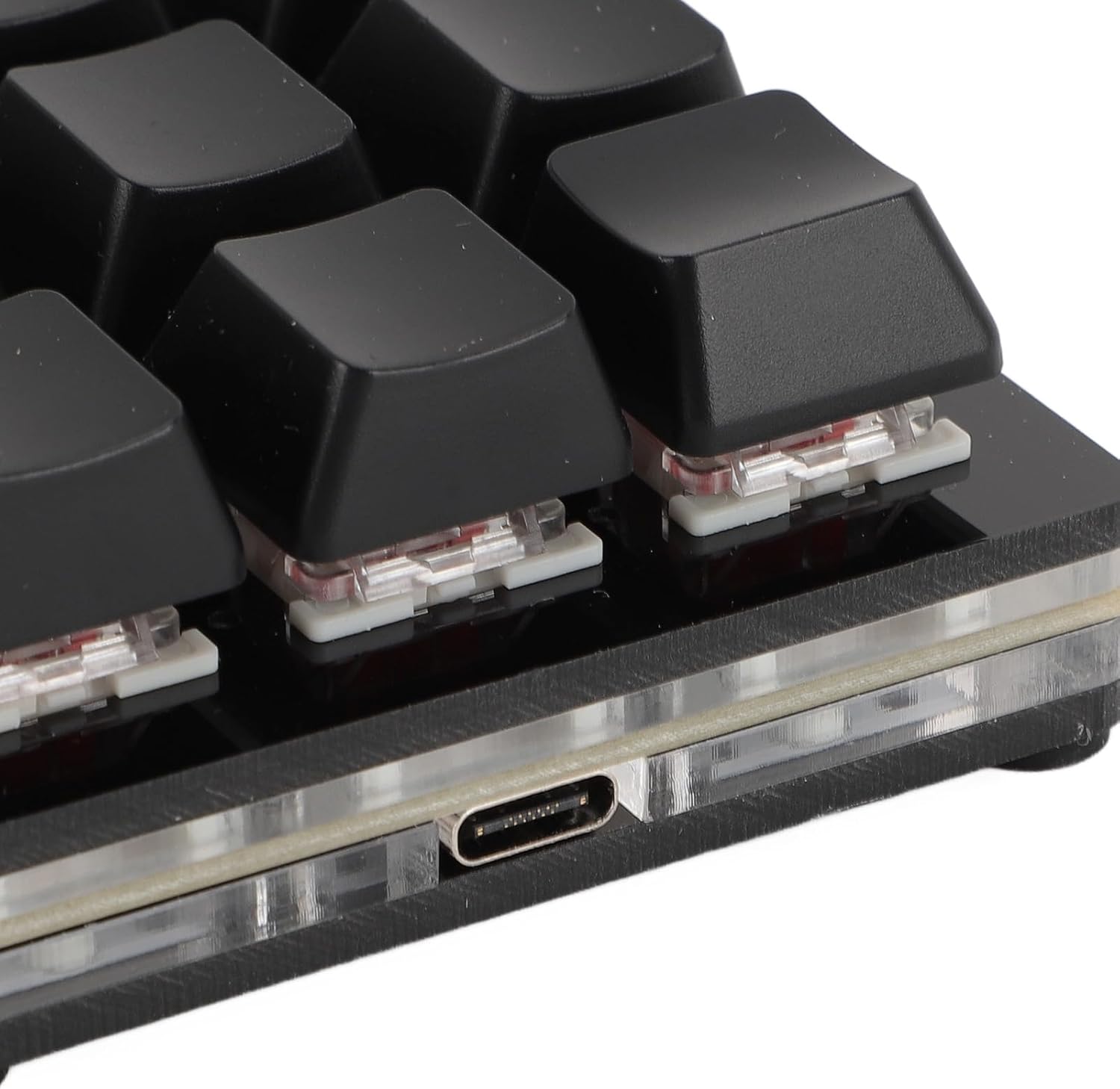
Driver Installation
The keyboard is plug-and-play. No specific driver downloads are required for basic functionality. It is compatible with various operating systems, including Linux, macOS, Windows, and Raspberry Pi. The keyboard features a memory function, retaining your settings even after disconnection, eliminating the need for reconfiguration.
Operating Instructions
Programmable Functions and Customization
This mechanical keyboard offers extensive customization options, allowing you to program each of its 12 keys for various functions. This includes:
- Keyboard Functions: Assign standard key presses or combinations.
- Mouse Functions: Emulate mouse clicks or movements.
- Multimedia Functions: Control media playback (play, pause, volume up/down, next/previous track).
- String Functions: Input predefined text strings.
- Game Functions: Optimize for specific in-game actions.
- Macro Definition: Create complex sequences of commands.
Common customizable shortcuts include cut, undo, redo, select all, and custom scripts. For macOS users, the 'Command' key functionality is equivalent to the 'Windows' key on Windows OS for tasks like copying and pasting.

RGB Lighting
The keyboard features RGB lighting with multiple adjustable modes. You can cycle through different lighting effects or choose to turn the lighting off entirely, depending on your preference.
Hot-Swappable Mechanical Switches
The keyboard is equipped with hot-swappable mechanical switches, allowing users to easily replace switches without soldering. This feature enables customization of the typing feel and simplifies maintenance.

Versatile Applications
This mini keyboard is a versatile tool suitable for a wide array of applications, enhancing productivity and control in various environments:
- Office Work: Streamline tasks with custom shortcuts.
- Gaming: Execute complex commands with single key presses.
- Music & Media Production: Control software functions efficiently.
- Industrial Control & Laboratory Use: Ideal for specific input requirements.
- Production Line Testing: Facilitate repetitive input tasks.

Maintenance
Cleaning
To maintain the keyboard's performance and appearance, regularly clean its surfaces. Use a soft, dry cloth to wipe down the keycaps and casing. For deeper cleaning, you may gently remove keycaps.
Keycap Removal and Switch Replacement
The provided keycap puller allows for easy removal of keycaps for cleaning or switch replacement. To remove a keycap:
- Gently place the keycap puller over the desired keycap, ensuring the prongs hook onto opposite sides of the keycap.
- Apply gentle, even pressure upwards until the keycap detaches from the switch stem.
To replace a switch (due to the hot-swappable design), use a switch puller (not included) to carefully extract the switch after keycap removal. Align the new switch with the pins and press firmly until it clicks into place.

Troubleshooting
If you encounter issues with your Jectse 12 Key Mechanical Gaming Keyboard, consider the following basic troubleshooting steps:
- No Response: Ensure the Type-C cable is securely connected to both the keyboard and your computer. Try a different USB port on your computer.
- Incorrect Key Output: Verify that your custom programming or macros are correctly configured. Re-program the affected key if necessary.
- RGB Lighting Issues: Cycle through the lighting modes to ensure it's not simply set to off or a very dim setting.
- Intermittent Connection: Try using a different Type-C cable to rule out cable defects.
For persistent issues, consult the manufacturer's support resources or contact customer service.
Specifications
| Feature | Specification |
|---|---|
| Item Type | Mini Mechanical Keyboard |
| Material | Acrylic + ABS |
| Key Number | 12 keys |
| Switch Type | Red Mechanical Switch (Hot-Swappable) |
| Connection Type | Type-C Wired |
| Compatibility | Universal for computer (Linux, macOS, Windows, Raspberry Pi) |
| Model Number | Jectser49tfinua6-12 |
| Dimensions (Package) | 18 x 13 x 4 cm |
| Item Weight | 166 g |
| Colour | Black |
Warranty and Support
For information regarding product warranty, returns, or technical support, please refer to the purchase documentation or contact the retailer/manufacturer directly. Keep your proof of purchase for any warranty claims.