
1. Introduction
This manual provides essential instructions for the safe and efficient use of your Meizu Note 21 Pro smartphone. Please read this manual thoroughly before operating the device and retain it for future reference.
2. What's in the Box
- Meizu Note 21 Pro Smartphone
- Power Adapter
- (Other accessories such as USB cable, SIM ejector tool, and documentation may vary by region.)
3. Device Layout
Familiarize yourself with the physical components of your Meizu Note 21 Pro.
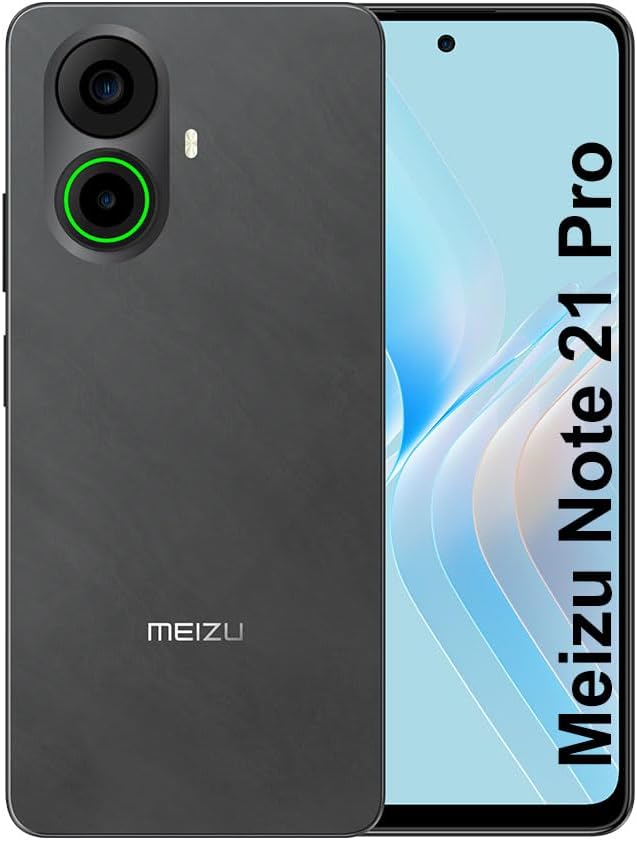
Image 3.1: Front and rear view of the Meizu Note 21 Pro. The front displays the screen with a punch-hole camera. The rear shows the dual camera module with a green accent ring on one lens, a flash, and the "MEIZU" logo at the bottom.
- Front Display: 6.78-inch FHD+ screen with a 120Hz refresh rate.
- Front Camera: Located at the top center of the display.
- Rear Cameras: Dual camera system, including a 64MP main camera.
- Side Fingerprint Sensor: Integrated for secure access.
- USB Port: For charging and data transfer.
- 3.5mm Audio Jack: For headphones.
- SIM/MicroSD Card Tray: Supports Dual Nano SIM and MicroSD cards.
4. Setup
4.1. Inserting SIM and MicroSD Cards
- Locate the SIM card tray on the side of your device.
- Insert the SIM ejector tool into the small hole next to the tray and push gently until the tray pops out.
- Place your Nano SIM card(s) and/or MicroSD card into the designated slots on the tray. Ensure the gold contacts face downwards.
- Carefully reinsert the tray into the device until it clicks into place.
4.2. Initial Power On and Setup
- Press and hold the Power button until the Meizu logo appears.
- Follow the on-screen prompts to select your language, connect to a Wi-Fi network, and set up your Google account.
- During setup, you will be guided to configure security features such as a PIN, pattern, or password.
4.3. Fingerprint Recognition Setup
- Navigate to Settings > Security & privacy > Fingerprint Unlock.
- Follow the on-screen instructions to register your fingerprint by repeatedly touching the side-mounted sensor.
- Ensure your finger covers the entire sensor area during registration for optimal performance.
5. Operating Your Device
5.1. Display and Navigation
- The 6.78-inch FHD+ display operates at a 120Hz refresh rate for smooth visuals.
- Navigate the Android 14 operating system using touch gestures: tap, swipe, pinch-to-zoom.
- Access quick settings by swiping down from the top of the screen.
5.2. Camera Functions
- Open the Camera application from the home screen or app drawer.
- The rear camera system features a 64MP main sensor for high-resolution photos and a 2MP depth-of-field camera for portrait effects.
- The 13MP front-facing camera is suitable for selfies and video calls.
- Tap on the screen to focus, and use the on-screen shutter button to capture images. Explore various modes like Portrait, Night, and Pro within the camera app.
5.3. Performance and Storage
- The MediaTek G99 Octa Core processor ensures efficient performance for applications and multitasking.
- The device comes with 256GB of internal storage and 8GB of RAM.
- Storage can be expanded using a MicroSD card (sold separately).
5.4. Battery and Charging
- The Meizu Note 21 Pro is equipped with a 5000mAh battery.
- Use the provided Power Adapter for 30W fast charging.
- To charge, connect the USB cable to the phone's USB port and the power adapter, then plug the adapter into a wall outlet.
5.5. Connectivity
- 4G LTE: Supports various LTE FDD and TDD bands for cellular data. Note: This international version works on T-Mobile in the USA and globally with other carriers.
- Wi-Fi 5: Connect to wireless networks for internet access.
- Bluetooth: Pair with wireless accessories like headphones and speakers.
- NFC: For contactless payments and quick pairing with compatible devices.
- GPS: For location services and navigation.
6. Maintenance
- Cleaning: Use a soft, lint-free cloth to clean the screen and body of the device. Avoid harsh chemicals or abrasive materials.
- Battery Care: Avoid extreme temperatures. Do not fully discharge the battery frequently. For optimal battery longevity, keep the charge between 20% and 80%.
- Software Updates: Regularly check for and install system updates to ensure optimal performance and security. Go to Settings > System > System update.
7. Troubleshooting
| Issue | Possible Solution |
|---|---|
| Device does not power on | Ensure the battery is charged. Connect the device to the power adapter and try again. If unresponsive, press and hold the Power button for 10-15 seconds to force a restart. |
| Poor network signal | Check if the SIM card is correctly inserted. Move to an area with better network coverage. Restart the device. Verify with your carrier that your plan is active. |
| Apps are slow or crashing | Close background applications. Clear app cache (Settings > Apps > select app > Storage & cache > Clear cache). Restart the device. Ensure sufficient storage space. |
| Fingerprint sensor not working | Ensure your finger and the sensor are clean and dry. Re-register your fingerprint in settings. |
8. Specifications
- Model: Meizu Note 21 Pro
- Operating System: Android 14
- Processor: MediaTek G99 Octa Core (2.2GHz)
- Display: 6.78 inches FHD+ (1080 x 2160 resolution), 120Hz Refresh Rate
- RAM: 8 GB
- Internal Storage: 256 GB
- Rear Camera: 64MP Main + 2MP Depth
- Front Camera: 13MP
- Battery: 5000mAh, 30W Fast Charging
- Connectivity: 4G LTE (FDD:1,2,3,4,5,7,8,12,17,18,19,20,26,28,66; TDD:38,40,41), 3G WCDMA, 2G Quad Band, Wi-Fi 5, Bluetooth, NFC, GPS
- Audio Jack: 3.5 mm
- Dimensions: 6.64 x 2.96 x 0.33 inches
- Weight: 1.1 pounds
9. Warranty and Support
For warranty information and technical support, please refer to the warranty card included with your product or visit the official Meizu website. Keep your proof of purchase for warranty claims.
For further assistance, you may contact Meizu customer service through their official channels.


