
1. Introduction
The PDP Gaming REMATCH GLOW Enhanced Wired Controller in Titan Steel is an officially licensed gamepad designed for Xbox Series X|S, Xbox One, and Windows PC. This controller features a unique glow-in-the-dark design, advanced customization options via the free PDP Control Hub app, and enhanced performance features to optimize your gaming experience. It offers a wired connection for minimal latency and includes mappable back buttons, True Hair Trigger functionality, dual rumble motors, and convenient audio controls.
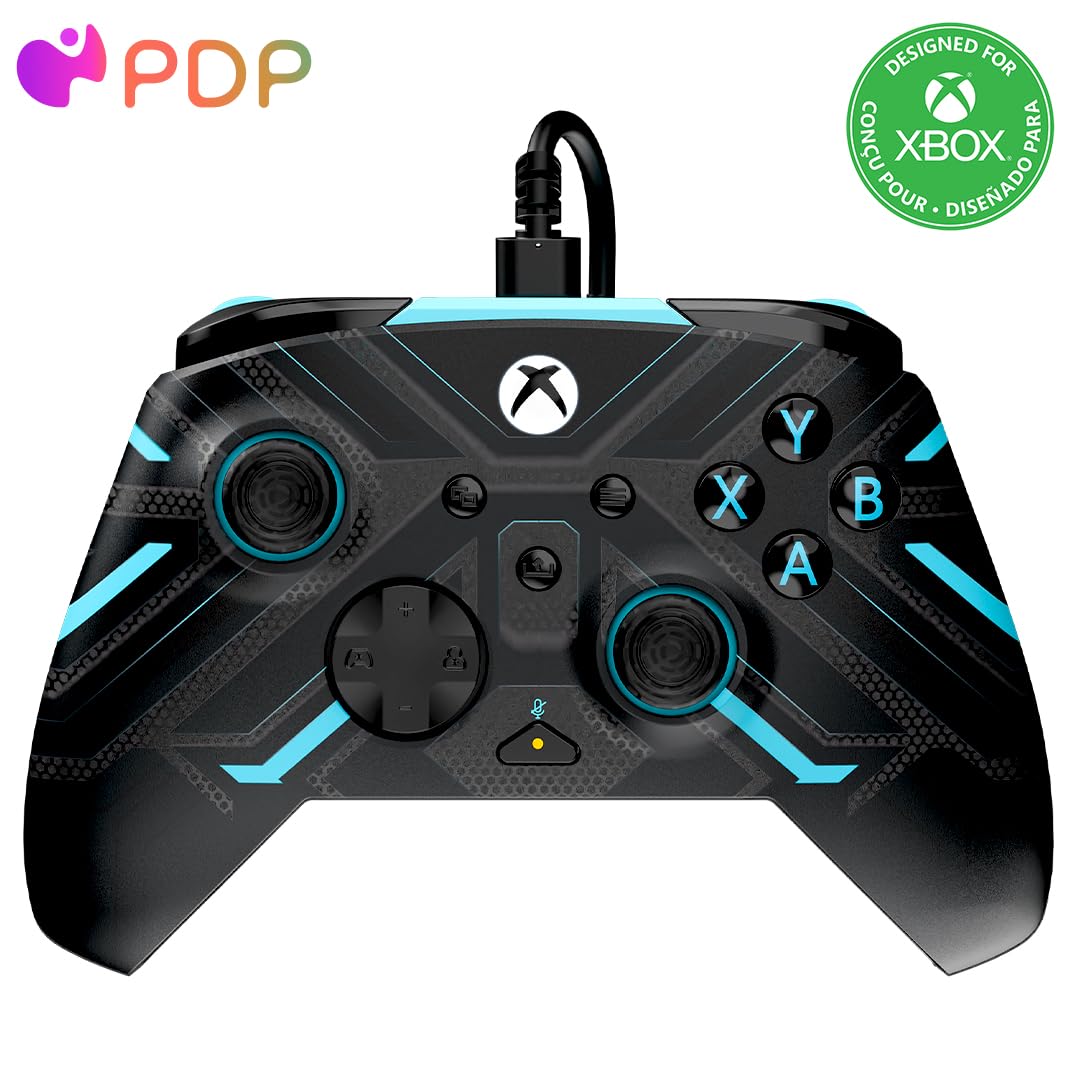
Figure 1: PDP Gaming REMATCH GLOW Enhanced Wired Controller - Titan Steel
2. Product Features
- Glow-in-the-Dark Design: Unique Titan Steel finish with glow-in-the-dark elements for enhanced visibility in low-light conditions. Exposure to UV light is recommended for optimal glow.
- Officially Licensed: Fully licensed by Xbox for seamless compatibility with Xbox Series X|S, Xbox One, and Windows PC.
- Mappable Back Buttons: Two programmable back buttons for quick, on-the-fly command execution, providing a competitive edge.
- True Hair Triggers: Features 3-way stop True Hair Trigger functionality to enhance precision, accuracy, and reaction time.
- Dual Rumble Motors: Built-in dual rumble motors and impulse triggers provide immersive haptic feedback.
- Integrated Audio Controls: Volume controls on the D-pad and a quick mic mute button for convenient audio management during gameplay.
- PDP Control Hub App: Free application for advanced customization, including button re-mapping, trigger reconfiguration, deadzone adjustment, and firmware updates.
- Wired Connection: Includes an 8-foot USB-C cable for a reliable, low-latency connection.

Figure 2: Controller showcasing its glow-in-the-dark feature
3. Setup
- Unpack the Controller: Carefully remove the controller and the included 8-foot USB-C cable from the packaging.
- Connect to Console/PC: Insert the USB-C end of the cable into the port on the top of the controller. Plug the standard USB-A end into an available USB port on your Xbox console (Series X|S, Xbox One) or Windows PC.
- System Recognition: Your console or PC should automatically detect the controller. For PC, drivers may install automatically. If prompted, follow on-screen instructions.
- Headset Connection: To use a headset, plug its 3.5mm audio jack into the port located at the bottom of the controller.

Figure 3: USB-C port for connecting the controller
4. Operating Instructions
4.1 Basic Controls
The controller features a standard Xbox button layout, including two analog sticks, a D-pad, A/B/X/Y buttons, View, Menu, and Share buttons, and left/right bumpers and triggers.
4.2 Mappable Back Buttons
The two back buttons (P1 and P2) can be programmed to replicate any other controller button. This allows for quicker access to frequently used commands without moving your thumbs from the analog sticks.

Figure 4: Mappable back buttons
4.3 True Hair Triggers
The triggers feature a 3-way stop mechanism. This allows you to adjust the travel distance of the triggers, enabling faster response times in games where quick trigger presses are crucial (e.g., shooting games).
4.4 Audio Controls
Use the D-pad to adjust headset volume and mute your microphone. Specific instructions for these functions can be found in the PDP Control Hub App or the quick start guide.
5. Customization with PDP Control Hub App
Unlock the full potential of your controller by downloading the free PDP Control Hub app from the Xbox Store or Windows Store. This app allows for extensive personalization:
- Button Re-mapping: Assign any button function to the mappable back buttons or other standard buttons.
- Trigger Reconfiguration: Adjust trigger deadzones and sensitivity.
- Deadzone Adjustment: Fine-tune analog stick deadzones for precise control.
- Firmware Updates: Keep your controller up-to-date with the latest performance enhancements and bug fixes.

Figure 5: PDP Control Hub App for customization
Video 1: An overview of the PDP Xbox Rematch Enhanced Glow Controller, demonstrating its features and design.
6. Maintenance
- Cleaning: Use a soft, dry cloth to wipe down the controller. For stubborn dirt, a slightly damp cloth with mild soap can be used, ensuring no liquid enters the ports or crevices.
- Cable Care: Avoid sharp bends or excessive pulling on the USB-C cable to prevent damage. Store the cable neatly when not in use.
- Storage: Store the controller in a cool, dry place away from direct sunlight and extreme temperatures.
- Glow Feature: To maintain the glow-in-the-dark effect, periodically expose the controller to a light source, preferably UV light, for a few minutes.
7. Troubleshooting
- Controller Not Responding: Ensure the USB-C cable is securely connected to both the controller and the console/PC. Try a different USB port.
- Buttons Not Working: Check the controller's settings in the PDP Control Hub app to ensure no accidental re-mapping has occurred. Perform a firmware update if available.
- Headset Audio Issues: Verify the headset is fully plugged into the controller's 3.5mm jack. Check in-game and system audio settings. Use the D-pad controls to adjust volume and mic mute.
- Glow Feature Not Visible: The glow-in-the-dark feature requires exposure to light to charge. Ensure the controller has been exposed to sufficient light, especially UV light, before expecting it to glow in the dark.
- PC Connection Issues: Ensure your PC's operating system is up-to-date. Reinstall the PDP Control Hub app if necessary.
8. Specifications
| Model Name | RMTCHTTS |
| Brand | PDP |
| Compatible Devices | PC, Windows, Xbox One, Xbox Series S, Xbox Series X |
| Controller Type | Gamepad |
| Connectivity Technology | USB (Wired) |
| Additional Features | Ergonomic, Headphone Jack, Multiuse |
| Button Quantity | 19 |
| Hardware Platform | Desktop, Gaming Console, Laptop |
| Power Source | Corded Electric |
| Item Weight | 0.82 Pounds |
| Item Dimensions (D x W x H) | 3.23"D x 6.89"W x 6.89"H |
| Color | Titan Steel |
| UPC | 708056072650 |
9. Warranty and Support
For detailed warranty information, please visit the official PDP product warranty page:
PDP Product Warranty Information
For further assistance, technical support, or to access the PDP Control Hub app, please visit the official PDP website or contact their customer support.
